If you are doing online business on the Shopify e-commerce platform, you should learn how to get your Shopify store link. Links are an extremely important factor that helps increase searchability and optimize display on search engines; from there, customers will know more about the store.
Why do you need to get your Shopify link?
Shopify links play an important role for online stores because they are the connection that helps customers easily access the store to visit or shop. Links also help increase brand recognition for your Shopify store, thereby creating an impression for customers about the products you offer.
In addition, getting Shopify store links also helps increase search rankings on Google because search engines often use links to index websites.
Once you get a Shopify store link, you need to see how it affects your store first. So, what is a good link?
- A good link should be optimized and easy to remember.
- It should include main keywords to increase visibility and SEO.
- Use a single consistent link across all platforms (social networks, email, etc.) to maintain professionalism.
What does a Shopify store link look like?
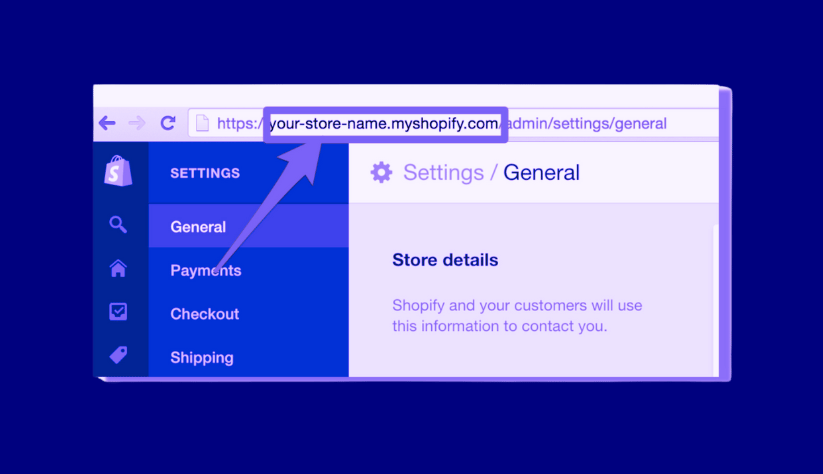
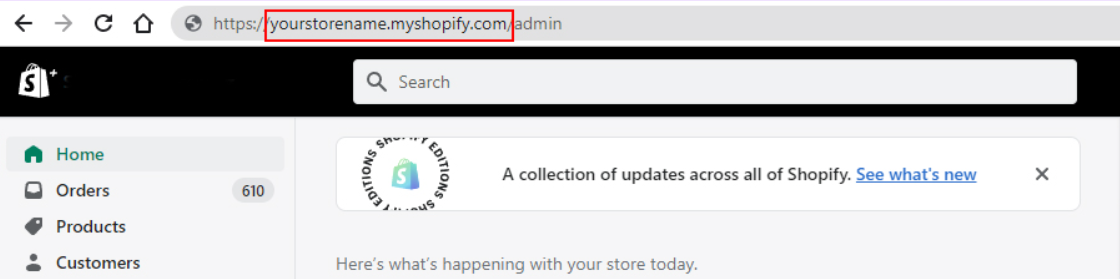
Because they operate on the Shopify e-commerce platform, Shopify store links have the same structure. They all start with the main domain:
[storename].myshopify.com
and then add a slash plus the store subpage.
For example, if the store’s name is Beautiful Flower, the Shopify store link might be:
beautifulflower.myshopify.com
Optimized links help:
- Increase website traffic.
- Improve credibility with customers and Google.
- Appear higher in search results, expanding your market reach.
- Make product directories easier to navigate with keyword-rich URLs.
How to get your Shopify store link
Shopify store links play a very important role in the business strategy of stores, so here are a few ways to track your store’s links.
Check your Shopify store admin
The first way is to check your Shopify store admin.
Steps:
- Go to Shopify’s Website: Open a web browser and navigate to https://www.shopify.com/.
- Log in to Your Shopify Account: Click on the Log In link in the upper-right corner of the homepage.
- Enter Your Information: Provide the email address and password you used to register for Shopify.
- Access Your Store Admin: After logging in, you’ll be redirected to your Shopify admin dashboard.
- If not redirected, click your account name or profile picture in the upper-right corner and select My Store to access your store admin.
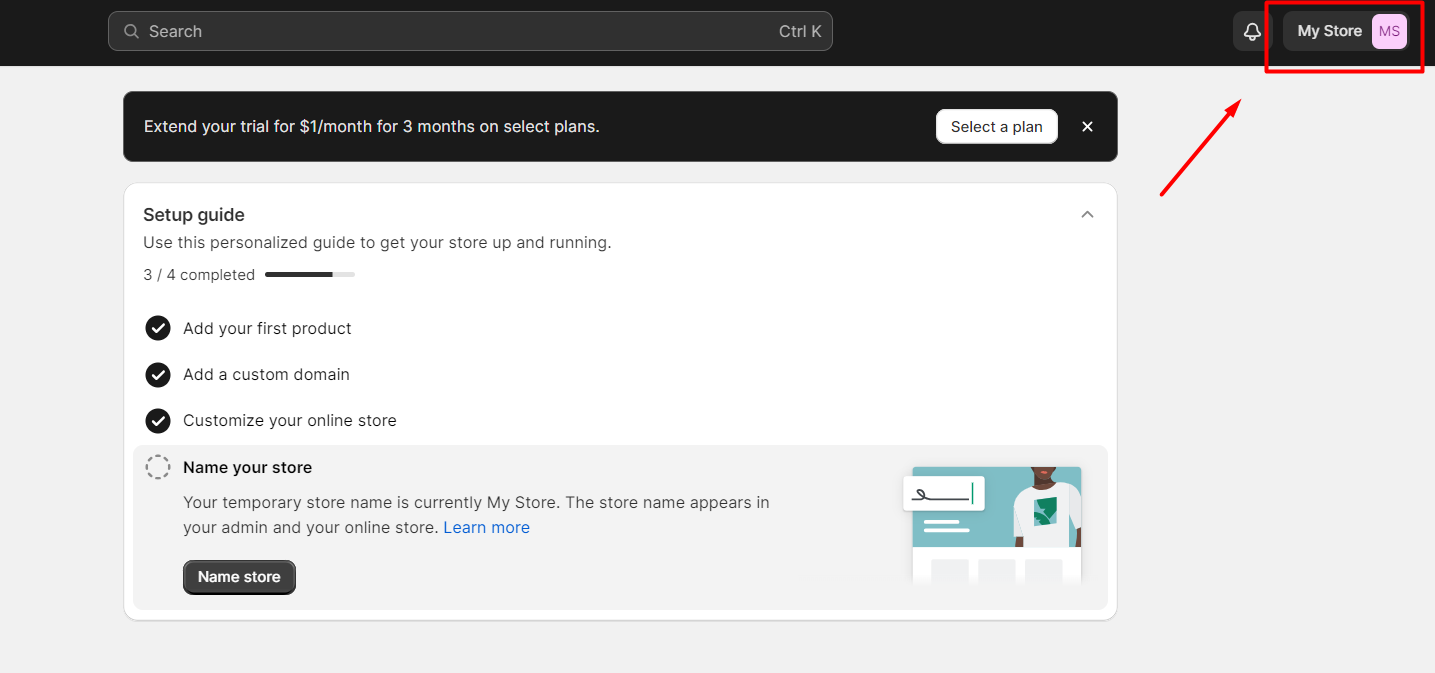
Once you log in to Shopify as the store admin, you can manage your store, add products, edit your website link, process orders, and perform various other tasks related to running your online store. At that time, you can check your store link again and correct it if necessary.
Use Shopify dashboard
The dashboard is a digital control panel, displaying the most general information of the website for users to easily observe and manage. This is a technical dashboard used to collect and synthesize all data of a business or store. Therefore, through the dashboard, you can easily find the store’s link.
Firstly, to access the Shopify dashboard, you need to log in to your Shopify account as an admin using your email address and password. Once logged in, you’ll be taken to the Shopify dashboard, which is the central hub for managing your store.
On the left-hand side of the dashboard, you’ll find the main navigation menu. Key sections include:
- Orders: Manage orders, view, process, fulfill, issue refunds, and handle customer communications.
- Products: Add, edit, or remove products, manage inventory, and organize collections.
- Customers: View and manage customer profiles, order history, and import customer data.
- Analytics: Access sales reports, traffic data, and track performance.
- Online Store: Customize appearance, settings, and themes.
- Settings: Configure payments, shipping, taxes, and other preferences.
- Help Center: Access support resources.
- User Settings: Manage account information and permissions.
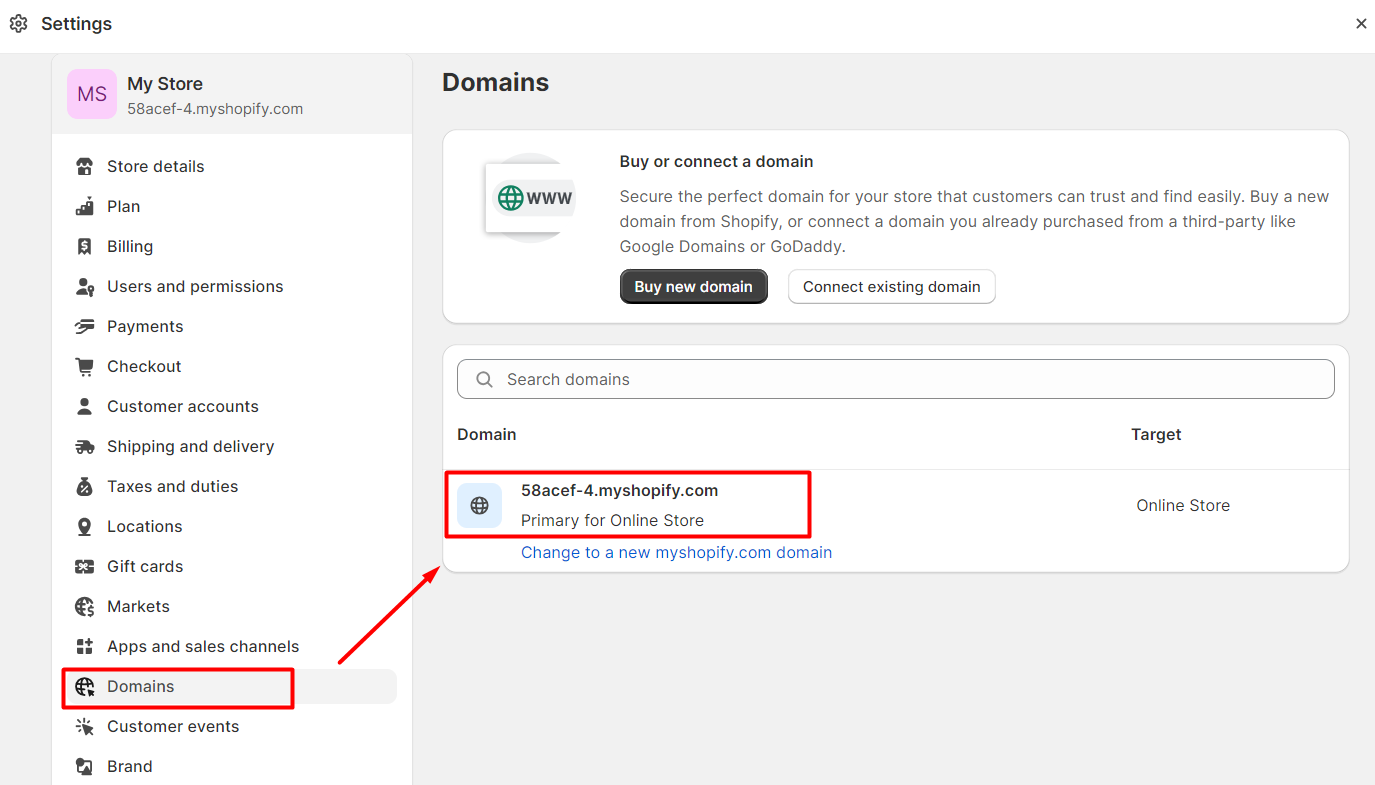
To find your Shopify store link using the dashboard, visit the Domains section in the navigation menu. You will then see the store link.
Find the Shopify store link by page source code
You can also find the Shopify store link from the page source code by following these steps:
- Open the Webpage: Visit the Shopify store’s webpage using your web browser.
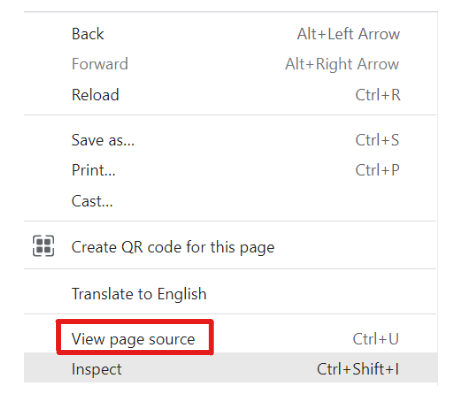
- Right-click and Select “View Page Source”: Right-click anywhere on the webpage, and in the context menu, select View Page Source or Inspect. This opens the browser’s developer tools, allowing you to view the HTML source code.
- Search for the Store’s link: Once you have the page source code open, use the “Find” function by pressing Ctrl + F (Windows/Linux) or Command + F (Mac) in the developer tools. In the search bar that appears, type “Shopify” or “store” and press Enter. This will help you locate relevant parts of the code where the store link might be.
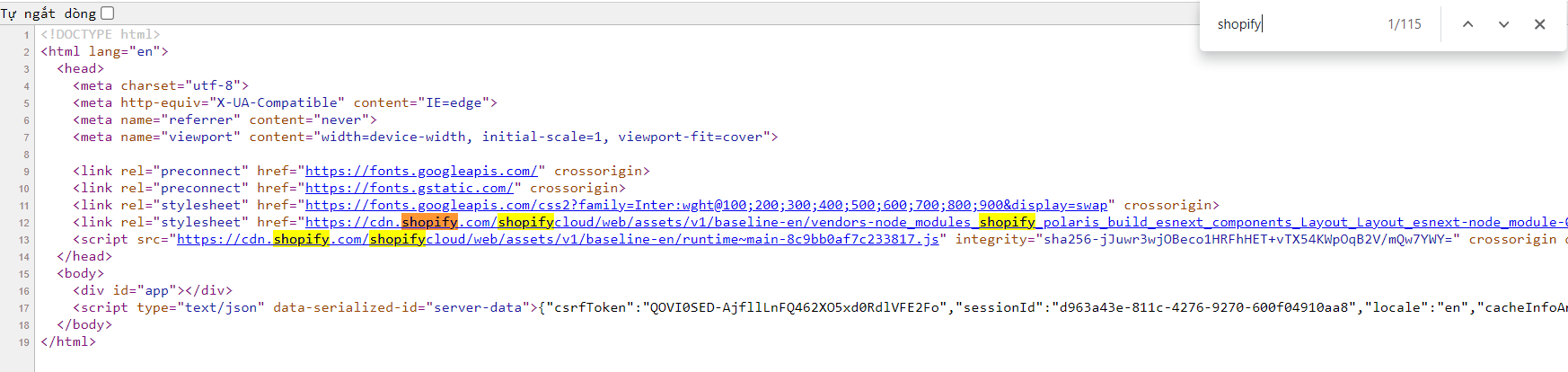
- Copy the link: Double click on the link and select Copy to copy the Shopify store link to your clipboard.
By following these steps, you can find the Shopify store link within the page source code of the webpage you are inspecting. This method can be useful if you need to retrieve the store link when it’s not readily visible on the webpage.
Find Shopify store links on Shopify mobile application
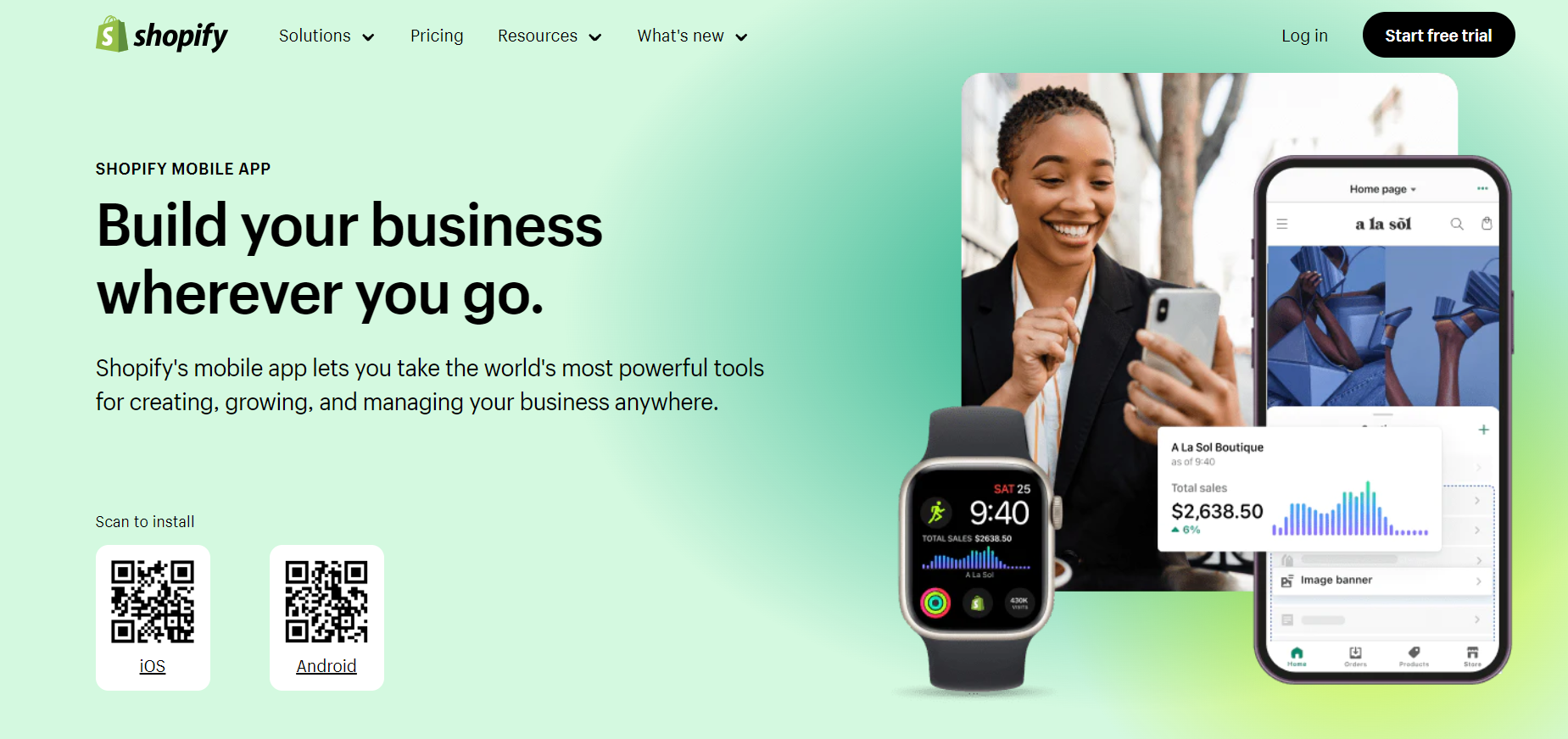
In addition to accessing websites on your computer, you can easily find the Shopify store link using the Shopify application on your mobile phone.
Steps:
- Download the Shopify app to your phone.
- Log in to your account.
- Select Store at the bottom of the screen.
- Click on Settings, then General to see your store link.
This application is very convenient, and you can easily control it anywhere.
Use Koala Inspector
Koala Inspector is a browser extension that allows you to check the source code of a website. To find the Shopify store link using Koala Inspector, follow these steps:
- Install Koala Inspector Extension: Add it from your browser’s extension store (e.g., Chrome Web Store, Firefox Add-ons).
- Open the Shopify Store Webpage: Visit the store’s webpage in your browser.
- Activate Koala Inspector: Click the Koala Inspector icon in your toolbar to activate it.
- Navigate the Page Source Code: Use the Koala Inspector panel to explore the HTML structure.
- Search for the Store Link: Press Ctrl + F (Windows/Linux) or Command + F (Mac) and type “Shopify” or “store.”
- Identify and Copy the link: Once located, click and copy the Shopify store link.
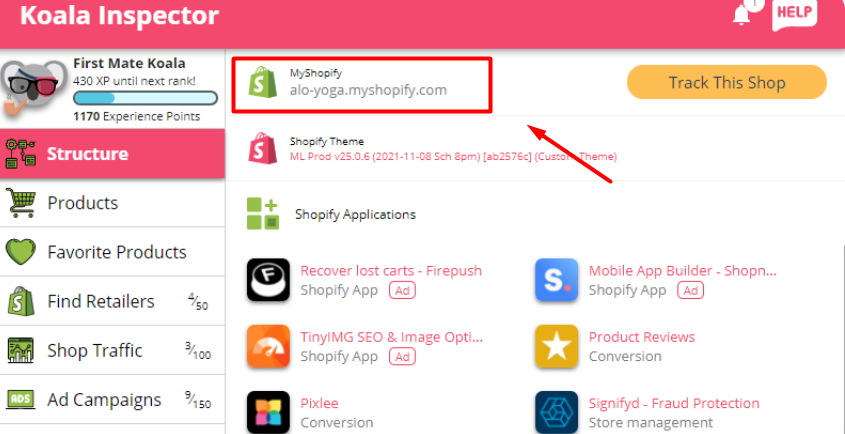
Using Koala Inspector, you can inspect the source code of the webpage and find the Shopify store link within the HTML. The web page structure may vary, so the location of the store link may differ from one website to another.
FAQs
Can I change my Shopify store link?
Yes, you can change your Shopify store’s link, but the process involves setting up a custom domain or modifying an existing one. If your Shopify store link is too long or not optimized, changing it can improve business efficiency and attract more potential customers.
What if I forgot my Shopify store link?
If you have forgotten your Shopify store link, you can retrieve it using these methods:
- Check Your Email: Look for Shopify’s welcome or setup emails, which usually contain your store link.
- Check Your Browser History: If you accessed your store recently, you can find the link in your browser history.
- Log In to Shopify: Use your credentials to log in; your store link will appear in the browser’s address bar.
- Contact Shopify Support: They can help retrieve your store link once you verify your identity and store ownership.
- Use Shopify’s Recovery Options: If you forgot your login credentials, use the recovery option on the login page. Shopify will send a recovery email that may include your store link.
How do I share my Shopify store link?
Sharing your Shopify store link is simple:
- Copy and paste the link into emails, social media posts, or text messages.
- Generate a QR code for your store link and print it on business cards, flyers, or posters.
- Add a hyperlink or button on your blog or website that directs visitors to your Shopify store.
Does Shopify give you a URL?
Yes. Shopify provides a default store link in the format:
yourstorename.myshopify.com
For example, if your store name is MyTallTrees, Shopify will provide:
mytalltrees.myshopify.com
You can use this URL to access and manage your store, and customers can use it to visit your shop. However, it’s recommended to set up a custom domain (e.g., www.mytalltree.com) to strengthen your brand and look more professional.
Conclusion
Knowing how to get your Shopify store link is essential for online business owners. A store link helps you reach more customers and increase sales. When customers find your website, they may explore your products and services, leading to more conversions.
Getting the store link is straightforward—use one of the methods above. You can also change the link if needed, since a well-optimized link will make your store more attractive and accessible to customers.