- Video Schema Markup:
- Implement structured data (schema markup) for your videos. This helps search engines understand the video content and can improve search visibility.
- Generate the appropriate markup and add it to your Shopify pages using tools like Google’s Structured Data Markup Helper.
- Optimize Video Descriptions:
- Include detailed descriptions and transcripts of your videos in the product description. This adds valuable text content that search engines can index.
- Ensure that your video titles, descriptions, and tags on YouTube are optimized for relevant keywords.
- Optimize High-quality Video:
- High-quality videos directly impact the viewer’s perception of your brand and products. It is important to create a high-quality video. You can use a YouTube visualizer product to achieve the expected quality.
Challenge 6: Tracking Video Performance
Problem: It can be difficult to track the performance and impact of videos on your Shopify store.
Solution: Use analytics tools to measure video engagement. You can use:
- YouTube Analytics:
- Utilize YouTube’s built-in analytics to track video performance, including views, watch time, and audience engagement.
- Use these insights to optimize video content based on what resonates most with your audience.
- Third-Party Analytics:
- Apps like Wistia or Vidyard offer advanced video analytics and can integrate with Shopify.
- These tools provide detailed insights into how customers interact with your videos, helping you measure ROI and improve content strategy.
Conclusion
Embracing the dynamic synergy between Shopify and YouTube is proving to be a compelling trend in amplifying sales and engaging audiences.
By intertwining the robust e-commerce capabilities of Shopify with the influential reach and visual appeal of YouTube, businesses are poised to not just showcase products but craft immersive narratives that resonate with their audiences.
You no longer need to include the phrase ‘links in the description box below’ in your YouTube videos. You can now tag and highlight their merchandise and products in both YouTube videos and live streams due to the latest release of YouTube Shopping on Shopify.
This enables viewers to effortlessly discover and purchase their preferred products directly through your YouTube channel. In today’s article, let’s unravel the power of this trend and discover ways to make use of this new tool for your online store.
The advantages of Shopify YouTube integration
Here are some of the advantages of integrating Shopify with YouTube:
- Increased sales and visibility:
Shopify YouTube integration allows merchants to reach a wider audience of potential customers on YouTube. By showcasing their products in their videos and on their channel’s Store tab, merchants can make it easy for viewers to learn about and purchase their products.
Additionally, Shopify’s YouTube integration allows merchants to run live shopping events, which can be a great way to increase sales and engagement.
- Improved customer experience:
Shopify YouTube integration provides a seamless shopping experience for customers. Viewers can browse and purchase products directly from YouTube, without having to leave the platform.
This can make it easier for customers to find the products they want and to complete their purchases, which can lead to increased customer satisfaction.
- Reduced workload:
Shopify YouTube integration syncs product information between Shopify and YouTube. This reduces the amount of work that merchants have to do to manage their sales across both platforms.
Merchants can save time and effort by managing their products and orders from one central location.
- Other advantages
Shopify YouTube integration can also help merchants to:
- Build brand awareness and loyalty
- Generate leads and traffic for their Shopify store
- Collect valuable customer data
- Improve their SEO ranking
Overall, Shopify YouTube integration is a powerful tool that can help merchants increase sales, improve the customer experience, and reduce their workload.
Requirements for Shopify YouTube integration
To seamlessly connect your Shopify store to YouTube, you’ll need to fulfill certain requirements:
- YouTube channel requirements:
- Minimum 1,000 subscribers: Your YouTube channel must have at least 1,000 subscribers to be eligible for integration.
- Monetization approval: Your channel must be approved for monetization by YouTube.
- Not marked as Made for Kids: Your channel cannot be marked as “Made for Kids.”
-
Compliance with YouTube policies: Your channel must adhere to YouTube’s monetization policies and not have any violations.
- Shopify account requirements:
- Matching email addresses: The email address associated with your YouTube channel account must match a staff account with full permissions in your Shopify admin.
Step-by-step instructions on how to Shopify YouTube integration
Method 1: Integrate Shopify with YouTube directly
Step 1: Getting started
To utilize YouTube Shopping, there are certain prerequisites need to be met:
- The email address linked to your YouTube channel must possess owner/manager access to the channel and must align with a staff account in your Shopify admin with full permissions.
- A prerequisite is that your YouTube channel should have a minimum of 1000 subscribers and be approved for monetization.
- You should be in a location where the YouTube Partner Program is accessible.
- For music channels, your channel should be identified as an Official Artist Channel.
- Your channel must not be designated as Made for Kids, nor should it contain a substantial number of videos marked as Made for Kids.
- Additionally, it should not contain a significant number of videos that infringe upon monetization policies or have any strikes for violating YouTube’s Hate Speech Community Guidelines.
Step 2: Connect the Shopify store to YouTube
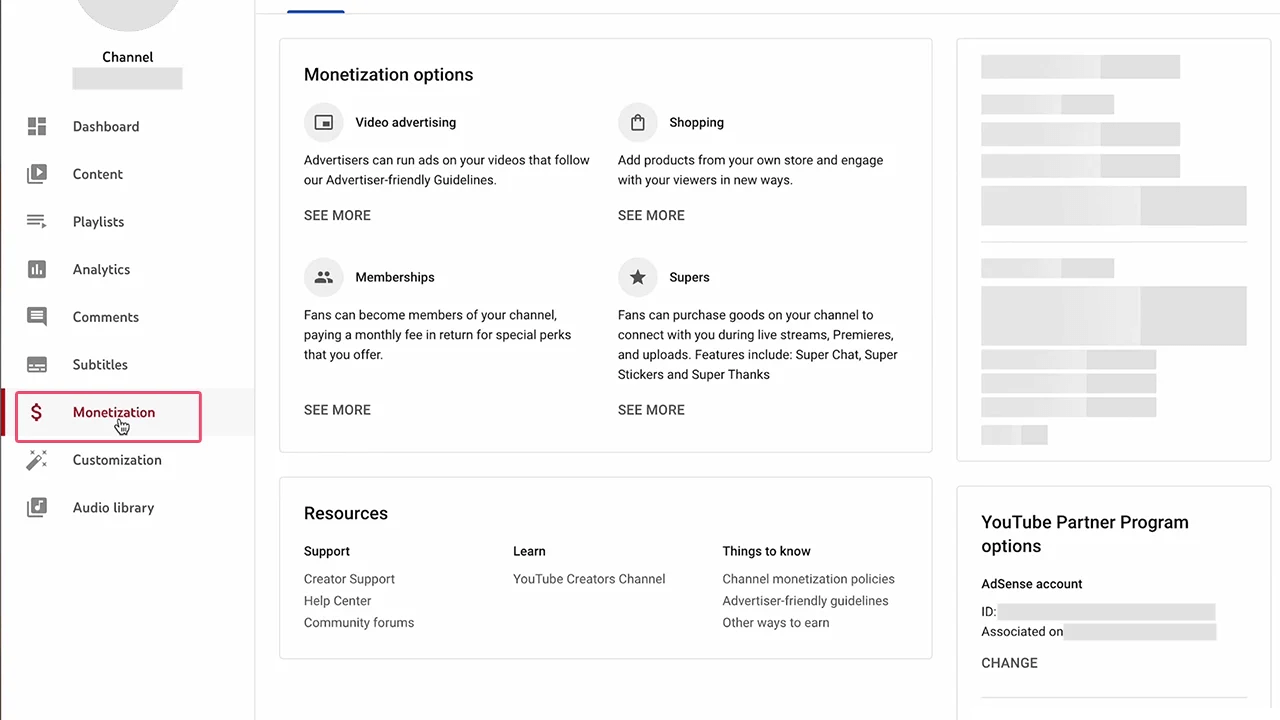
- To begin with, you will sign in to your YouTube Studio.
- Proceed by navigating to the left-hand menu and choosing the Monetization option.
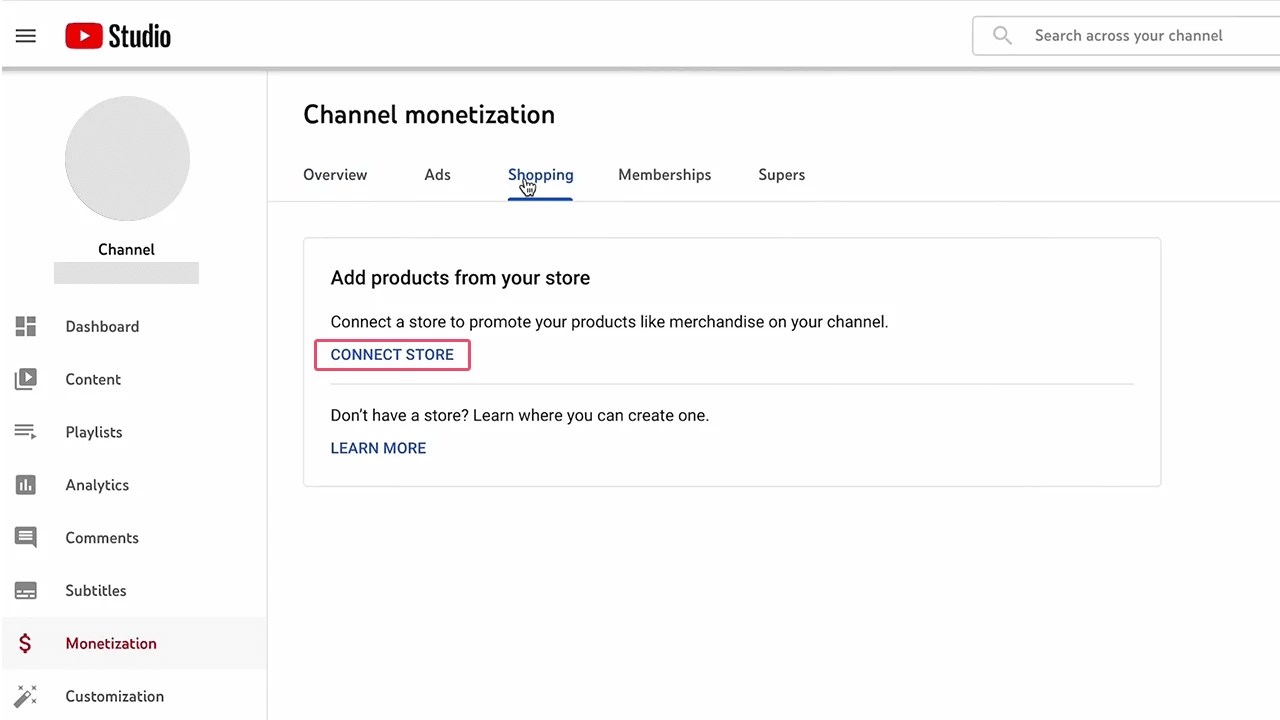
- Following that, click on the Shopping tab in the Add products from your store section, then select Connect Store.
- Next, proceed to opt for Shopify, and finally click on Continue.
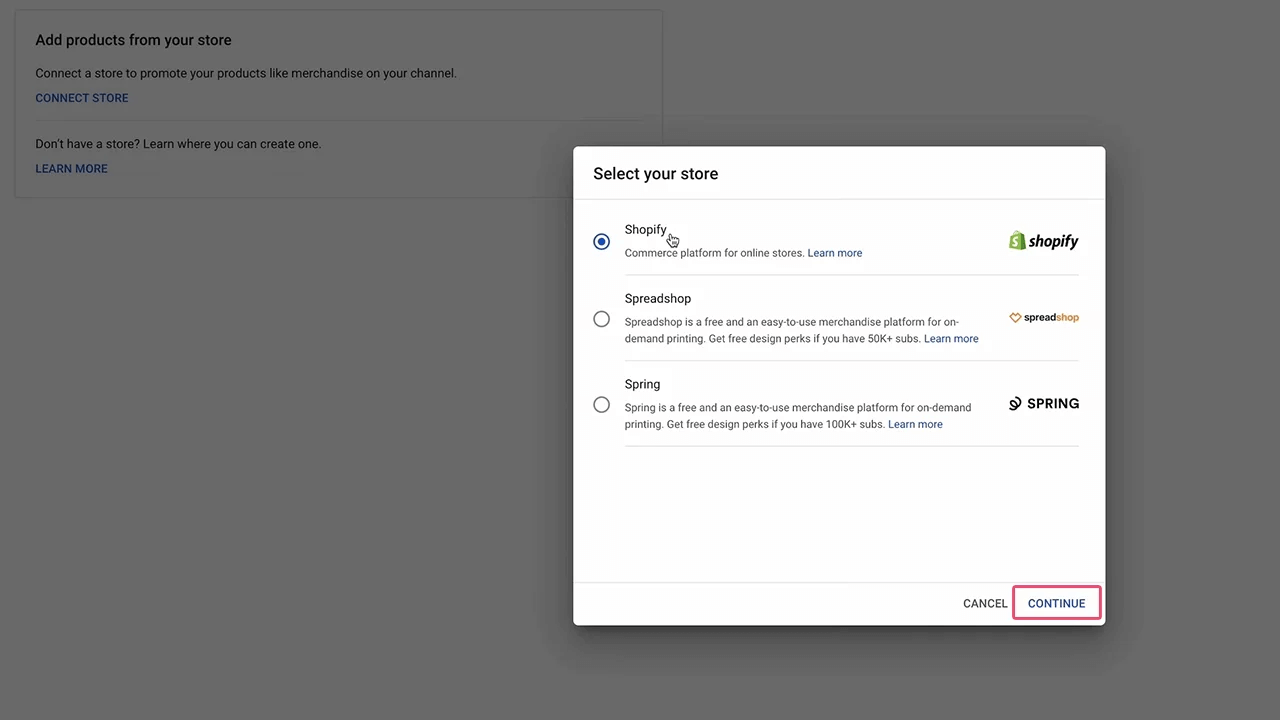
You’ll then be redirected to Shopify to finalize the setup process.
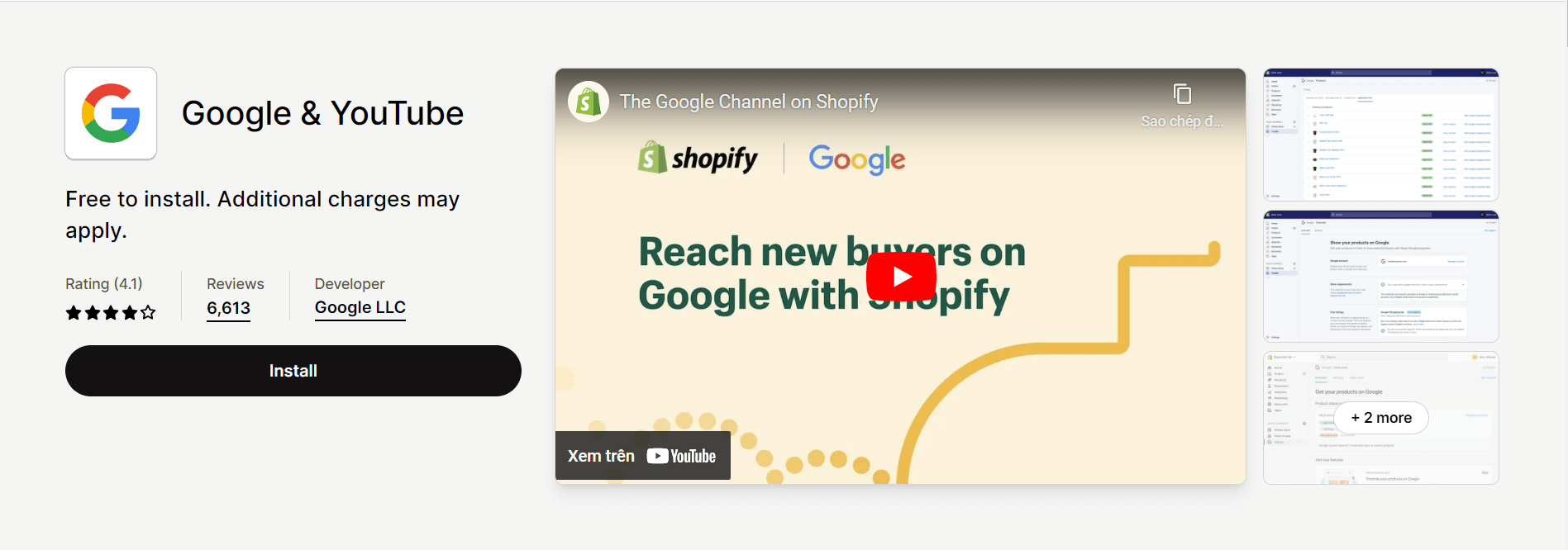
Step 3: Install the Google & YouTube app to the Shopify store
- Indeed, the initial step in setting the groundwork involves installing the Google & YouTube app.
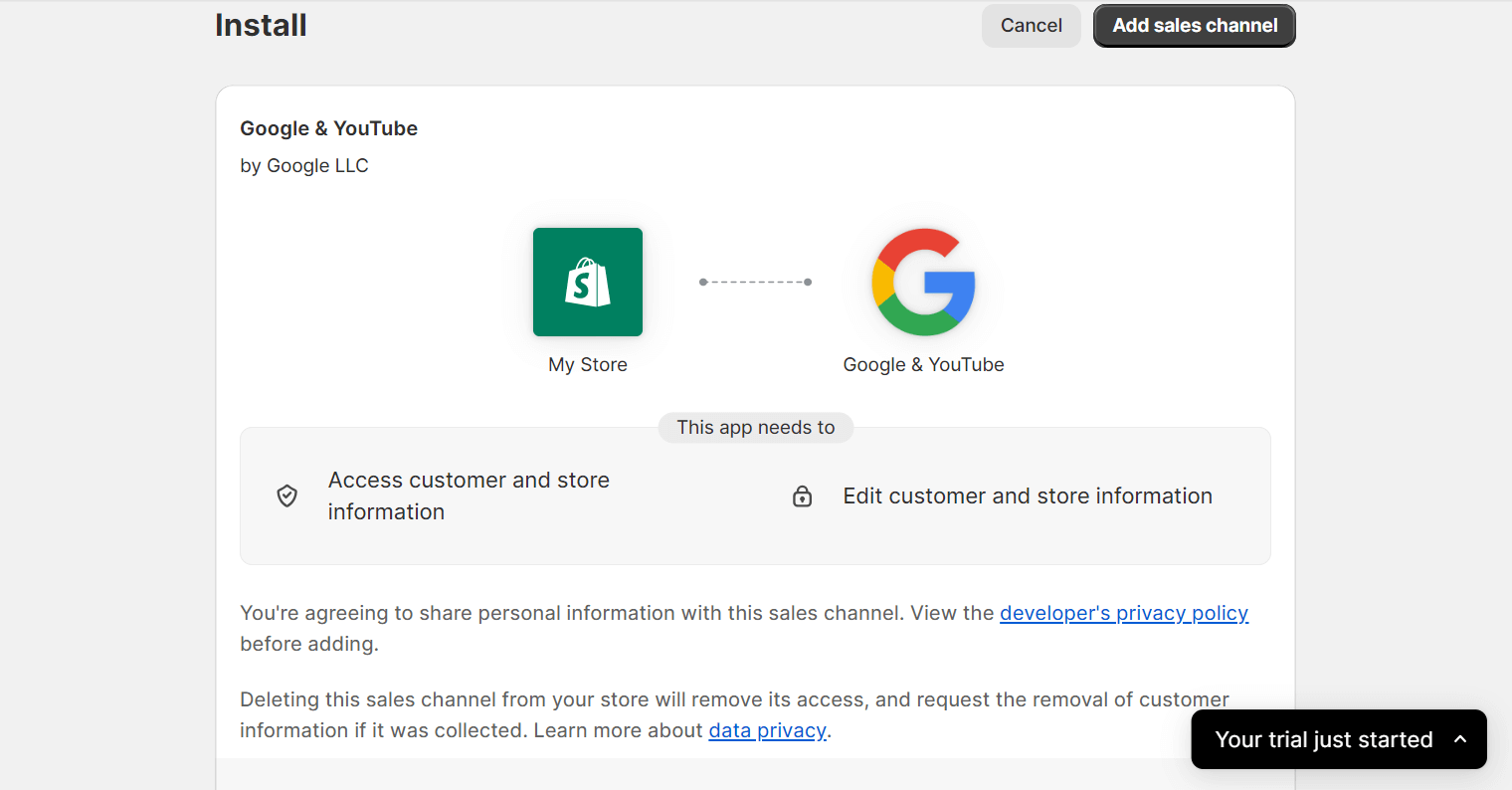
- Locate and click the Add sales channel button situated in the top right-hand corner.
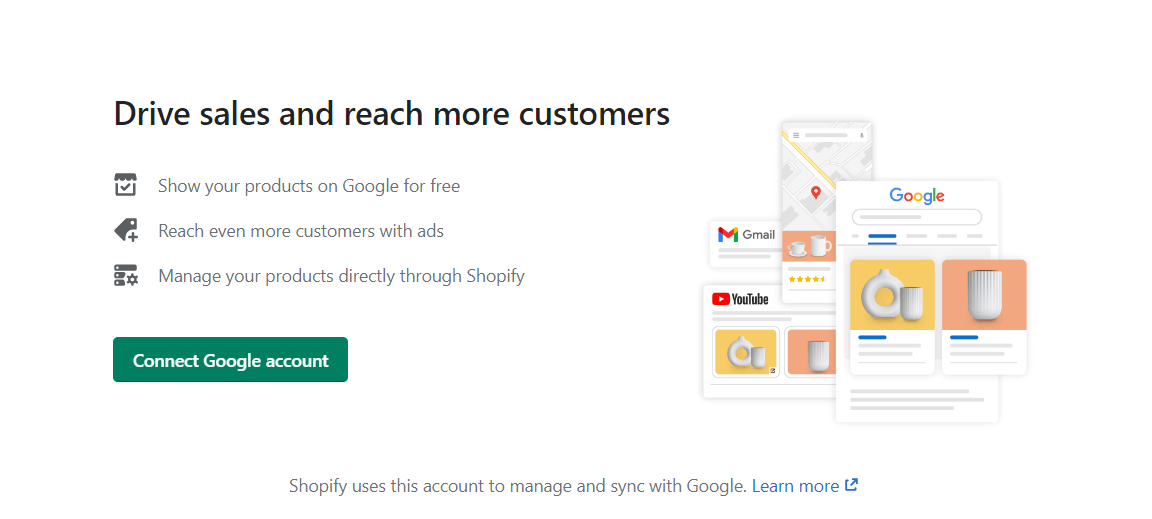
- Once redirected to the new window, select Connect Google account and proceed to sign in to Google. It’s crucial to ensure that you use the identical email address for your Google account that is associated with your YouTube channel.
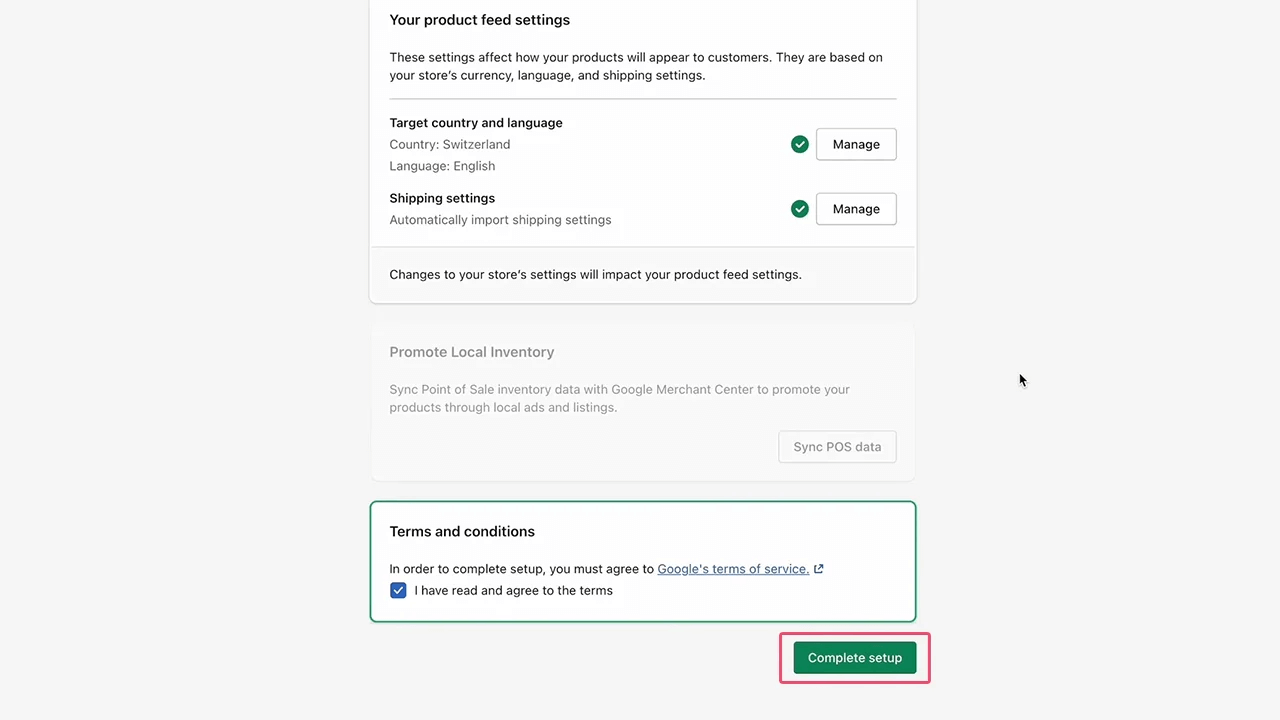
- Select your preferred settings, including the target country, language, shipping options, and other relevant preferences.
- Finalize the setup by agreeing to Google’s terms of service.
- Click Complete setup.
Step 4: Synchronize your products with YouTube
With Shopify now successfully connected to YouTube, the final step involves syncing your products.
- Upon the next screen, proceed by clicking Get started.
- Verify that both your store and YouTube channel fulfill all the prerequisites for using YouTube Shopping.
- Click Continue.
- From the dropdown menu, choose your YouTube channel.
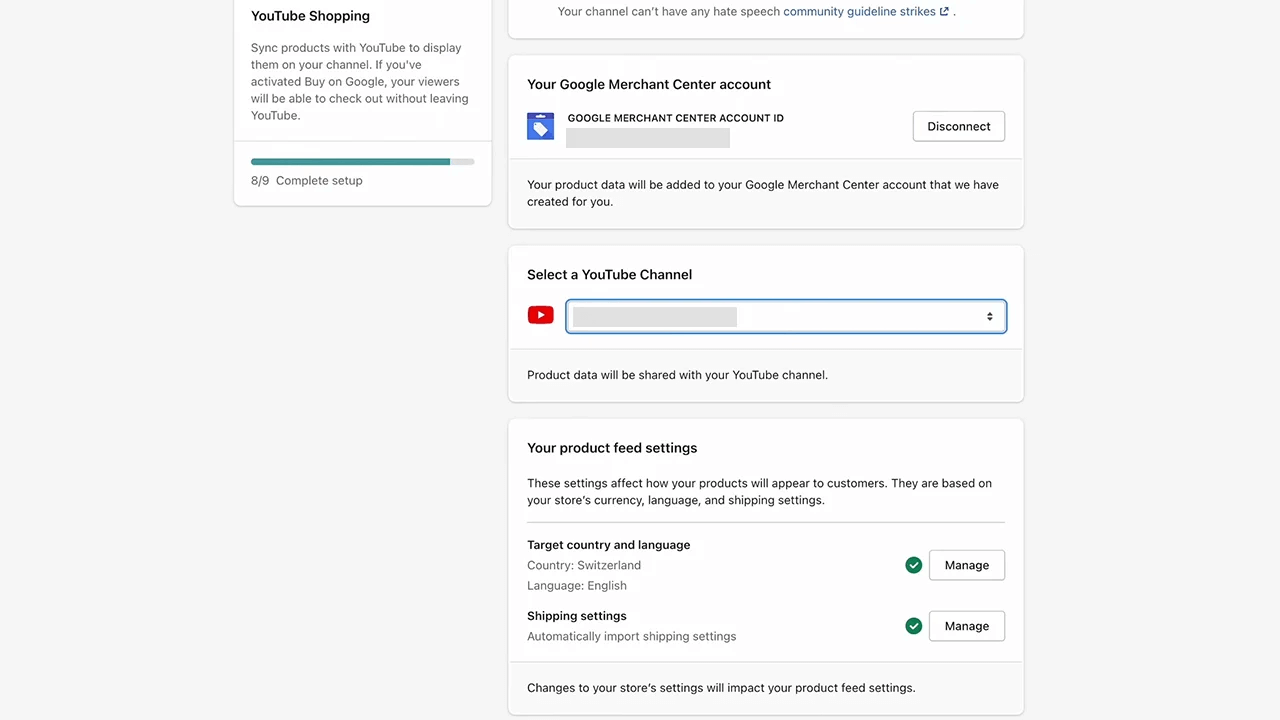
- Verify your Product feed configurations.
- Examine and consent to the terms of YouTube Shopping.
- Select complete setup to finish the process.
Once YouTube Shopping is set up, your YouTube channel will be visible on the Google & YouTube channel Overview and Settings pages.
Method 2: Use the Shopify API Integration service
If you’re not particularly tech-savvy and need help merging your YouTube shopping with Shopify, we suggest selecting Mageplaza. They’re among the leading companies in Shopify development, boasting a track record of numerous successful integration projects.
The Shopify API integration service from Mageplaza often follows the process of 4 easy steps, including:
Step 4: Synchronize your products with YouTube
With Shopify now successfully connected to YouTube, the final step involves syncing your products.
- Upon the next screen, proceed by clicking Get started.
- Verify that both your store and YouTube channel fulfill all the prerequisites for using YouTube Shopping.
- Click Continue.
- From the dropdown menu, choose your YouTube channel.
- Verify your Product feed configurations.
- Examine and consent to the terms of YouTube Shopping.
- Select complete setup to finish the process.
Once YouTube Shopping is set up, your YouTube channel will be visible on the Google & YouTube channel Overview and Settings pages.
Challenges of Shopify YouTube integration
Shopify YouTube integration comes with its own set of challenges. Here are the common challenges of Shopify YouTube integration, and practical solutions to address them.
Challenge 1: Embedding Videos
Problem: Embedding YouTube videos on Shopify product pages can be cumbersome, especially for those without technical expertise. Incorrect embedding can lead to issues with video display and responsiveness.
Solution: Utilize Shopify’s built-in features or third-party apps to simplify the embedding process. Here’s a step-by-step guide:
- Using Shopify’s Rich Text Editor:
- Go to your Shopify admin and navigate to the product page where you want to embed the video.
- In the product description section, click on the HTML icon (<>).
- Paste the YouTube embed code directly into the HTML editor.
- Save the changes and preview your product page to ensure the video displays correctly.
- Using Third-Party Apps:
- Apps like Easy Video or Video Gallery for Shopify can simplify the process. These apps allow you to add videos to product pages without dealing with HTML code.
- Install the app from the Shopify App Store, and follow the app’s instructions to integrate YouTube videos.
Challenge 2: Video Responsiveness
Problem: It can be tricky to ensure that YouTube videos are responsive and look good on all devices (desktop, tablet, mobile).
Solution: Apply responsive design principles to your video embeds. This can be done by…
Challenge 2: Video Responsiveness
Problem: It can be tricky to ensure that YouTube videos are responsive and look good on all devices (desktop, tablet, mobile).
Solution: Apply responsive design principles to your video embeds.
- Modify Embed Code:
- Wrap the YouTube embed code within a responsive container.
- Use CSS to make the container responsive. Here’s a sample code snippet:
Challenge 3: Video Loading Speed
Problem: Videos can significantly slow down your Shopify store’s loading speed, affecting user experience and SEO rankings.
Solution: Optimize video loading to improve site performance through one of the following ways:
- Lazy Loading:
- Implement lazy loading for YouTube videos. This technique loads videos only when they are about to enter the viewport, reducing initial page load time.
- You can use JavaScript libraries like lozad.js or Lazysizes to implement lazy loading.
- Thumbnails Instead of Embeds:
- Initially load a static thumbnail image of the video. When the user clicks the thumbnail, replace it with the actual embedded video.
- This can be achieved using custom JavaScript or apps like EmbedPress.
Challenge 4: Managing Multiple Videos
Problem: Managing and updating multiple videos across various product pages can be time-consuming.
Solution: Use centralized video management tools.
- Video Management Apps:
- Apps like Wistia or Vimeo for Shopify provide better video management capabilities. They offer features like bulk editing, video analytics, and enhanced video embedding options.
- These apps integrate seamlessly with Shopify, allowing you to manage all your videos from a single dashboard.
- YouTube Playlists:
- Create YouTube playlists for your product categories and embed them on relevant product pages.
- Any updates to the playlist on YouTube will automatically reflect on your Shopify store.
- Use the YouTube embed code for playlists and follow the same embedding steps mentioned earlier.
Challenge 5: SEO Optimization
Problem: Videos embedded on your site can sometimes hurt your SEO if not optimized correctly, as search engines primarily index text content.
Solution: Ensure your videos are SEO-friendly by:
- Video Schema Markup:
- Implement structured data (schema markup) for your videos. This helps search engines understand the video content and can improve search visibility.
- Generate the appropriate markup and add it to your Shopify pages using tools like Google’s Structured Data Markup Helper.
- Optimize Video Descriptions:
- Include detailed descriptions and transcripts of your videos in the product description. This adds valuable text content that search engines can index.
- Ensure that your video titles, descriptions, and tags on YouTube are optimized for relevant keywords.
- Optimize High-quality Video:
- High-quality videos directly impact the viewer’s perception of your brand and products.
- It is important to create a high-quality video. You can use a YouTube visualizer product to achieve the expected quality.
Challenge 6: Tracking Video Performance
Problem: It can be difficult to track the performance and impact of videos on your Shopify store.
Solution: Use analytics tools to measure video engagement. You can use:
- YouTube Analytics:
- Utilize YouTube’s built-in analytics to track video performance, including views, watch time, and audience engagement.
- Use these insights to optimize video content based on what resonates most with your audience.
- Third-Party Analytics:
- Apps like Wistia or Vidyard offer advanced video analytics and can integrate with Shopify.
- These tools provide detailed insights into how customers interact with your videos, helping you measure ROI and improve content strategy.
Conclusion
Embracing the dynamic synergy between Shopify and YouTube is proving to be a compelling trend in amplifying sales and engaging audiences.
By intertwining the robust e-commerce capabilities of Shopify with the influential reach and visual appeal of YouTube, businesses are poised to not just showcase products but craft immersive narratives that resonate with their audiences.