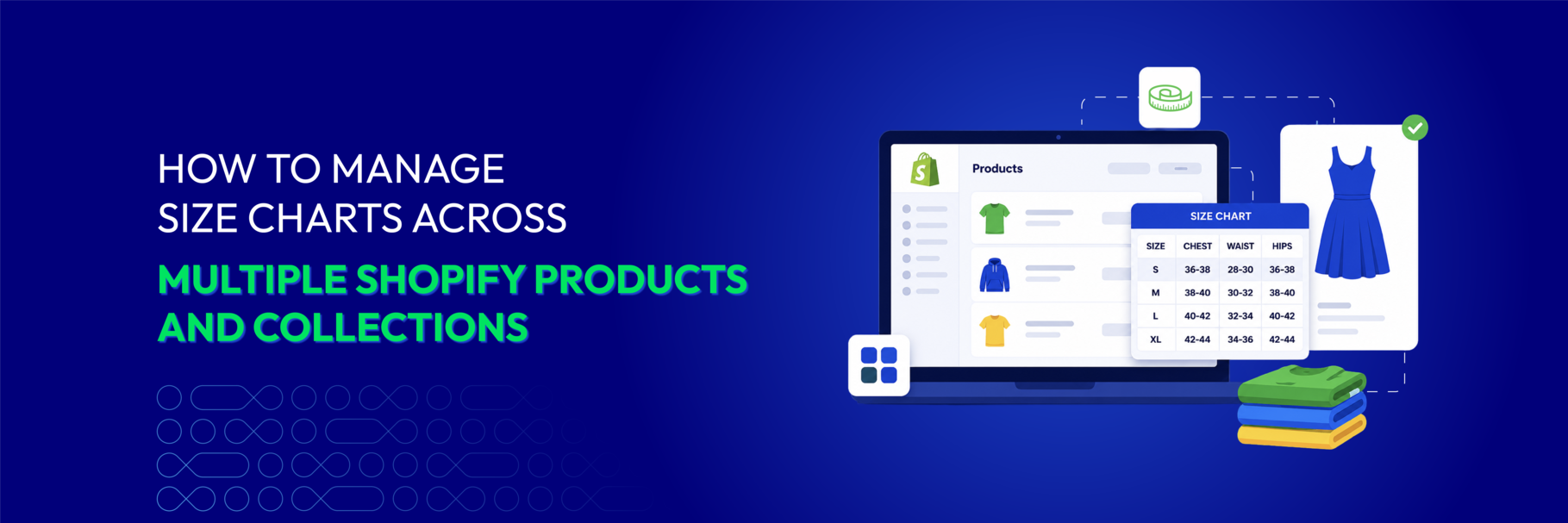
One size chart for one product is easy. Two charts for ten products are still easy. Twenty charts across hundreds of products, multiple categories, two languages, and a quarterly supplier reshuffle — that’s where size chart management quietly turns into a part-time job.
This guide is the operational version. We’ll cover when you actually need bulk size chart management on Shopify, the four ways to assign charts at scale, how CSV import + export workflows save hours, how to keep charts accurate as your catalog grows, and the common pitfalls that turn a clean system into a mess.
If you’re still picking an app, see what to look for in a Shopify size chart app — bulk management is feature #2 and #3 on that checklist for a reason.
📌 Key takeaways before you dive in:
- Manual per-product chart assignment stops scaling around 50 products or as soon as you cross a second product category — switch to rule-based assignment (collection, tag, vendor) before you cross either threshold.
- CSV import + export is the unlock for managing 100+ products. Build charts in a spreadsheet, import in bulk, re-export to edit, re-import to update.
- Catalog growth, supplier changes, and international expansion all break charts quietly. Set a quarterly review and a naming convention for your charts.
- Pick an app with per-collection / per-tag rules AND CSV support — apps that only support per-product assignment cost you hours every month at scale.
When do you need bulk size chart management on Shopify?
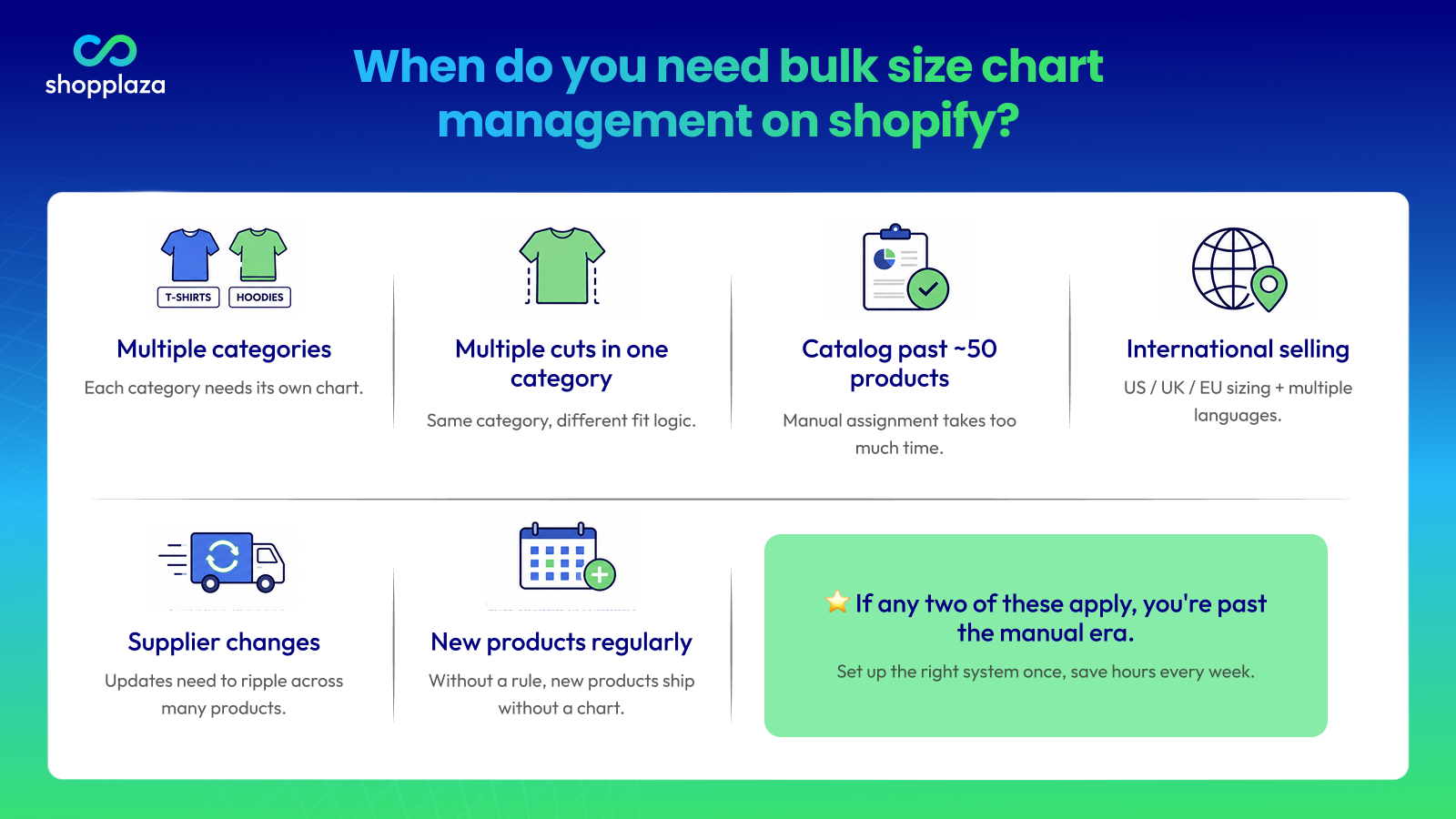
A small catalog with simple sizing doesn’t need much processing. The complexity hits when one of these is true:
- You sell across multiple categories (apparel, footwear, jewelry, pet accessories) — each needs its own chart
- You sell multiple cuts in one category (slim-fit and relaxed-fit shirts, for example) — same category, different fit logic
- Your catalog is past ~50 products — clicking each product to assign a chart starts taking real time
- You sell internationally (US/UK/EU sizing + multiple languages) — chart variants multiply quickly
- Your suppliers reshuffle pricing or sizing — updates need to ripple through dozens of products at once
- You add new products weekly or monthly — without a default rule, new products ship without a chart
If any two of these apply, you’re past the manual era. The good news: getting set up properly the first time saves you weekly maintenance from then on.
4 ways to assign size charts to multiple products
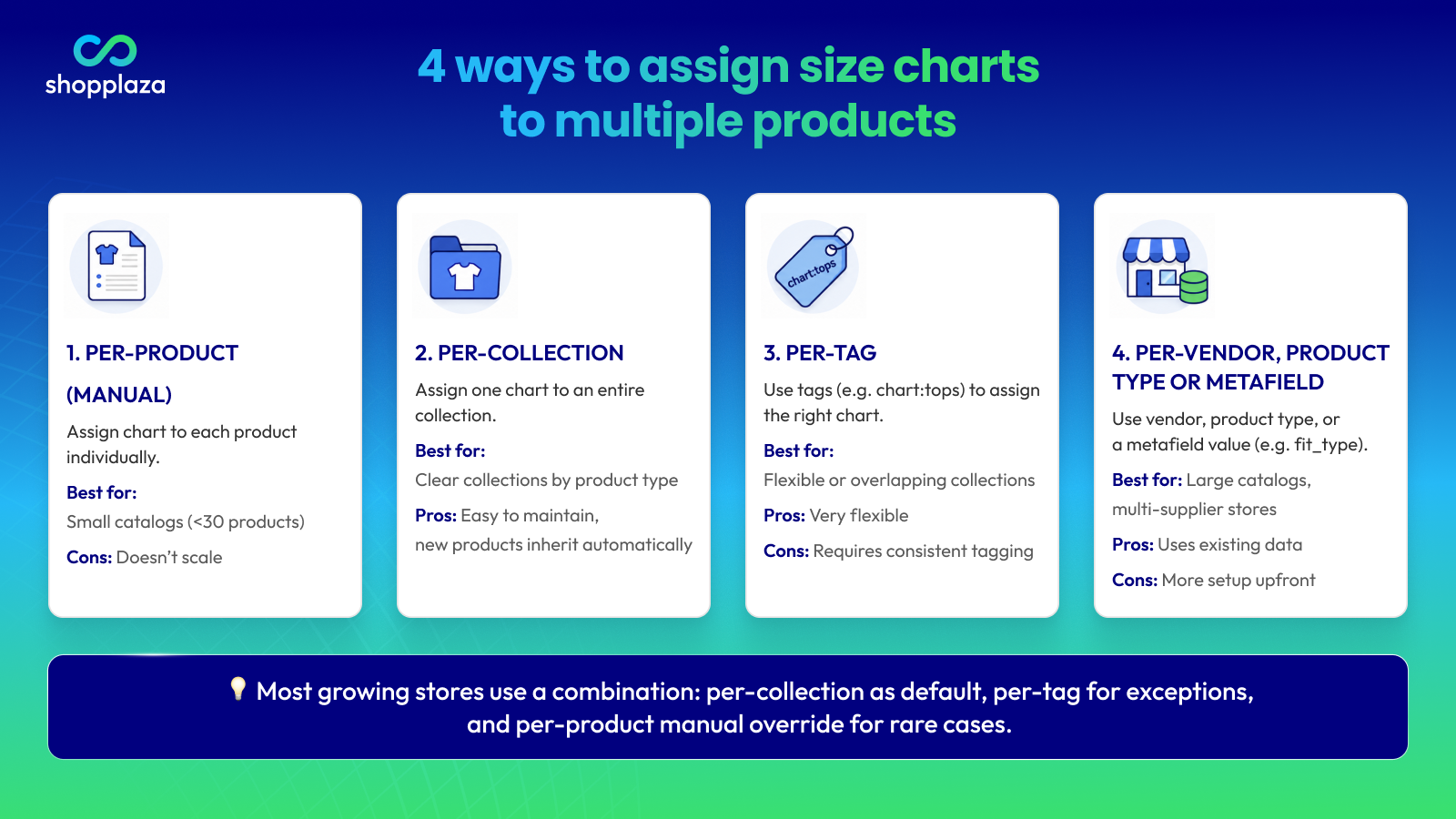
There’s no single “right” way — the right pattern depends on your catalog structure. Most growing stores end up combining 2–3 of these.
1. Per-product (manual)
You assign a chart to each product individually, usually via a metafield or app dropdown.
- Best for: very small catalogs (<30 products), or as a one-off override on a specific product
- Pros: maximum control, no rule setup needed
- Cons: doesn’t scale — clicking through 200 products to assign charts is a part-time job, and new products ship without a chart unless someone remembers
2. Per-collection
You assign one chart to an entire Shopify collection (e.g., “Dresses” → Dress Size Chart). Every product in the collection inherits the chart automatically.
- Best for: catalogs organised around clear collections by product type
- Pros: clean, easy to maintain, new products in the collection inherit the chart automatically
- Cons: if a product belongs to multiple collections, you need a precedence rule. If your collections are organised by something else (e.g., season or campaign), this approach doesn’t map well
3. Per-tag
You tag products (e.g., chart:tops, chart:bottoms, chart:shoes) and the app assigns the right chart based on the tag.
- Best for: stores with flexible or overlapping collection structures, multi-category catalogs
- Pros: very flexible, works across collections, easy to mass-edit via Shopify’s bulk editor
- Cons: requires a consistent tagging convention — if your team isn’t disciplined about tags, charts get assigned wrong
4. Per-vendor, product type, or metafield value
For larger catalogs, you can drive chart assignment from existing product attributes: vendor name, Shopify product type, or a custom metafield (e.g., a fit_type metafield with values “slim”, “relaxed”, “oversized”).
- Best for: large catalogs, multi-supplier stores, complex fit-type variations
- Pros: uses data you already maintain — chart assignment becomes a side effect of clean product data
- Cons: requires the most upfront setup; works best when product data is already well-structured
What most growing stores end up with
A typical pattern by the time a store crosses ~200 products: per-collection as the default, per-tag for exceptions (e.g., a single dress that runs in an oversized cut gets a tag pointing it to the oversized chart), and per-product manual override for the rare item that doesn’t fit any rule. This combination handles 95% of cases without weekly maintenance.
How to use CSV import for size charts at scale
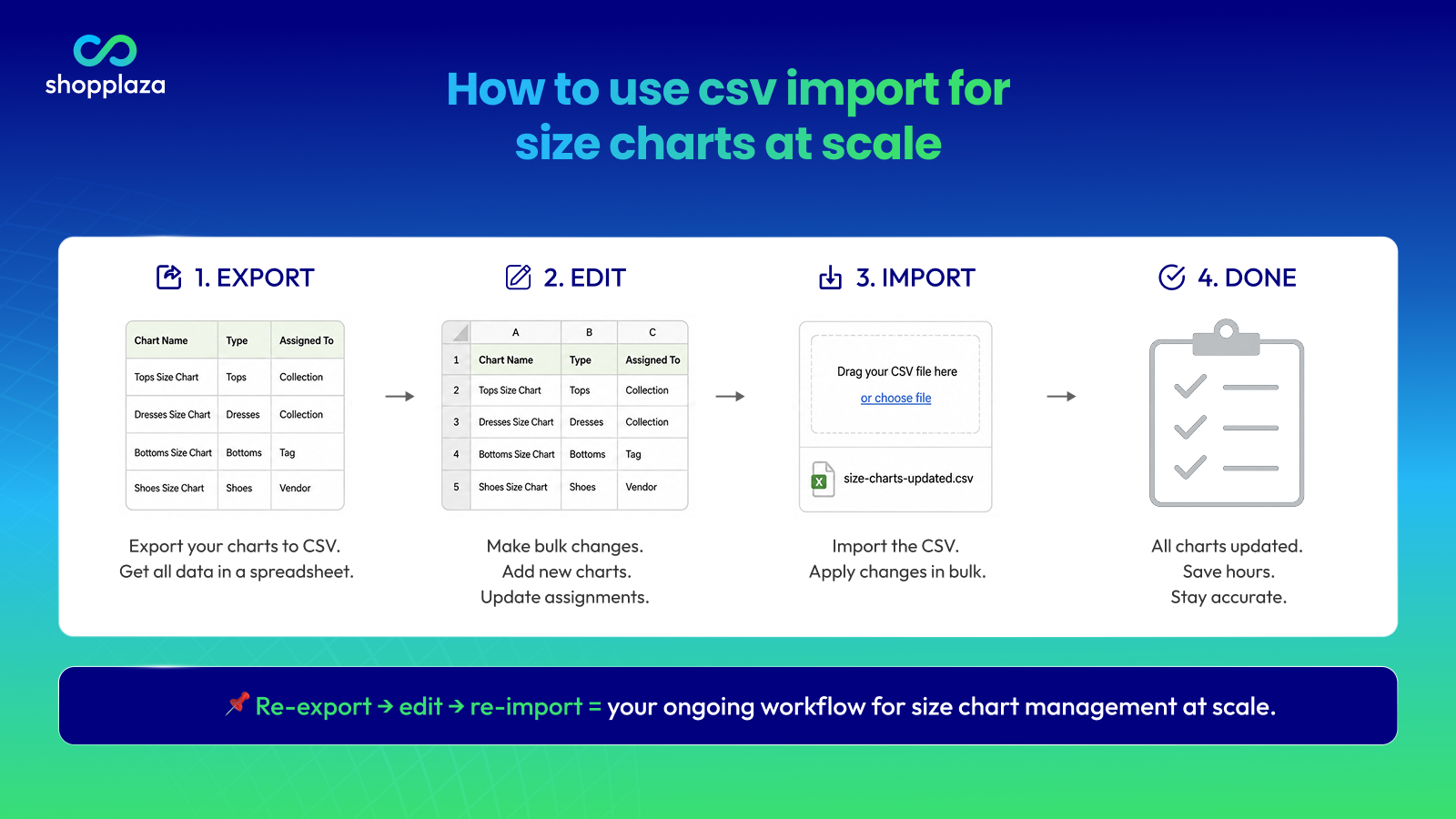
CSV import is the single feature that turns “managing 200 size charts” from a part-time job into a quarterly review.
What CSV import actually does
A good size chart app gives you two CSV operations:
- Export a CSV of all your existing charts (chart name, columns, rows, fit notes, assignments)
- Import a CSV to bulk-create or bulk-update charts
You can also use Shopify’s native product CSV to bulk-assign charts via tags or metafield values — once your assignment rules are set up.
Typical workflow for bulk chart updates
- Export your current charts as CSV
- Open in a spreadsheet (Google Sheets, Excel, Numbers) — much faster than clicking through an admin UI
- Edit at scale: add a new “fit_note” column, update all your slim-fit charts to size up half a size, or paste in a supplier’s new dimensions
- Re-import the updated CSV — the app overwrites existing charts and creates new ones as needed
- Spot-check 5–10 random products on the live store before publishing
Typical CSV column structure
Most size chart apps follow a similar pattern:
| Column | Example value |
|---|---|
chart_name |
“Tops — Slim Fit” |
size_label |
S, M, L, XL |
column_1_name / value |
Bust / 86 cm |
column_2_name / value |
Waist / 68 cm |
column_3_name / value |
Length / 60 cm |
unit_system |
metric, imperial, both |
fit_note |
“Runs slim — size up if between sizes” |
assigned_collections |
dresses, tops |
assigned_tags |
chart:tops |
Check the app’s documentation for the exact column structure — most apps provide a sample CSV you can download as a template.
When CSV beats the admin UI
CSV is faster than the admin UI as soon as you’re updating more than ~10 charts at once. For one-off edits, the admin is fine.
For a deeper template-by-template walkthrough, see how to create a size chart template for your Shopify store.
How to keep size charts accurate as your catalog grows
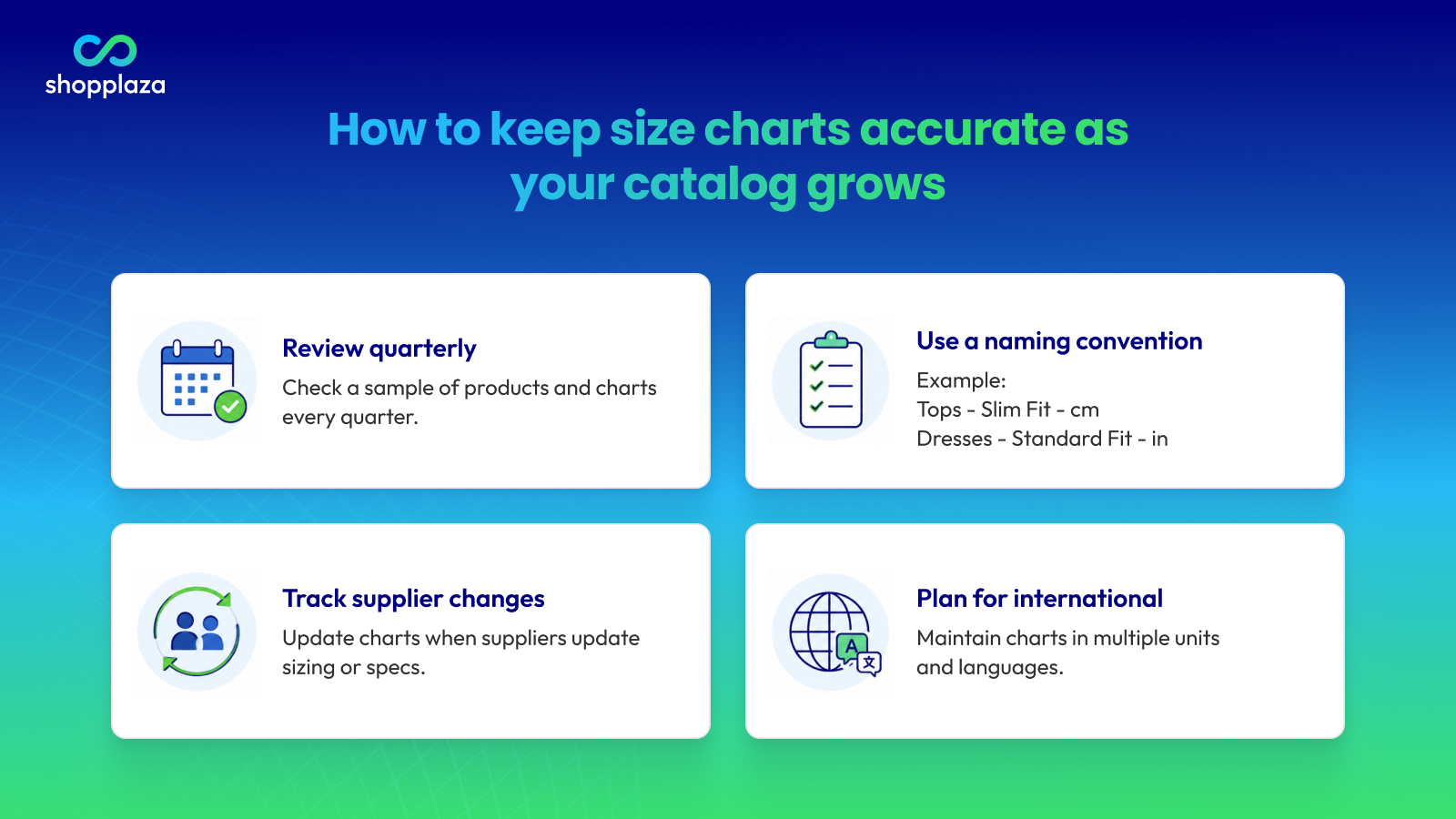
The hardest part of bulk size chart management isn’t the initial setup — it’s keeping the system clean as the catalog evolves. Four maintenance habits that matter most:
Set default rules for new products
Before you add new products to an existing collection, confirm the collection has a chart assigned. Same for tags: if your new product is tagged chart:tops, the rule already points it at the Tops chart. With defaults in place, new products inherit charts automatically — no manual step, no missed products.
Track supplier sizing changes
Suppliers reshuffle pricing and sizing more often than you’d hope. When a supplier sends you a new spec sheet, plan a CSV-based update in one sitting: export your charts that depend on that supplier, update measurements, re-import, spot-check.
A simple system: add a supplier column or metafield to your charts. When a supplier sends new specs, you can filter your CSV to just their charts in seconds.
Plan for international expansion
When you add a new region, plan two changes at once: unit conversion (cm ↔ inches) and size label conversion (US ↔ UK ↔ EU ↔ AU). A good size chart app handles both automatically — you maintain one chart and the app renders the right view per visitor. If your app doesn’t do this automatically, you’ll end up maintaining 3 versions of every chart manually.
Document the system for your team
The most common reason size chart systems collapse: the person who set them up leaves. Write down:
- Your collection-vs-tag rule precedence
- Your tagging convention (
chart:tops,chart:bottoms, etc.) - Where your CSV master file lives
- The quarterly review process
A one-page doc in Notion or Google Drive is plenty.
Signs your store has outgrown manual size chart management
You probably don’t need bulk tooling on day one. The signs that you do:
- You maintain a spreadsheet outside Shopify to track which products have which charts
- A new team member can’t tell which chart applies to a product without asking someone
- New products keep launching without a chart because someone forgot to assign one
- Supplier updates are never propagated to all relevant products
- You have 3+ size charts that look almost identical because no one wanted to dedupe them
- The team has stopped updating charts entirely because it’s too much work
If 2+ of these are true, it’s time to invest a week in a clean system. The ROI shows up in the first month.
Tools that scale size chart management
The size chart app you choose is the single biggest lever on how scalable this gets. The features that matter at scale (in order of impact):
- Per-collection / per-tag display rules — table stakes for any store past 50 products
- CSV import and export — table stakes for any store past 100 products
- One shared size guide page that auto-syncs from your charts — saves you maintaining a separate help page
- Per-product overrides — for the one-off exception, without breaking the rule system
- Bulk editor inside the app — alongside CSV, for in-app multi-product edits
- Vendor or metafield-driven assignment — for catalogs over 500 products
Apps without rule-based assignment or CSV support quietly cost you hours every month — the small monthly app fee saves multiples of itself in admin time.
As a benchmark, MP Size Chart & Size Guide ships with per-product / collection / tag / vendor display rules, CSV import for bulk uploads, one auto-synced size guide page, and 30+ industry-specific templates so you don’t build charts from scratch.
Pick a tier with usage headroom
For apps with usage-based pricing (especially AI recommendation request meters), pick a tier that handles 6–12 months of expected traffic growth — surprise overages mid-quarter are avoidable.
Common pitfalls when managing size charts at scale
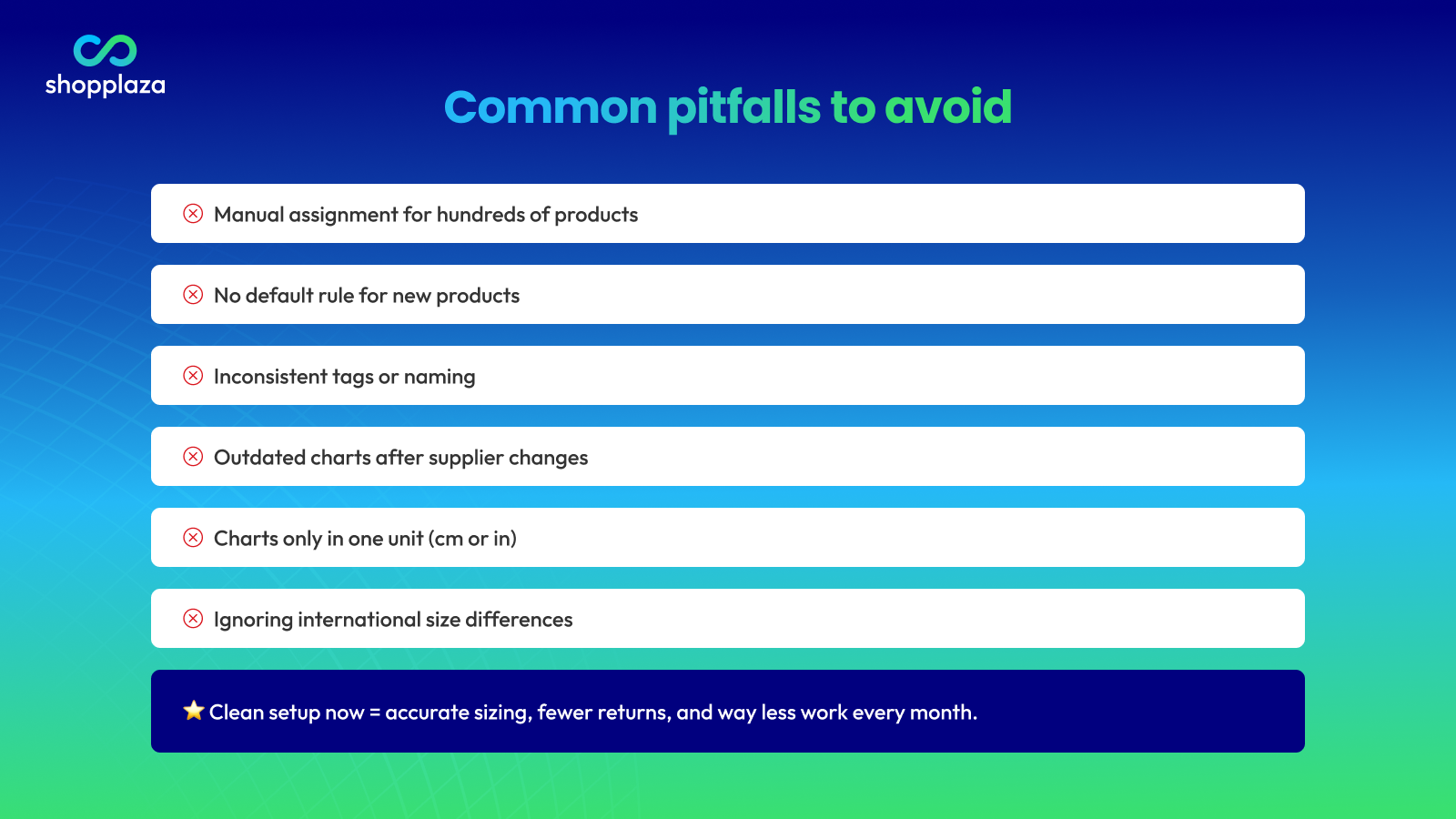
The patterns that quietly break a clean bulk system:
- No tagging convention. Tags like
chart:tops,Chart_Tops,tops-chart, andtops chartall look similar but won’t match the same rule. Pick one format, document it, enforce it. - Skipping the system “for now.” “I’ll set up rules later” — said while manually assigning charts to 80 products. Set the rule first; the manual time saved is real.
- Per-product manual overrides without tracking. Overrides are fine, but log them somewhere. Otherwise the rule system seems broken when a product mysteriously has the wrong chart.
- Not testing new product types. You add a new category (pet accessories) and assume the existing rules cover it. They don’t — and 30 products ship without a chart before anyone notices.
- No naming convention for charts. “Chart 1,” “Chart Final,” “Chart Final v2” — you’ve seen the file name pattern before. Same problem in size charts. Use semantic names:
Tops — Slim Fit,Tops — Relaxed Fit. - Never retiring old charts. Old charts pile up over time. Once a quarter, archive charts no longer assigned to any product. Clutter compounds.
Manage size charts at scale without code
MP Size Chart & Size Guide handles bulk management out of the box.
- Per-product, collection, tag, and vendor display rules — set one rule, apply to hundreds of products
- CSV import for bulk uploads + 30+ industry-specific templates as a starting point
- One auto-synced size guide page so you maintain charts in one place
- Rated 5.0★ on the Shopify App Store with a Built for Shopify badge
Conclusion
Bulk size chart management isn’t glamorous, but it’s the operational layer that separates stores running smoothly at 500 products from stores quietly losing returns to “we forgot to assign a chart to that one.”
The pattern that works for most growing stores: pick an app with per-collection and per-tag display rules, use CSV import for any update bigger than ~10 charts, document your tagging convention, and review the system quarterly. The first week of setup pays back the first month of saved admin time — and every month after that is gravy.
If you’re comparing specific apps for bulk capability, see the best Shopify size chart apps. For the head-to-head against the most-installed alternative, see MP Size Chart vs Kiwi Sizing. Either way, the goal is the same: rule-based assignment + CSV at the core, with quarterly reviews to keep the system clean.
Frequently asked questions
How do I add the same size chart to multiple Shopify products?
The easiest way is to use a size chart app with collection or tag display rules: assign a chart to a Shopify collection (or to all products with a specific tag) and every product in that collection or with that tag automatically uses the chart. The native Shopify approach (page metafields + theme blocks) requires assigning the chart to each product individually, which doesn’t scale past ~50 products.
What’s the best way to manage different size charts across product categories?
Use per-collection or per-tag display rules. For example, all “Tops” → Tops chart, all “Bottoms” → Bottoms chart, all “Shoes” → Shoe Size chart. Set the rule once and new products in the collection inherit the chart automatically. For overlapping categories (e.g., dresses that come in both slim and relaxed fits), use tags as the precedence rule.
Can I bulk import size charts to Shopify via CSV?
Yes — most size chart apps support CSV import. Export your existing charts, edit in a spreadsheet, and re-import. This is the fastest way to update many charts at once (e.g., when a supplier sends new specs). Shopify’s native size chart approach doesn’t support CSV import directly, but you can use the Shopify product CSV to bulk-assign tags or metafield values that drive chart assignment.
Do new products automatically get a size chart?
Only if you’ve set up rule-based assignment first. With collection or tag rules in place, new products that match the rule inherit the chart automatically. Without rules, every new product ships without a chart until someone manually assigns one — which is the most common reason chart systems leak as catalogs grow.
How often should I review my size chart system?
Quarterly is a sensible cadence. In each review: archive charts no longer assigned to any product, check that new product categories have rules assigned, update any supplier specs that have changed, and confirm international sizing conversions still render correctly.
Should I have one universal size chart or many per product type?
It depends on what you sell. One universal chart only works when every product genuinely shares the same sizing (a single-line t-shirt brand, for example). The moment you sell across categories — apparel, shoes, jewelry, pet accessories — you need separate charts per category. The moment you sell multiple fit types in one category (slim and relaxed shirts), you need separate charts per fit type.
How do I handle international size charts at scale?
Use a size chart app that auto-converts units (cm ↔ inches) and size labels (US ↔ UK ↔ EU ↔ AU). You maintain one chart and the app renders the right view per visitor locale. Maintaining 3+ versions of every chart manually — one per region — doesn’t scale and is error-prone.
What’s the difference between collection-based and tag-based chart assignment?
Both let you assign a chart to many products at once. Collections work well when your collection structure matches how you want to assign charts (e.g., your “Dresses” collection is also the group that needs the Dress chart). Tags work better when your collection structure is organised by something else (e.g., season, campaign) and you need a parallel system just for size charts. Many stores end up using both — collections as the default and tags for exceptions.
Can I edit size charts in bulk through Shopify’s admin?
Shopify’s native admin doesn’t support bulk size chart editing — you’d have to click through each product. A size chart app with CSV export/import or an in-app bulk editor solves this. For 10+ charts at once, CSV is almost always faster.
How do I retire an old size chart without breaking products that still use it?
First, identify all products currently using the chart (most apps provide a usage report or list). Reassign those products to the new chart via tag, collection, or manual update. Then archive or delete the old chart. Skipping the reassignment step is the most common cause of products showing an empty popup after a chart cleanup.