Online shoppers can’t try anything on. They can’t feel the fabric, slip on the shoe, or check if a ring will actually fit. So when your size labels just say “S, M, L,” a lot of people do one of two things: they guess, or they leave.
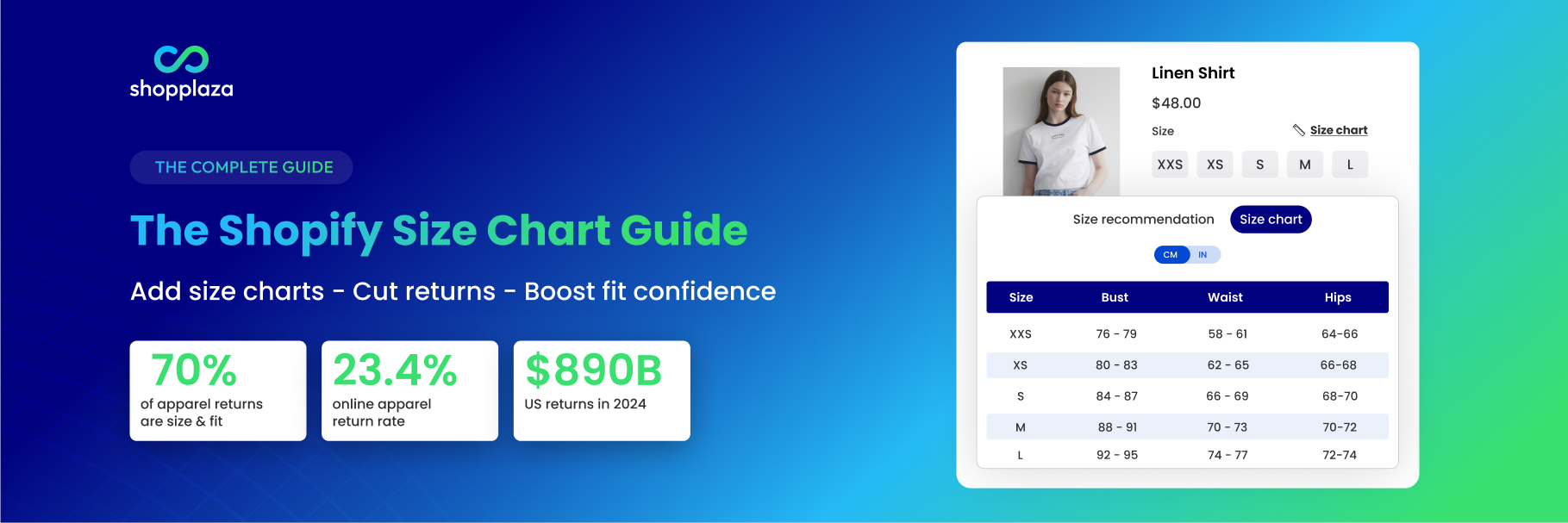
That guessing is expensive. According to Coresight Research and Alvanon (2025), roughly 70% of online apparel returns are driven by size and fit issues — making “it didn’t fit” the single biggest reason customers send products back. And returns aren’t cheap: they cost retailers about $30 for every $100 in returned merchandise (RILA Link Returns Panel, via Optoro).
A clear Shopify size chart tackles this at the source. It gives shoppers the measurements they need to choose the right size the first time — which means more confident purchases, fewer “what size should I get?” messages, and fewer returns landing back at your warehouse.
This guide covers everything you need: what a Shopify size chart is, where to put it, how to add one (three methods, including the native Shopify way), best practices, examples by product type, and how to decide between a manual setup and an app.
📌 Key takeaways before you dive in:
- A Shopify size chart shows body or product measurements on the product page, so shoppers can pick the right size before they buy.
- Size and fit drive about 70% of online apparel returns (Coresight & Alvanon, 2025), so a clear size chart targets the #1 cause of returns.
- There are four ways to add one: a size chart app, a page metafield with a Popup block, an image metafield with the Image with text section, or custom Liquid code.
- For best results, place it near the size selector, keep it mobile-friendly, and use product-specific charts.
What is a Shopify size chart?
A Shopify size chart is a sizing guide shown on your store — usually on the product page — that helps shoppers compare body or product measurements before they buy. Depending on the product, it includes measurements like chest, waist, hips, length, inseam, foot length, ring diameter, or a pet’s neck and chest size.
Size charts come in a few common formats, and the right one depends on your products and your theme:
| Size chart format | Best for |
|---|---|
| Table | Apparel, footwear, accessories — anything with clean numeric measurements |
| Popup / modal | Product pages where you want to save space and keep the layout clean |
| Size guide tab | Stores with detailed product info that’s already organized in tabs |
| Image or video guide | Products that need “how to measure” instructions |
| Size recommendation widget | Stores that want to guide shoppers to a size based on their inputs |
| Dedicated size guide page | Larger catalogs that need one central place for all charts |
Most successful stores use a table inside a popup near the size selector — it’s scannable, mobile-friendly, and doesn’t clutter the page. (Tables also tend to be more SEO- and AI-friendly than images, because the text inside them can be read and indexed.)
Why size charts matter for Shopify stores
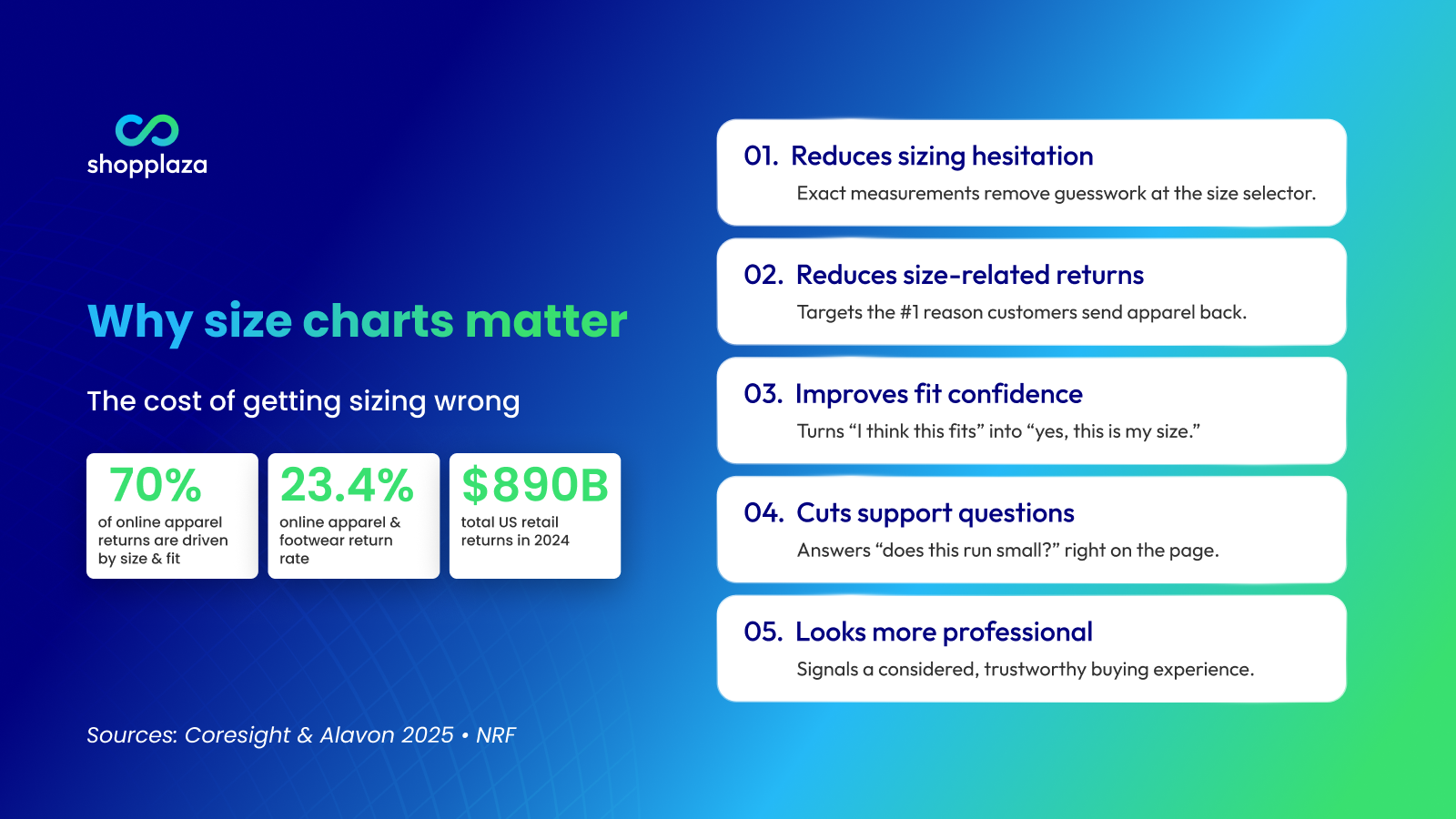
Size charts aren’t just a formatting nicety. They’re a conversion and customer-experience tool that affects real business outcomes. Here’s what a clear size guide does for your store.
It reduces sizing hesitation
When shoppers aren’t sure which size to pick, they hesitate — and hesitation at the size selector is one of the quietest conversion killers there is. A clear chart removes the guesswork by showing exact measurements, so people feel confident enough to add to cart.
It reduces size-related returns
Wrong-size purchases are the #1 driver of apparel returns. With online apparel and footwear return rates around 23.4% (Coresight & Alvanon, 2025) and ~70% of those returns tied to fit, giving shoppers accurate measurements before checkout is one of the most direct ways to bring returns down. For a real example, see how one store boosted conversions and reduced returns with a clearer size guide.
It improves fit confidence
Fit confidence means a shopper feels sure enough about their size to actually complete the purchase. Objective measurements — backed up by fit notes like “runs small” or “relaxed fit” — turn “I think this is my size?” into “yes, this is my size.”
It cuts down on support questions
If you’ve ever answered “does this run small?” or “what size should I order?” five times in a day, a size chart is your friend. A good guide answers these questions right on the product page, so your support team can focus on the harder stuff.
It makes your product page feel more professional
A polished, easy-to-read size guide signals that you’ve thought about the buying experience. That little bit of trust matters most at the exact moment someone is deciding whether to spend money with you.
The big picture: Returns reached an estimated $890 billion in the US in 2024 (NRF & Happy Returns), and online orders are returned at roughly double the rate of in-store purchases. You can't eliminate returns — but for fit-sensitive products, a good size chart targets the single largest cause.
Which Shopify stores need a size chart?
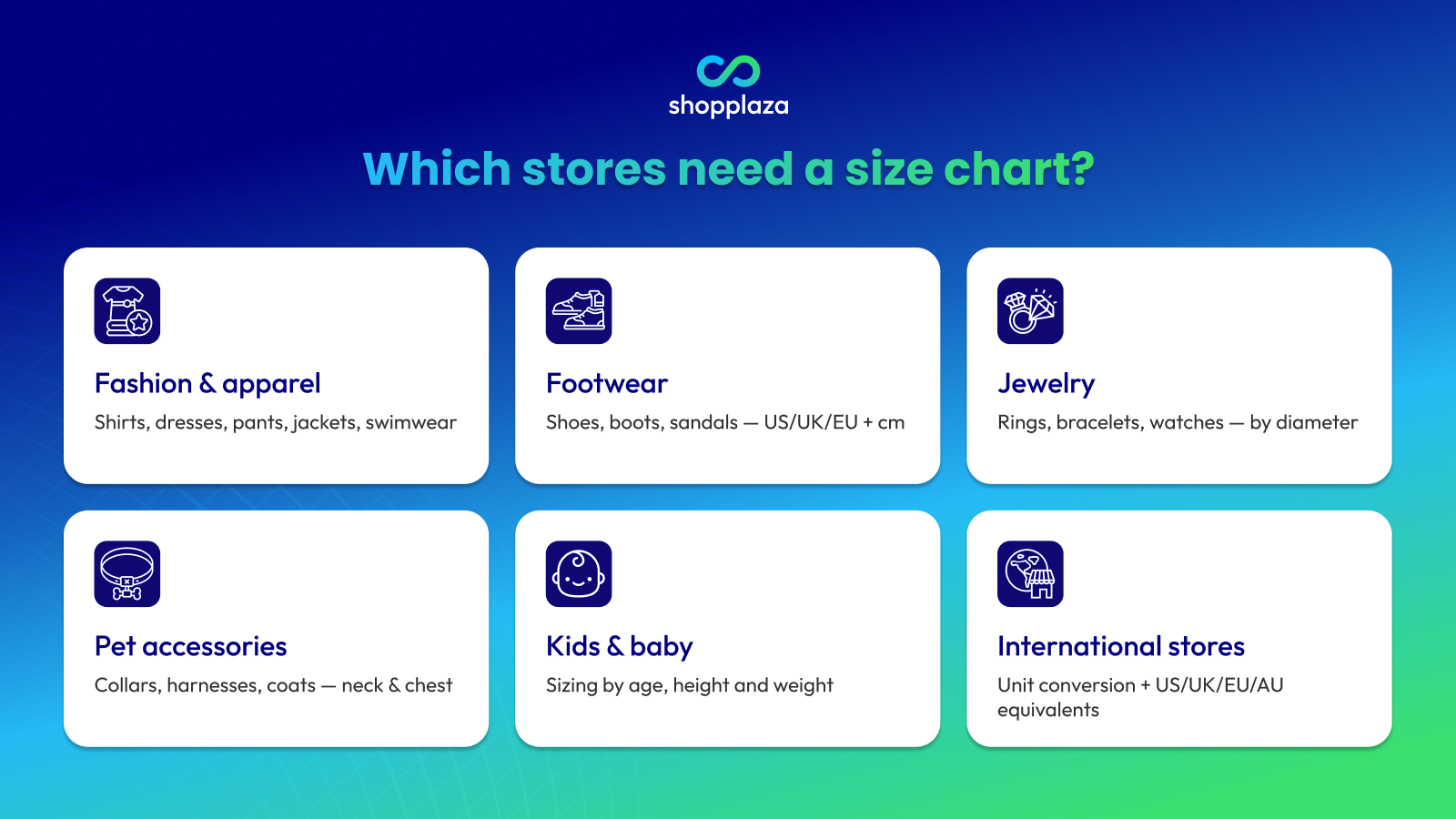
Any store selling size-based products should have one — especially if your products have multiple variants, international sizing, or fit that’s easy to get wrong. Here’s how it plays out across categories:
- Fashion & apparel — shirts, dresses, pants, jackets, hoodies, swimwear, activewear, uniforms. The classic use case, and the one where returns hurt most.
- Footwear — shoes, boots, sandals, sneakers. Shoppers need US/UK/EU conversions plus foot length in cm.
- Jewelry — rings, bracelets, necklaces, watches. Diameter and circumference matter, and getting a ring size wrong is a guaranteed return.
- Pet accessories — collars, harnesses, coats, pet apparel. Owners need to measure neck, chest, and back length.
- Kids & baby — sizing by age, height, and weight reduces a lot of confusion (and a lot of returns).
- International stores — anyone selling across regions needs unit conversion and clear US/UK/EU/AU equivalents.
Where should you display size charts on Shopify product pages?
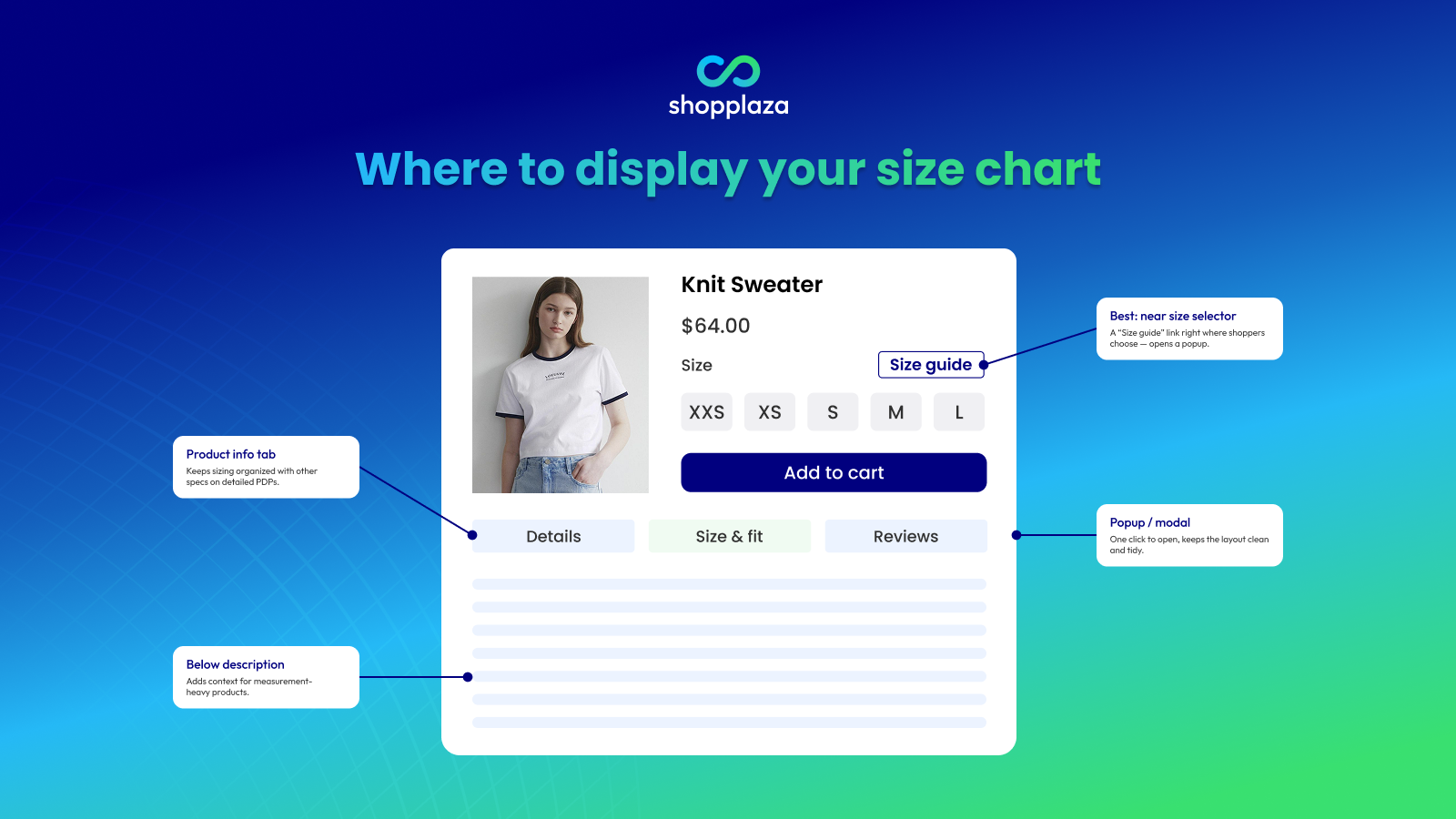
A size chart should be easy to find before the shopper selects a variant or clicks “Add to cart” — that’s the exact moment they need it. Putting it too low on the page (or only in the footer) means most people never see it.
Here are the placements that work, and when to use each:
| Placement | Best for | Main benefit |
|---|---|---|
| Near the size selector | Apparel, footwear | Helps shoppers decide right where they choose |
| Popup / “Size Guide” link | Clean product pages | Keeps the layout tidy, one click to open |
| Product information tab | Detailed PDPs | Keeps sizing organized with other specs |
| Below the product description | Measurement-heavy products | Adds context as part of the product story |
| Dedicated size guide page | Large, multi-category catalogs | One central place for every chart |
The most reliable pattern: a short link like “Size Guide,” “View Size Chart,” “Find Your Size,” or “How to Measure” right beside the size selector, opening a popup with the chart.
Don't forget mobile. Most Shopify traffic is on phones, and a size chart that's tiny, cut off, or hard to close on a small screen creates the same friction it's supposed to remove. Make sure the popup opens cleanly, the table scrolls or stacks neatly, and the close button is easy to tap.
How to add a size chart to Shopify product page (4 methods)
Shopify doesn’t have a one-click “add size chart” button, but there are four solid ways to get one in front of shoppers — from a no-code app install to a fully custom Liquid integration. Here’s each method in practice, who it’s for, the step-by-step, and the watch-outs.
Method 1: Use a dedicated size chart app
The fastest no-code option, and the route most growing stores end up taking. A purpose-built size chart app handles the chart, the display rules, and the design — and modern apps add things you can’t easily replicate by hand: AI-powered size recommendations, unit conversion, multi-language, and bulk CSV import.
Step-by-step:
#1. Install the app.
From your Shopify admin, open Apps → Shopify App Store, search for “size chart” or “size guide,” and install the one that fits your store. For example, MP Size Chart & Size Guide has a free plan to start. This app includes 30+ industry-specific templates, CSV import for bulk uploads, 20+ languages with auto unit conversion, AI-powered size recommendations, and one auto-synced size guide page — all without code.
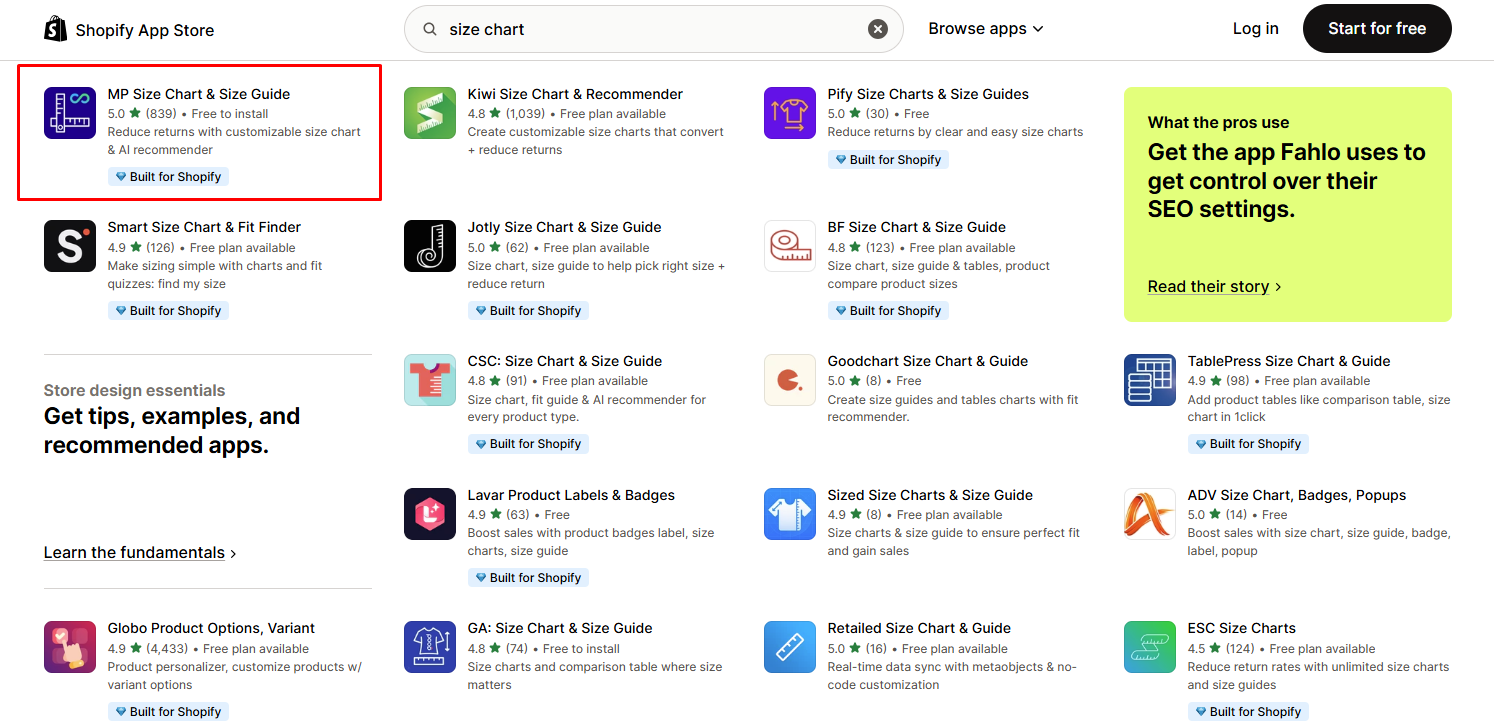
After completing the installation MP Size Chart app, ensure you embed this app into your theme. Navigate to Enable app and click Enable.
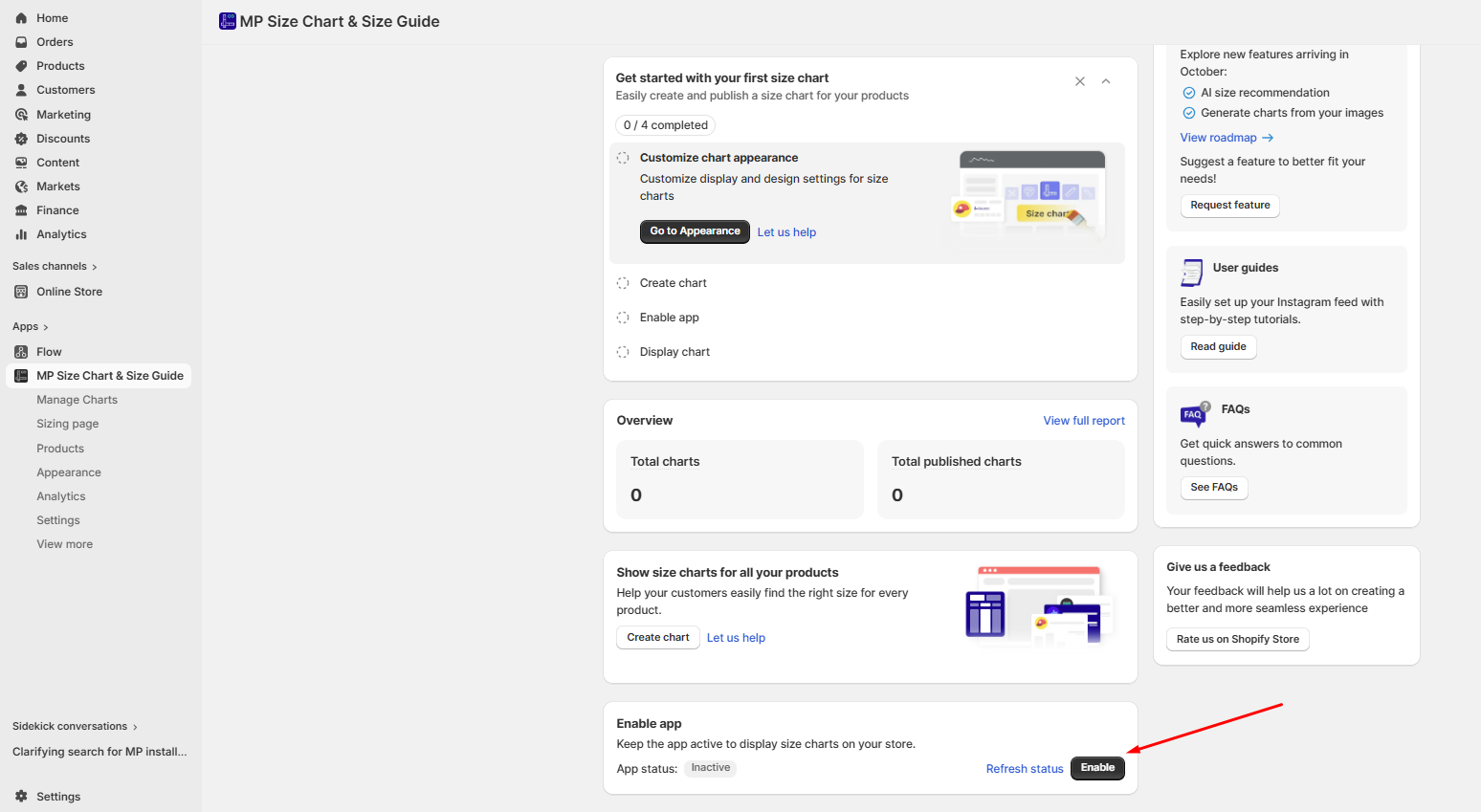
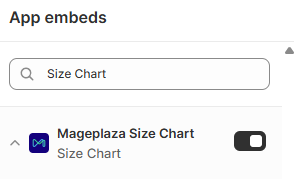
You will be redirected to the Shopify Theme Editor — toggle the app On and click Save to activate it.
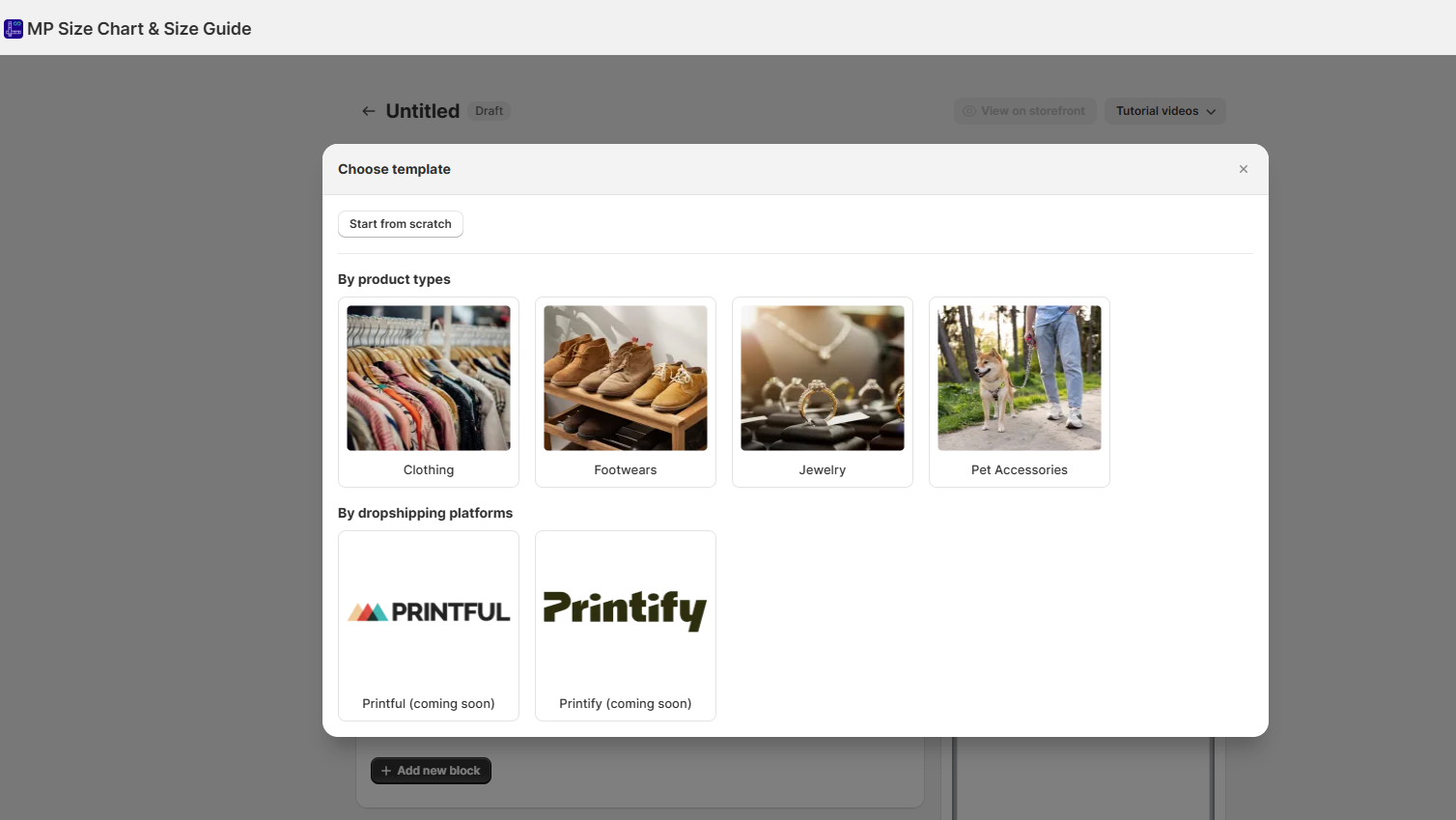
#2. Create your first chart.
Most apps include ready-made templates for apparel, footwear, jewelry, pet accessories, and more — pick one to start, or build from a blank chart.
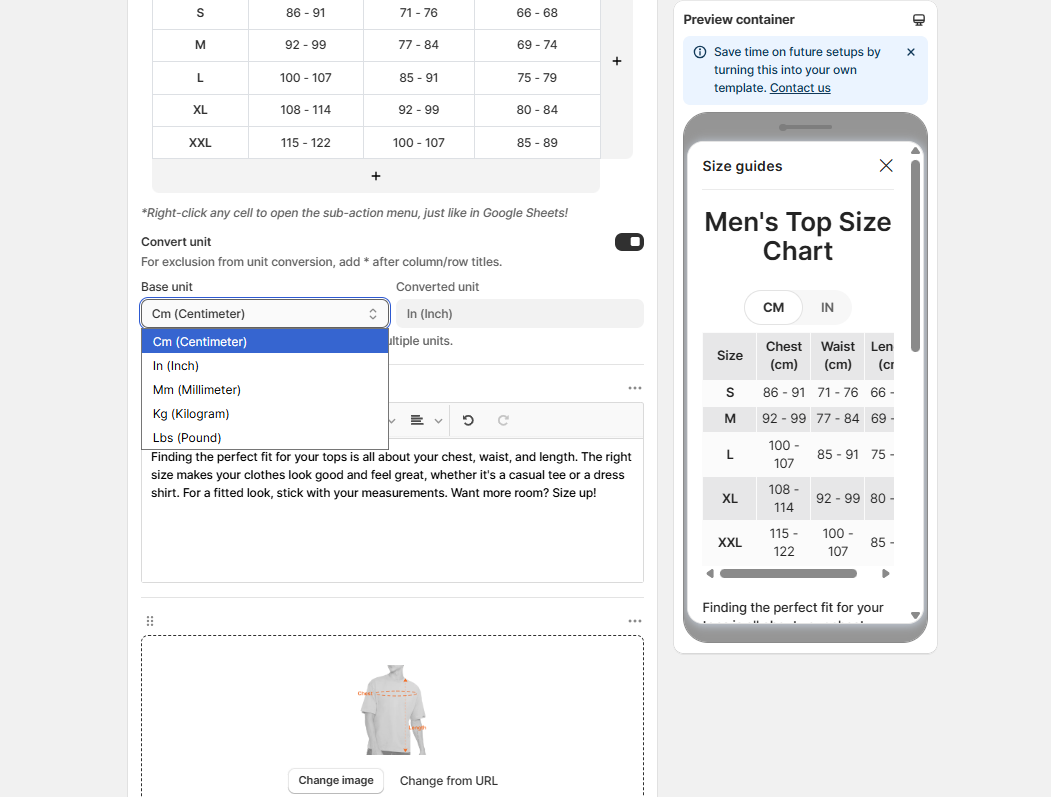
#3. Enable unit conversion.
If you want to show measurements for global shoppers, toggle Convert unit. Select a base unit from one of the five available options (cm, in, mm, kg, lbs), and our app will automatically convert it to the corresponding units.
#4. Set display rules.
Map the chart to specific products, collections, vendors, or tags. This is where apps save real time — one rule can apply a chart to hundreds of products without clicking through every one.
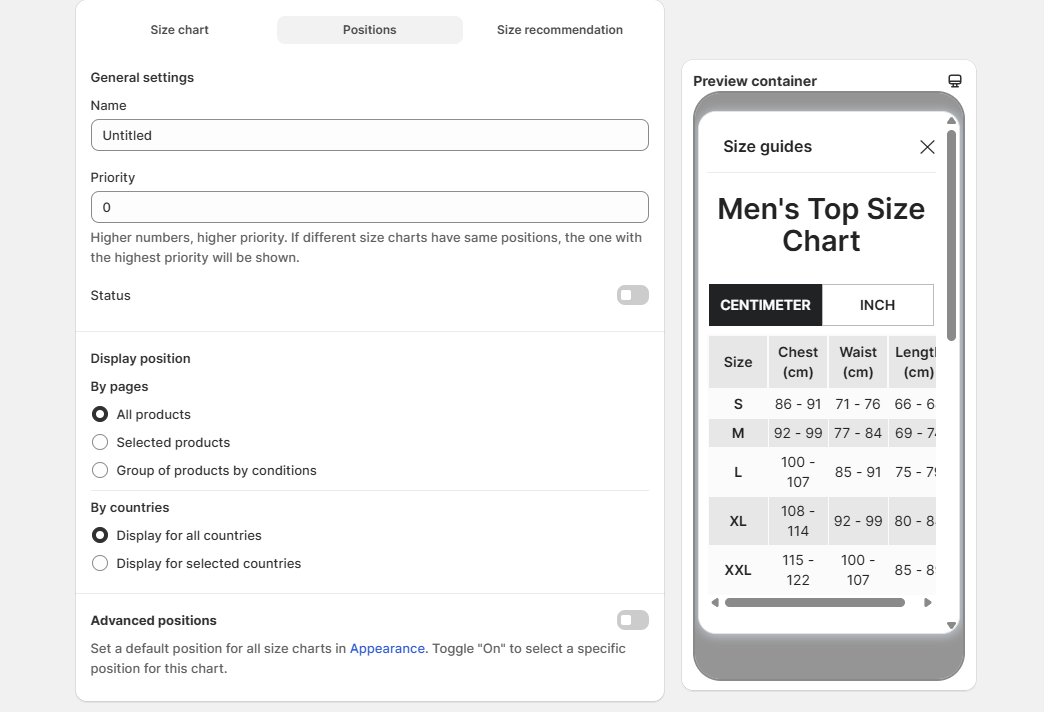
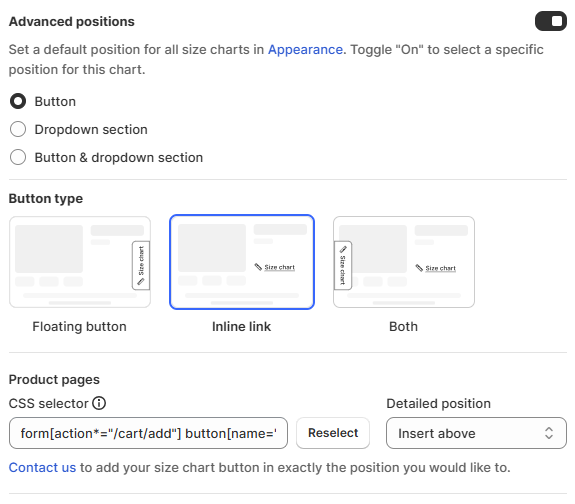
#5. Choose where and how it appears.
Pick a position (near the variant picker works best), a trigger (“Size Guide” link, an icon, or a tab), and a style (popup, inline table, side panel). Preview on both desktop and mobile.
#6. Publish.
Toggle the chart on, save, then open a live product page to confirm it renders cleanly.
- Watch out for: rare theme conflicts (test on a duplicated theme first if you’re worried), and forgetting to auto-assign charts to new products — set a tag- or collection-based rule so new arrivals inherit the right chart by default.
Method 2: Page metafield + Popup block (the native dynamic method)
This is the approach Shopify documents in its own Help Center. You store the size chart as a regular Page, point each product at it via a metafield, and surface it on the product page using a Popup block in the theme editor. Works on any Online Store 2.0 theme that supports dynamic sources — Dawn and most modern themes do.
Step-by-step:
#1. Build your size chart pages first.
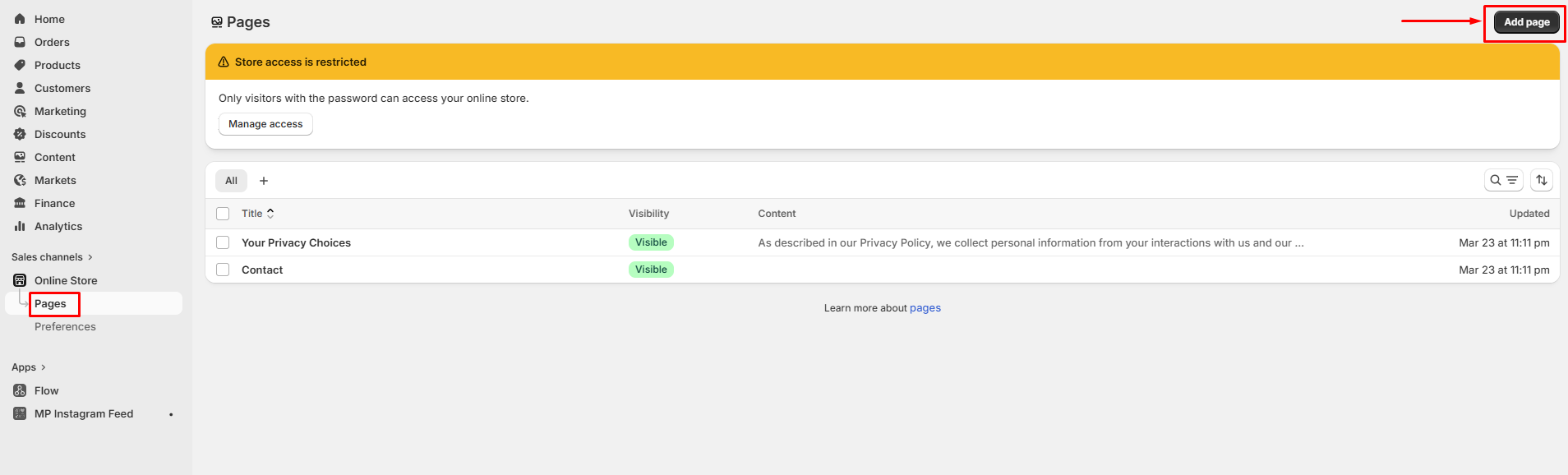
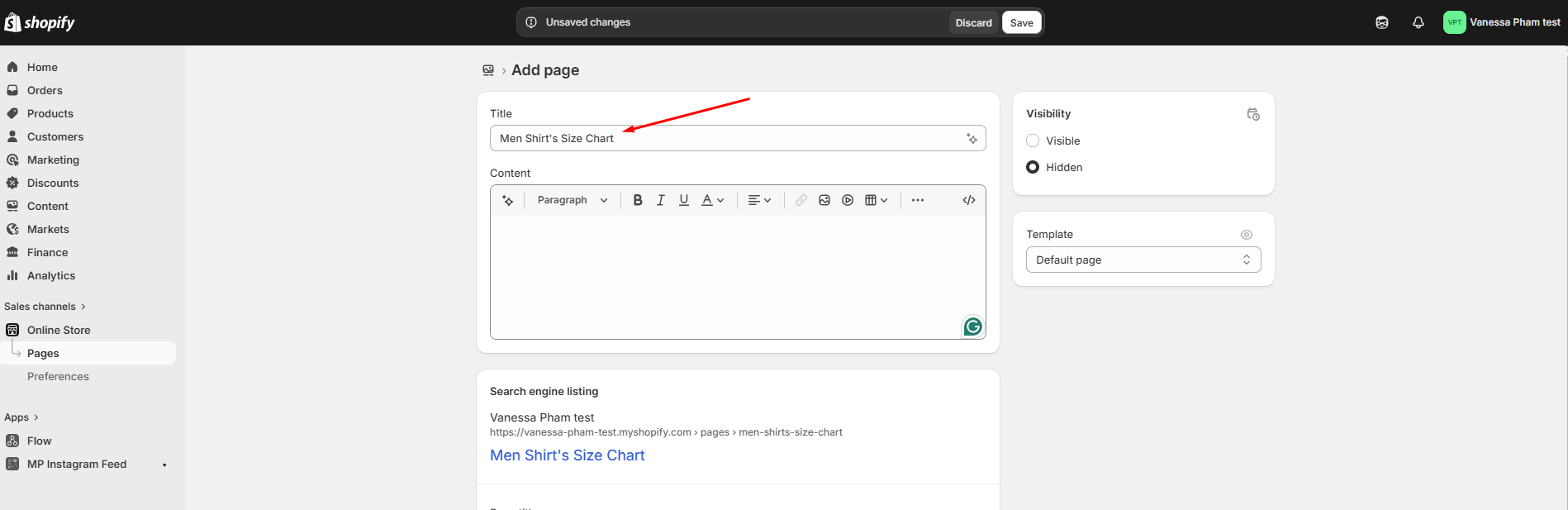
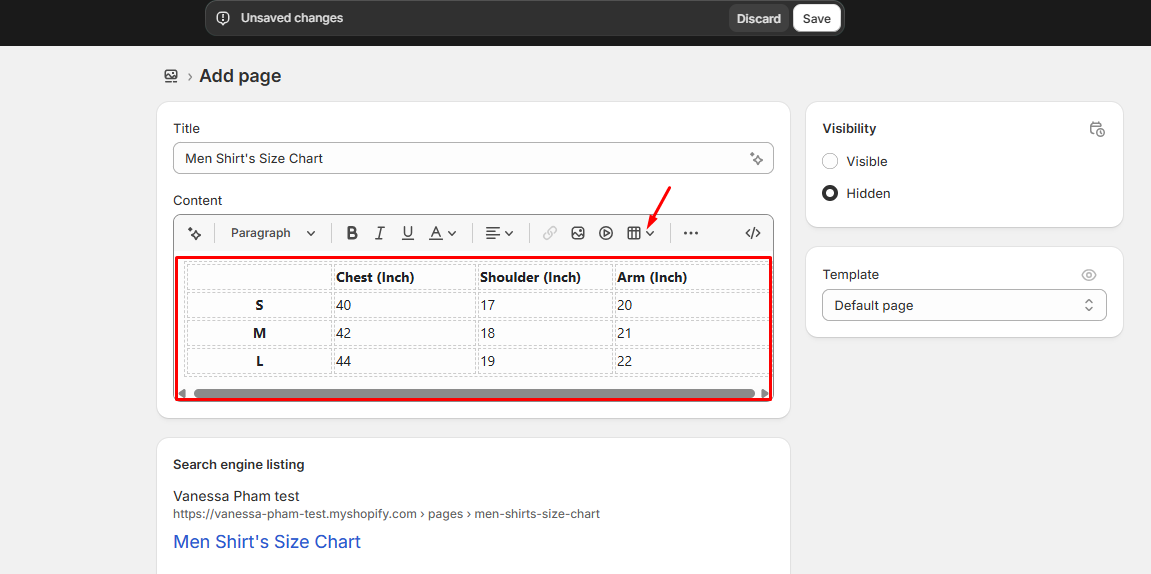
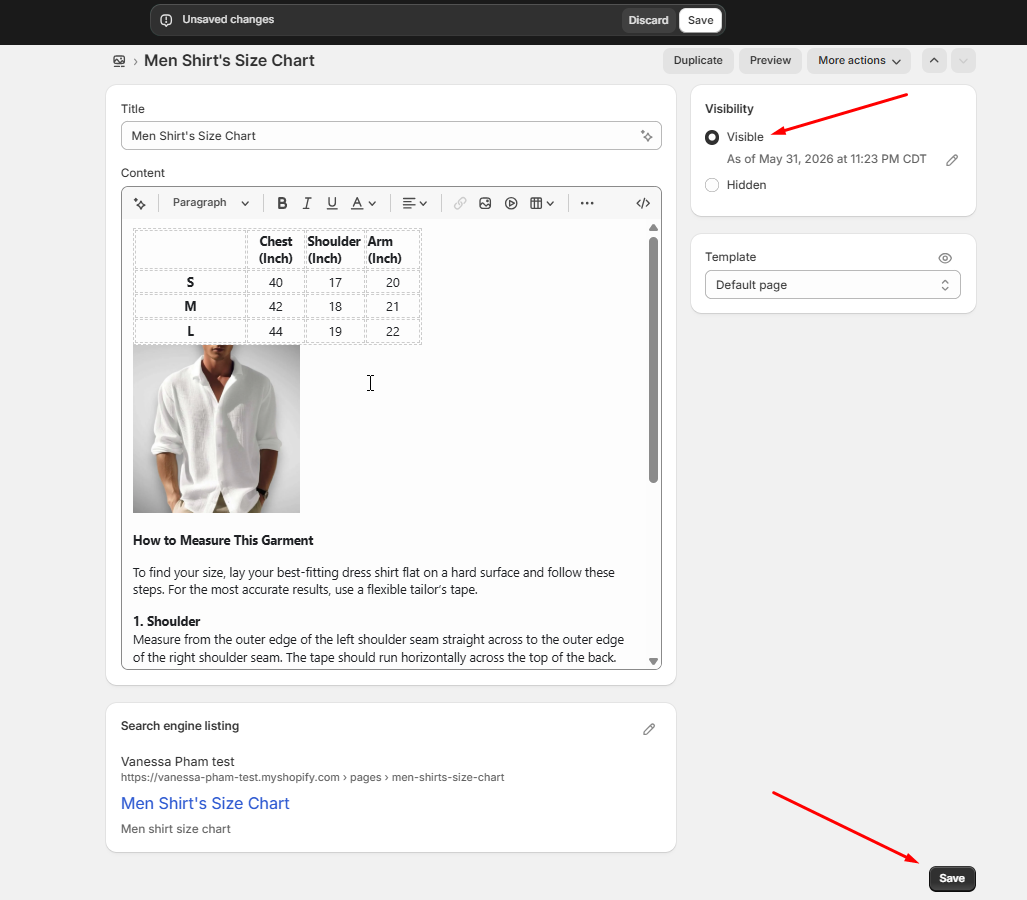
Go to Online Store → Pages → Add page, give it a specific title like “Tops Size Chart” or “Shoes Size Chart,” and build the chart with the rich-text editor’s table tool. Set visibility to Visible and click Save. Create one page per chart variant you need.
#2. Define a page-type metafield.
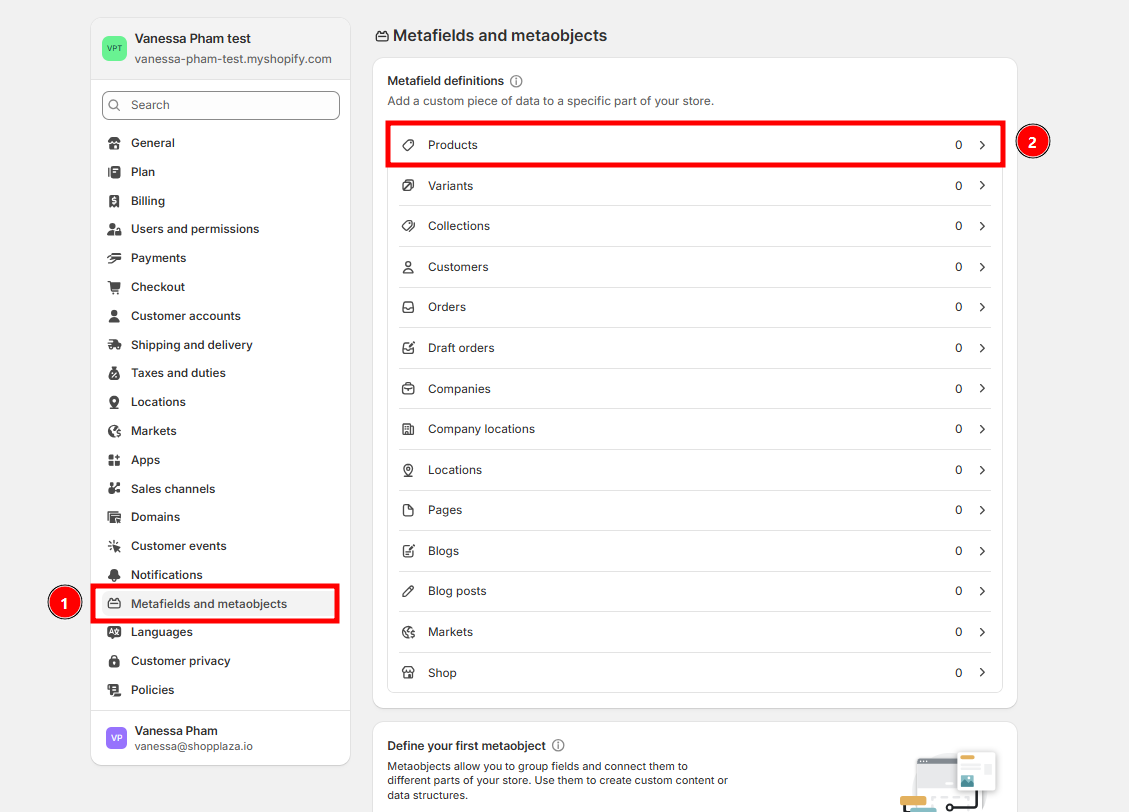
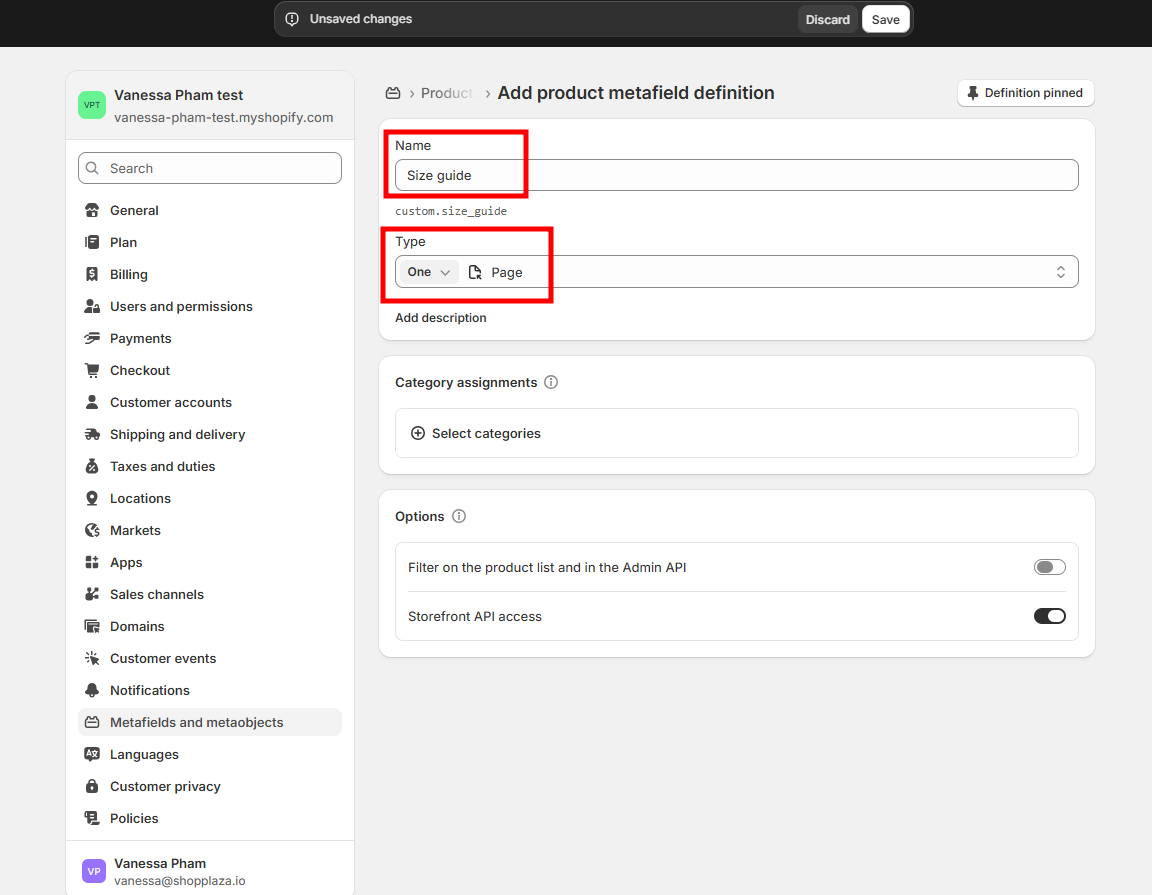
Go to Settings → Custom data → Products → Add definition. Name it something obvious like “Size chart page,” set the content type to Page, and save.
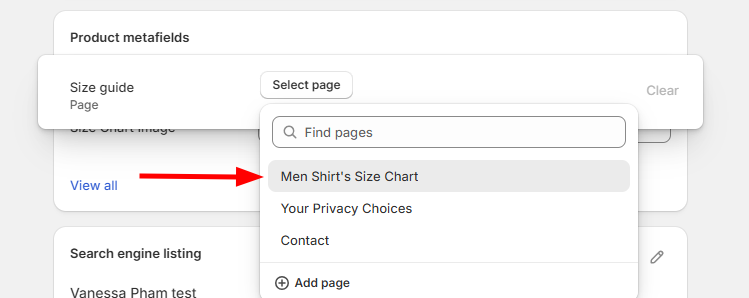
#3. Attach a chart to each product.
Open a product, scroll to Metafields, find the new Size chart page field, and select the page that applies. Repeat for the rest of your catalog — or use Shopify’s bulk editor / CSV export to do it in batches.
#4. Add the Popup block.
Open Online Store → Themes → Customize, open a product template, and under the product information area click Add block → Popup. Drag it directly below the Add to cart button.
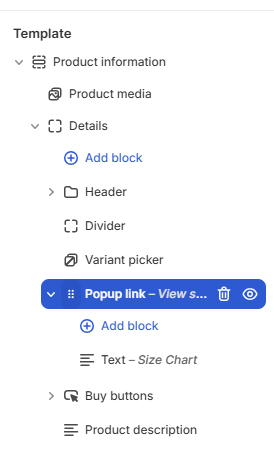
#5. Connect it to the metafield.
In the block settings, click the dynamic-source icon (a small database symbol) next to the content field and pick your Size chart page metafield. Set a clear link label — “View Size Chart” or “Find Your Fit.”

#6. Save and preview. Open a product page on the live store and click the link. The chart should open in a clean modal that closes with an X or an outside click.
- Watch out for: themes without a Popup block (some third-party themes skip it — check the theme docs first), mobile overflow on wide tables (test on a phone before going live), and metafields that don’t show up in the dynamic-source picker — a quick refresh of the theme editor usually fixes that.
Method 3: Image metafield + “Image with text” section (for graphic charts)
If your size chart already lives as a polished branded graphic — not a plain HTML table — you can store it as an image metafield and display it through the built-in Image with text section. No code, OS 2.0 only.
Step-by-step:
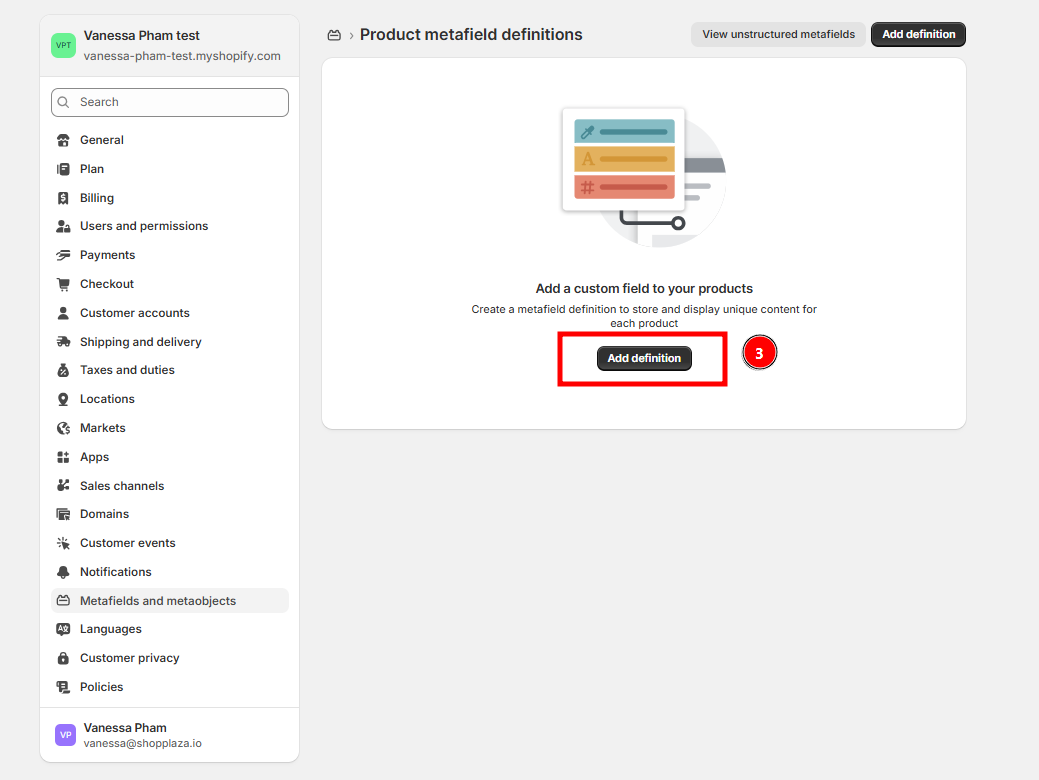
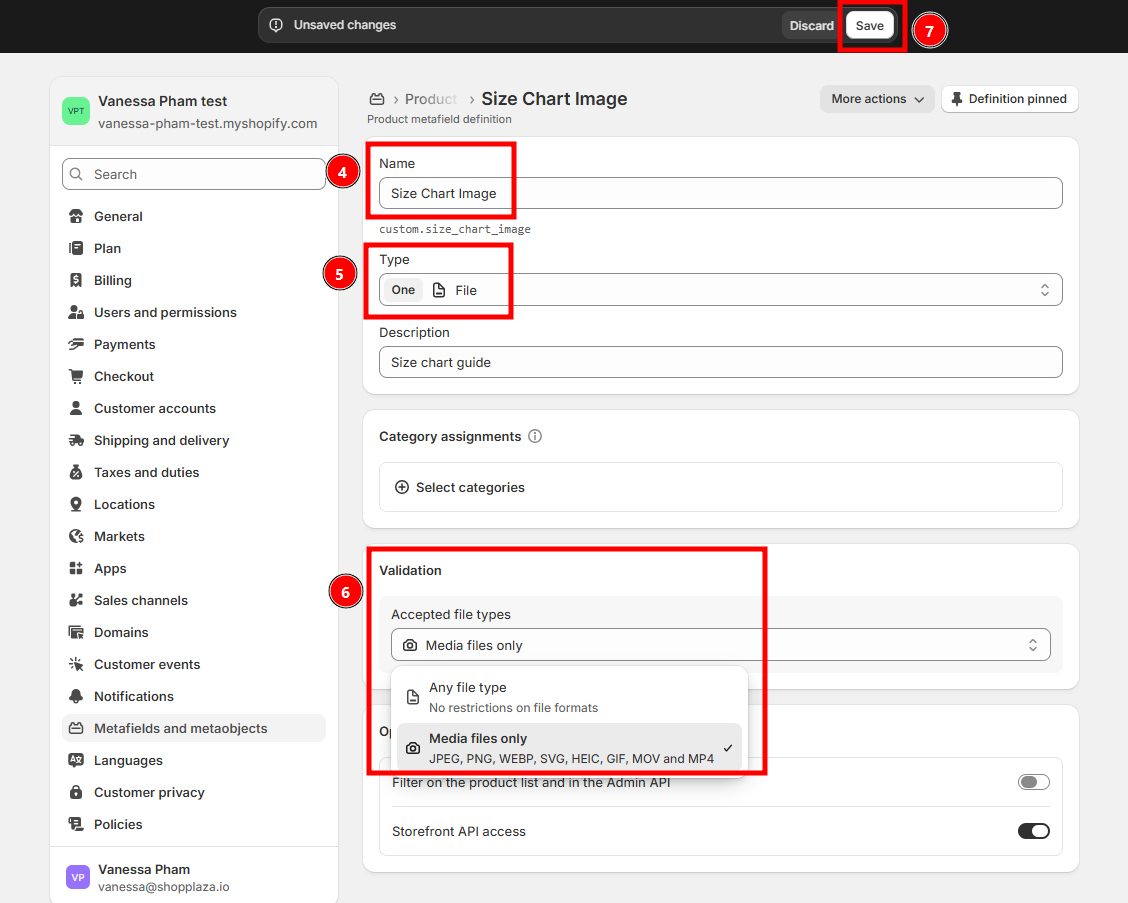
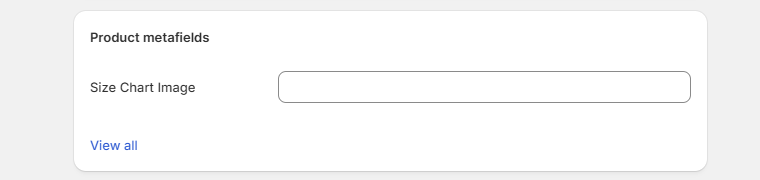
#1. Define an image-type metafield.
Go to Settings → Custom data → Products → Add definition. Name it “Size chart image,” set the content type to File, and under validation choose Accept only images. Save.
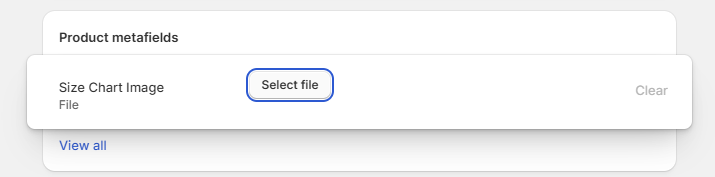
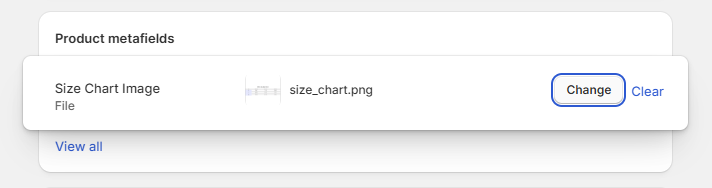
#2. Upload an image per product.
Open a product, scroll to Metafields, find the Size chart image field, and upload your chart graphic and click Save. Products that share sizing can reuse the same file.
#3. Add an Image with text section.
Open Online Store → Themes → Customize, open the product template, click Add section → Image with text, and drag it where the chart should appear.
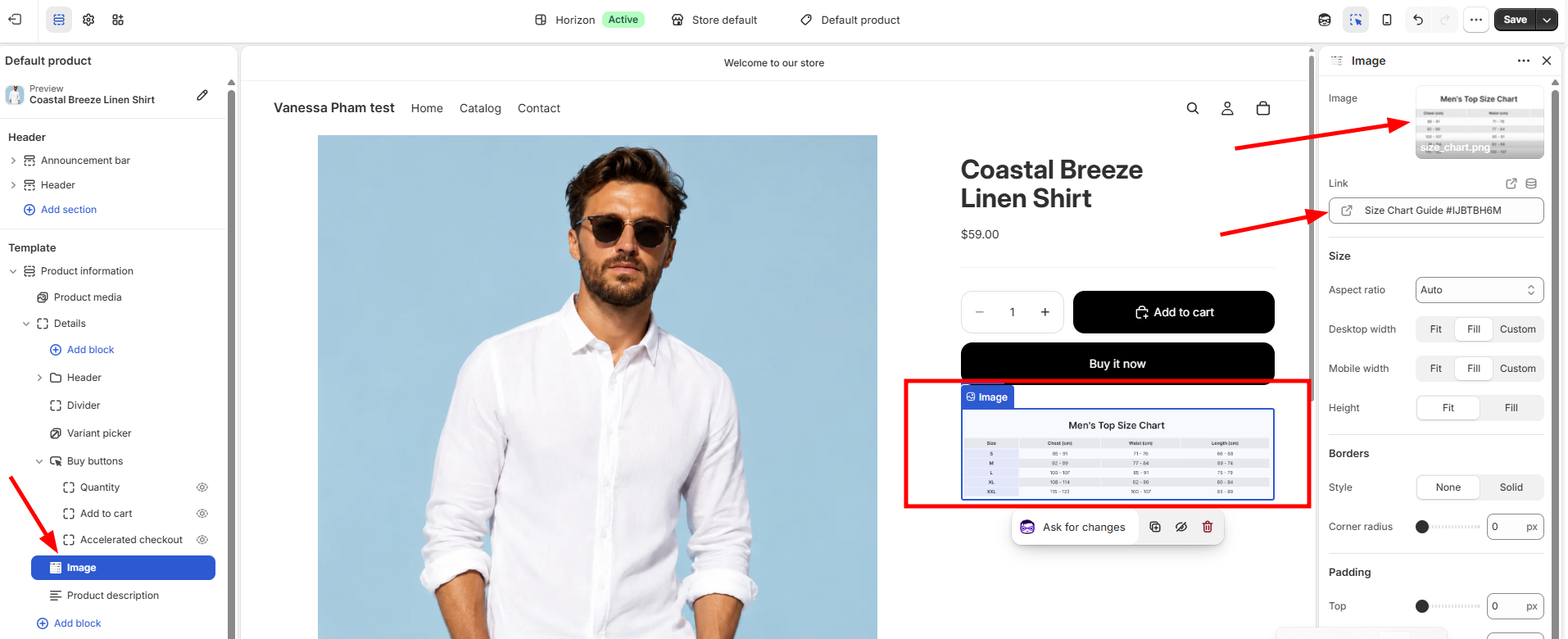
#4. Save and check. Preview a product on desktop and mobile to confirm the image stays legible, and verify the section is hidden cleanly on products without an image assigned.
- Watch out for: low-resolution uploads (export at least 1200px wide for retina screens), and products with no image assigned showing an empty section on themes that don’t auto-hide it. Bulk-manage through Shopify’s product export/import if you’re populating dozens of products at once.
Method 4: Edit your theme code with custom Liquid
The most flexible option for stores with developer resources. You create the size chart as a regular Shopify page and add a “See Size Chart” link directly into the product template via Liquid — fully customisable, no monthly fee, no app dependency.
Step-by-step:
#1. From the Shopify admin, open Online Store → Pages, then click Add page.
#2. Give the page a clear, search-friendly title. Use “Size Chart” for one universal chart, or something more specific like “Shoes Size Chart” or “Acme Hoodies Size Chart” when you need separate charts per product type or brand. Make sure the URL preview matches (for example, /pages/size-chart or /pages/shoes-size-chart).
#3. In the Content box, build the chart itself. Use the rich-text editor’s table tool to add columns (Size, Bust, Waist, Hips, Length, etc.) and a row for each size. If you’ve already designed a chart in another tool, you can drop it in as an image — but a real HTML table reads better on mobile and is easier for Google to index.
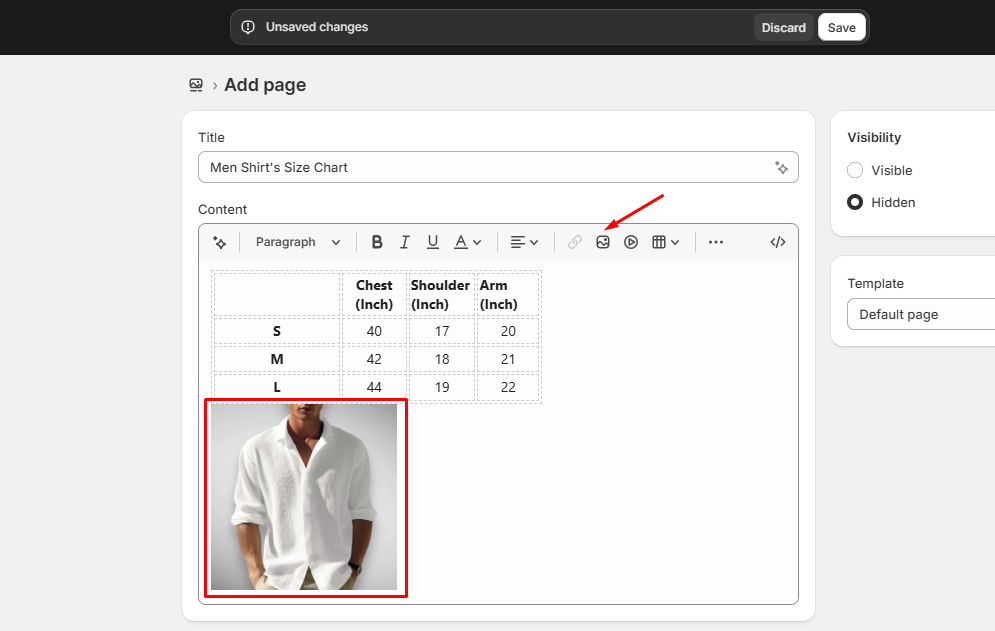
#4. Polish the table — bold the header row, set sensible column widths, and add a short “How to measure” note above it so shoppers know what to do with the numbers.
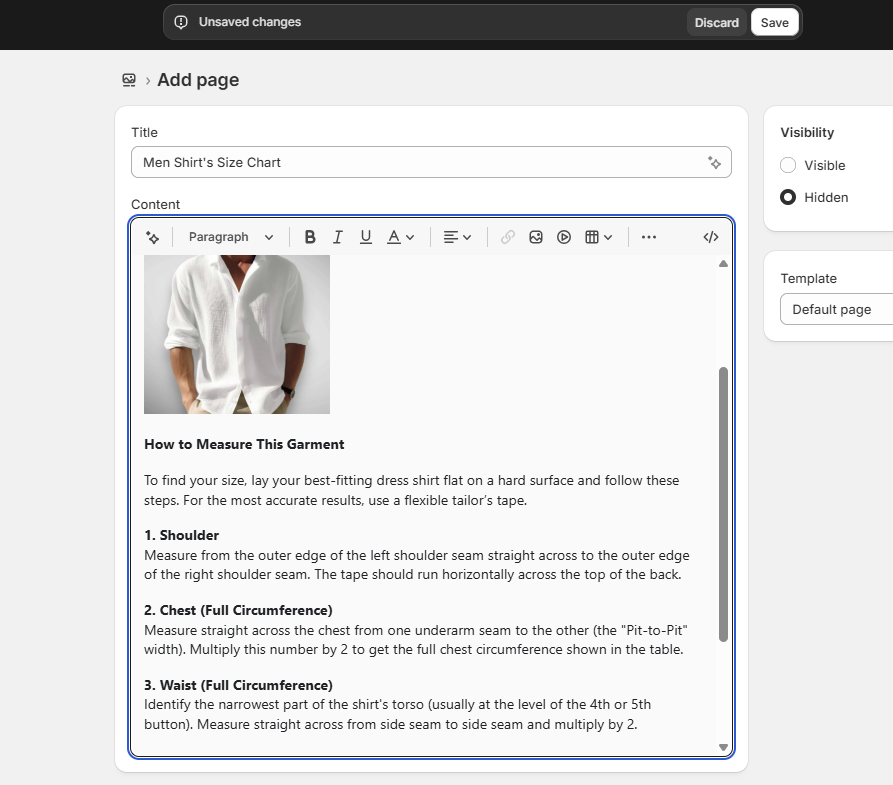
#5. Under Visibility, choose Visible and click Save.
#6. Link to the new page wherever shoppers need it: inside each product’s description (use the link icon in the rich-text editor), in your main navigation, or in the footer.
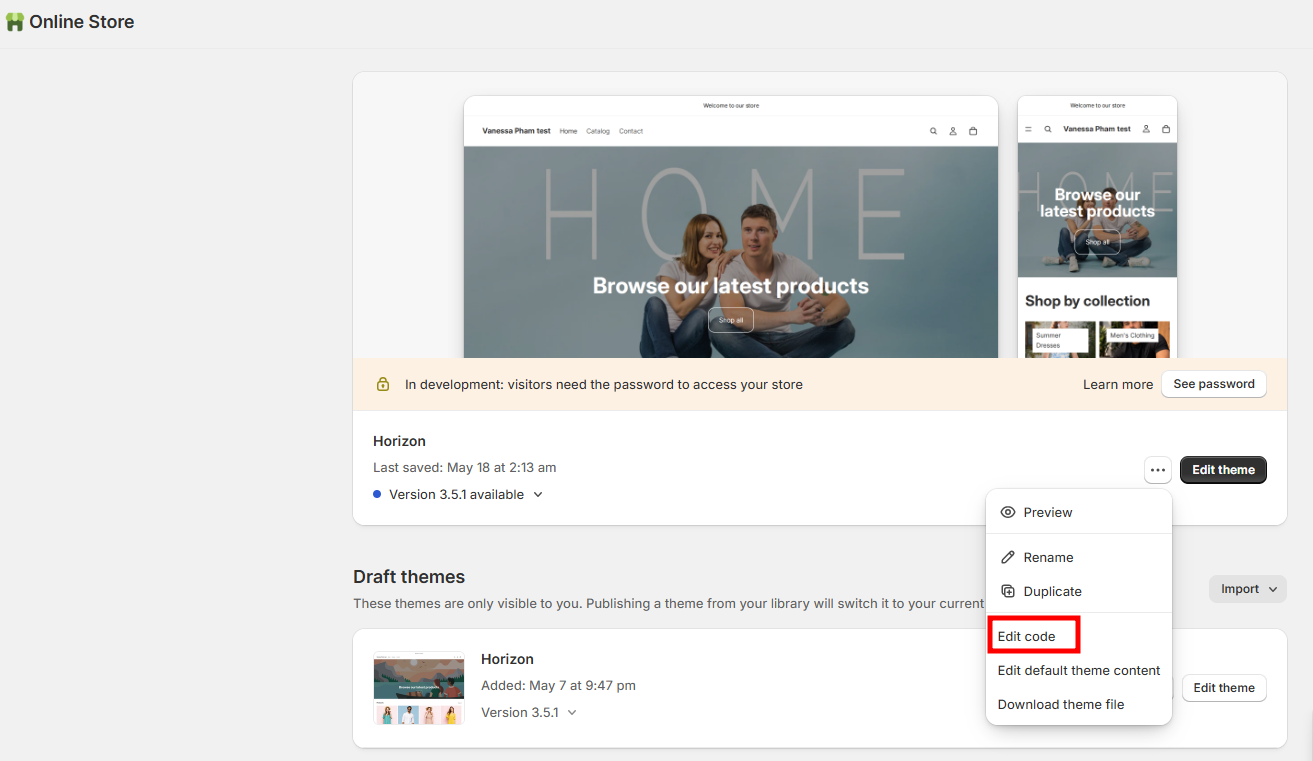
#7. Open your theme code. From the admin, go to Online Store → Themes. On your active theme, click Actions → Edit code. (Duplicate the theme first so you have a clean rollback point.)
#8. Find the product template. In the Sections folder, open the file that renders the product page — usually product-information.liquid on Online Store 2.0 themes, or product-template.liquid / product.liquid on older themes.
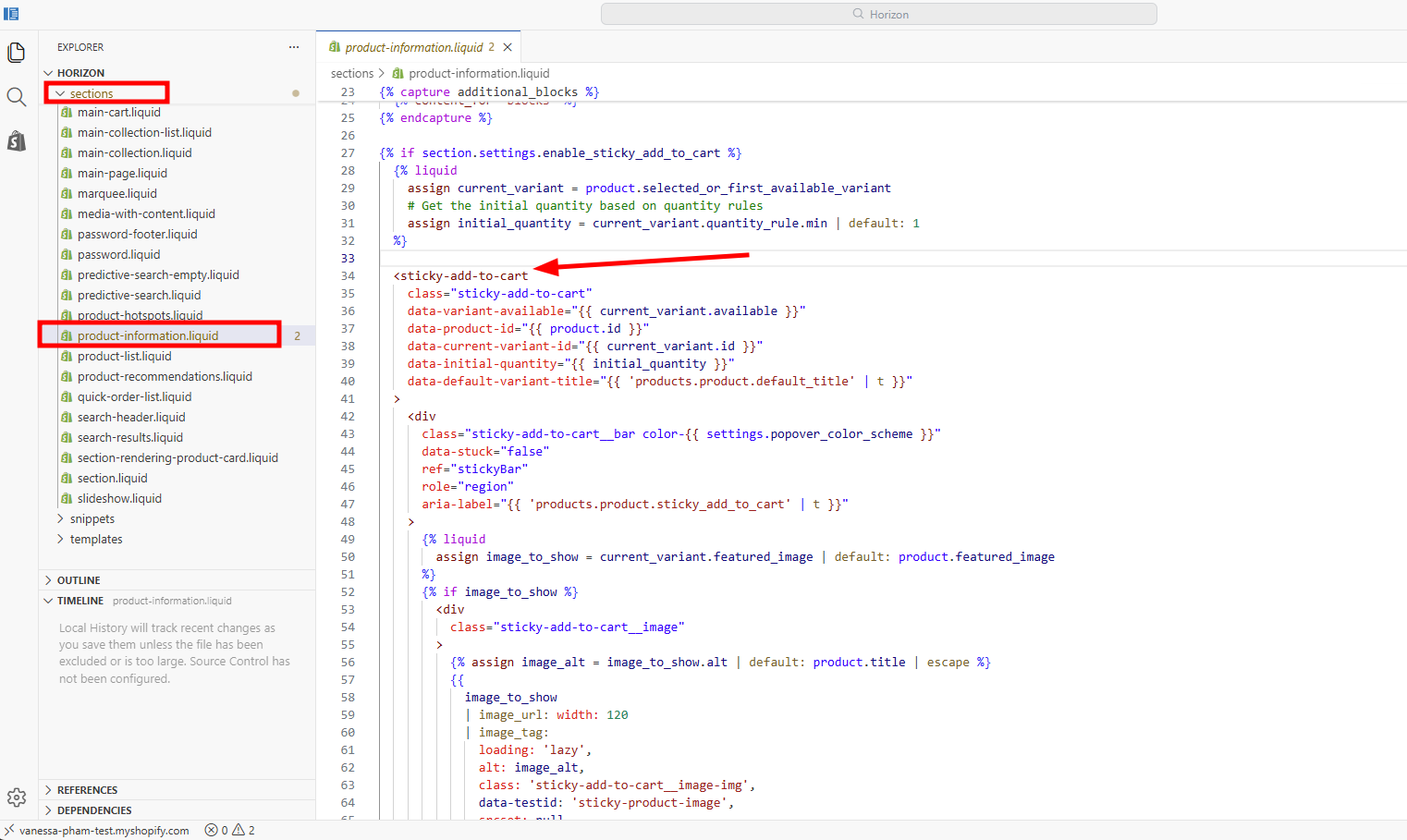
#9. Locate the Add to cart form, and just below it paste a Liquid snippet that only shows the link on products with a Size option:
liquid
Replace /pages/size-chart with whatever slug you used.
#10. Style the link by adding CSS to your theme’s stylesheet, matching the look of your other buttons. If you want a modal instead of a separate page, add a hidden <div id="size-chart"> containing the chart markup and wire up a small JavaScript open/close (or reuse your theme’s existing modal helper).
#11. Save and test on a live product page — on desktop, on mobile, and on a product without a Size option (the link shouldn’t appear).
- Watch out for: the wrong template file (Dawn uses
main-product.liquid, older themes useproduct-template.liquid— preview the theme and inspect the HTML to confirm which file actually renders product pages), option-name mismatches (the Liquid check looks for the literal string “Size” — update it if your option is “Taille,” “Größe,” or “Fit”), and forgetting to set page visibility (a Hidden page returns a 404).
Native Shopify vs. a size chart app: which should you use?
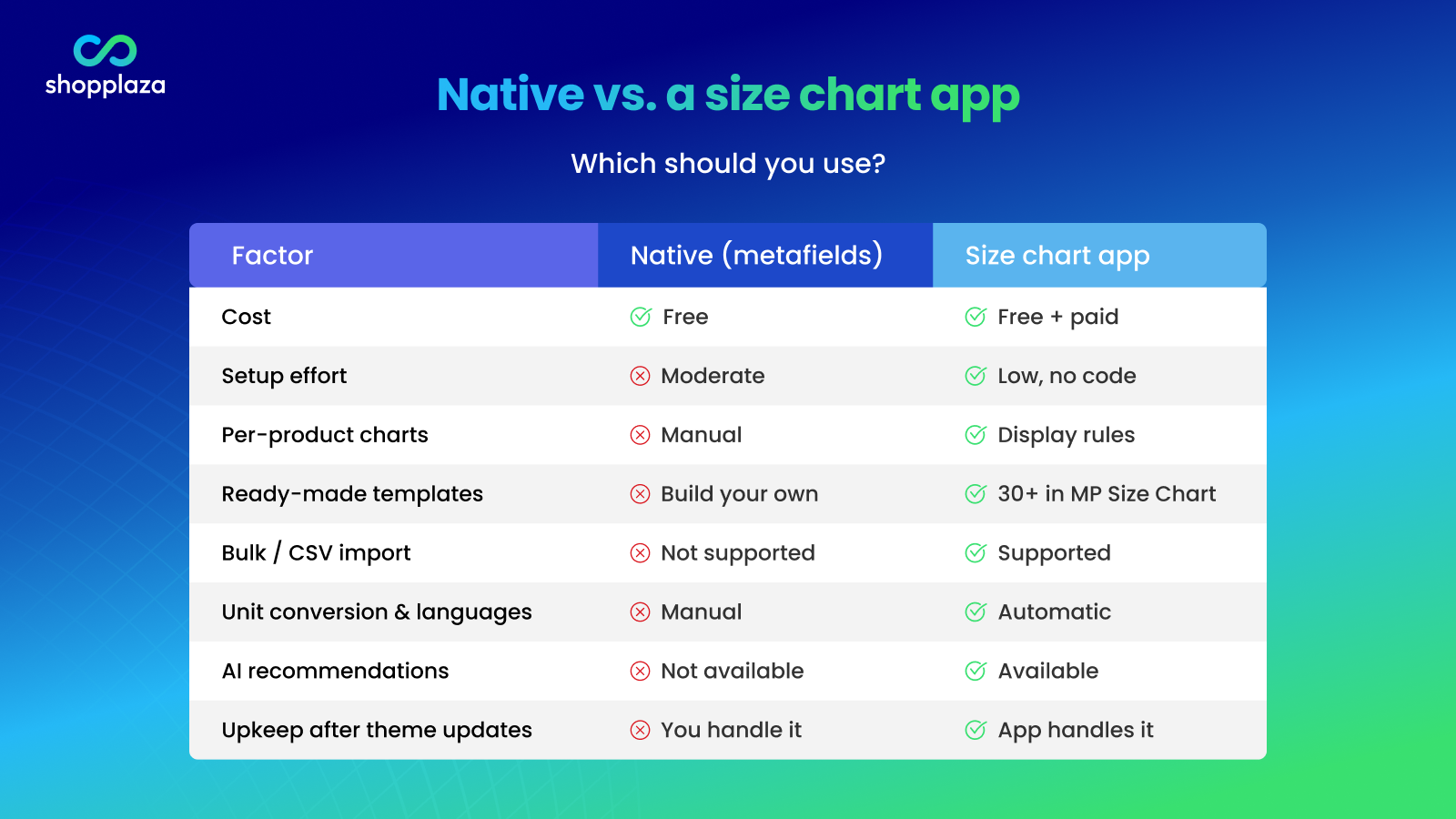
Both can work — the right choice comes down to catalog size, how much variety your charts need, and how much time you want to spend maintaining them. Here’s a side-by-side.
| Factor | Native (metafields + theme) | Size chart app |
|---|---|---|
| Cost | Free | Free plan to paid (typically ~$7–$25/mo) |
| Setup effort | Moderate (metafields + theme editor) | Low (templates, no code) |
| Per-product charts | Manual, one page per metafield | Built-in display rules |
| Templates | Build your own | Ready-made (30+ in MP Size Chart) |
| Bulk management / CSV | Not supported | Supported |
| Unit conversion & languages | Manual | Automatic |
| AI / smart recommendations | Not available | Available |
| Maintenance after theme updates | You handle it | App handles it |
Quick rule of thumb:
- A handful of products, one or two simple charts, and a developer on hand? Native is fine.
- Many products, multiple categories, international shoppers, or you just don't want to manage code? An app will save you hours and scale with you.
What should a good Shopify size chart include?
A great size chart does more than list S/M/L — it gives shoppers everything they need to choose confidently. Aim to include:
- Clear measurements, not just labels. Bust, waist, hips, shoulder, length, inseam, foot length, ring diameter, pet neck/chest/back — whatever fits your product.
- Units that match your shoppers — include both inches and centimeters if you sell internationally.
- Size conversions — US, UK, EU, AU, and other regional sizes where relevant.
- Measurement instructions — a short “how to measure” so shoppers measure themselves (or the product) correctly.
- Visual examples — an image or short video where measuring isn’t obvious.
- Fit notes — tell people if an item runs true to size, slim, relaxed, oversized, or stretchy.
- Product-specific context — don’t reuse a dress chart for shoes or rings. Different products, different charts.
Shopify size chart best practices
Once you’ve got the basics in place, these practices help your size guide actually move the needle on confidence and returns.
- Keep it easy to scan. Too many columns overwhelm. Use clean formatting and readable type.
- Put it close to the buying decision. Near the size selector or add-to-cart — not buried at the bottom.
- Use product-specific charts. One generic chart for everything causes more confusion than it solves when sizing varies by category or supplier.
- Include body and garment measurements when useful. Body measurements help shoppers pick a size; garment measurements show the actual fit.
- Add visual measuring instructions. Show where and how to measure with an image or short clip.
- Support international shoppers. Automatic unit conversion and translated sizing remove friction for global customers.
- Test on mobile. Open, read, and close the chart on a phone before you call it done.
- Keep charts updated. When suppliers, cuts, or sizing standards change, update the chart so it stays accurate.
Size chart examples by product type
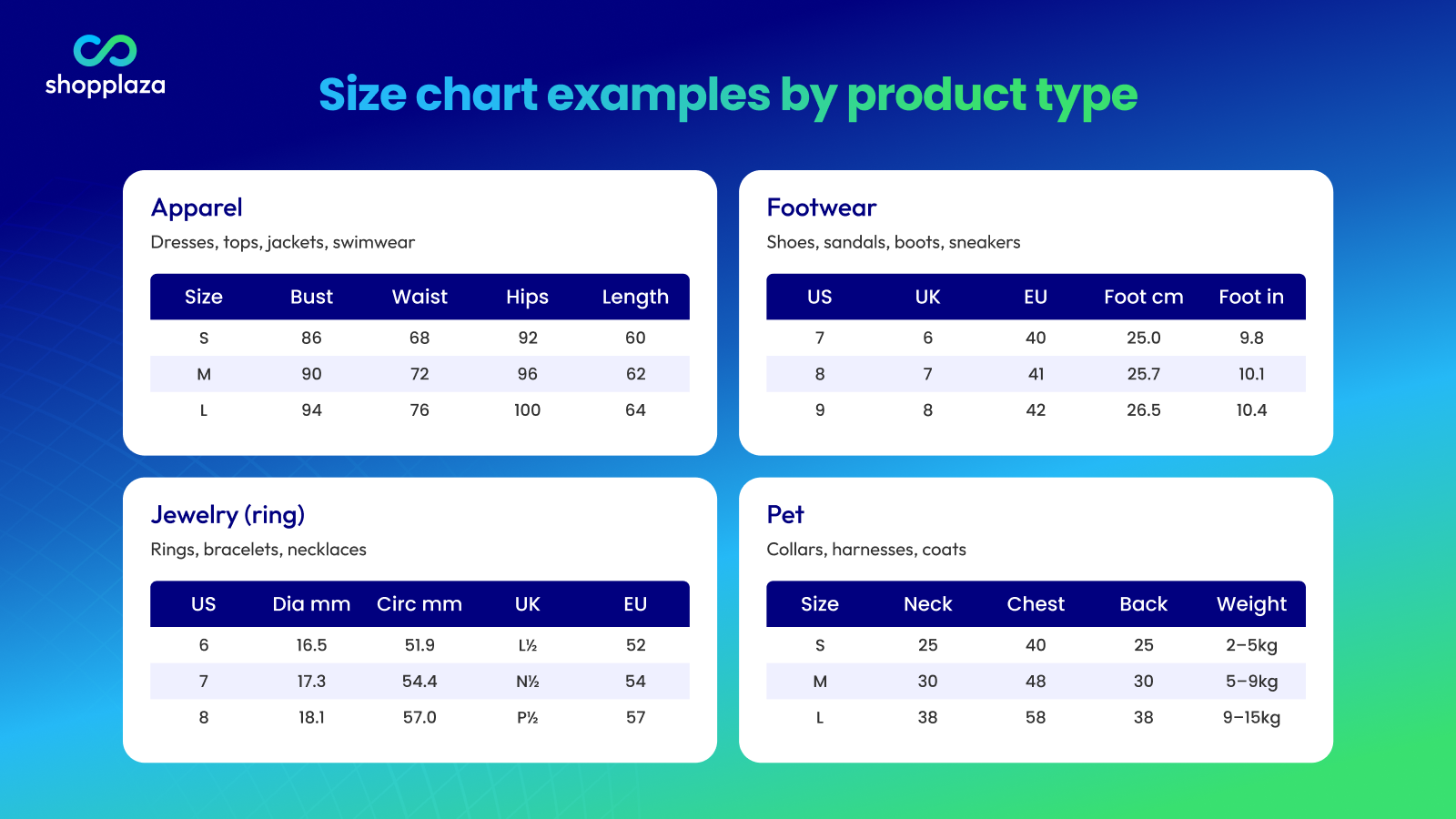
Different products need different measurements. Here are starting templates for the most common Shopify categories.
Apparel size chart example
| Size | Bust | Waist | Hips | Length |
|---|---|---|---|---|
| S | 86 cm | 68 cm | 92 cm | 60 cm |
| M | 90 cm | 72 cm | 96 cm | 62 cm |
| L | 94 cm | 76 cm | 100 cm | 64 cm |
Best for: dresses, tops, jackets, swimwear.
Footwear size chart example
| US | UK | EU | Foot length (cm) | Foot length (in) |
|---|---|---|---|---|
| 7 | 6 | 40 | 25.0 | 9.8 |
| 8 | 7 | 41 | 25.7 | 10.1 |
| 9 | 8 | 42 | 26.5 | 10.4 |
Best for: shoes, sandals, boots, sneakers.
Selling footwear internationally? See our shoe size conversion chart (EU/US/UK), plus men-to-women and women-to-men shoe size conversions.
Jewelry (ring) size chart example
| Ring size (US) | Diameter (mm) | Circumference (mm) | UK | EU |
|---|---|---|---|---|
| 6 | 16.5 | 51.9 | L½ | 52 |
| 7 | 17.3 | 54.4 | N½ | 54 |
| 8 | 18.1 | 57.0 | P½ | 57 |
Best for: rings, bracelets, necklaces.
Pet size chart example
| Size | Neck | Chest | Back length | Weight range |
|---|---|---|---|---|
| S | 25 cm | 40 cm | 25 cm | 2–5 kg |
| M | 30 cm | 48 cm | 30 cm | 5–9 kg |
| L | 38 cm | 58 cm | 38 cm | 9–15 kg |
Best for: collars, harnesses, dog coats, pet clothing.
How smart size recommendations improve fit confidence
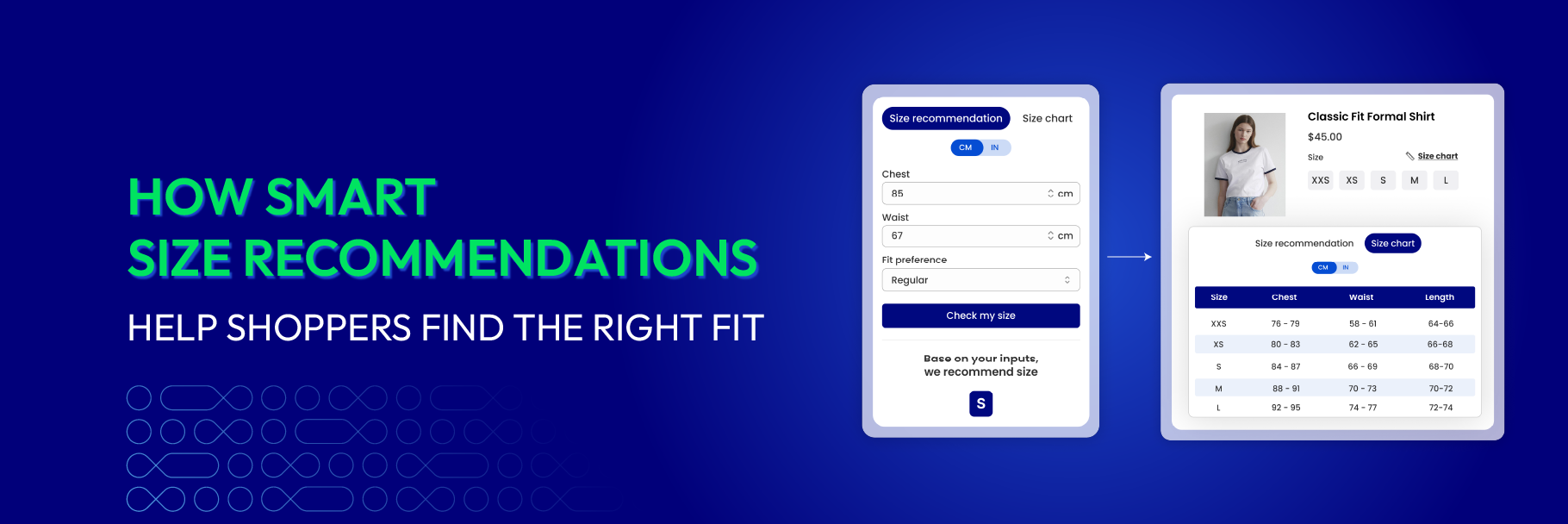
A traditional size chart shows measurements and lets the shopper figure out their size. A smart (AI-powered) size recommendation goes one step further: it suggests the right size based on inputs like height, weight, body measurements, or fit preference.
That helps in a few ways:
- It reduces decision fatigue — the shopper gets a clear “you’re probably a Medium” instead of a wall of numbers.
- It helps people who don’t know how to read a size chart (which is more people than you’d think).
- It supports better fit confidence, which is exactly what brings returns down.
This is where size guidance is heading. MP Size Chart includes AI-powered size recommendations for stores that want to go beyond static tables and give shoppers a more guided experience — especially useful in apparel and footwear, where fit is hardest to judge online.
Common mistakes to avoid
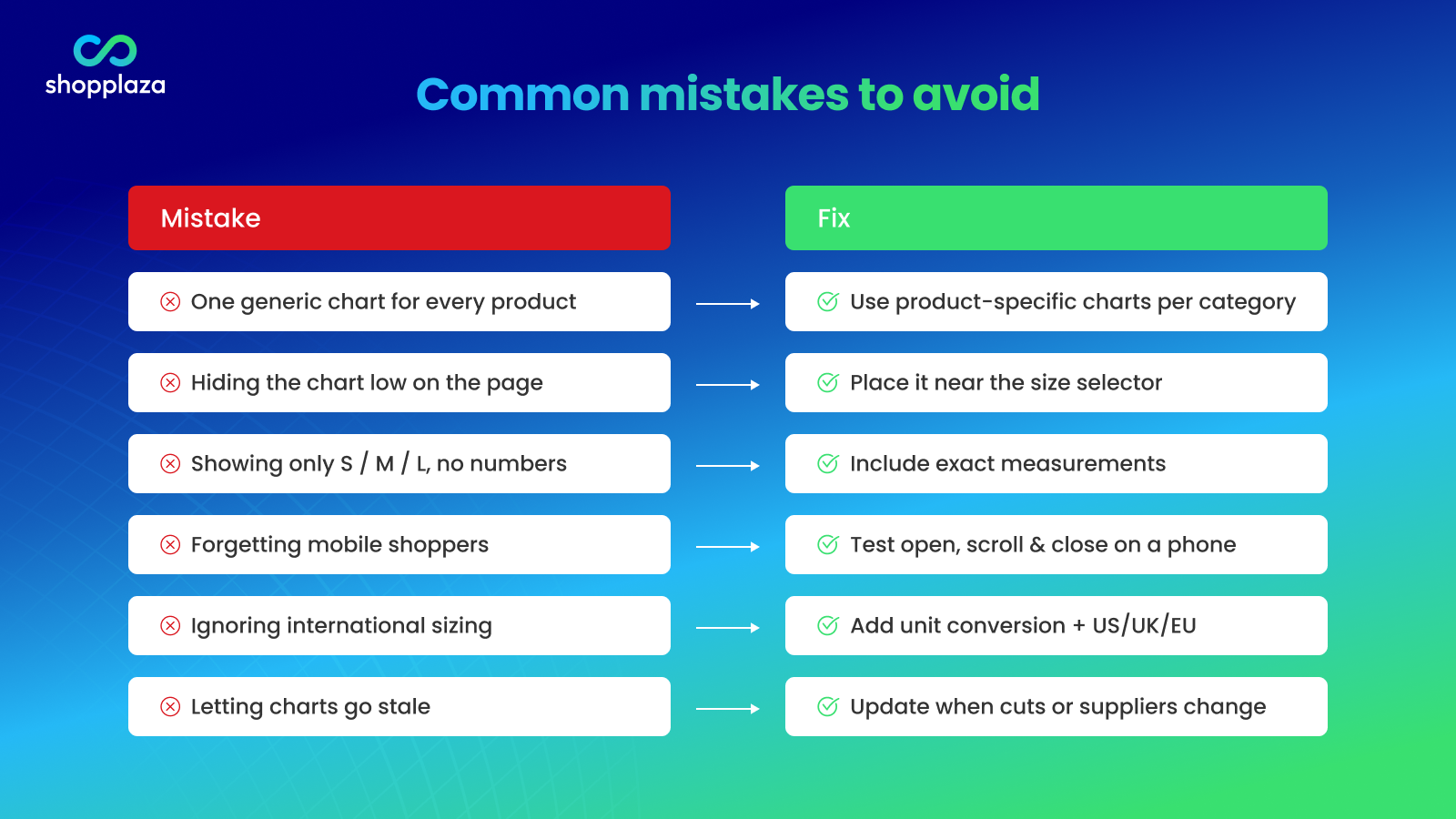
- Using one generic chart for every product. Different products have different measurements — reusing a single chart creates exactly the confusion you’re trying to remove.
- Hiding the chart too low on the page. Shoppers need sizing help before they decide, not after.
- Showing only S/M/L with no measurements. Labels alone don’t tell anyone whether a Medium will actually fit.
- Forgetting mobile. A chart that’s unreadable on a phone is a chart most of your shoppers can’t use.
- Ignoring international sizing. Global shoppers need familiar units and conversions, or they’ll bounce.
- Letting charts go stale. Supplier and cut changes make old charts inaccurate — and inaccurate charts cause returns.
Final checklist: Shopify size chart setup
Before you publish, run through this:
- Is the chart easy to find on the product page (near the size selector)?
- Does it include exact measurements, not just labels?
- Are the units clear (and dual inch/cm if you sell globally)?
- Is it readable and easy to close on mobile?
- Does it match the product category?
- Are international conversions included where needed?
- Are measurement instructions clear?
- Does it support your store’s language needs?
- Is it easy to update later?
Conclusion
A Shopify size chart is more than a table — it’s a confidence tool. When shoppers understand sizing clearly, they choose faster, buy more confidently, and send fewer products back. For stores selling fashion, footwear, jewelry, pet accessories, or anything fit-sensitive, a good size guide is one of the highest-leverage improvements you can make to a product page.
You can start manually, build it natively with metafields, or use an app to do it at scale. Whichever path you choose, the goal is the same: give shoppers the information they need to get the size right the first time.
If you’d like to add flexible, customizable size charts without touching code — plus templates, CSV import, multi-language support, and AI size recommendations — try MP Size Chart & Size Guide. It’s free to start.
Frequently asked questions
What is a Shopify size chart?
A Shopify size chart is a sizing guide shown on your store that helps shoppers compare product or body measurements before choosing a size. It can appear as a table, popup, product tab, image or video guide, or a dedicated size guide page.
How do I add a size chart to Shopify?
There are four common methods: install a size chart app, use a page metafield with a Popup block (the native Online Store 2.0 method), use an image metafield with the Image with text section for graphic charts, or write custom Liquid code in your theme. For most stores with multiple products, a size chart app is the easiest scalable option — see the four step-by-step methods above.
Does Shopify have a built-in size chart feature?
Shopify doesn’t have a one-click size chart button, but it documents a native method using a Page plus a page-type metafield, displayed through the theme editor with dynamic sources. It works on Online Store 2.0 themes; older themes need custom code.
Where should I place a size chart on a Shopify product page?
The best place is near the size selector or add-to-cart area, so shoppers see it right when they’re choosing a size. You can also use a popup, a product tab, a section below the description, or a dedicated size guide page.
Do size charts reduce returns?
Yes — size charts help reduce size-related returns by giving shoppers accurate information before they buy. Since roughly 70% of online apparel returns are driven by size and fit (Coresight & Alvanon, 2025), clear measurements target the biggest cause of returns.
Do I need a different size chart for each product?
Not always. You can reuse one chart across similar products, but different categories — dresses, shoes, rings, pet harnesses — usually need their own charts because the measurements are completely different.
What should a good size chart include?
A good size chart includes size labels, exact measurements, units (ideally inches and cm), regional conversions, measurement instructions, and fit notes. Depending on the product, it may also include images or a short how-to-measure video.
Can I create a size chart without coding?
Yes. A Shopify size chart app lets you create and display size charts without editing theme code — most offer templates so you can start in minutes.
What’s the best Shopify size chart app?
The best app depends on your needs. Look for customizable charts, templates, CSV import, per-product display rules, mobile-friendly design, unit conversion, multi-language support, and smart/AI size recommendations.