First impressions in the realm of e-commerce truly matter, as a staggering 88% of online shoppers are less likely to return to a website after a poor user experience, underscoring the critical role of your online store’s appearance and functionality. Shopify, a leading e-commerce platform, powers over 2 million businesses worldwide, and the visual aspect of your store is essential. This is where Shopify theme development shines.
As businesses compete for the attention of the estimated 2.64 billion digital buyers globally, having a customized Shopify theme can be a game-changer. In this article, we’ll delve into the world of Shopify theme development, a skill that can be instrumental in capturing your share of the $6.3 trillion in global e-commerce sales.
Join us on a journey to explore how to create a unique shopping experience and boost your e-commerce success.
What is Shopify theme development?
Think of a Shopify theme as the “skin” of your online store. It controls everything your customers see and interact with – the layout, colors, fonts, and even how certain features function. Shopify theme development is the process of customizing or building these themes from scratch to match your brand’s unique style and needs.

Your Shopify theme is more than just aesthetics. It plays a significant role in:
- Branding: A well-designed theme reinforces your brand identity, making your store instantly recognizable.
- User Experience (UX): A user-friendly theme guides customers smoothly through your store, encouraging them to browse and buy.
- Functionality: Themes can be extended with custom features to enhance your store’s capabilities, like unique product displays or interactive elements.
- Performance: Optimized themes load quickly, keeping customers engaged and improving your search engine rankings.
Why Do You Need to Customize Your Shopify Theme?
Your online store is an extension of your brand, and it should provide an exceptional shopping experience that sets you apart from competitors. This is where the importance of customizing your Shopify theme comes into play. Customizing your Shopify theme is essential for several reasons:
- Brand Identity: 77% of consumers admit that brand recognition significantly influences their purchasing decisions. Customization allows you to tailor your store’s appearance to match your brand’s unique identity. You can incorporate brand colors, fonts, and imagery, strengthening your brand recognition and making your store memorable to customers.

- Stand Out from Competitors: There are over 4.7 million live Shopify stores worldwide. In a sea of online shops, a generic theme won’t make you memorable. Customization enables you to differentiate your store, making it stand out in a crowded e-commerce landscape.
- Tailored User Experience: You can create a personalized and user-friendly shopping experience by customizing the layout and navigation. Studies indicate that 50% of users utilize the navigation menu to orient themselves on a new site. Clear and intuitive navigation can improve user engagement, increase time spent on your site, and ultimately boost conversions.
- Optimized for Your Products: Customization allows you to showcase your products in the best possible way. You can design product pages that highlight their unique features, improving the chances of sales.
- Mobile Responsiveness: Customizing your theme ensures that it is fully responsive on mobile devices. An overwhelming 78% of e-commerce traffic worldwide comes from smartphones. Therefore, it is crucial to reach a broader audience with a mobile-optimized theme.
- SEO Benefits: Customized themes can be optimized for search engines, helping your store rank higher in search results and driving organic traffic.
- Security and Performance: Custom themes can be optimized for performance and security. This ensures that your store loads quickly, providing a seamless shopping experience, and that sensitive customer data is protected.
Read more: Shopify SEO Tutorial 2023: A-Z Guide to Rank #1
6 Most Important Pages to Incorporate in Shopify Theme Development
1. Homepage: Your Store’s Front Door
Picture your Shopify homepage as the front door to your online store. It’s the first thing visitors see when they arrive. So, how do you make that first impression count? The key is to make it engaging – think of it as a visual handshake. You want your visitors to feel welcome, intrigued, and eager to explore further.

Here, you should feature your best products or promotions. Use high-quality images and create clear calls to action. The goal is to guide visitors toward their shopping journey. Remember, it’s not just about what you sell; it’s also about how you present it.
2. Product Pages: The Heart of the Matter
If the homepage is the front door, product pages are the heart of your online store. These are the pages where your products shine. Every element here should be geared towards showcasing your offerings.
- High-quality images are a must, allowing customers to see the product from every angle.
- Detailed descriptions provide all the information customers need, including specifications and sizing details.
- User-generated content such as reviews and ratings builds trust and can significantly impact purchase decisions.
3. Cart and Checkout Pages: The Finish Line
Once your customers have made their choices, they reach the cart and checkout pages. This is where the magic happens – where they finalize their purchases. You want this experience to be as smooth and user-friendly as possible.
- Minimize the number of steps required to complete a purchase.
- Offer a guest checkout option for first-time customers.
- Keep customers informed about their progress during the checkout process.
Simplicity is key here.
4. About Us: Tell Your Story
Your About Us page is your opportunity to tell your brand’s story. Share your history, mission, and values. Customers want to know the people behind the store. Building this connection can make a huge difference in trust and loyalty.

5. Contact Us: Stay Accessible
It’s essential to provide clear contact options for customer support. Whether it’s questions, concerns, or feedback, you want your customers to feel heard. Ensure they can easily reach out to you through contact forms, emails, or phone numbers.
6. FAQs: Anticipate Customer Questions
The Frequently Asked Questions (FAQs) page is your chance to anticipate common customer queries. Think of it as a way to provide valuable information and improve the shopping experience. Addressing these questions can reduce confusion and the need for additional inquiries.
What to Prepare Before Building a Shopify Theme?
Before you dive headfirst into the world of Shopify theme creation, let’s make sure you’ve packed your toolkit with the essentials. A little prep work upfront will save you a whole lot of headaches down the line.
Your Must-Have Toolkit
- Shopify CLI (Command Line Interface): Your trusty sidekick, making development, testing, and deploying your theme a breeze.
- Code Editor of Choice: Grab your favorite tool (VS Code, Sublime Text, etc.) for efficient coding.
- Git (Version Control System): Your time machine, allowing you to track changes and collaborate seamlessly with others.
- Local Development Server: A safe haven for testing your theme before unleashing it onto the world.
Knowledge is Power
- Shopify Theme Architecture: Understand layouts, templates, sections, and snippets.
- Liquid Templating Language: Your secret decoder ring for dynamically displaying content on your theme.
- HTML, CSS, and JavaScript: The holy trinity of web development, responsible for styling and adding interactivity.
- Shopify Theme API: Explore endless possibilities for customization.
Read more: How to Customize Shopify Theme with Theme API & Asset API
Bonus Gear (Highly Recommended)
- Shopify Partner Account: Unlock a world of development stores and resources.
- Dawn Starter Theme: Your blank canvas, a reference theme you can customize to your heart’s content.
- UI/UX Design Skills: Essential for creating a theme that is both beautiful and user-friendly.
Building a Custom Shopify Theme from Scratch Step By Step
Step 1: Plan Your Theme
A well-structured plan is the foundation of any successful theme development project. Before you write a single line of code, take the time to map out your vision and objectives:
Define Clear Objectives:
- Purpose: What are you trying to achieve with this theme? Are you building a theme for a specific store or niche, or a more general-purpose theme to sell on the Shopify Theme Store?
- Goals: What specific outcomes do you want your theme to deliver? Increased sales, improved user experience, better brand representation? Clearly articulated goals will guide your decision-making throughout the development process.
Prioritize Features: Make a list of the features your theme absolutely must have and those you’d like to include if possible.
- Product display: Clear, informative product pages with variant options.
- Cart: A functional shopping cart that updates in real-time.
- Checkout: A secure and easy-to-use checkout process.
- Navigation: Intuitive menus that help users find what they need.
- Product filtering and sorting: Make it easy for customers to narrow down choices.
- Mega menus: Showcase categories, promotions, or featured products.
- Quick view: Allow customers to preview product details without leaving the page.
- Wishlists: Let customers save items for later.
Step 2: Set Up Your Development Environment
Before you dive into coding your masterpiece, you need to prepare your workspace. Here’s what you need to get started:
Create a Development Store
- A development store is your virtual playground for building and testing your theme without affecting a live store. It’s a safe space to experiment, iterate, and refine your work.
- Head over to your Shopify admin and create a new development store. Give it a name that makes sense (like “[Your Store Name] Development”) to keep things organized.
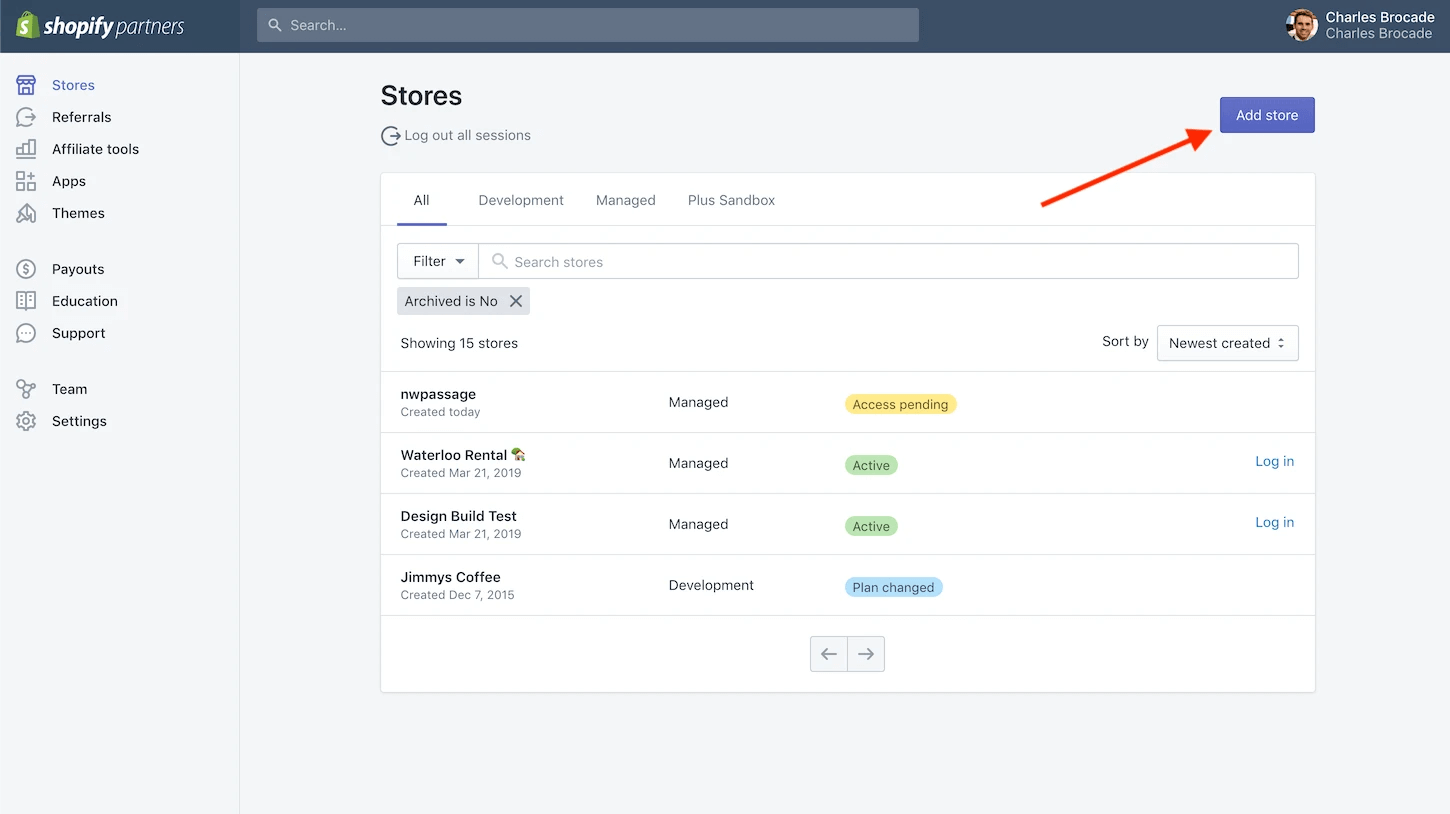
Refer to how to create a Shopify development account here: How to Create a Shopify Developer Account
Pro Tip: If you’re a budding theme developer, consider using a free Shopify Partner account. This gives you access to multiple development stores, allowing you to work on different projects simultaneously.
Install the Shopify Theme Kit
- Theme Kit is your trusty sidekick for syncing theme files between your local computer and your development store. It acts like a bridge, allowing you to see the changes you make in real-time.
- Refer to Shopify’s official installation guide for Theme Kit, which provides detailed instructions for your specific operating system.
Obtain Your Theme API Password
- This password is like a backstage pass that lets Theme Kit access and modify your theme files on the development store.
- You’ll find this password within your development store’s Shopify admin. Navigate to the “Apps” section and follow the prompts to generate a new app with the required permissions. Keep this password secure!
Link Theme Kit to Your Store
- With Theme Kit installed and your API password ready, it’s time to establish the connection.
- Open your terminal or command prompt and use Theme Kit commands to link your local theme folder to your development store. You’ll typically use a command like:
theme get --password=[your_password]--store=[your_store_name].myshopify.com--dir=[your_local_theme_folder]
Choose Your Editor
Choose Your Editor
- A good code editor is your most powerful tool. Choose one that you’re comfortable with and that offers the features you need.
- Popular options include Visual Studio Code, Sublime Text, and Atom. Make sure to install any relevant extensions for Shopify’s Liquid templating language, CSS, and JavaScript. This will make your coding experience smoother and more efficient.

Step 3: Create Theme Files
Now that your development environment is ready, it’s time to start building the skeleton of your theme. This step involves creating the core files that define your Shopify store’s structure, layout, and styling.
You have a few options when it comes to the initial structure of your theme:
- Shopify Dawn: Shopify’s recommended default theme. It’s lean, well-structured, and easy to customize.
- Existing Theme: Build upon an existing theme (your own or one from the Shopify Theme Store). Download it fully using Theme Kit to focus on specific modifications.
- Blank Canvas: For complete control and a unique vision, start from scratch. Create the basic folder structure and all necessary files manually.
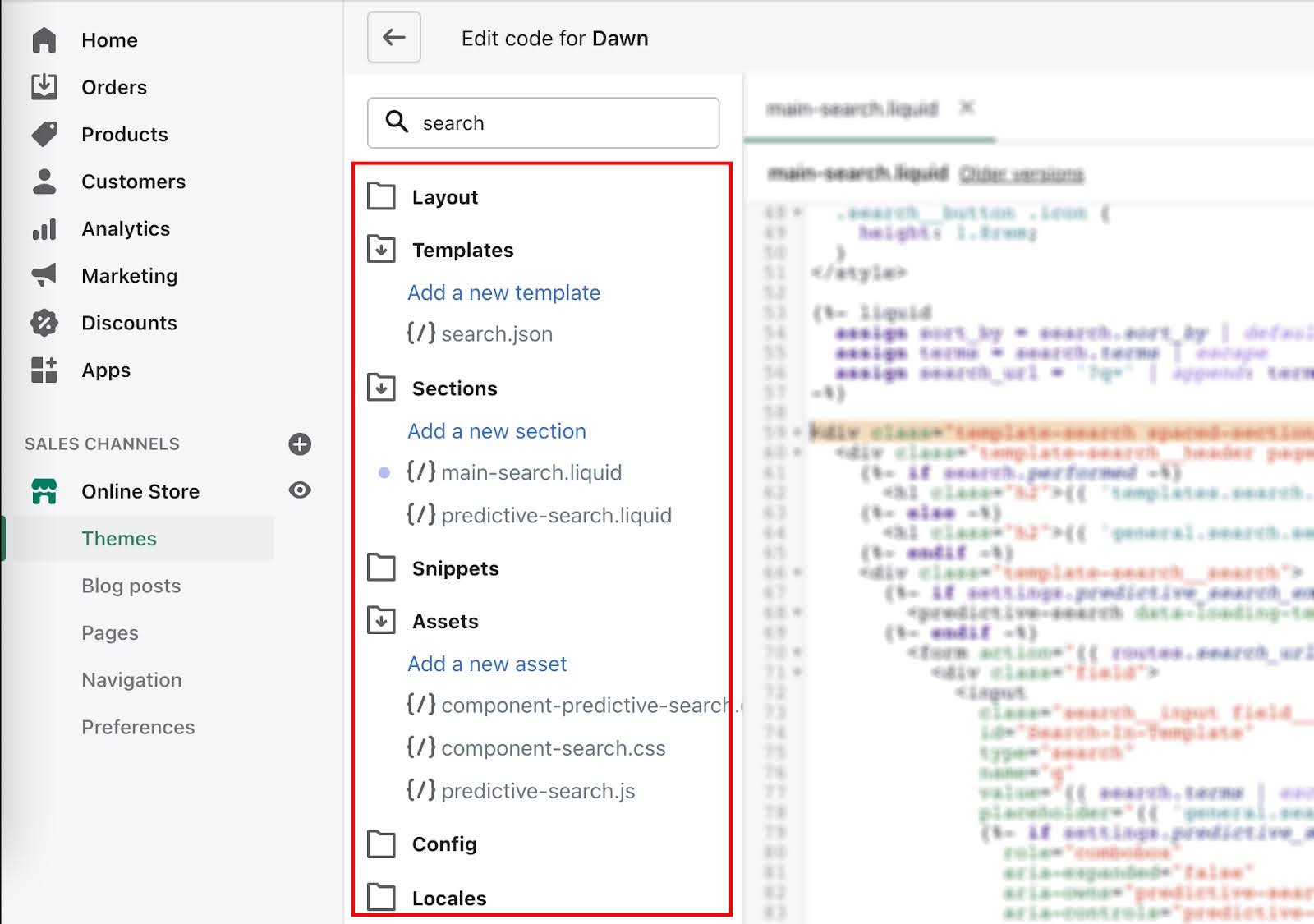
Regardless of your starting point, familiarize yourself with the standard folder structure and key files in a Shopify theme:
- layout/theme.liquid: Main template controlling your store’s layout. Provides overall structure and placeholders for other elements.
- templates/: Contains templates for different pages (product, collection, cart, etc.).
- sections/: Reusable content blocks (headers, footers, featured products).
- assets/: Holds visual assets like images, CSS, and JavaScript files.
- config/settings_schema.json: Defines customizable settings visible in Shopify admin for adjusting the theme’s look and feel.
Styling with CSS:
- Create or modify CSS files in the
assets/folder to control visual appearance. - Use CSS to define fonts, colors, spacing, layout, and overall style.
- Ensure your theme is responsive across all screen sizes.
Step 4: Customize Your Design
- Modify Liquid Templates: Customize Liquid templates to control how pages (homepage, product pages, collections) are displayed.
- Pinpoint: Identify templates to change (e.g.,
index.liquidfor homepage). - Visualize: Sketch or wireframe layout modifications.
- Restructure: Adjust HTML structure using Liquid tags and objects.
-
Dynamic Data: Insert product details, collection lists, and other dynamic content.
-
Logic Flows: Apply
if/elseconditions, loops, and filters for tailored content display. - CSS Styling: Apply custom styles to ensure responsiveness.
- Zero In: Use precise selectors (classes, IDs, HTML tags).
- Visual Tweaks: Adjust colors, fonts, spacing, backgrounds, borders.
-
Responsive Design: Use media queries for seamless experiences on all devices.
-
Browser Check: Test styles across Chrome, Firefox, Safari, and Edge.
- JavaScript Interactivity: Add interactivity like product sliders, interactive menus, or custom filters.
- Define: Decide which interactive features to add.
- Decide: Choose between existing libraries or custom code.
- Include: Add JavaScript files to the
assets/folder and reference them in templates. - Interact: Implement event listeners for dynamic behaviors (clicks, hovers, etc.).
Step 5: Test Your Theme
Use Shopify Theme Kit to preview your theme changes in your development store.
- Device Diversity: Test on real smartphones, tablets, and desktops whenever feasible. Use online tools to simulate other devices.
- Functionality: Click through every link, button, form, and menu. Complete a test purchase to ensure the checkout flow is flawless.
- Browser Variety: Test on the latest versions of major browsers (Chrome, Firefox, Safari, Edge). Consider less common ones if relevant to your audience.
- Performance: Run Google Lighthouse (in Chrome DevTools) to analyze loading speed and optimization opportunities.

Step 6: Fine-Tuning and Optimization
- Performance Optimization: Optimize your theme for faster loading times. Compress images, minify CSS and JavaScript, and use lazy loading to improve performance.
- SEO Optimization: Ensure your theme is SEO-friendly. Create meta tags, optimize images, and use clean URLs for better search engine visibility.
Step 7: Backups and Security
Set up regular backups of your theme files. Shopify has built-in backup features to help you recover from any issues. Implement security best practices to protect your store from potential threats. Keep your themes and apps updated.
Read more: How to Backup Shopify Store Effectively in 3 Essential Methods
Step 8: Launch Your Custom Theme
When you’re satisfied with your custom theme, publish it to your live Shopify store. Your new design is now live for your customers to enjoy.
Step 9: Post-Launch Review
Keep an eye on your store’s performance, especially after the launch. Address any issues promptly. Encourage customer feedback and use analytics to understand how users interact with your new theme.
Step 10: Ongoing Maintenance
- Regular Updates: Continuously update your custom theme to fix bugs, add new features, and stay current with Shopify’s evolving platform.
- Support and Assistance: Consider hiring a Shopify developer for ongoing support and to assist with more complex customizations.
How Much Does a Shopify Custom Theme Cost?
The cost of a Shopify custom theme can vary significantly based on several factors, including the complexity of your design, the features you want to incorporate, and whether you hire a professional developer or do it yourself.
DIY Approach
If you have web development skills and choose to create a custom theme yourself, your primary costs will include Shopify’s monthly subscription fees, which start at $29 per month. You’ll also need to consider any design or development software you might purchase.
Theme Development
If you’re hiring a professional Shopify developer or team, their fees will contribute significantly to the cost. These developers have the expertise to create a theme that perfectly matches your brand identity. Their fees are based on their experience and the complexity of the project.
- Basic Theme: $1,000 – $5,000 (clean design with standard e-commerce features)
- Intermediate Theme: $5,000 – $20,000 (more intricate theme with additional custom features)
- Complex Theme: $20,000 – $50,000+ (highly customized theme with advanced features, integrations, and unique design)
Theme Customizations
Even if you use a pre-made Shopify theme and want to customize it to better align with your brand, you may still need to budget for Shopify theme customizations. This cost varies based on the extent of the changes and whether you hire a developer. These customizations could range from a few hundred dollars to several thousand.
E-commerce Features
The cost of your theme also depends on the e-commerce features you need. Advanced features like real-time inventory management, customer accounts, or complex product filtering can add an extra $5,000 – $10,000 or more to your budget.
Content Migration
If you’re migrating your content from an existing site to your new Shopify custom theme, it can be a labor-intensive process. The cost will depend on the amount and complexity of the content. Budget between $1,000 – $5,000 for content migration.
Third-Party Apps
Shopify offers a wide range of third-party apps to enhance your store’s functionality. Depending on the apps you need and their subscription costs, you might need to allocate an additional $1,000 – $5,000 for app integration.
Ongoing Maintenance
Don’t forget the cost of ongoing maintenance. Technology evolves, and your theme will require updates. Budget around 15–20% of your initial development cost annually for maintenance.
Overall
In total, the cost of a custom Shopify theme can range from $10,000 to $100,000 or more. It’s a significant investment, but it offers you a unique online store that perfectly aligns with your brand.
Remember, when it comes to custom themes, you’re not just paying for design and development; you’re investing in your brand’s online identity. It’s crucial to work with experienced professionals who understand your vision and can create a Shopify theme that stands out in the competitive world of e-commerce.
So Are Investing in Shopify Theme Worth Investment?
Yes, investing in a Shopify theme can absolutely be worth it. However, building your own Shopify theme can be a rewarding endeavor, but it requires time and technical skill. The value you get out of it heavily depends on the agency or developer you choose. Consider the features, support, and reputation of the theme provider before making a decision.
Shopify Theme Development FAQs
Can You Edit Shopify Code? You have full access to modify the code of any Shopify theme installed on your store, allowing for deep customization of its look and functionality. If you’re proficient in HTML, Liquid, CSS, and JavaScript, you can even build your own theme from the ground up.
What Coding Language Does Shopify Use? Shopify utilizes HTML, CSS, JavaScript, and Liquid for its themes. For headless setups, front-end technologies like Vue.js, React.js, or Angular.js can be integrated to fetch data from Shopify’s API.
Can You Have Multiple Themes in Shopify? Certainly, you can have as many as 20 themes installed in your Shopify store. The beauty of this is that you can work on, modify, and preview each of these 20 themes independently and simultaneously.
Does Changing Shopify Theme Affect SEO? No, the act of switching your Shopify theme does not have an impact on your website’s URL structure. This means that your website’s settings, including its sitemap, analytics, and Google search results, remain unaffected by a change in theme.
Can I Change Shopify Theme Without Losing Content? Certainly, you can rest assured that your essential content, such as products, collections, pages, navigation, blog posts, and payment configurations, will remain intact when you change your Shopify theme.
Final Thoughts
Your online store is more than just a website; it’s an extension of your brand, a gateway to a thriving business, and an opportunity to deliver an exceptional shopping experience that sets you apart from the competition. By investing in Shopify theme development, you’re taking a significant step towards ensuring your success in the ever-evolving e-commerce landscape.
A unique, customized Shopify theme is not just an option; it’s a strategic imperative. It’s the gateway to a world of endless possibilities in the realm of online retail, where your brand identity is brought to life, your customer experience is elevated, and your e-commerce journey becomes a true success story.
So, are you ready to embark on this exciting path to Shopify theme development and unlock the potential of your online store? The journey begins now.