How to set up Checkout protection
1. What Checkout protection does
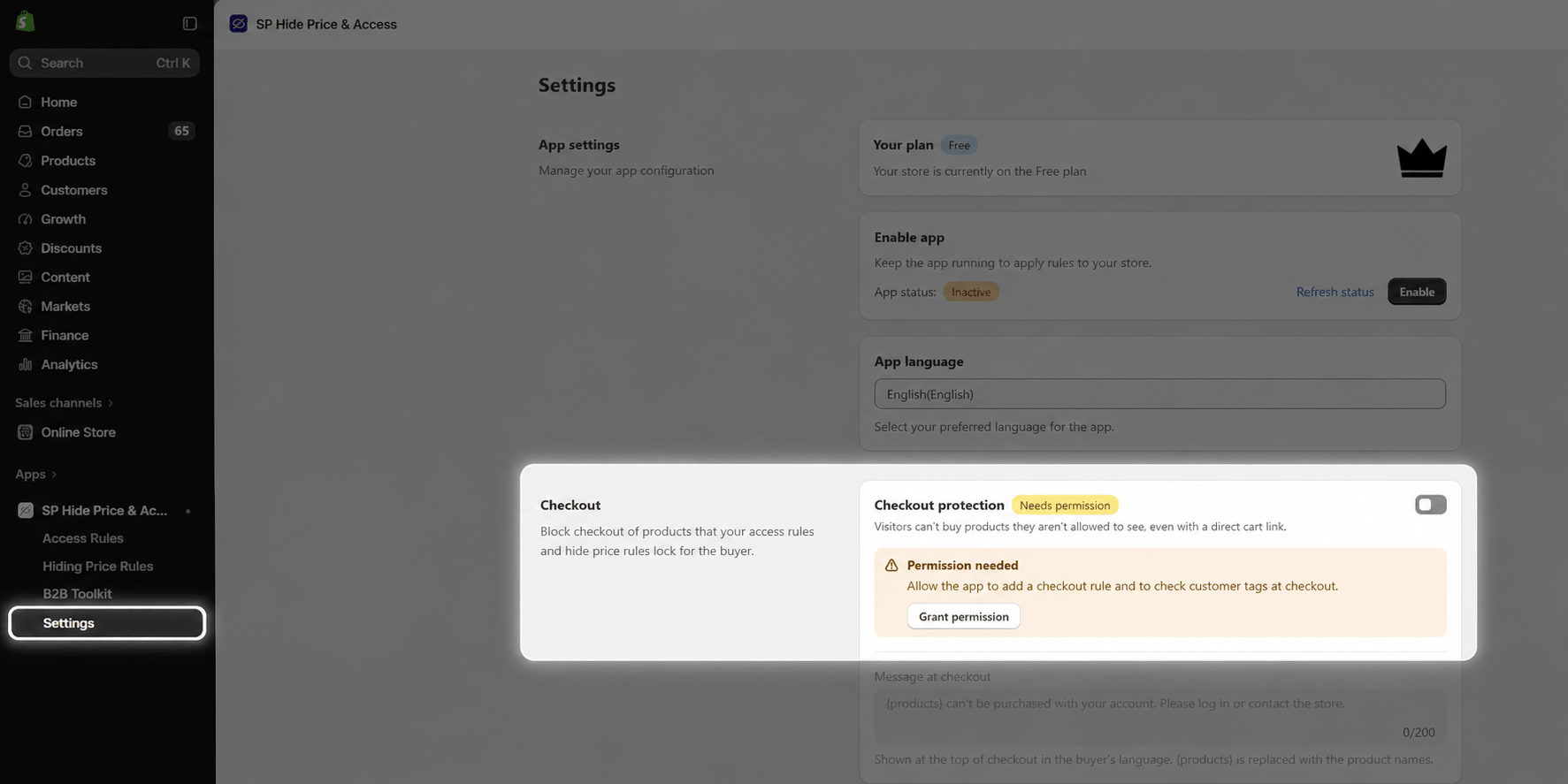
Checkout protection blocks checkout of products that your Access rules and Hide price rules lock for the buyer. A visitor who can’t see a product can’t buy it either, even with a direct cart link such as /cart/<variant-id>:1.
- Without Checkout protection: rules hide prices, buttons and pages on your storefront only.
- With Checkout protection: Shopify also checks the cart at checkout and stops the order with your message.
- No theme edits needed: the check runs inside Shopify checkout.
2. Turn on Checkout protection
Checkout protection is off by default.
- In the app, go to Settings → Checkout and switch on Checkout protection.
- If the card shows Needs permission, click Grant permission and approve the request in Shopify.
- Back in the app, the badge turns On and Last sync shows the time of the latest sync.
Note: The switch stays locked until permission is granted. If only the customer permission is missing, a banner shows Customers without tags aren’t checked at checkout. Rules that target customers without tags then work on the storefront only.
3. Set the checkout message
Blocked buyers see this message at the top of checkout, in their language. Use the language tabs above the field to write one message per published store language.
- {products}: required. It is replaced with the names of the blocked products.
- Length: up to 200 characters per language.
- Empty languages: a language left empty uses your English message. With no message at all, buyers see {products} can’t be purchased with your account. Please log in or contact the store.
Example:
| You type | Buyer sees |
|---|---|
| {products} is for trade customers only. Sign in to check out. | Classic Snowboard is for trade customers only. Sign in to check out. |
👉 The language tabs follow the languages published in Shopify Settings → Languages.
4. Check the status and sync
4.1. Status badges
The badge next to the card title shows whether checkout is protected right now.
| Badge | Meaning | What to do |
|---|---|---|
| On | Checkout checks your rules | Nothing |
| Off | Checkout protection is switched off | Switch it on |
| Needs permission | The app can't add its checkout rule yet | Click Grant permission |
| Turned off in Shopify | The rule was switched off in Shopify Checkout rules. The app won't switch it back on. | Switch it on again in Shopify |
| Over limit | Your rules are too large for checkout | Shrink the rule the card names, then click Sync now |
| Sync failed | The last sync didn't reach Shopify | Click Sync now |
4.2. Sync
- Automatic sync: rules sync on their own when you save an Access rule or a Hide price rule.
- Sync now: forces a sync right away.
- View in Shopify checkout settings: opens the app’s rule in Shopify.
4.3. Limits
Across all rules that reach checkout, you can use up to:
- 100 customer tags
- 100 collections
- 10 KB of rule data
Important: When a sync goes over a limit, checkout keeps using the last rules that synced, and the card names the rule to shrink.
👉 Tip: Use a customer tag instead of a large customer segment.
5. Which rules are checked at checkout
A rule is checked at checkout when it targets products and has an audience Shopify can verify at checkout. The Checkout column in the Access rules and Hide price rules lists shows the result for each rule.
| Checkout column | Meaning |
|---|---|
| Blocked | Blocked on the storefront and at checkout |
| Storefront only | Hidden on the storefront, not checked at checkout |
| Off | The rule is inactive, or Checkout protection isn't running (switched off, no permission, or turned off in Shopify) |
These are always Storefront only:
- Pages and custom URLs: there is no product to check at checkout.
- IP address rules
- Hide price rules when the shop keeps Add to cart buttons visible
While you edit an Access rule, the Quick Preview shows a Checkout: line with the same result and names any pages that stay storefront only.
6. What buyers see
A blocked buyer reaches checkout, sees your message at the top and can’t complete the order.
7. Troubleshooting
- A buyer could still check out a locked product: check that the badge is On, then check that the rule’s Checkout column says Blocked, not Storefront only or Off.
- An allowed buyer is blocked at checkout: open the rule’s Quick Preview to see who it applies to, and make sure the buyer is logged in to the right account.
- You need to stop blocking right away: switch off Checkout protection in Settings → Checkout.
- Do I need to edit my theme? No. The check runs inside Shopify checkout.
💡 Still stuck? Click Contact us in the app and our support team will help you 24/7.