How to create a Hide Price rule
How to create a Hide Price rule
1. Navigate to Hiding Price rules
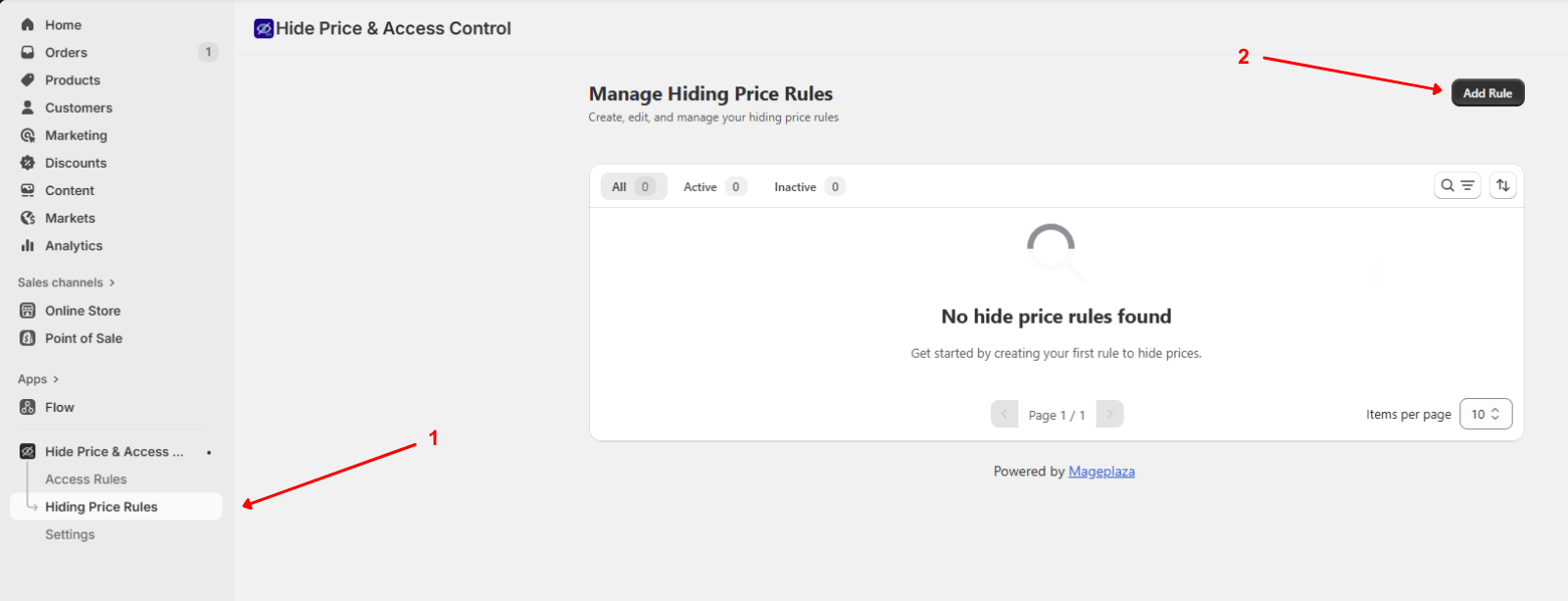
- In your Shopify Admin, open the SP Hide Price & Access Control app.
- From the left-hand menu, click Hiding Price Rules.
- Click Add Rule in the top-right corner.
2. Basic information
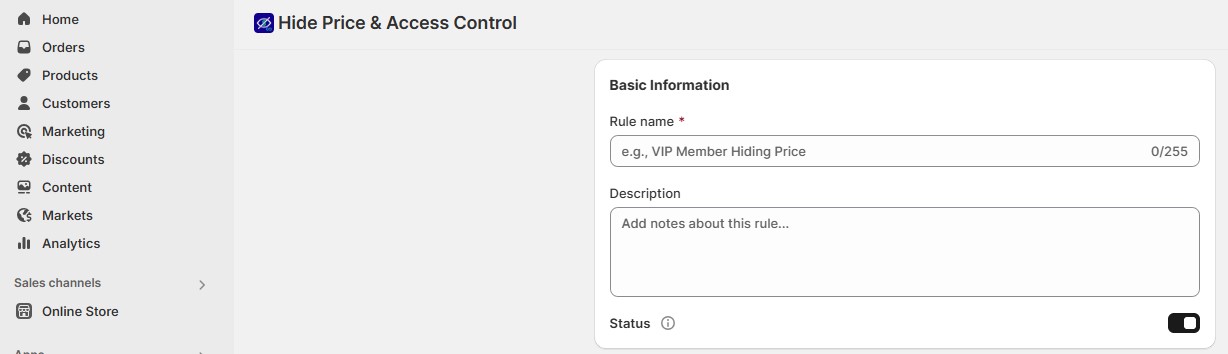
- Rule Name: Enter a descriptive name for the rule (e.g., VIP Member Hiding Price, Guest Users No Price).
- Description: Optionally, add notes for internal use (e.g., Hide prices from all non-logged-in visitors).
- Status: Use the toggle switch to activate or deactivate the rule.
3. Select items to hide prices
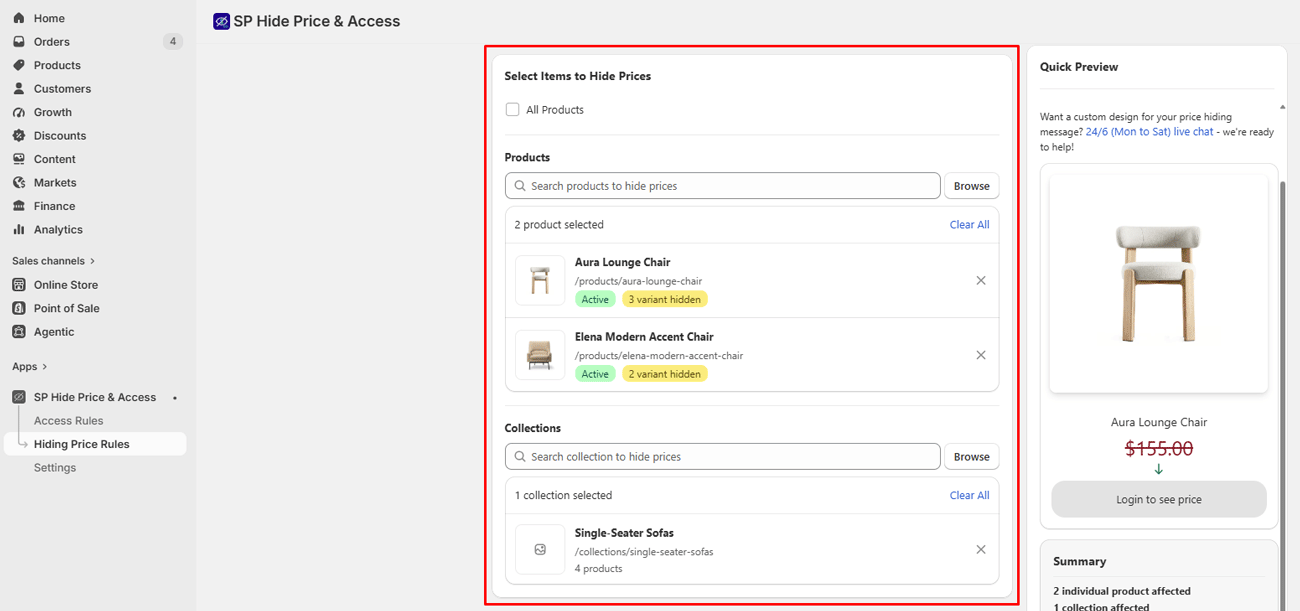
Choose which products you want to hide prices for:
- All Products: Hide prices for all products across your store.
- Specific Products: Hide prices only for selected products.
- Collections: Hide prices for all products within selected collections.
4. Select who should not see prices
Choose which visitors or regions will have prices hidden.
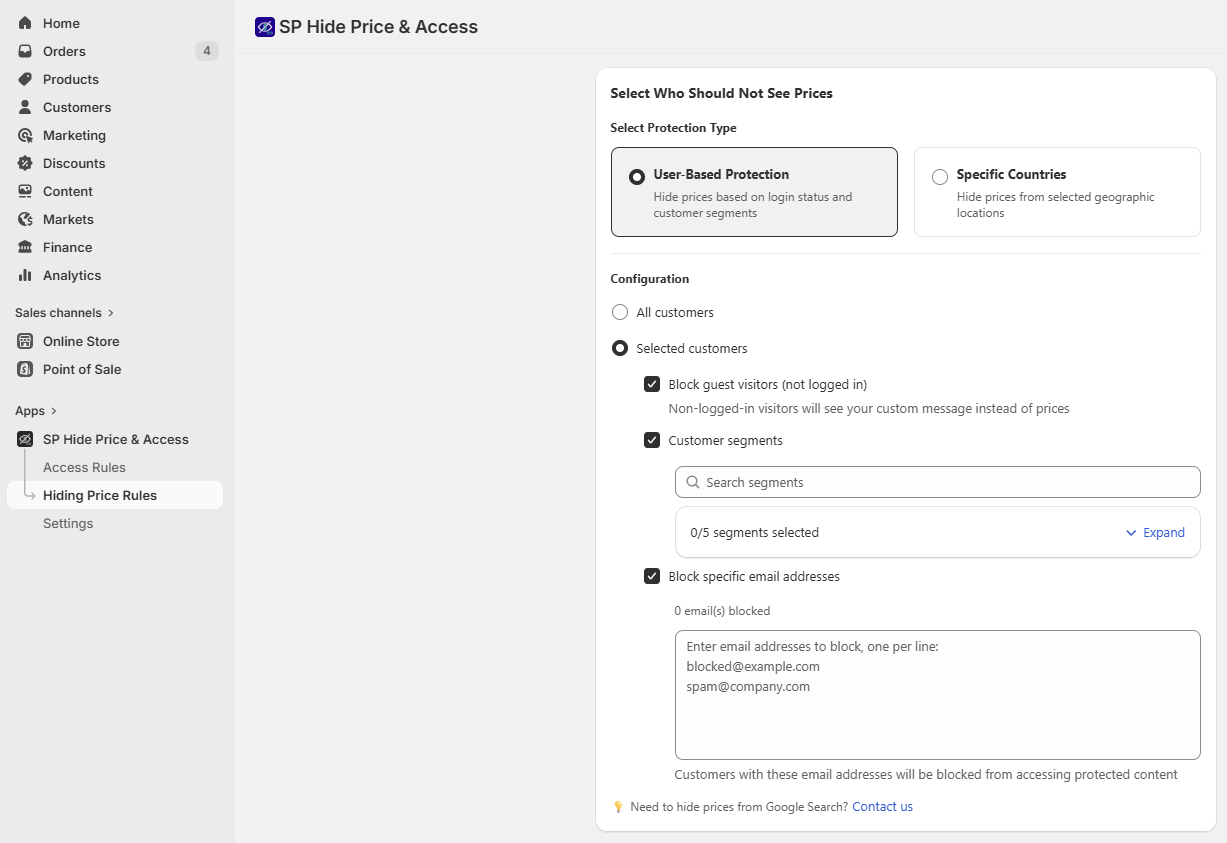
User-based protection
Hide prices based on customer status or customer groups.
- All customers — Hide prices for everyone visiting your store
- Block guest visitors (not logged in) — Best for wholesale or B2B stores that require customer login
- Customer segments — Hide prices from specific tagged customer groups
- Block specific email addresses — Restrict visibility for selected customers
Country-based protection
Hide prices based on visitor location.
- All countries — Hide prices for visitors from every country
- Specific countries — Hide prices for visitors from one or multiple selected countries
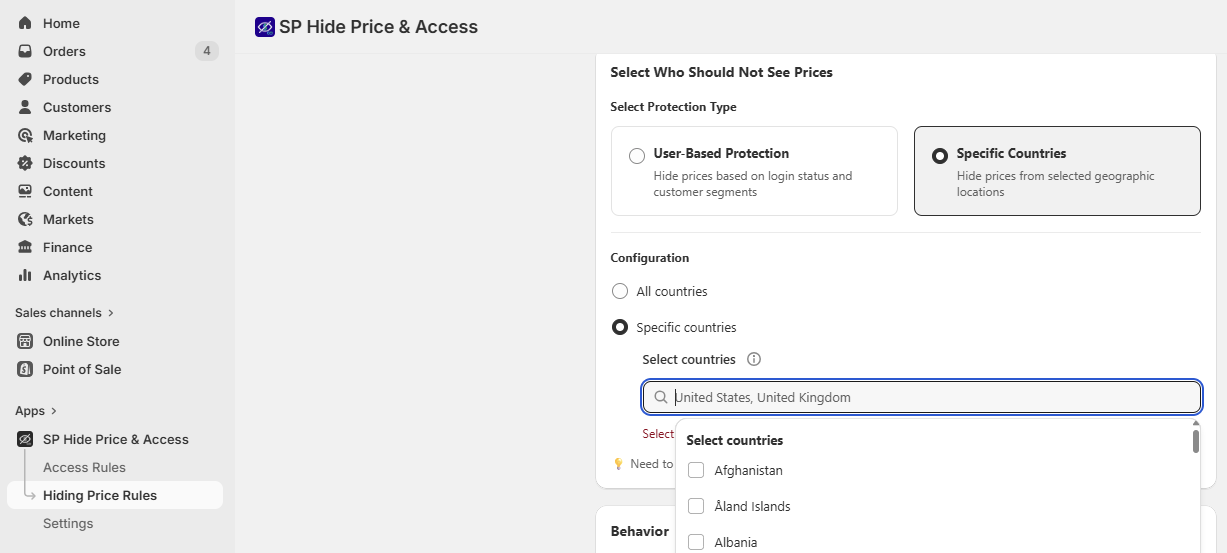
Note: You can combine conditions. For example, hide prices for guests AND for visitors from specific countries.
5. Display message and customer action
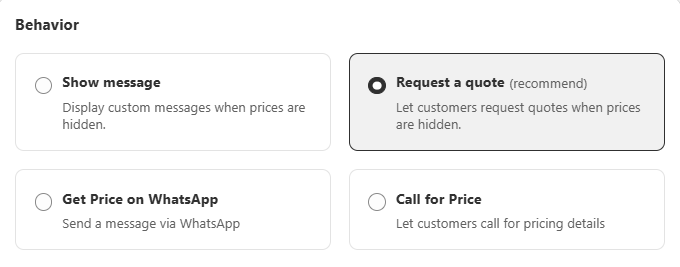
Select how your store should respond when prices are not visible:
- Show message — Show a custom message and button instead of the price (e.g., Login to see prices, Contact us for pricing).
- Request a Quote (recommended for B2B, requires SP Request a Quote app) — Let customers submit a quote request instead of seeing prices.
- Get Price on WhatsApp — Allow customers to request pricing directly via WhatsApp with one click.
- Call for Price — Show a call button so customers can contact you by phone for pricing details.
👉 Use the Quick Preview panel on the right to see how your message, button, or quote option will look for blocked visitors.
Note:
- If Request a Quote is selected but the RFQ app is not enabled, a warning will appear.
- If the RFQ app is disabled or removed later, any Hide Price rules using this option will pause automatically.
6. Save and manage rules
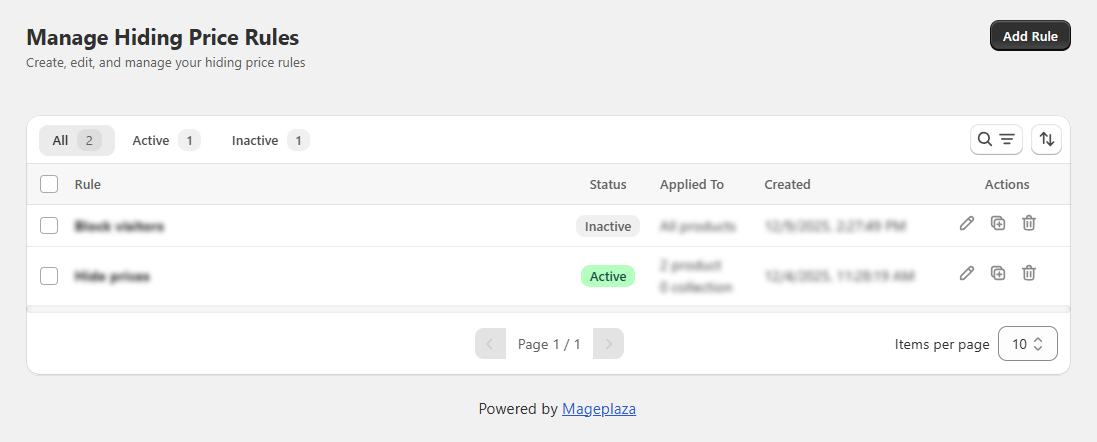
- Click Save to finish creating your rule.
- Go back to Manage Hiding Price Rules to view all your rules.
- You can Edit, Duplicate, or Delete rules.
- Status is shown as Active or Inactive for quick management.