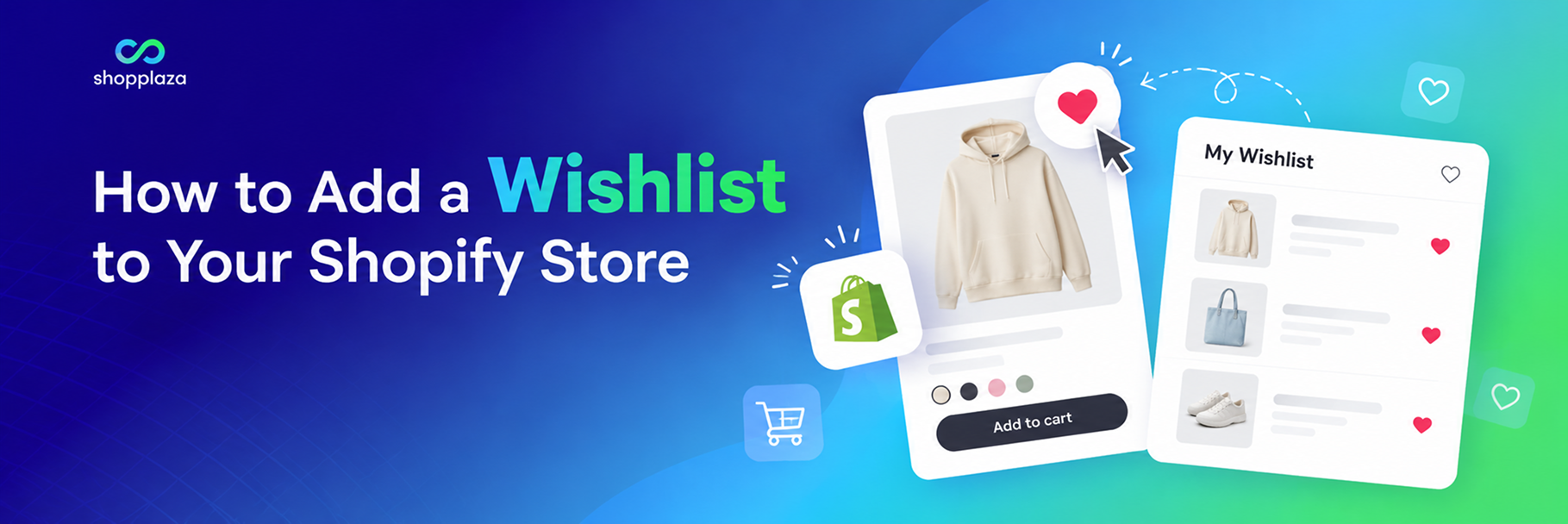
Most shoppers who land on a product page are not ready to buy. They are comparing, waiting for payday, or checking with someone first. A wishlist gives them a place to park the item so the next visit starts where the last one ended, instead of with a search bar and a blank cart.
Shopify does not include a wishlist out of the box. Customer accounts store orders and addresses, not saved products, and the Dawn theme has no wishlist section. So merchants add one in one of three ways: a theme that ships with a basic wishlist, custom theme code, or a wishlist app.
This guide covers all three, then walks through the app route step by step with MP Wishlist & Favorites, a free Shopify wishlist app that goes live with a single switch.
📌 Key takeaways before you dive in:
- Shopify has no native wishlist. You add one through a theme feature, custom code, or an app.
- An app is the right choice for most stores: no theme edits, guest saving without login, and analytics on what shoppers save.
- With MP Wishlist & Favorites the only required step is turning on the app embed. The product-page button, product-card icon and header shortcut are on by default.
- A wishlist is only useful if it saves the exact variant. A saved "blue hoodie" without the size sends the shopper back to square one.
Does Shopify have a built-in wishlist?
No. As of 2026, neither Shopify customer accounts nor Shopify’s free themes include a wishlist. A shopper can log in and see past orders, but there is no “save for later” on product pages and no saved-items page.
A few paid themes bundle a simple wishlist, usually stored in the browser. It works for a quick test, but it is tied to one device, disappears when the shopper clears cookies, and gives you no data on what is being saved.
That is why “how to add a wishlist to Shopify” is one of the most common theme questions in the Shopify Community, and why the answer is almost always an app.
3 ways to add a wishlist to a Shopify store
| Theme wishlist | Custom code | Wishlist app | |
|---|---|---|---|
| Setup | Toggle in theme settings, if your theme has one | Developer edits theme files | Install, turn on app embed |
| Saves the exact size and color | Rarely | Only if built that way | Yes (check the app) |
| Guest wishlist without login | Browser only | Browser only, unless you build account sync | Yes, with sync to the account on login |
| Wishlist page | Basic | You build it | Included |
| Analytics on saved products | No | No | Yes |
| Survives a theme update | Yes | Often breaks | Yes, app embeds live outside theme files |
| Cost | Theme price | Developer hours | Free to $50+/month depending on the app |
Theme wishlist suits a very small catalog where you only want a heart icon and nothing else.
Custom code makes sense if you have a developer on the team and a specific design that no app can match. Expect to maintain it after every theme update.
A wishlist app is the default for everyone else. The rest of this guide uses that route.
How to add a wishlist to Shopify with a free app
The steps below use MP Wishlist & Favorites. It is free with every feature included, works with Online Store 2.0 themes through an app embed, and saves the exact variant a shopper picked. The whole process takes about five minutes.
Step 1: Install the app from the Shopify App Store
Open the MP Wishlist & Favorites listing on the Shopify App Store, click Install, and approve the permissions. The app opens on its home page with a Setup Guide at the top.
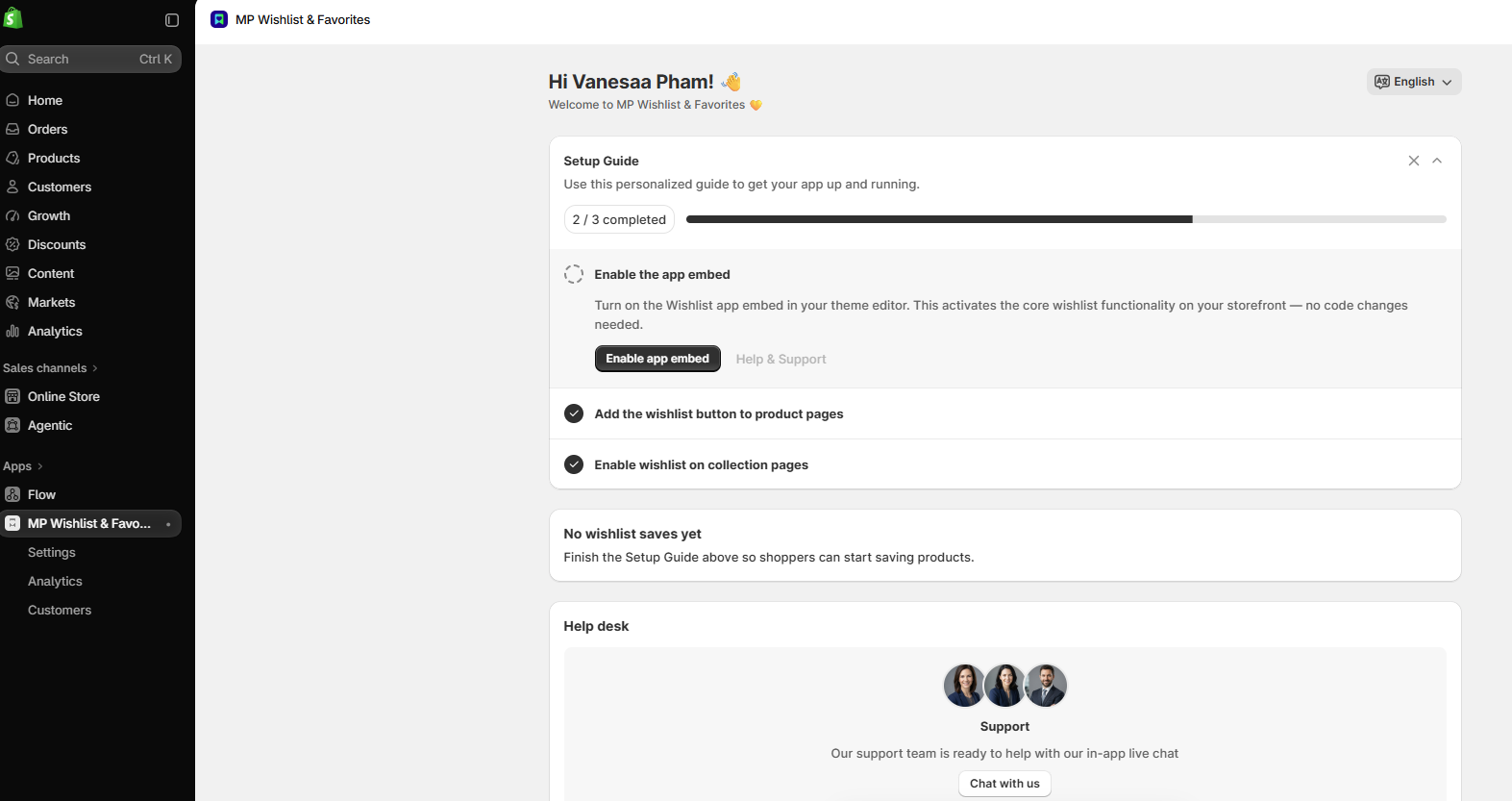
Right after install the guide already shows 2 / 3 completed. The wishlist button on product pages and the icon on product cards are on by default, so the only thing left is the app embed.
Step 2: Enable the app embed
The app embed is what puts the wishlist on your storefront. Until it is on, shoppers see nothing.
- In the Enable the app embed step, click Enable app embed.
- Your theme editor opens on the App embeds panel. Turn on the MP Wishlist toggle.
- Click Save in the top-right corner of the theme editor.
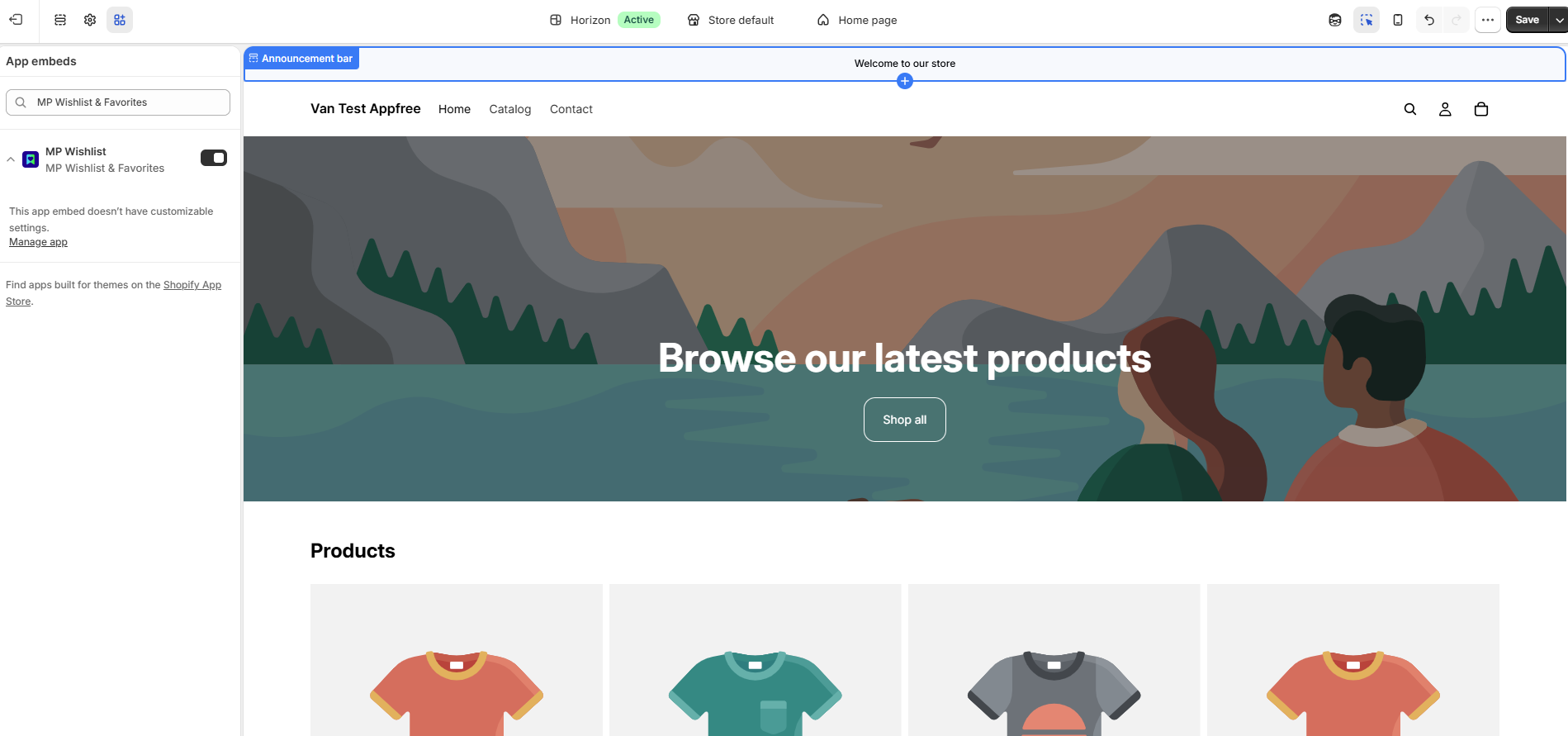
Go back to the app. The Setup Guide now shows 3 / 3 completed and your wishlist is live. No theme code was edited, so a future theme update will not remove it.
If you prefer the manual route: Online Store → Themes → Customize → App embeds, turn on MP Wishlist, save.
Step 3: Check the wishlist on your storefront
Open your store in a new tab and:
- Open a product page, pick a size and color, and tap the wishlist button. It switches to the saved state immediately.
- Look at the header. The wishlist shortcut shows a counter with 1.
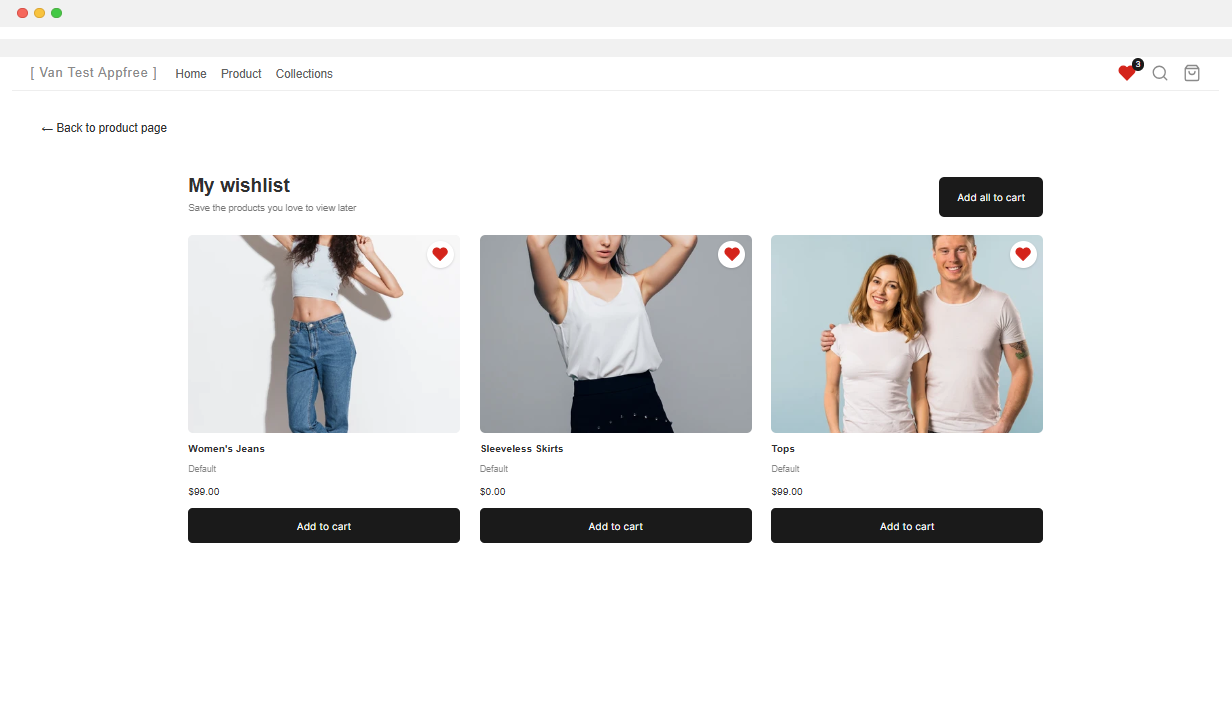
- Tap the shortcut. The wishlist page opens with the item, the exact variant you picked, and an Add to cart button.
Do the same on your phone. The product-card icon on collection pages and the shortcut should both be there.
Step 4 (optional): Choose where the wishlist button sits
Everything is on by default, so this step is about taste, not setup.
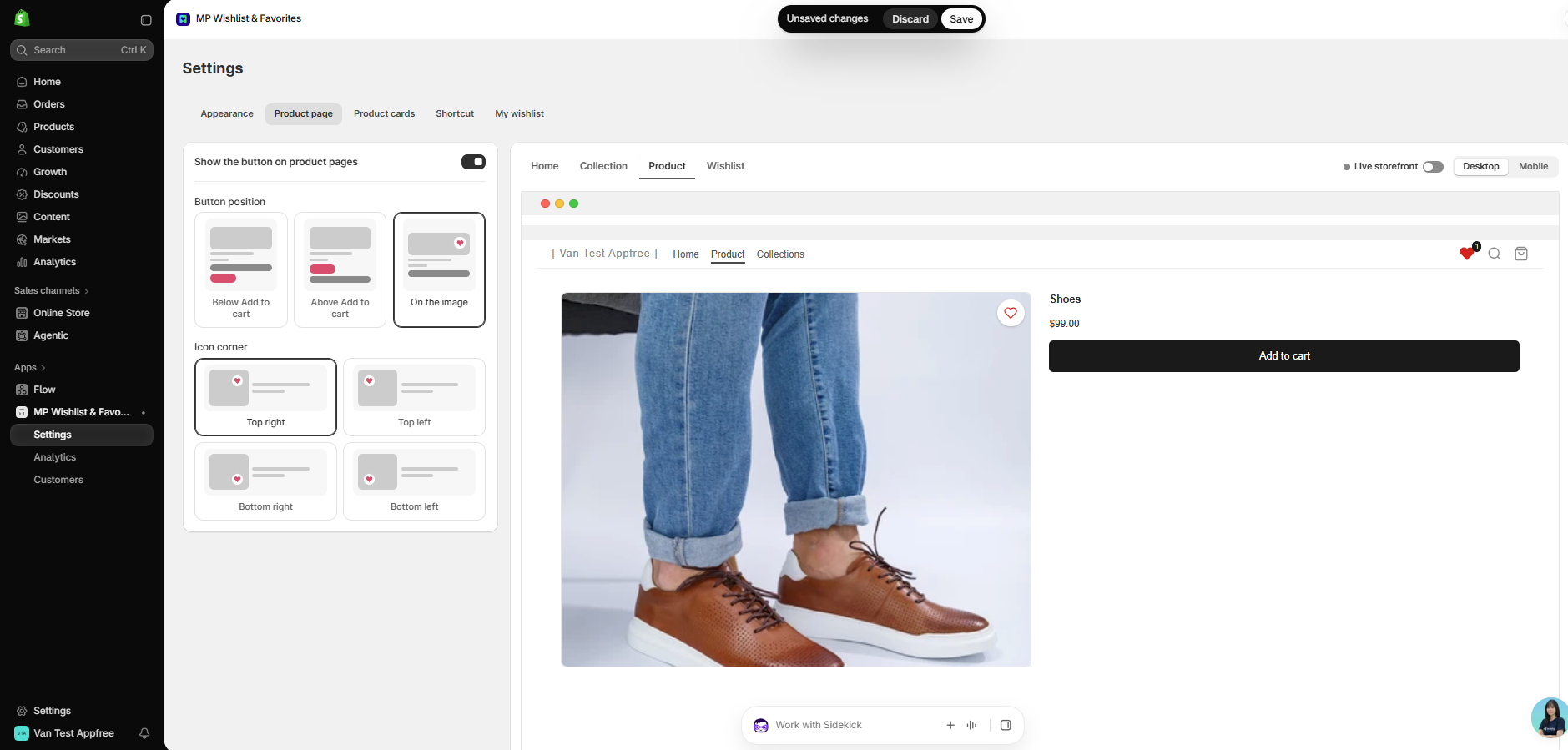
Product pages (Settings → Product page): put the button below Add to cart, above Add to cart, or on the product image as an icon in any corner.
Product cards (Settings → Product cards): an icon on the image or a text button under the card, so shoppers can save straight from a collection page.
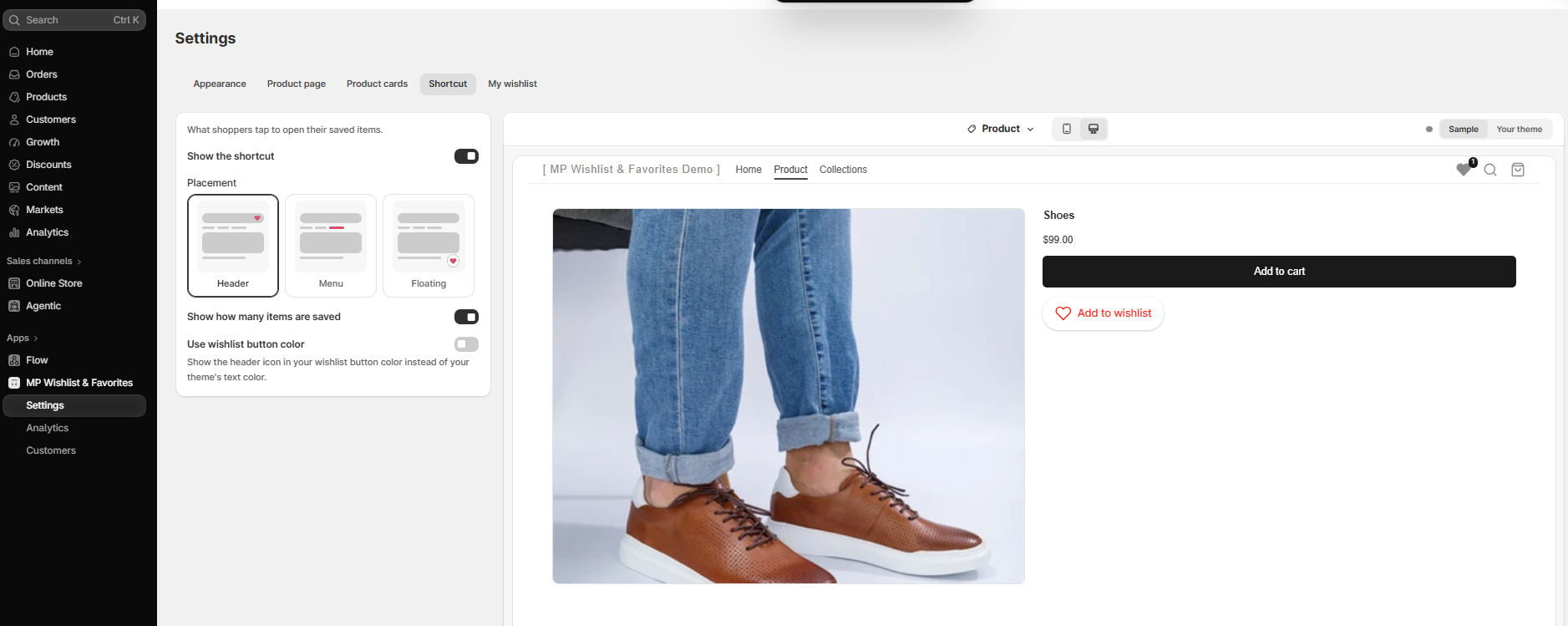
Shortcut (Settings → Shortcut): in the header, in the menu, or as a floating button, with or without the saved-items counter.
Appearance: heart, star or bookmark icon, your colors, your button text, and Match with your theme to pull in the theme palette. The live preview on the right shows the result on your own products before you save.
Step 5 (optional): Set up the wishlist page
The My wishlist tab controls the page shoppers land on from the shortcut. You can change the page title, the empty-state message, the grid layout, which details show on each item, and the sale badge style. Add to cart and Add all to cart are on the page by default, and the Recommendations block at the bottom suggests related products so an empty-handed visit still has somewhere to go.
Step 6: Read the wishlist analytics
Once shoppers start saving, the Analytics page shows total saves, how many came from customers versus guests, and your most saved products down to the variant. The Customers page lists each logged-in customer and what they saved.
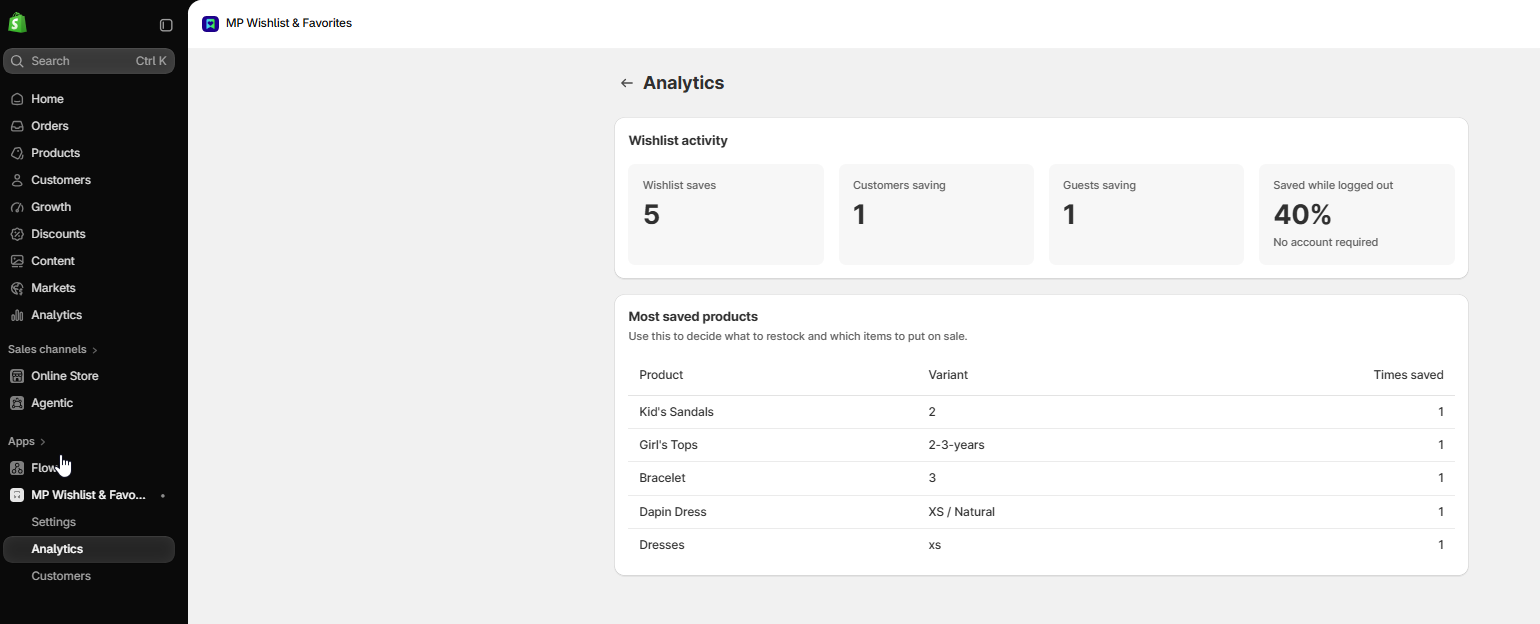
That list is the part most merchants underestimate. It tells you which size of which product people want before it sells, which is useful for restocks, promotions and merchandising. The full setup walkthrough, with screenshots for every tab, is in the MP Wishlist & Favorites help center.
What a Shopify wishlist needs to actually bring shoppers back
Whichever route you take, judge the result against this list. A wishlist that fails any of these is a heart icon, not a sales tool.
- It saves the exact variant. The shopper picked a medium in sand. When they come back, that is what should be waiting, with one tap to the cart.
- It works without an account. Most first-time visitors will not create a login to save a product. Guest saving, with the list moving to the account if they sign in later, keeps the first save frictionless.
- It is visible on every page. A header shortcut with a counter reminds shoppers they have saved something and gives them a one-click route back to it.
- The wishlist page sells. Stock and sale badges, Add to cart on each item, and Add all to cart for the whole list turn a saved list into an order.
- It does not slow the store down. App embeds load outside your theme files and only where needed. Avoid solutions that inject scripts on every page.
- No “powered by” badge. Your product page should carry your brand, not the wishlist vendor’s.
- It reports back. Most-saved products by variant is the one report worth having. It is the closest thing to a demand forecast most stores get for free.
Adding a wishlist with custom theme code
If you have a developer, a minimal wishlist is a few hours of work: a button on the product template that writes the variant ID to the browser’s local storage, a header icon that reads the count, and a page template that fetches each saved product through the storefront’s product JSON and renders it.
The limits show up quickly. Local storage is per device and per browser, so the list does not follow the shopper from phone to laptop. Syncing it to the customer account means writing to customer metafields through an app or a custom backend. And every theme update is a chance for the template changes to be overwritten. Shopify’s own guide to extending your theme with apps explains how app embeds and app blocks add features without touching theme files, which is why Shopify steers merchants toward them instead of theme edits.
For a store that wants a wishlist rather than a wishlist project, the app route gets you the same button in five minutes and keeps the maintenance with the app developer.
4 ways to use your Shopify wishlist once it is live
Point to the shortcut. Mention “Save it for later” in your product page copy or on size guides so shoppers know the heart is there. A wishlist that nobody notices collects nothing.
Sort your collections by what is saved. Pull the most-saved products to the front of your best-selling collection and your homepage. Saved items are items shoppers already wanted.
Plan restocks by variant. When one size of one product is saved far more than it sells, that is a stock gap, not a demand problem. Check the most-saved list before each purchase order.
Pair it with your size guide. Fit uncertainty is the number one reason apparel shoppers hesitate. A size guide helps them pick the right size, and the wishlist keeps that choice for the next visit. The two together cover both halves of “I’ll come back for it.”
Ready to add a wishlist to your Shopify store?
MP Wishlist & Favorites is free with every feature included, and goes live with one switch.
- Saves the exact size and color, with guest saving and no login required
- Wishlist button on product pages and product cards, plus a header shortcut with counter
- Wishlist page with stock and sale badges, Add to cart and Add all to cart
- Most-saved product analytics, live preview, and no "powered by" badge
Conclusion
Adding a wishlist to Shopify is a five-minute job if you use an app, a few hours if you code it, and not possible at all with the default setup. The decision that matters more than the route is what the wishlist saves: the exact variant, for guests as well as logged-in customers, with a page that can send the whole list to the cart.
Frequently asked questions
Does Shopify have a wishlist feature?
No. Shopify customer accounts and Shopify’s free themes do not include a wishlist. You add one with a theme that bundles a basic wishlist, with custom theme code, or with a wishlist app from the Shopify App Store.
How do I add a wishlist to Shopify for free?
Install a free wishlist app such as MP Wishlist & Favorites, then turn on its app embed in the theme editor (Online Store → Themes → Customize → App embeds). The product-page button, product-card icon and header shortcut are on by default, so the wishlist is live as soon as the embed is saved.
Can shoppers use a Shopify wishlist without logging in?
With the right app, yes. MP Wishlist & Favorites lets guests save items with no account. If the shopper logs in later, their guest wishlist moves into their customer account so nothing is lost.
Does a Shopify wishlist app slow down my store?
Apps that run as app embeds load only where the wishlist appears and stay outside your theme files, so the effect on page speed is small. Avoid wishlist solutions that inject scripts on every page or require editing theme templates.
Can a wishlist save the specific size and color?
It depends on the app. Some wishlists save only the product. MP Wishlist & Favorites saves the exact variant the shopper selected, shows on the product page whether the current size or color is already saved, and sends that variant to the cart from the wishlist page.