How to set up MP Wishlist & Favorites
The Setup Guide on the app’s home page walks you through three steps to get the wishlist live on your store. Most stores finish in a few minutes, with no theme code to edit.
Note: MP Wishlist & Favorites works with themes that support app embeds (Online Store 2.0 themes). If your theme doesn’t support app embeds, the wishlist can’t appear on your storefront. See Why isn’t the wishlist button showing on my store?
Open the Setup Guide
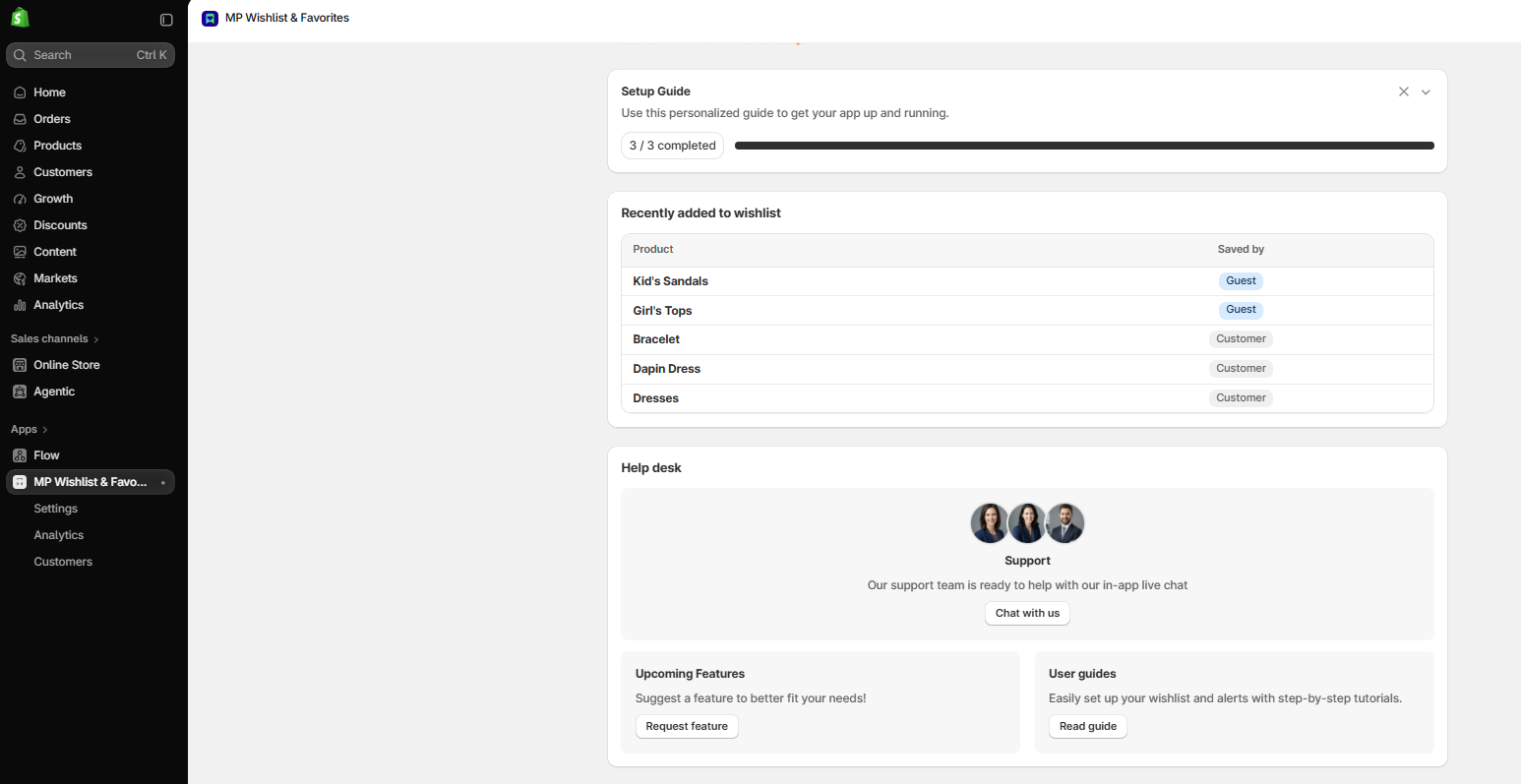
From your Shopify admin, go to Apps and open MP Wishlist & Favorites. The Setup Guide sits at the top of the home page and shows how many steps you’ve finished (for example, 2 / 3 completed).
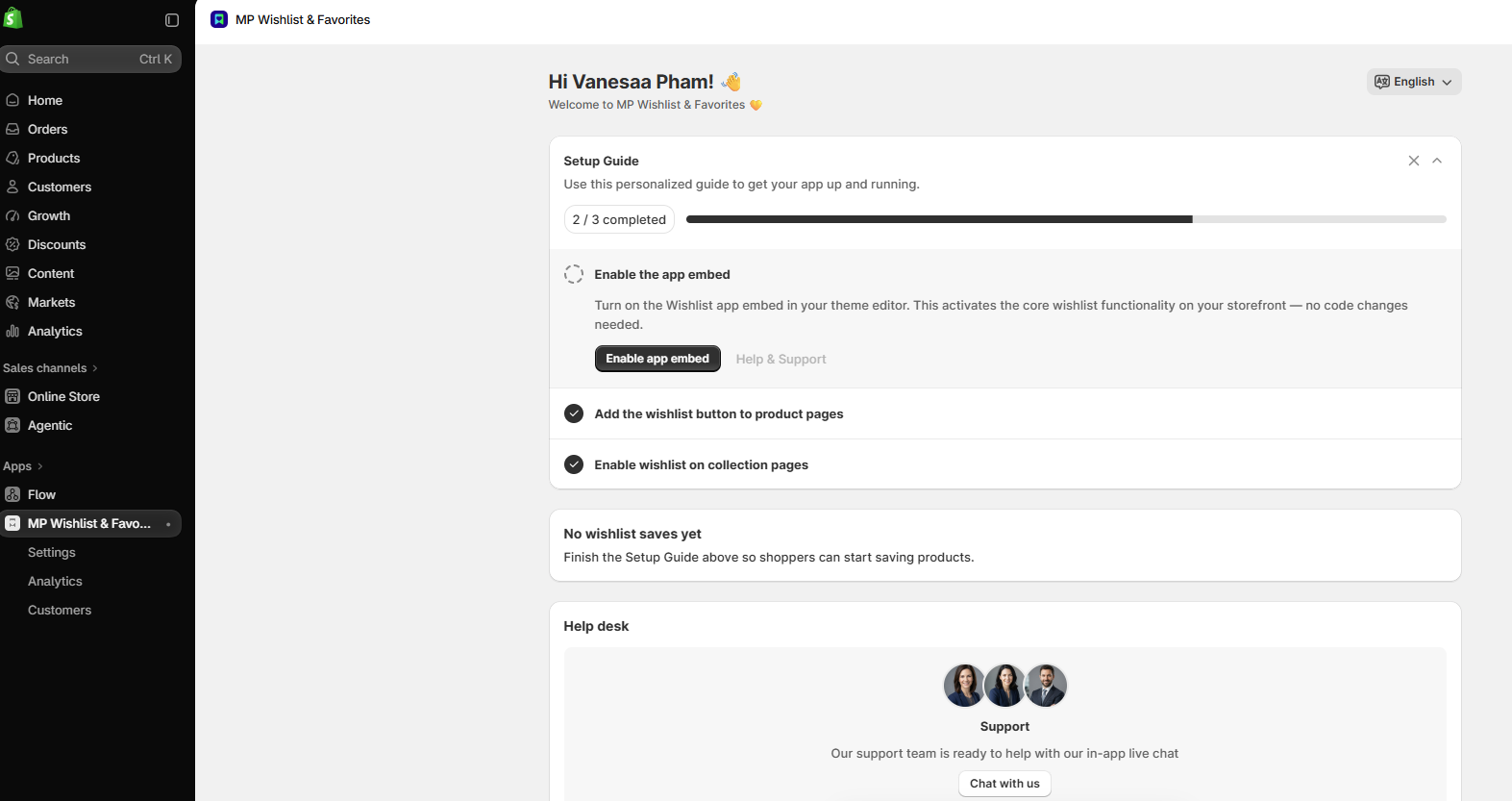
Each step shows a check mark once it is done. Click an unfinished step to expand it.
Tip: Use the language menu (English) in the top-right corner to change the language of the app.
Step 1: Enable the app embed
The app embed turns on the wishlist on your storefront. Until it’s on, shoppers won’t see any wishlist buttons.
#1. In the Enable the app embed step, click Enable app embed.
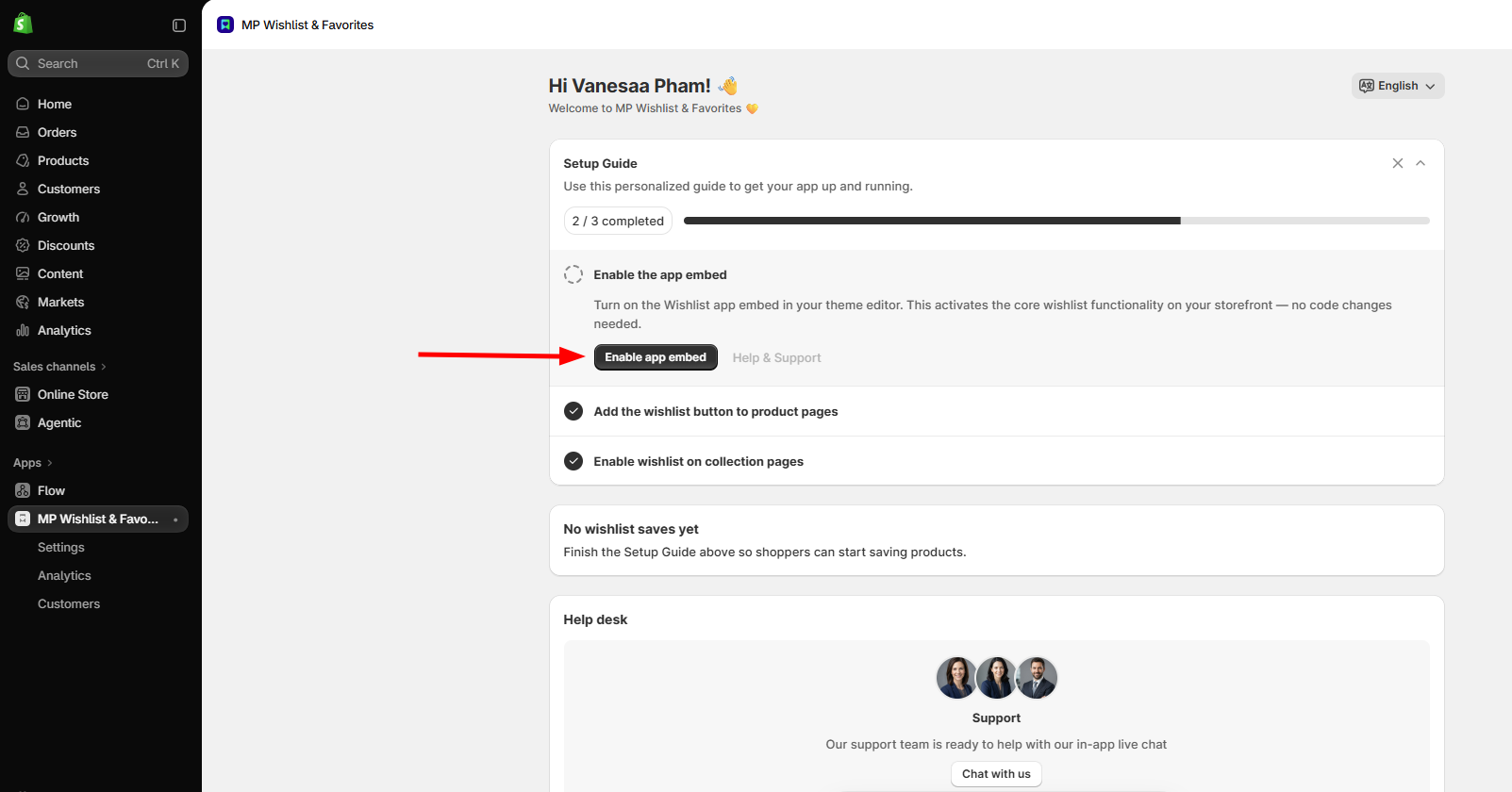
#2. Your theme editor opens on the App embeds panel. Turn on the MP Wishlist toggle (listed under MP Wishlist & Favorites).
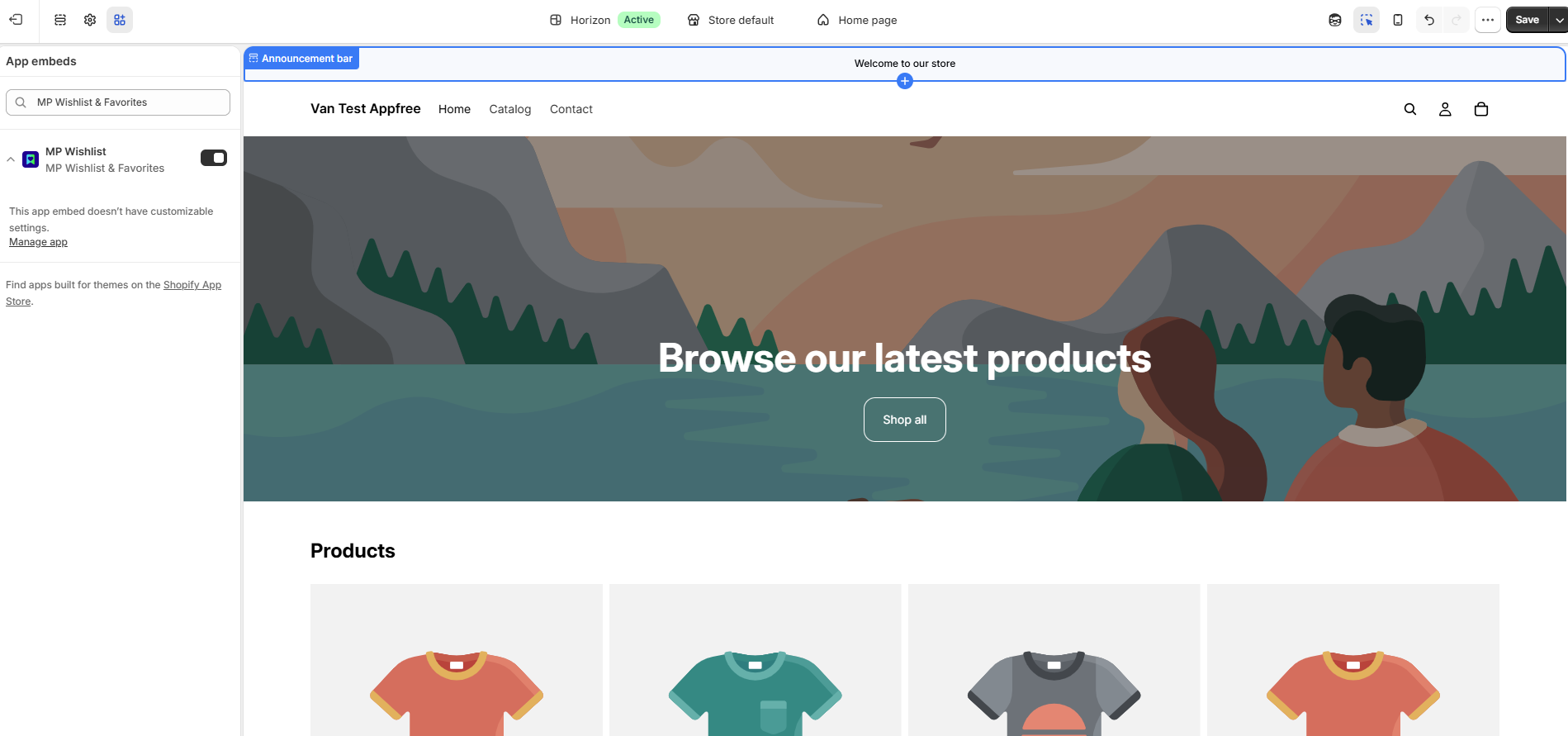
The app embed has no settings of its own in the theme editor. You manage everything from the app’s Settings page. Click Manage app to go there.
#3. Click Save in the top-right corner of the theme editor.
#4. Go back to the app. The Enable the app embed step now shows a check mark, and the button changes to Disable app embed. When all three steps are done, the Setup Guide shows 3 / 3 completed.
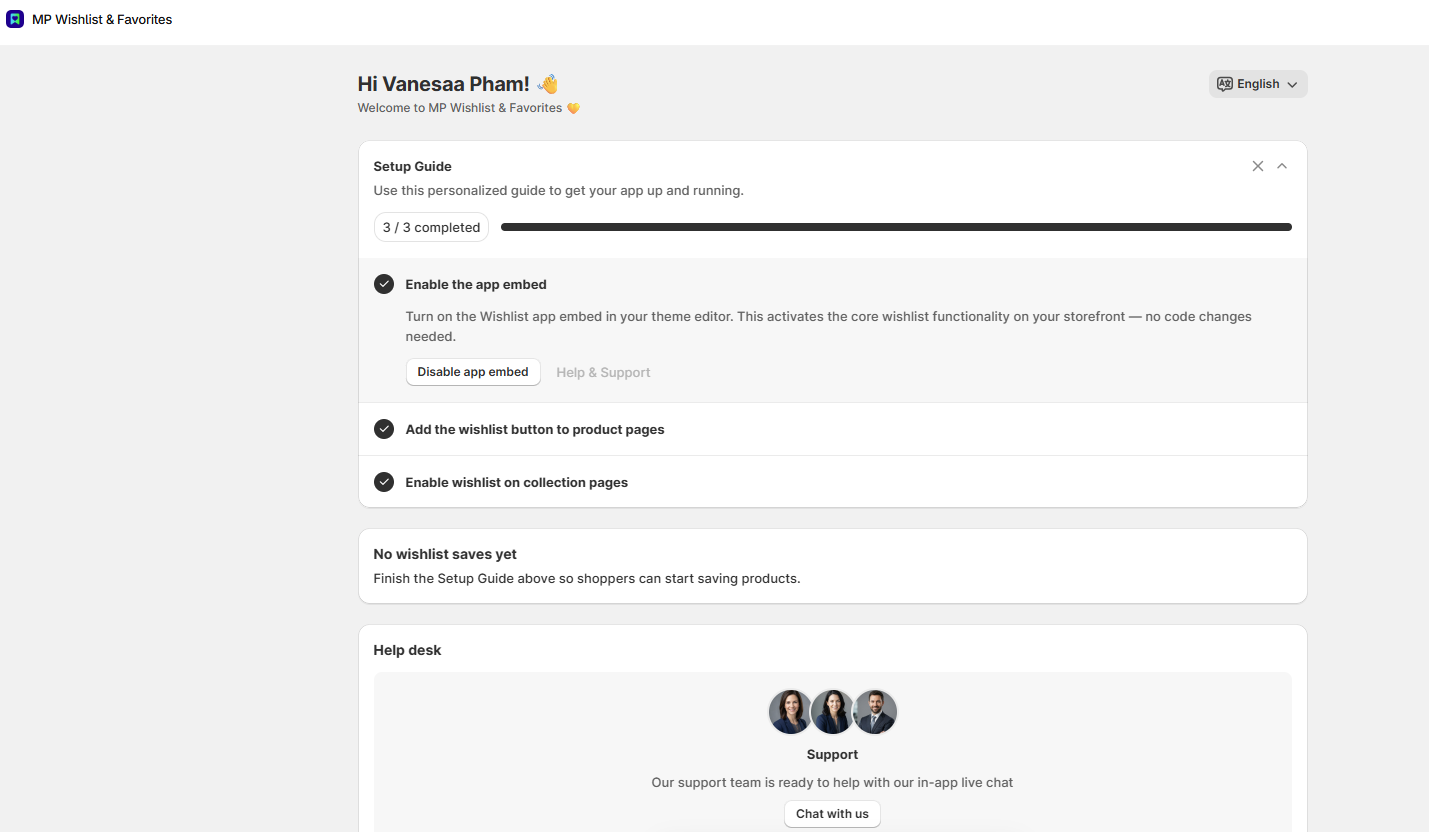
Tip: You can also turn on the embed yourself: go to Online Store → Themes → Customize → App embeds, turn on MP Wishlist, and click Save. To turn the wishlist off on your storefront later, click Disable app embed in the Setup Guide.
Step 2: Add the wishlist button to product pages
#1. In the app menu, go to Settings and open the Product page tab.
#2. Turn on Show the button on product pages.
#3. Click Save in the Unsaved changes bar at the top.
To choose where the button sits, see How to add the wishlist button to product pages.
Step 3: Enable wishlist on collection pages
#1. In Settings, open the Product cards tab.
#2. Turn on Show the button on product cards.
#3. Click Save.
The button now appears on product cards in collection pages and other product grids. To choose the button style, see How to add the wishlist button to product cards.
Check your storefront
Open your online store and:
- Open a product page and tap the wishlist button. It switches to the saved state right away.
- Check the wishlist shortcut (in the header by default). The counter shows how many items you’ve saved.
- Tap the shortcut to open the wishlist page and see the item you saved.
See the latest saves on your home page
Before anyone saves a product, the app home page shows a No wishlist saves yet card. Once shoppers start saving, it’s replaced by Recently added to wishlist, which lists the latest saved products in your store. The Saved by column shows whether each item was saved by a Guest (not logged in) or a Customer (logged in).
For full numbers and your most saved products, open Analytics.
Hide the Setup Guide
When you’re done, click × to dismiss the Setup Guide, or click the arrow to collapse it.
Get help from our team
At the bottom of the app home page, the Help desk card has three options:
- Support: click Chat with us to start a live chat with our team right inside the app.
- Upcoming Features: click Request feature to suggest a feature you’d like to see.
- User guides: click Read guide to open these step-by-step guides.
👉 You can also contact our support team anytime, and we’ll be happy to help.