How to see your most saved products with Analytics
The Analytics page shows what’s in your shoppers’ wishlists right now: how many items are saved, who is saving them, and which products are saved the most. Use it to spot popular products and plan stock or promotions.
Open Analytics
In MP Wishlist & Favorites, click Analytics in the app menu.
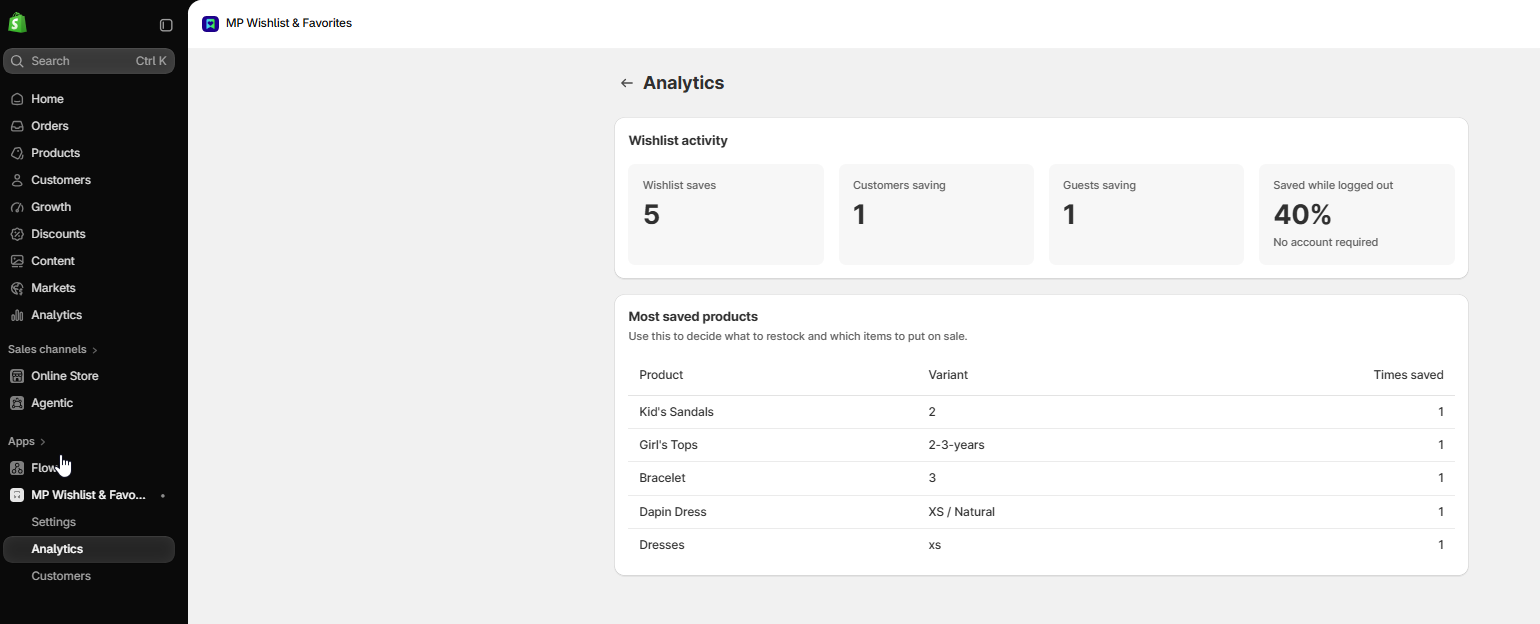
Wishlist activity
The Wishlist activity section at the top has four numbers:
- Wishlist saves: the total number of items currently in all wishlists in your store.
- Customers saving: the number of logged-in customers who have at least one saved item.
- Guests saving: the number of shoppers who are saving items without logging in.
- Saved while logged out: the share of saved items that belong to shoppers who weren’t logged in. A high number shows how many saves you get because shoppers don’t need an account.
Most saved products
The Most saved products table shows your top 10 saved products. Use it to decide what to restock and which items to put on sale. The table has three columns:
- Product: the product name.
- Variant: the option the shopper saved, such as a size or color. Products with only one option show Default Title.
- Times saved: how many wishlists the item is in right now.
The same product can appear on more than one row if shoppers saved different variants of it.
Tip: Products near the top of this list have strong interest. They’re good picks for restocks, featured collections, or a promotion.
How the numbers are counted
- All numbers show what is saved right now. When a shopper removes an item from their wishlist, the numbers go down.
- You can’t filter the numbers by date.
- On stores with a very large number of saves, Most saved products is based on the most recent saves, and the page tells you when this is the case.
👉 Still need assistance? Contact our support team anytime, and we’ll be happy to help.