How to see what each customer has saved
The Customers page lists the logged-in customers who currently have items in their wishlist, and lets you open each one to see exactly what they’ve saved.
Open the Customers page
In MP Wishlist & Favorites, click Customers in the app menu. The page lists the logged-in customers who have items in their wishlist.
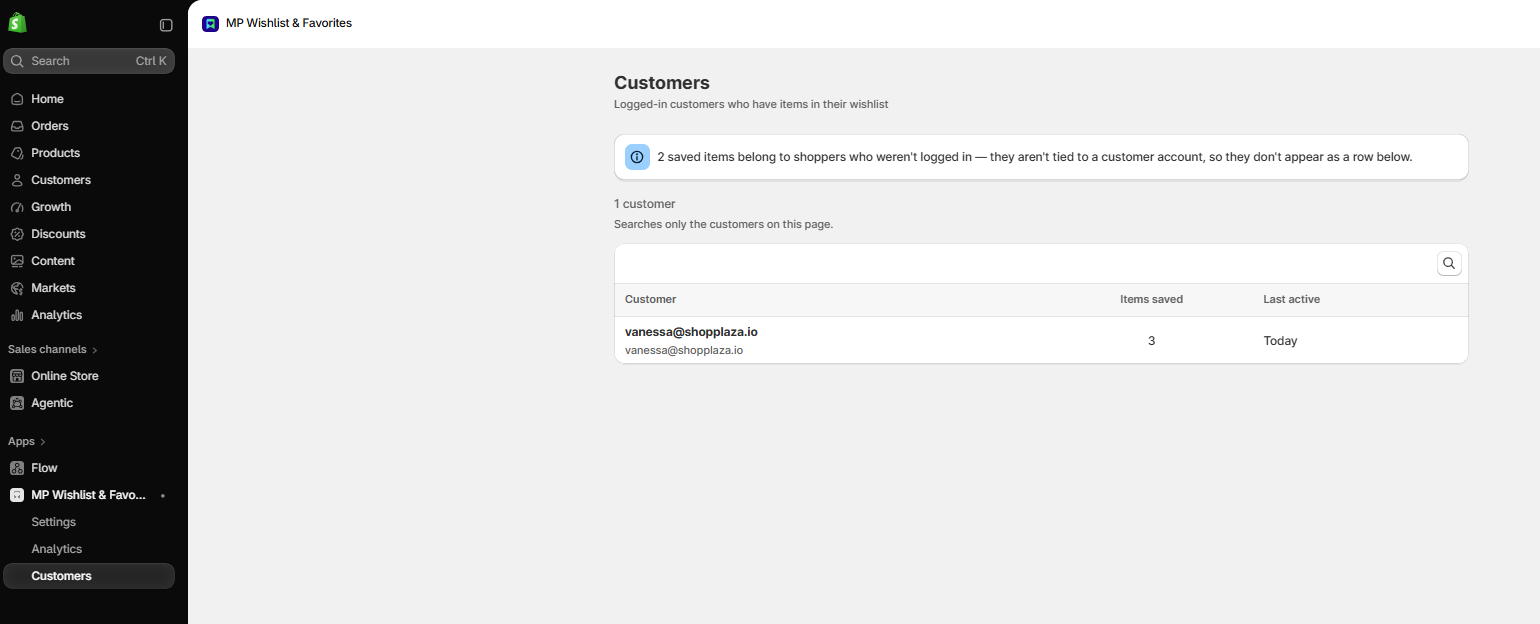
The list shows 25 customers per page. Use the arrows at the bottom to move between pages. Each row shows:
- Customer: the customer’s name and email. If the customer has no name in Shopify, their email shows instead.
- Items saved: how many items are in their wishlist.
- Last active: when they last updated their wishlist, for example Today, Yesterday, or 5 days ago.
See a customer’s saved items
Click a customer to open their wishlist. You’ll see each saved product and the selected option, such as size or color.
Search for a customer
Click the search icon above the table to find a customer by name or customer ID. As the page notes, search only covers the customers on the page you’re on, so move to other pages if you don’t find the customer right away. The total number of customers shows above the table (for example, 1 customer).
Guests
Shoppers who save items without logging in aren’t tied to a customer account, so they don’t appear as rows in the list. Instead, a banner at the top of the page shows how many saved items belong to shoppers who weren’t logged in.
When a guest logs in, their saved items move into their customer account and they appear in the list. To see guest activity in numbers, check Guests saving and Saved while logged out on the Analytics page.
Customer name statuses
Names and emails come from Shopify each time you open the page. Instead of a name, a row may show:
- Name withheld by Shopify: Shopify doesn’t share this customer’s details with the app.
- Customer no longer exists: the customer was deleted from your store.
- Permission required: the app hasn’t been approved by Shopify to read customer details yet. See Why does the Customers page show “Permission required”?
👉 Still need assistance? Contact our support team anytime, and we’ll be happy to help.