How to match wishlist buttons with your theme
Every Shopify theme is built a little differently. Match with your theme scans your live store and finds the right spots for the wishlist buttons, so they sit where they should, even on customized themes.
This step is optional. Most stores work without it. Use it when a wishlist button or the shortcut doesn’t show up where you expect, or after you change or customize your theme.
Open Match with your theme
#1. In MP Wishlist & Favorites, go to Settings and open the Appearance tab.
#2. Scroll to the bottom and expand Match with your theme (marked Optional).
The header shows how many places the app has found on your live store, for example 4 of 4 places found.
Run Auto match
#1. In the Auto match with your theme card, click the match button. The app scans your theme and places the wishlist buttons in the right spots.
#2. While it runs, the button shows the progress (for example, Matching… 3 of 4). The preview switches to Live storefront and shows Matching your theme, with each place it is checking:
- Add to cart button: where the wishlist button goes on product pages.
- Header counter: where the shortcut and counter go in the header.
- Menu link: where the wishlist link goes in the menu.
- Product cards: where the button goes on products in a grid.
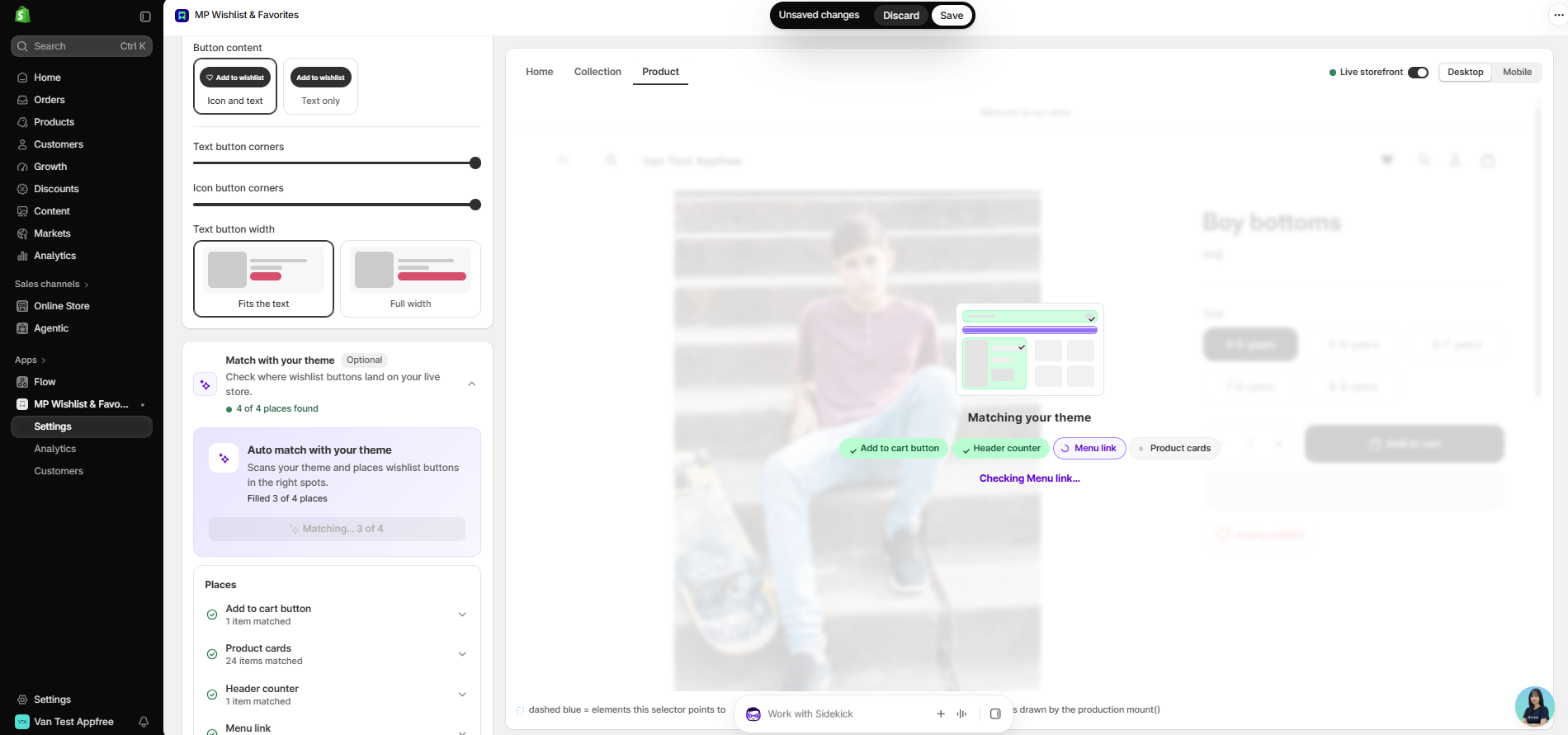
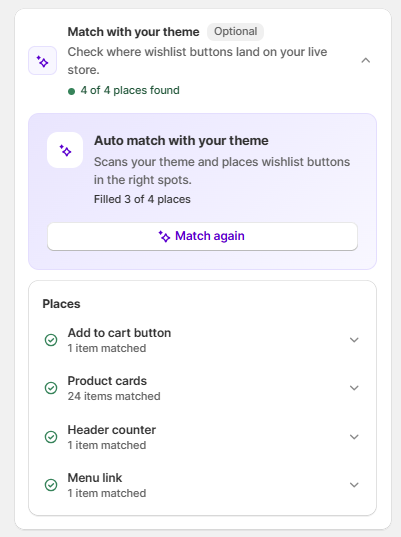
#3. When it’s done, the card shows how many places were filled (for example, Filled 3 of 4 places), and the button changes to Match again.
#4. Click Save in the Unsaved changes bar at the top to apply the result to your storefront.
Check the places list
Under Places, each place shows a check mark and how many items the app matched on your store, for example:
- Add to cart button: 1 item matched
- Product cards: 24 items matched
- Header counter: 1 item matched
- Menu link: 1 item matched
Click a place to expand it and see the details. To check the result on your real pages, keep Live storefront on and switch between the Home, Collection, and Product views in the preview.
When to run it again
Click Match again when:
- You switch to a new theme or update your current theme.
- You edit your theme’s header, product page, or collection page layout.
- A wishlist button or the shortcut stops showing in the right place.
If a place still can’t be matched after you run it again, contact our support team and share your store URL. We’ll check your theme for you.