How to add the wishlist button to product pages
The Product page tab controls whether the wishlist button appears on your product pages and where it sits. Shoppers tap it to save the exact variant they’ve selected, such as the size and color.
Note: Make sure the app embed is turned on first. See How to set up MP Wishlist & Favorites.
Turn on the button
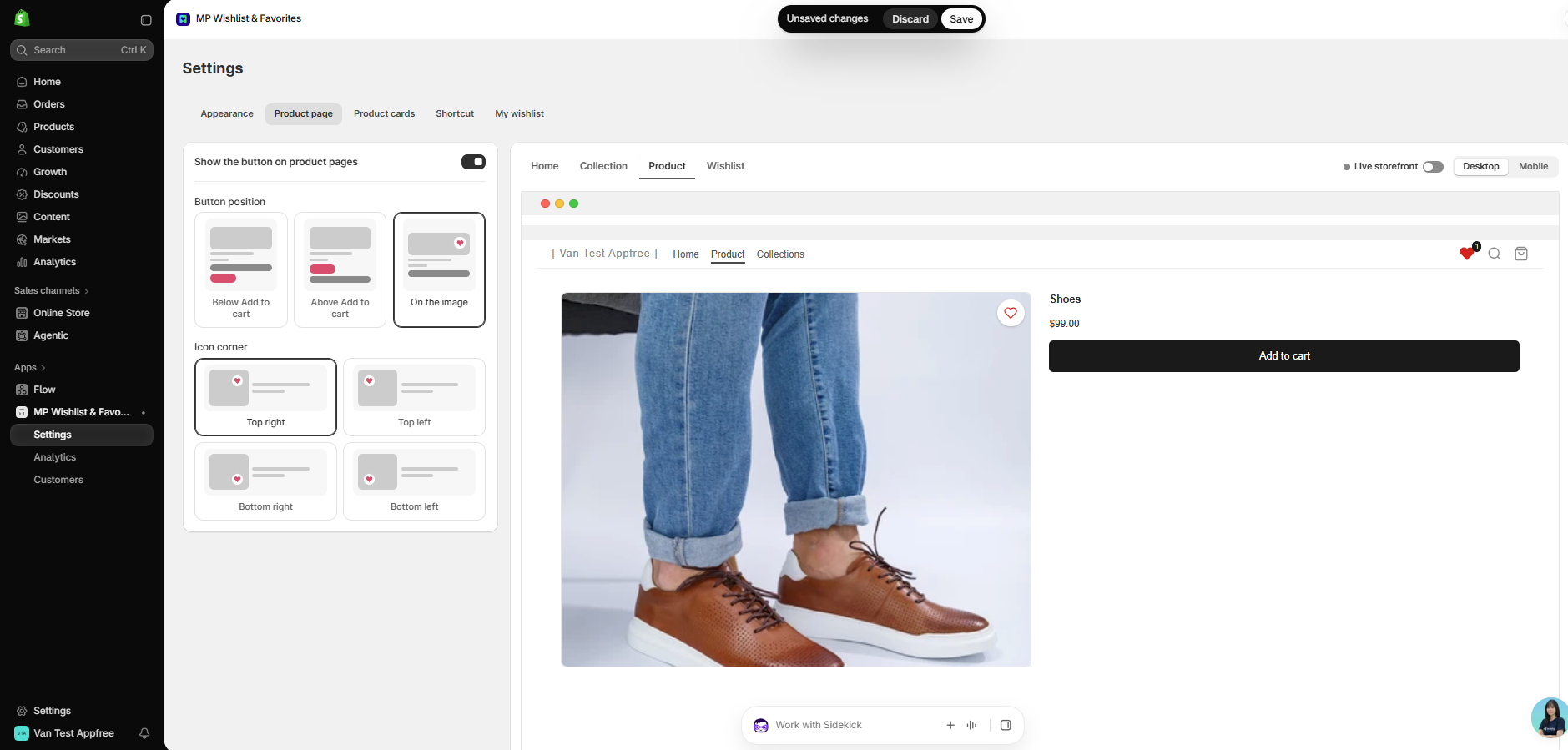
#1. In MP Wishlist & Favorites, go to Settings and open the Product page tab.
#2. Turn on Show the button on product pages.
#3. Choose a Button position (see below).
#4. Click Save in the Unsaved changes bar at the top.
Choose a button position
Below Add to cart
The wishlist button sits right under your Add to cart button. This is the default.
Above Add to cart
The wishlist button sits right above your Add to cart button.
On the image
The wishlist button shows as an icon on the product image, with no text. When you pick this option, an Icon corner setting appears. Choose where the icon sits: Top right, Top left, Bottom right, or Bottom left.
Tip: The look of the button (icon, colors, text, corners, and width) comes from the Appearance tab. See How to customize the wishlist button appearance.
What shoppers see
- Before saving, the button shows your Before saving text (for example, Add to wishlist).
- After a shopper taps it, the button switches to the saved state right away and shows your After saving text (for example, Remove from wishlist). Tapping it again removes the item.
- If the shopper changes the size or color, the button updates to show whether that option is saved.
- The counter on the wishlist shortcut goes up as soon as the item is saved.
Note: If the position you chose isn’t available in your theme, the app places the button in the default position instead, so it doesn’t disappear.
👉 Still need assistance? Contact our support team anytime, and we’ll be happy to help.