How to customize the wishlist page
The wishlist page (My wishlist by default) is where shoppers land when they tap the shortcut. It lists every item they’ve saved, with the price, stock status, and a quick way to add items to cart.
Open the My wishlist tab
In MP Wishlist & Favorites, go to Settings and open the My wishlist tab. The preview on the right switches to the Wishlist view so you can see each change as you make it.
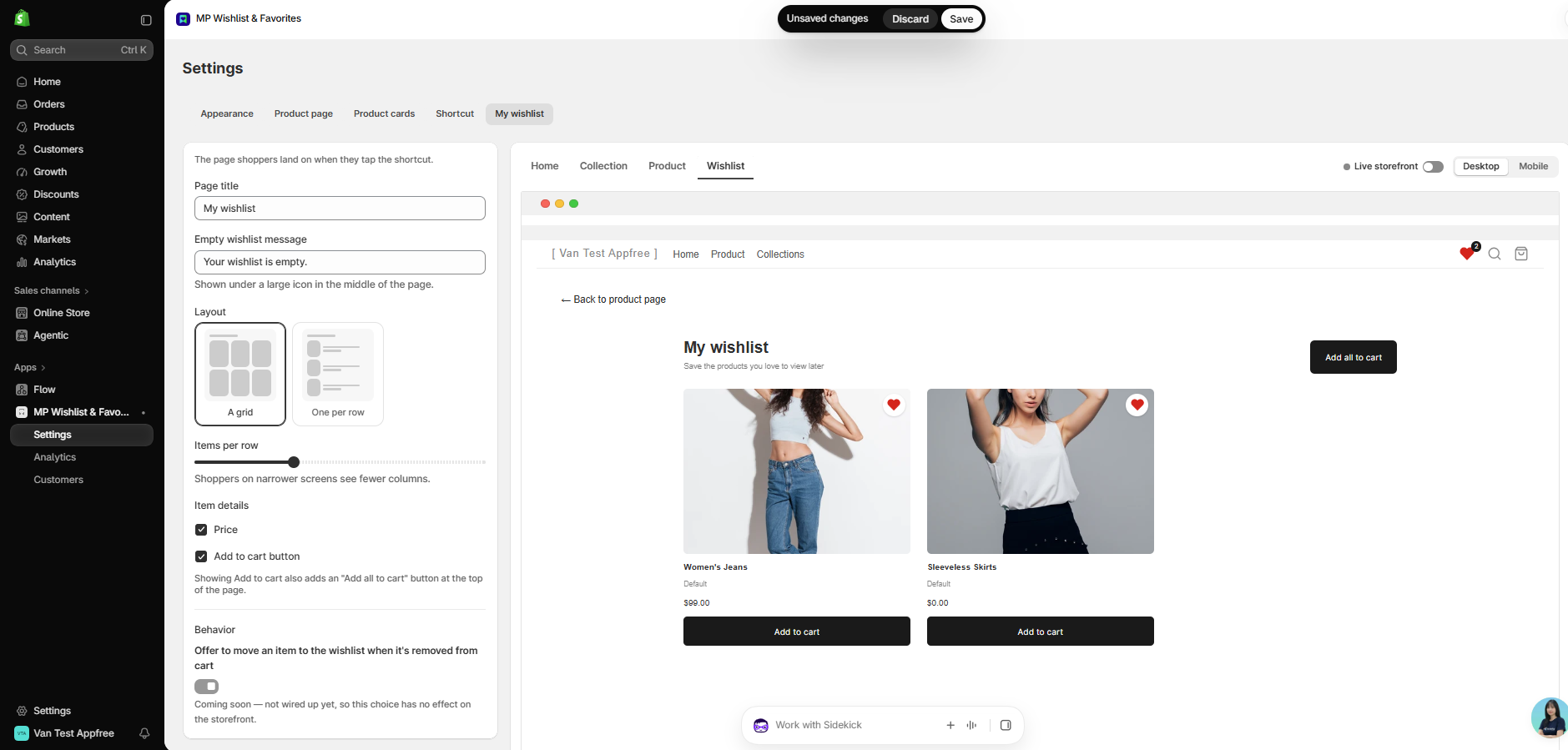
My wishlist settings
Page title
The heading at the top of the wishlist page (default My wishlist).
Empty wishlist message
The text shoppers see when they haven’t saved anything yet (default Your wishlist is empty.). It shows under a large icon in the middle of the page.
Layout
- A grid: shows saved items as cards, side by side.
- One per row: shows one item per row, with the image on the left and the Add to cart button on the right.
Items per row
Available with the A grid layout. Drag the slider to set how many items show in each row. Shoppers on narrower screens see fewer columns.
Item details
- Price: shows the price of each saved item.
- Add to cart button: shows an Add to cart button on each item. Turning this on also adds an Add all to cart button at the top of the page.
Behavior
Offer to move an item to the wishlist when it’s removed from cart is marked Coming soon. It isn’t available yet, so changing it has no effect on your storefront.
When you’re done, click Save in the Unsaved changes bar at the top.
What shoppers see on the wishlist page
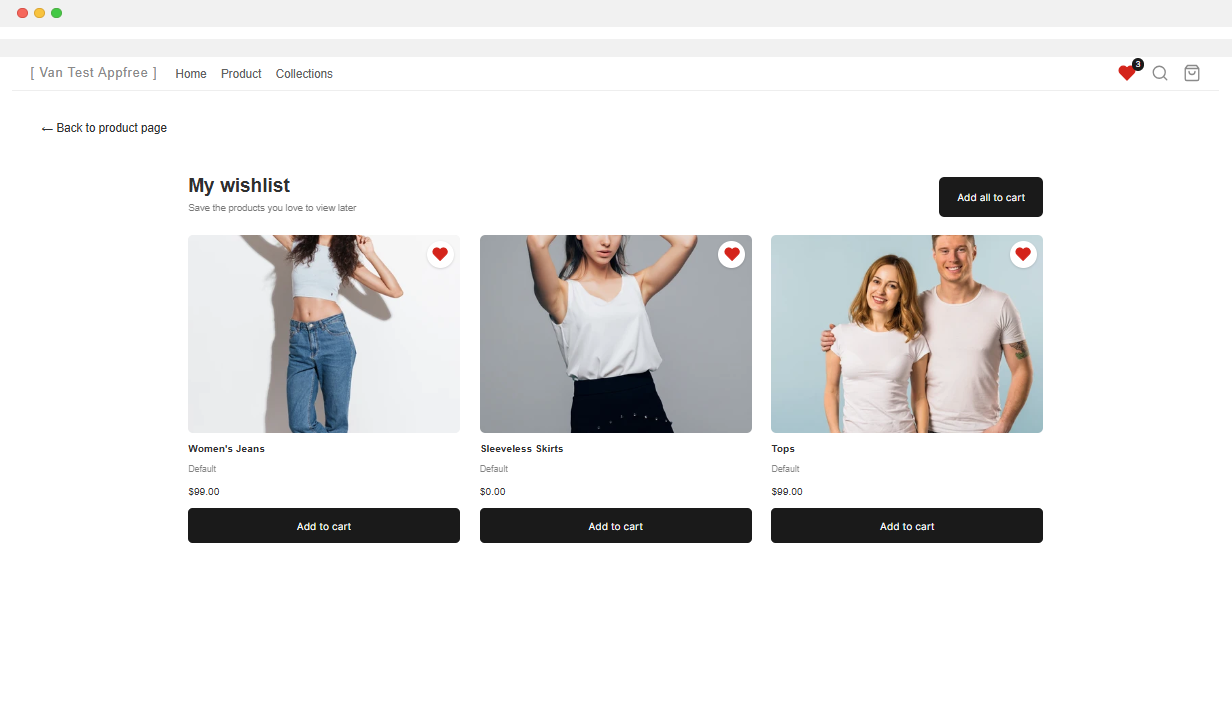
- Each saved item shows its image, name, selected option (for example, size or color), and price.
- Each saved item shows a filled wishlist icon (the heart, star, or bookmark you chose in the Appearance tab). Tapping the icon removes the item from the wishlist.
- Add to cart adds one item to the cart. Add all to cart adds every available item at once. Each item is added with a quantity of 1.
- Items show a stock badge when needed, for example Sold out, or a low-stock badge when only a few are left. Items that can’t be bought have their Add to cart button turned off.
- If the saved option is no longer available, the page shows the product instead.
- Shoppers who are logged in see the same wishlist on any device where they log in.
👉 Still need assistance? Contact our support team anytime, and we’ll be happy to help.