How to customize the wishlist button appearance
The Appearance tab controls the icon, colors, and shape of every wishlist button, on product pages and on product cards alike. Set it once and the style carries across your store.
Open the Appearance tab
In MP Wishlist & Favorites, go to Settings and open the Appearance tab.
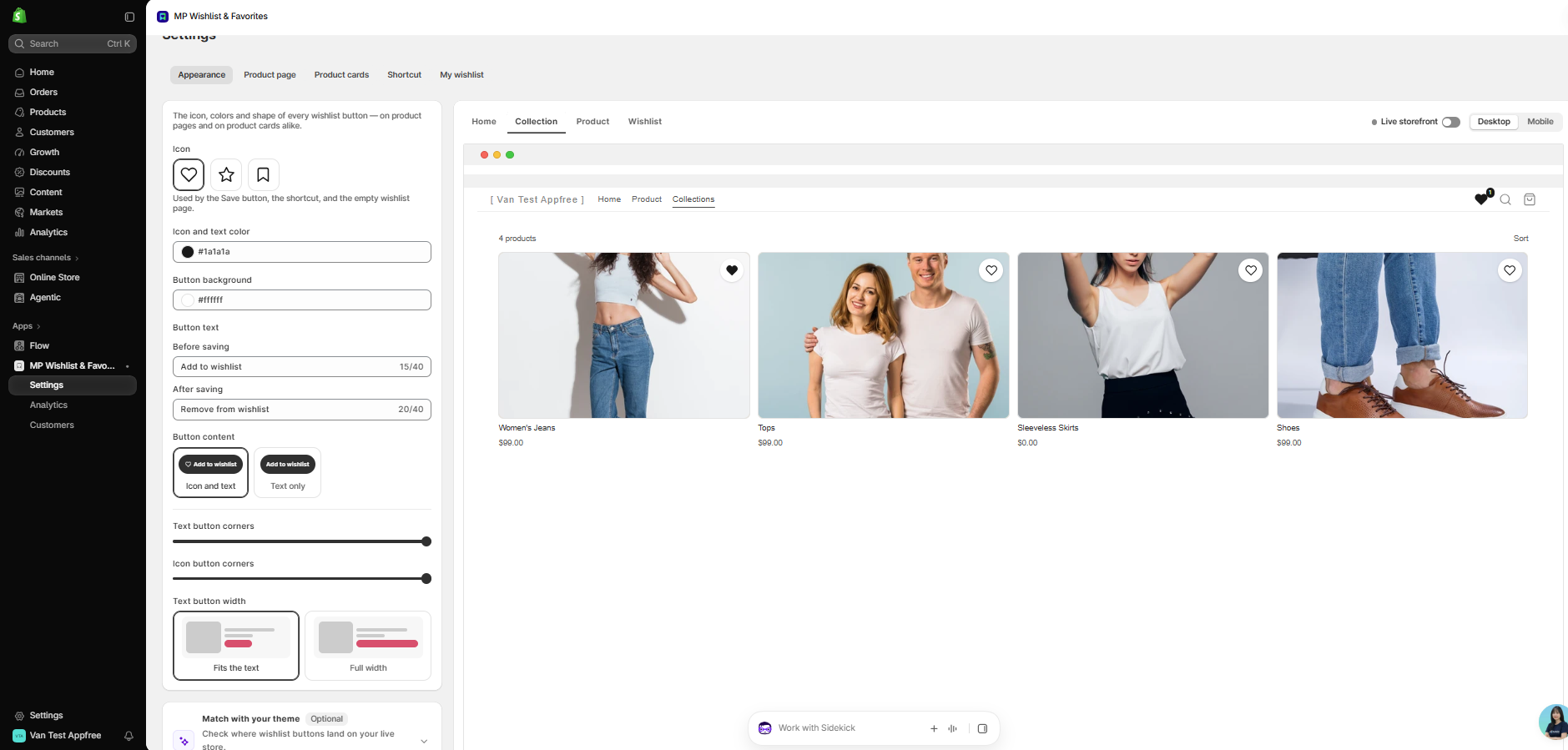
The live preview on the right updates as you change each setting. Use the Home, Collection, Product, and Wishlist tabs at the top of the preview to switch pages, and Desktop or Mobile to switch views.
Appearance settings
Icon
Choose one of three icons: heart, star, or bookmark. The icon you pick is used by the Save button, the shortcut, and the empty wishlist page.
Icon and text color
The color of the icon and the button text. Click the color field to pick a color or type a hex code (default #1a1a1a).
Button background
The background color of the button (default #ffffff).
Button text
- Before saving: the text shoppers see before they save an item (default Add to wishlist, up to 40 characters).
- After saving: the text shoppers see once the item is saved (default Remove from wishlist, up to 40 characters).
The button text shows wherever you use a text button: on product pages below or above Add to cart, and on product cards when you choose Text button at the bottom.
Button content
- Icon and text: shows the icon next to the button text.
- Text only: shows the button text without the icon.
Text button corners
Drag the slider to set how rounded the corners of the text button are, from square to fully rounded.
Icon button corners
Drag the slider to set how rounded the icon-only button is. The icon button is used when the button sits On the image of a product page or a product card.
Text button width
- Fits the text: the button is only as wide as its text.
- Full width: the button stretches across the full width of the product details area.
Match with your theme (Optional)
At the bottom of the tab, Match with your theme scans your live store and places the wishlist buttons in the right spots for your theme. See How to match wishlist buttons with your theme.
Save your changes
When you change a setting, an Unsaved changes bar appears at the top of the page. Click Save to apply your changes to your storefront, or Discard to go back to your last saved settings.
Tip: Try your icon and colors on the Product, Collection, and Wishlist views in the preview before you save, so the button looks right everywhere.
👉 Still need assistance? Contact our support team anytime, and we’ll be happy to help.