How to show the wishlist shortcut and counter
The shortcut is what shoppers tap to open their saved items. It takes them to the wishlist page from anywhere in your store, and it can show a counter with the number of items they’ve saved.
Set up the shortcut
#1. In MP Wishlist & Favorites, go to Settings and open the Shortcut tab.
#2. Turn on Show the shortcut.
#3. Under Placement, choose where the shortcut appears:
- Header: a wishlist icon in your store header, next to the other header icons.
- Menu: a wishlist link in your store menu.
- Floating: a wishlist button that floats over the page.
#4. Turn on Show how many items are saved to add a counter to the shortcut.
#5. Click Save in the Unsaved changes bar at the top.
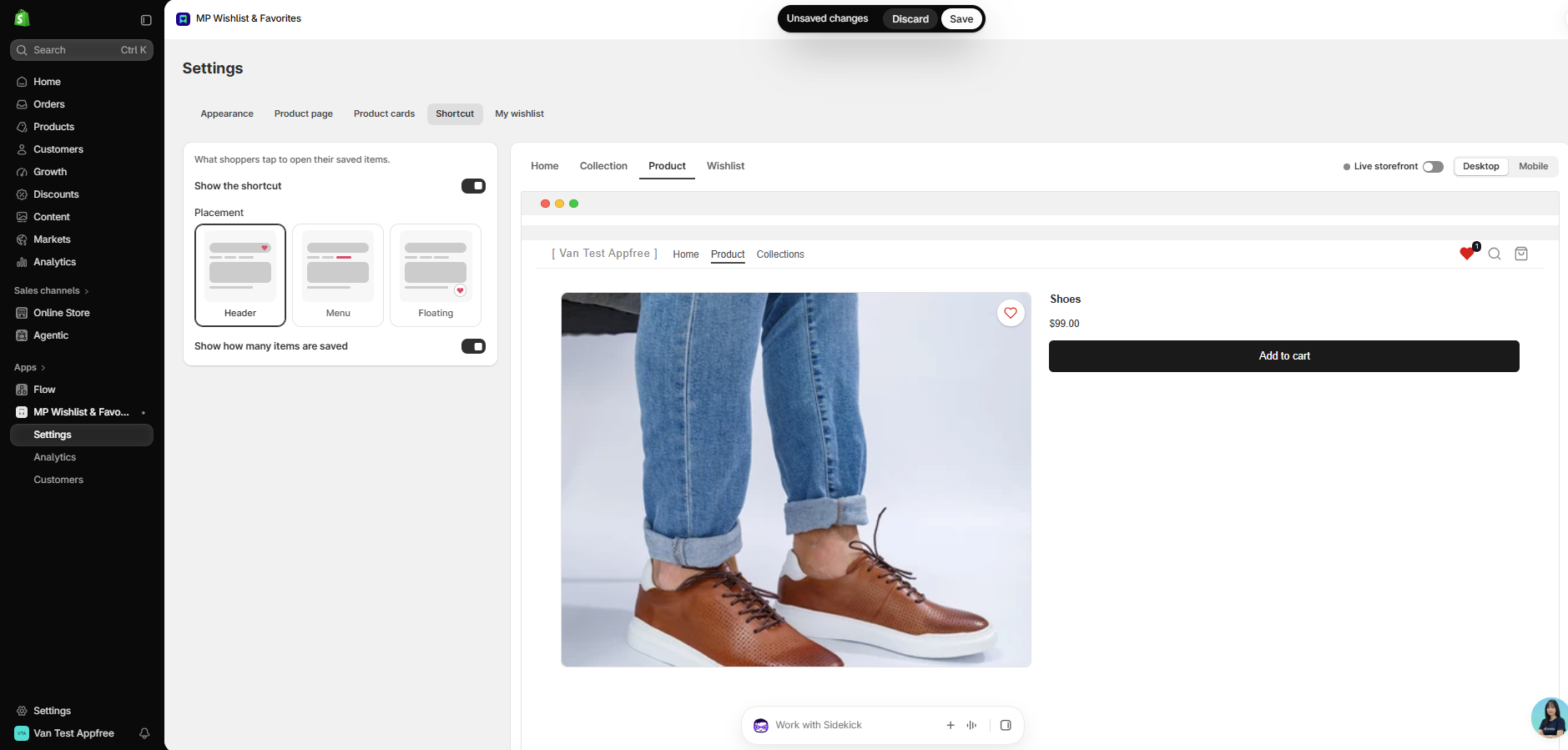
The shortcut uses the icon you chose in the Appearance tab (heart, star, or bookmark).
How the counter works
- The counter goes up or down as soon as a shopper saves or removes an item, even across browser tabs that are open at the same time.
- When the wishlist is empty, the counter is hidden.
Note: Some themes don’t have room for an extra icon in the header. If you don’t see the shortcut in your header after saving, try the Floating placement.
👉 Still need assistance? Contact our support team anytime, and we’ll be happy to help.