How to add the wishlist button to product cards
The Product cards tab controls the Save button on products shown in a grid, like a collection page. Shoppers can save items while they browse, without opening each product page.
Turn on the button
#1. In MP Wishlist & Favorites, go to Settings and open the Product cards tab.
#2. Turn on Show the button on product cards.
#3. Choose a Card button style (see below).
#4. Click Save in the Unsaved changes bar at the top.
Choose a card button style
Icon on the image
The wishlist button shows as an icon on each product image. This is the default. Use Icon corner to choose where the icon sits: Top right, Top left, Bottom right, or Bottom left.
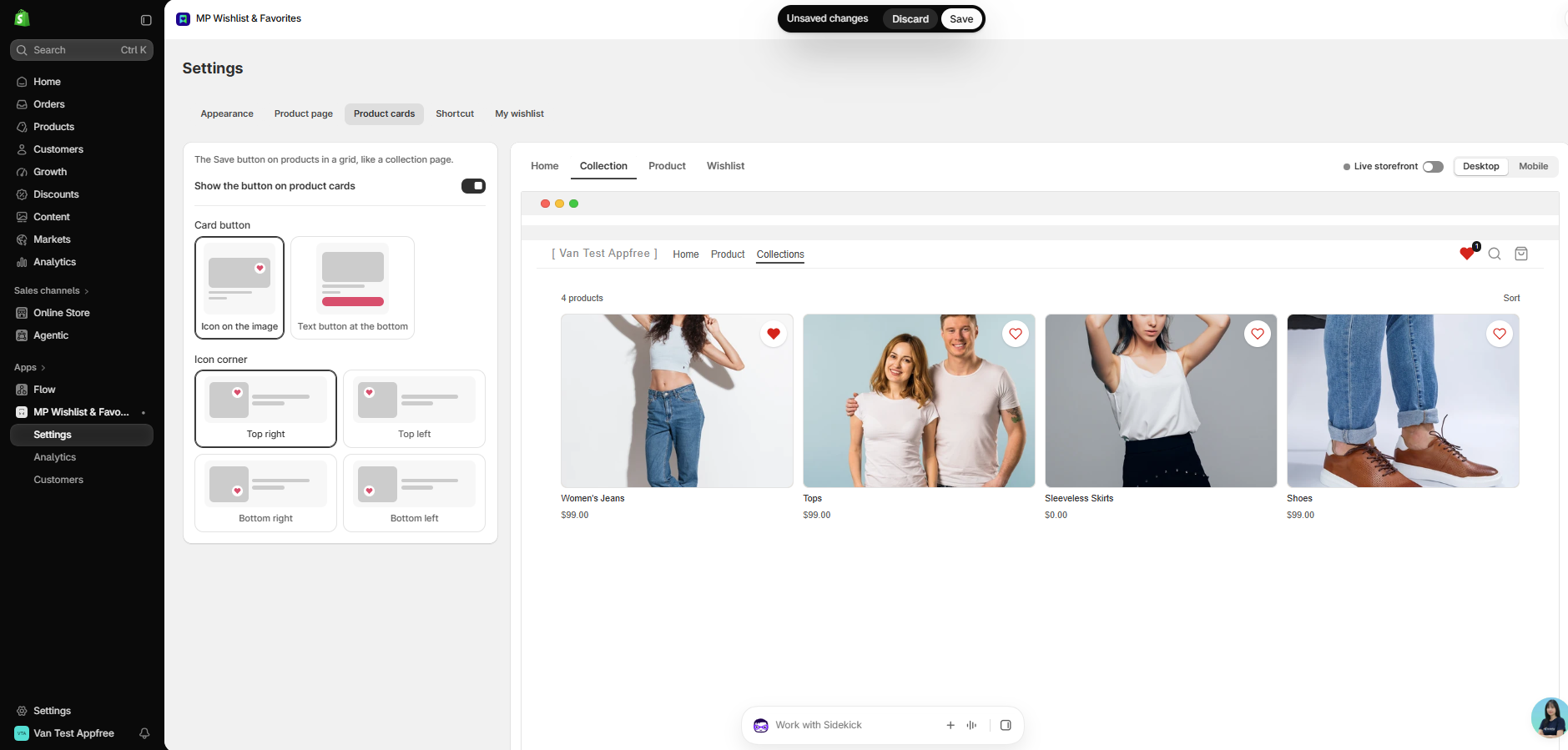
Saved items show a filled icon, so shoppers can see at a glance what they’ve already saved.
Text button at the bottom
The wishlist button shows as a text button under the product name and price. It uses your Before saving and After saving text from the Appearance tab (for example, Add to wishlist and Remove from wishlist).
Tip: To change the icon, colors, text, or corners, go to the Appearance tab. See How to customize the wishlist button appearance.
Where the button appears
The button appears on product cards across your store, such as collection pages and product grids on the home page. Products that load later, for example after a shopper filters a collection or loads more products, get the button too.
👉 Still need assistance? Contact our support team anytime, and we’ll be happy to help.