How to preview your wishlist before saving
Every tab in Settings has a live preview on the right. It shows how the wishlist will look on your store, using your own products and store name, so you can check each change before shoppers see it.
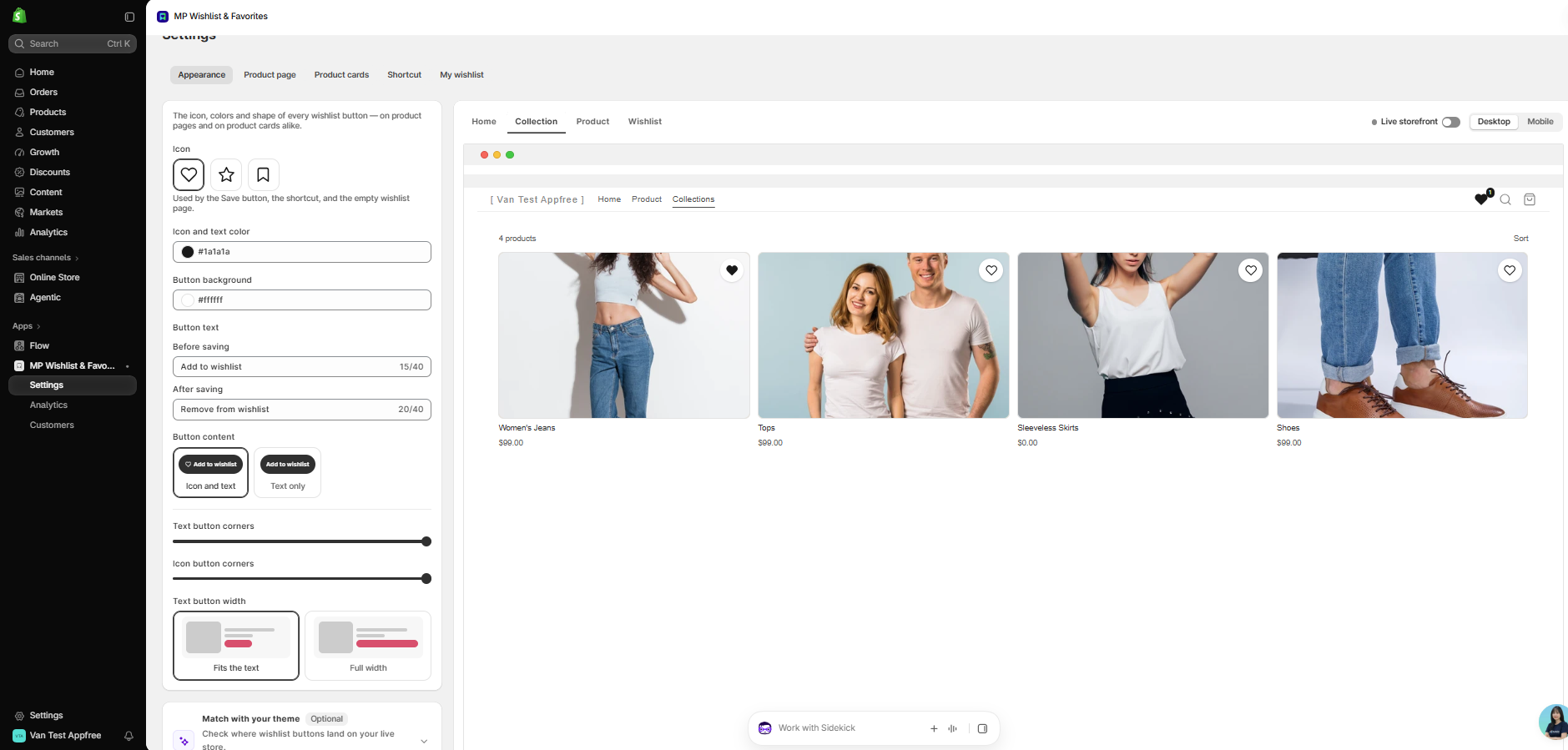
Switch pages
Use the tabs at the top of the preview to switch between Home, Collection, Product, and Wishlist. When you open a settings tab, the preview jumps to the page that tab affects.
Switch devices
Click Desktop or Mobile at the top-right of the preview to see how the wishlist looks on each screen size.
Live storefront
On the Home, Collection, and Product views, turn on Live storefront at the top-right of the preview to see the wishlist buttons on your real live store pages instead of the built-in preview.
Match with your theme
At the bottom of the Appearance tab, the optional Match with your theme section scans your live store and places the wishlist buttons in the right spots for your theme. While it runs, the preview switches to Live storefront so you can watch each place being matched. See How to match wishlist buttons with your theme.
Try it like a shopper
The preview works like your storefront:
- Tap the wishlist button on a product to save it. The button switches to its saved state.
- Watch the counter on the shortcut go up.
- Open the Wishlist view to see the items you saved.
Sample products
If the app can’t load your products (for example, your store doesn’t have any products yet, or there’s a connection problem), the preview shows sample products and a Showing sample products message that explains why.
Save or discard
Changes only reach your storefront after you click Save in the Unsaved changes bar. Click Discard to go back to your last saved settings.
👉 Still need assistance? Contact our support team anytime, and we’ll be happy to help.