Running an online store comes with its share of challenges, and sometimes, you may need to temporarily pause operations. This article will guide you through the process of putting your Shopify store on vacation mode.
Vacation mode allows you to temporarily shut down your store, hiding your products or disabling the “Buy Now” button. We’ll cover the steps to activate vacation mode and provide essential tips and answers to frequently asked questions during this period.
Why do we need to put the Shopify store on vacation mode?
Many Shopify stores choose to put their store on vacation mode for different reasons:
Inventory Control
If you are running low on inventory and need time to restock, vacation mode can help. You can still manage your store behind the scenes and avoid overselling products. Periodic inventory counting methods are specifically planned, such as checking every 2 weeks, monthly, or quarterly, depending on each store.
This method suits stores with many items, models, and products, but the value is not too high, such as fashion, cosmetics, construction materials, and furniture.
Seasonal Business
Some businesses, like those selling seasonal items or event-specific products, may use vacation mode to indicate that they are currently not operating but will be back in the future. Putting your Shopify store on vacation mode can help you maintain communication and connection with your customers by providing them with clear information about your temporary absence.
Major Updates
When making significant changes to your store, such as a website redesign or rebranding, you should put your store in vacation mode to avoid disruptions and confusion for customers.
In addition, your store also needs regular maintenance to bring the highest operating efficiency and enhance user experience.
Emergencies
In the case of emergencies or unexpected circumstances, you may need to pause your store’s operations. Once the issue is resolved, you can reopen your store and conduct business as usual.
When you turn on Shopify’s vacation mode, consumers can still browse your site, but no new orders can be placed. Instead, they will view a message that you can personalize to let them know why you are temporarily closing and when you plan to reopen.
To minimize disturbance and preserve a great client experience, vacation mode must be used wisely. Be open and honest with your consumers about the reasons for the temporary closure and the anticipated return date for your business.
If you determine that a temporary pause isn’t sufficient and you’re considering closing your store permanently, refer to our comprehensive guide: 7 Steps On How To Delete Shopify Account Permanently.
How to put Shopify store on vacation mode?
Step 1: Log in to your Shopify store
To do anything, the first thing you need is to log into your Shopify account. Use your username and password to log in via Shopify’s website or on the platform’s mobile app.

Step 2: Access the “Online store” section
After successfully logging in to your Shopify account, find the “Online store” section in the bottom left corner of the main screen. In the “Online store” section, select Preferences.
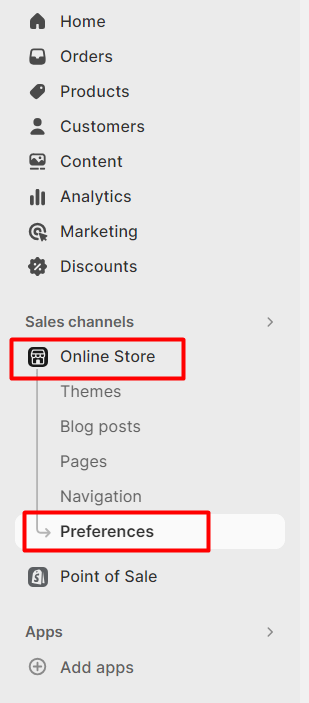 Access to the “Online store” on Shopify dashboard
Step 3: Activate the password protection of your Shopify store
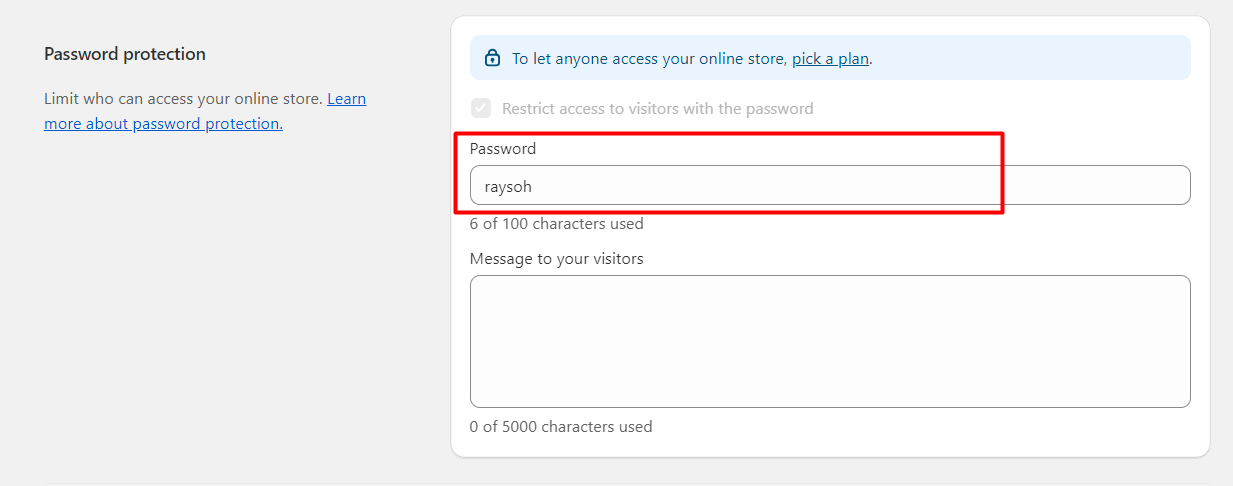
In the “Preferences” section, scroll down to find the Password section. Here, you will see the password protection option for your Shopify store.
A box with the sentence “Restrict access to visitors with the password” will appear. Tick that box to activate password protection. You can share this password with trusted customers if needed.
Step 4: Take a message
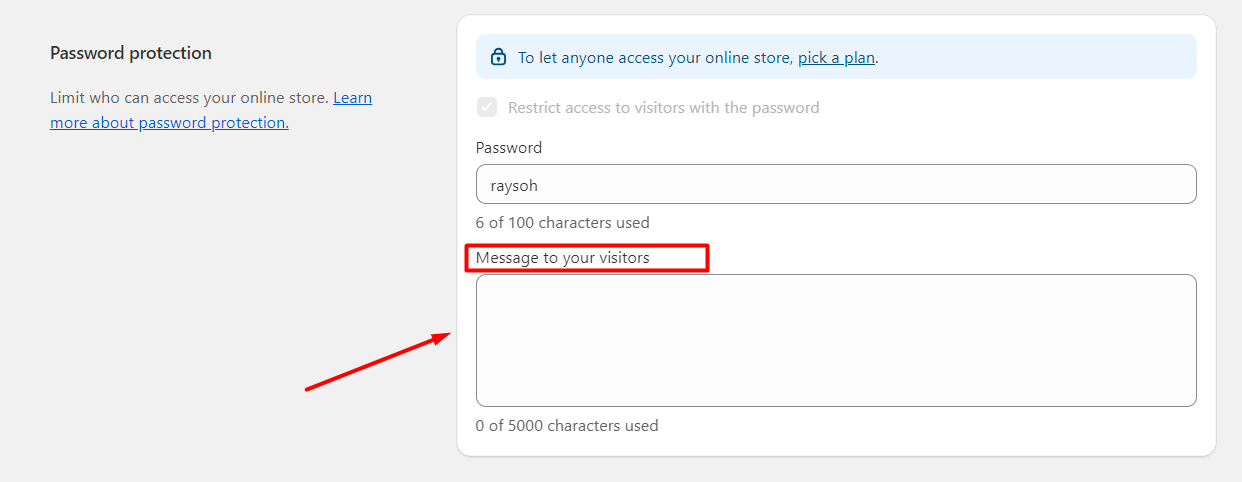
After switching your store’s operating status to vacation mode, you will see a Message inbox. With this, you can leave a message for your customers while your store is closed.
You can state why the store is closed and notify the store’s expected return time. This helps customers feel secure and encourages them to return when the store reopens.
Step 5: Save your changes
After performing all of the above steps, don’t forget to press the Save button so the system will apply your changes.
Now, your Shopify store is in vacation mode. Visitors to your website will see the notice you have added and won’t be able to make purchases. You can still log in and manage your store’s admin panel, complete open orders, and perform other behind-the-scenes tasks.
Some tips to prepare your Shopify store on vacation mode
Maintain a positive reputation
- Respond to customers as quickly as possible: Even during vacation mode, you can create automatic messages to respond to customers. Show that your store is always ready to serve and answer all customer questions. Customers today can reach your company through multiple channels, and they expect great experiences everywhere.
You need to make sure you can manage all channels so that whether feedback is sent via email, website, or hotline, your company supports quickly.
-
Respond to positive feedback: Positive feedback from customers is what any store aims for. When you receive these responses, thank the customer, show respect, and build trust to retain customers and attract new prospects.
-
Respond to negative feedback and continue to improve: An apology is an important factor in creating a successful response. When you contact a customer about a negative review, focus on apologizing for the bad situation and how they feel. An apology shows that you take responsibility for the customer’s disappointment and admit mistakes.
Maximize sales after returning from vacation mode
-
Provide incentives: Offer incentives to customers immediately after restoring operations. This serves as a thank you to loyal customers who have supported the store, and as a marketing campaign to attract new customers.
-
Promote new products: After a period of inactivity, release new products for sale on your store’s website. Continue to promote them through social networking sites or email marketing.

Manage social media accounts and online advertising
-
Social media accounts: Before switching your Shopify store to vacation mode, post information on social media so loyal customers can stay informed. Include a thank you note and estimated reopening time. Also, leave a way to contact the store during the temporary shutdown because some customers may have urgent questions.
-
Advertising campaigns: Pause or adjust advertising campaigns during vacation mode to avoid wasting budget. When reopening, relaunch campaigns with updated messaging to announce your return and attract attention.
Temporarily suspending operations means stopping all ongoing campaigns. You can request to stop advertising or adjust your ads according to when your store reopens. That’s because online ads direct viewers to shopping sites.
You may efficiently set up your Shopify store for vacation mode and reduce any potential disruptions or client unhappiness by using the advice in this article. A successful shift depends on planning and effective communication.
FAQs
Can I temporarily stop Shopify store?
No matter the platform, you can stop your Shopify store whenever you want. Once you stop your Shopify store, you’ll no longer be able to access your account as an admin. If you can still log in, actions such as changing product categories will not be possible.
If your Shopify site links to a third party, remove that domain from your website. Otherwise, you won’t be able to continue using this link for other store pages.
What should we do to promote the Shopify store after vacation?
You can update new products and hot trending designs after vacation mode to impress potential customers. Offering a special deal for these products will encourage customers to return more often. In addition, a free shipping policy can also attract many customers to your shop.
Does Shopify have an offline mode?
You can adjust your Shopify store’s mode to offline. Even though it operates mainly on an online e-commerce platform, Shopify stores sometimes use offline for many reasons—such as maintenance, inventory updates, or personal reasons.
To activate “offline,” log in to your account, select Settings, and adjust the appropriate mode. Ensure your store is ready to attract customers again as soon as it’s back to normal.
Does putting my Shopify store on vacation mode cancel the subscription?
Your subscription is not canceled when you put on vacation mode. It only places your business temporarily out of commission, preventing customers from placing new purchases while allowing you to access your Shopify admin and carry out different administrative activities.
Conclusion
Vacation mode is a useful option for online stores when they want to stop selling temporarily. Pausing sales is more beneficial than stopping operations completely, because it is very difficult to attract customers back without the right strategy.
The above article provides instructions on how to put your Shopify store on vacation mode and tips to help you reopen successfully while retaining old customers.