When running a Shopify store, showing prices openly is not always the best choice. For B2B, wholesale, custom-order, or VIP products, merchants may want customers to log in, request a quote, or meet certain conditions before seeing product prices.
That’s why many store owners look for ways to hide prices on Shopify. Some only need to hide prices on specific products or collection pages. Others want to hide the Add to Cart button too, show a custom message in its place, or remove $0 prices from their storefront entirely.
Shopify doesn’t support this feature out-of-the-box, but that doesn’t mean it’s complicated. In this guide, we’ll walk through 4 methods on how to hide prices on Shopify so you can pick the one that fits your store and set it up right away.
📌 Key takeaways before you dive in:
- Shopify has no native "hide price" feature, so you need to use code, a third-party app, or a built-in B2B feature (Shopify Plus only).
- There are 4 methods available, each suited for different store types and technical skill levels.
- For most non-technical merchants, a third-party app is the easiest and most reliable route to hide prices on Shopify.
- If you're on Shopify Plus and selling B2B, you can use Shopify's native B2B catalog feature — no app needed.
Why Do Shopify Merchants Hide Prices?
There is no single reason merchants hide prices. It depends on how their store works, what they sell, and who their customers are. Here are the most common situations where hiding prices on Shopify makes sense.
- Selling B2B or wholesale: B2B and wholesale stores rarely use one fixed price for every buyer. Prices may depend on order volume, customer group, contract terms, or negotiation. By hiding prices, merchants can make sure only verified buyers see the pricing that actually applies to them.
- Generating leads and quote requests: Some merchants hide prices to encourage visitors to log in, sign up, or submit a quote request. This helps filter out casual browsers and starts a direct conversation with serious buyers, giving the sales team a better chance to close the deal.
- Protecting prices from competitors: Public prices can be monitored by competitors or scraped by automated bots. Hiding prices helps reduce that visibility and protect your pricing strategy, especially for wholesale, bulk, or high-margin products.
- Creating a VIP or members-only experience: Luxury brands, private stores, and membership-based businesses may hide prices to create a more exclusive shopping experience. Showing prices only after login can make customers feel they are accessing private or premium offers.
- Handling variable or custom pricing: For made-to-order products, bulk pricing, or items that require a custom quote, showing a fixed price can be misleading. In this case, hiding the price and replacing it with a “Request a quote” button gives buyers a clearer next step.
Learn more: A Complete Guide to Shopify B2B Selling in 2026
How to Hide Prices on Shopify?
There are 4 ways to hide prices on your Shopify store. Each one works differently depending on your technical comfort level, your Shopify plan, and how much control you need. Here is a quick comparison to help you pick the right one before diving in:
| Method | Ease of use | Coding needed | Price truly hidden | Best for | Shopify plan | Cost |
|---|---|---|---|---|---|---|
| Liquid Code | ⭐⭐ Medium | ⚠️ Medium | Yes | Developers, tag-based rules | All plans | Free |
| CSS | ⭐⭐⭐ Easy | ⚠️ Basic | No | Temporary or design-only needs | All plans | Free |
| Shopify B2B Native | ⭐⭐⭐⭐ Very Easy | ❌ None | Yes | B2B catalog management | Plus only | Included |
| App (SP Hide Price & Access Control) | ⭐⭐⭐⭐⭐ Easiest | ❌ None | Yes | Any store, no coding required | All plans | Free |
Method 1: Hide Prices Using Liquid Code
Liquid is Shopify’s built-in templating language. Every price you see on a Shopify storefront is rendered through a Liquid file inside your theme. Editing that file lets you add a condition that says “only show this price if the customer is logged in” or any other rule you need.
This method is free, works on all Shopify plans, and gives you precise control. The trade-off is that it requires you to edit your theme files directly. If you are not comfortable doing that, skip to Method 4.
Before you start: Always duplicate your Shopify theme before making any code changes. Go to Online Store > Themes, click the three-dot menu on your active theme, and select Duplicate. This gives you a backup to restore if anything goes wrong.
Which file do you need to edit?
The file that controls price display depends on which theme you are using:
- Dawn theme (Shopify’s default):
snippets/price.liquid - Most other modern themes:
snippets/product-price.liquidorsnippets/price.liquid - Older themes (pre-2021):
sections/main-product.liquidortemplates/product.liquid
Not sure which theme you have? Go to Online Store > Themes and check the name under your active theme.
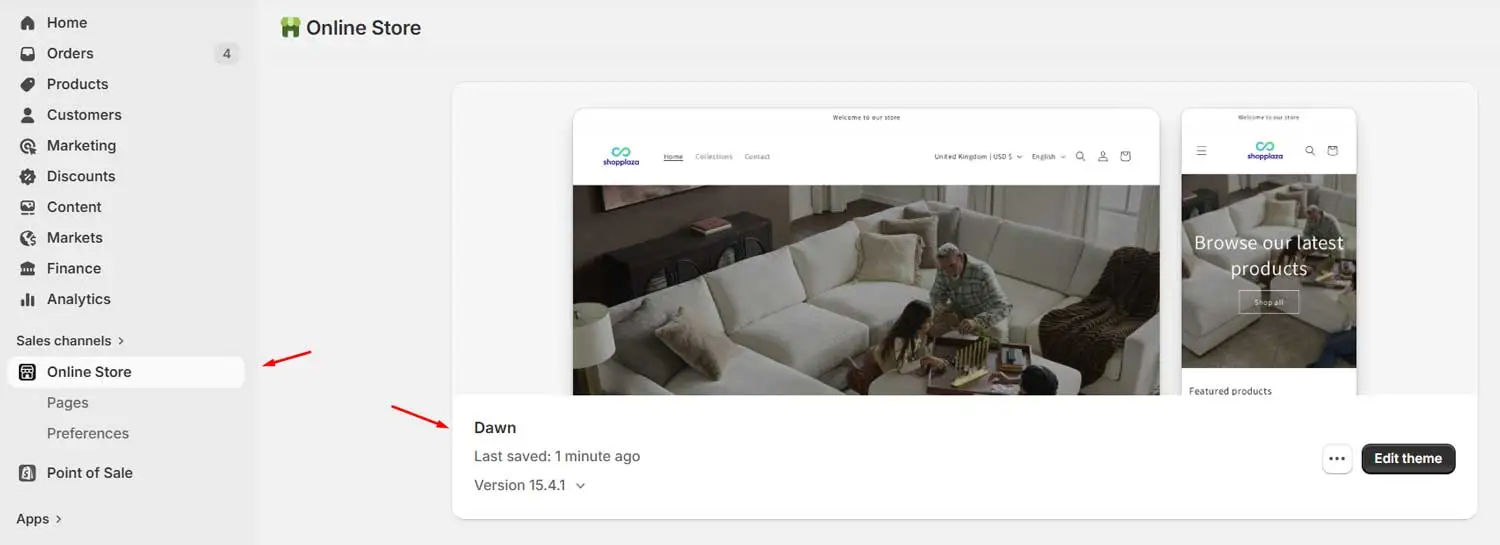
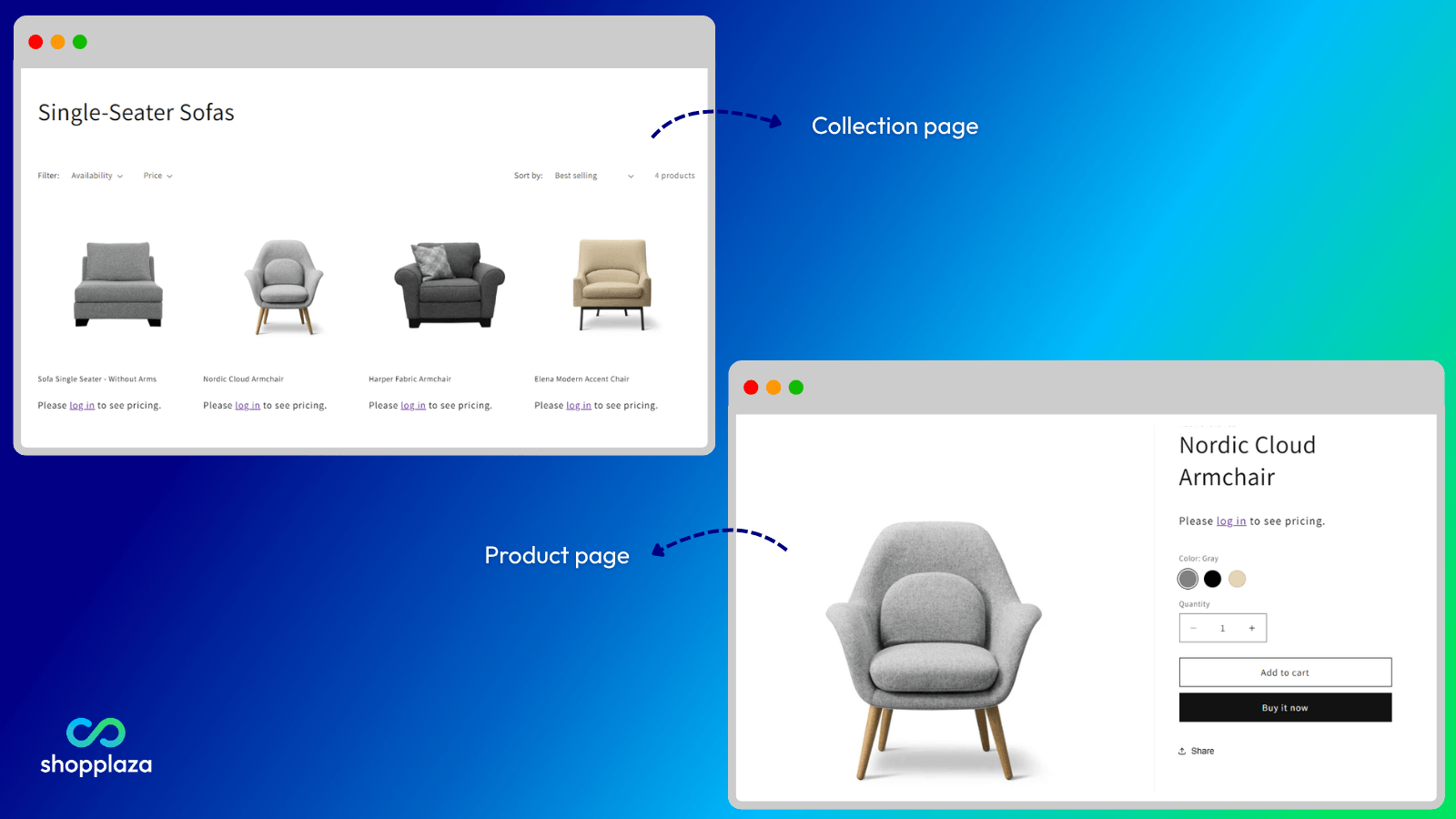
Scenario 1: Hide prices for guest (non-logged-in) visitors
This is the most common setup: prices are visible to logged-in customers but hidden from everyone else.
- Step 1: From your Shopify admin, go to Online Store > Themes.
- Step 2: Click the three-dot menu on your active theme and select Edit code.
- Step 3: In the search box on the left, type
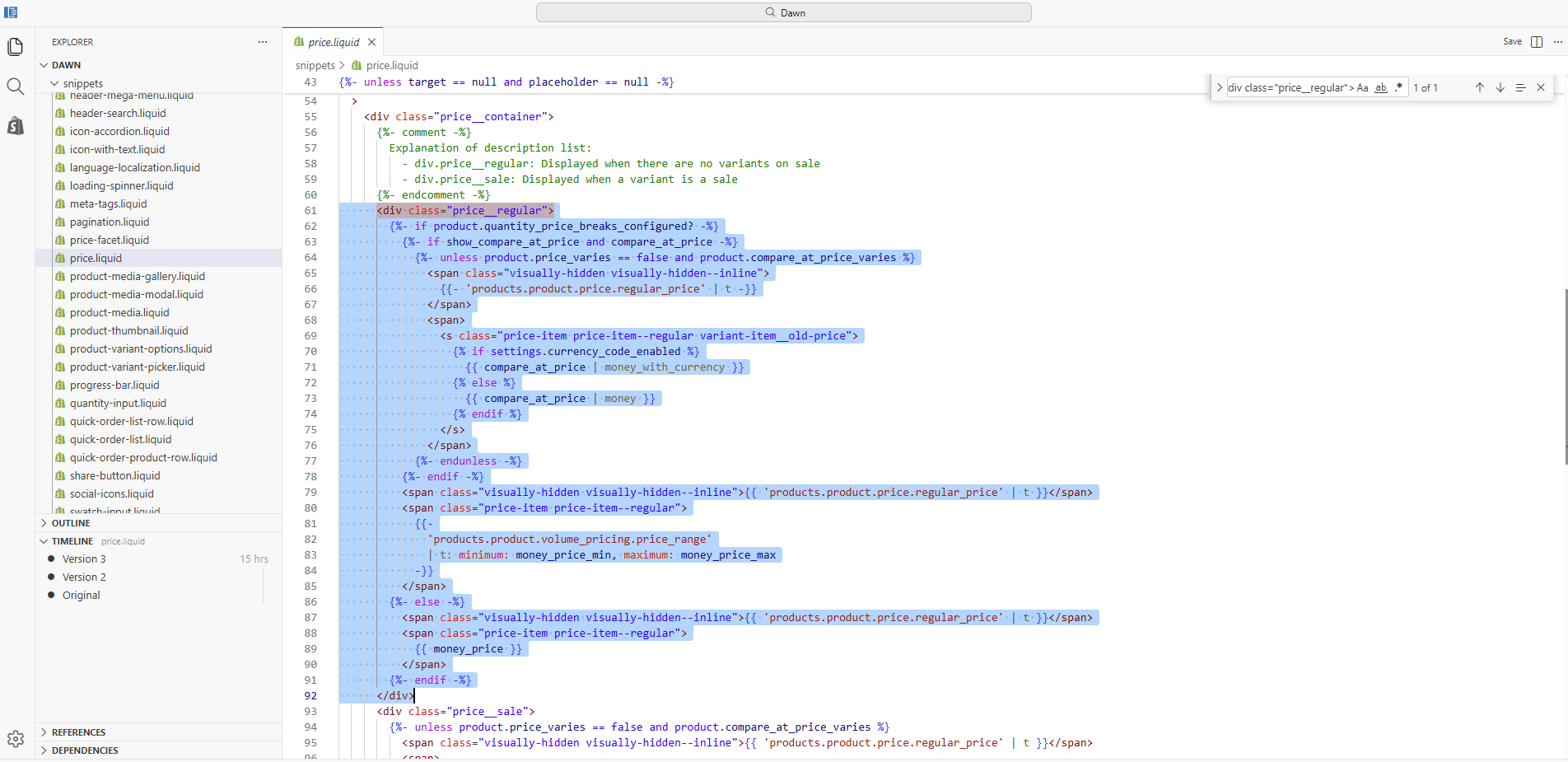
price.liquidand open the file. - Step 4: Press Ctrl + F to find the section that starts with
<div class="price__regular">or<div class="price-item price-item--regular">as this is the block that controls the main selling price display.
- Step 5: Add
{% if customer %}directly above that section. - Step 6: Find the closing
</div>of that same section and add the following lines directly below it:
{% else %}
  <p>Please <a href="/account/login">log in</a> to see pricing.</p>
{% endif %}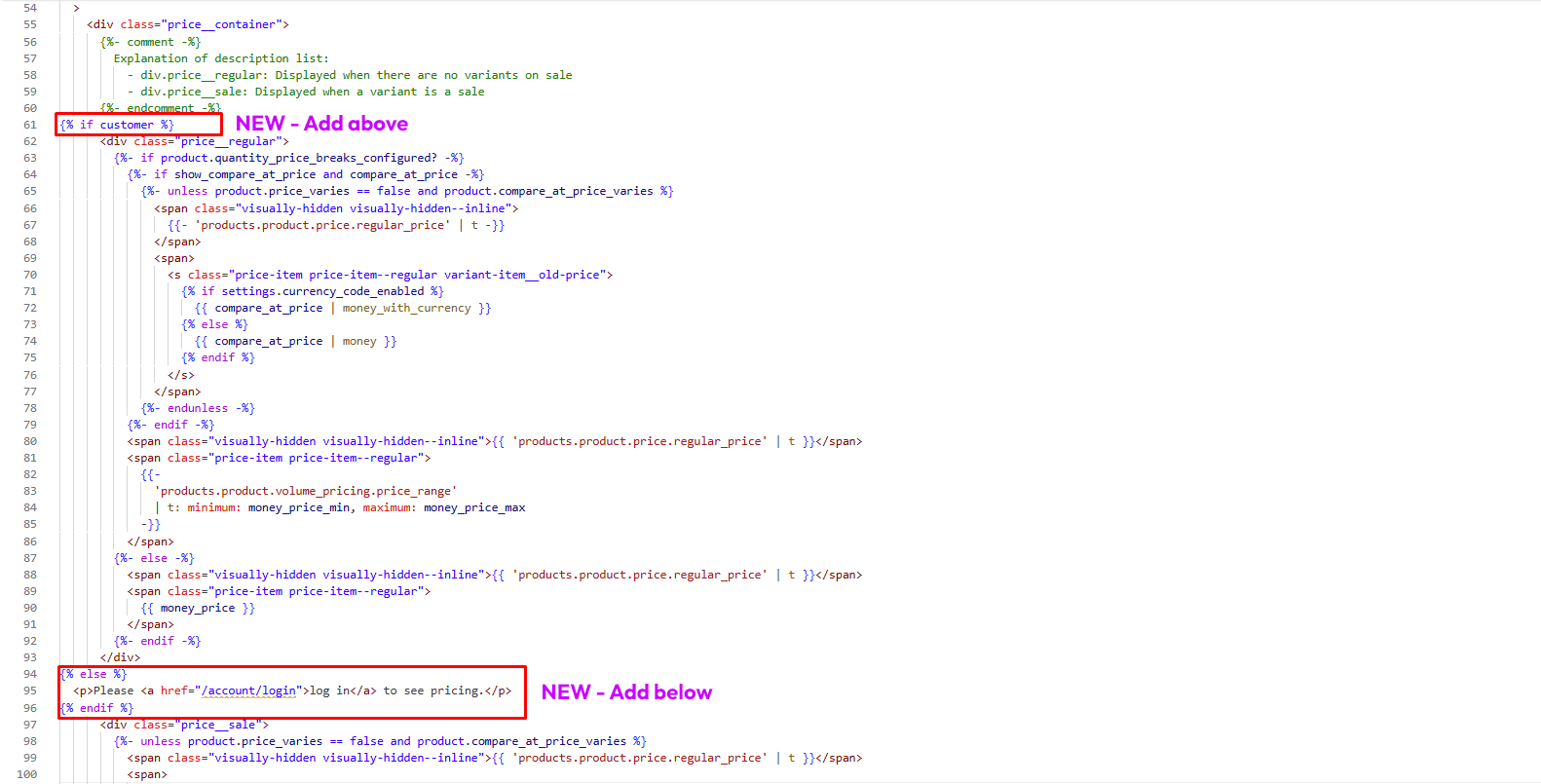
- Step 7: Click Save.
- Step 8: Open your store in a private/incognito browser window and check that prices are no longer visible on product pages.
Scenario 2: Hide prices by customer tag (e.g. wholesale, B2B)
This is useful when you have multiple customer types and only want specific customers (such as wholesale or B2B buyers) to see pricing, not all logged-in users.
Here is how it works once set up:
- Customers tagged “wholesale” → see the price normally
- Logged-in customers without the tag → see “Contact us to access wholesale pricing”
- Guest visitors → see a login prompt
Follow this guide:
- Step 1: From your Shopify admin, go to Customers.
- Step 2: Click on the customer’s name to open their profile.
- Step 3: On the right side, find the Tags field and add the tag wholesale (you can create a new tag directly from here).
- Step 4: Save.
- Step 5: Go to the same file from Scenario 1 and find the same section
- Step 6: Add
{% if customer and customer.tags contains 'wholesale' %}directly above that section. - Step 7: Add the following lines directly below the section:
{% elsif customer %}
  <p>Contact us to access wholesale pricing.</p>
{% else %}
  <p>Please <a href="/account/login">log in</a> to see pricing.</p>
{% endif %}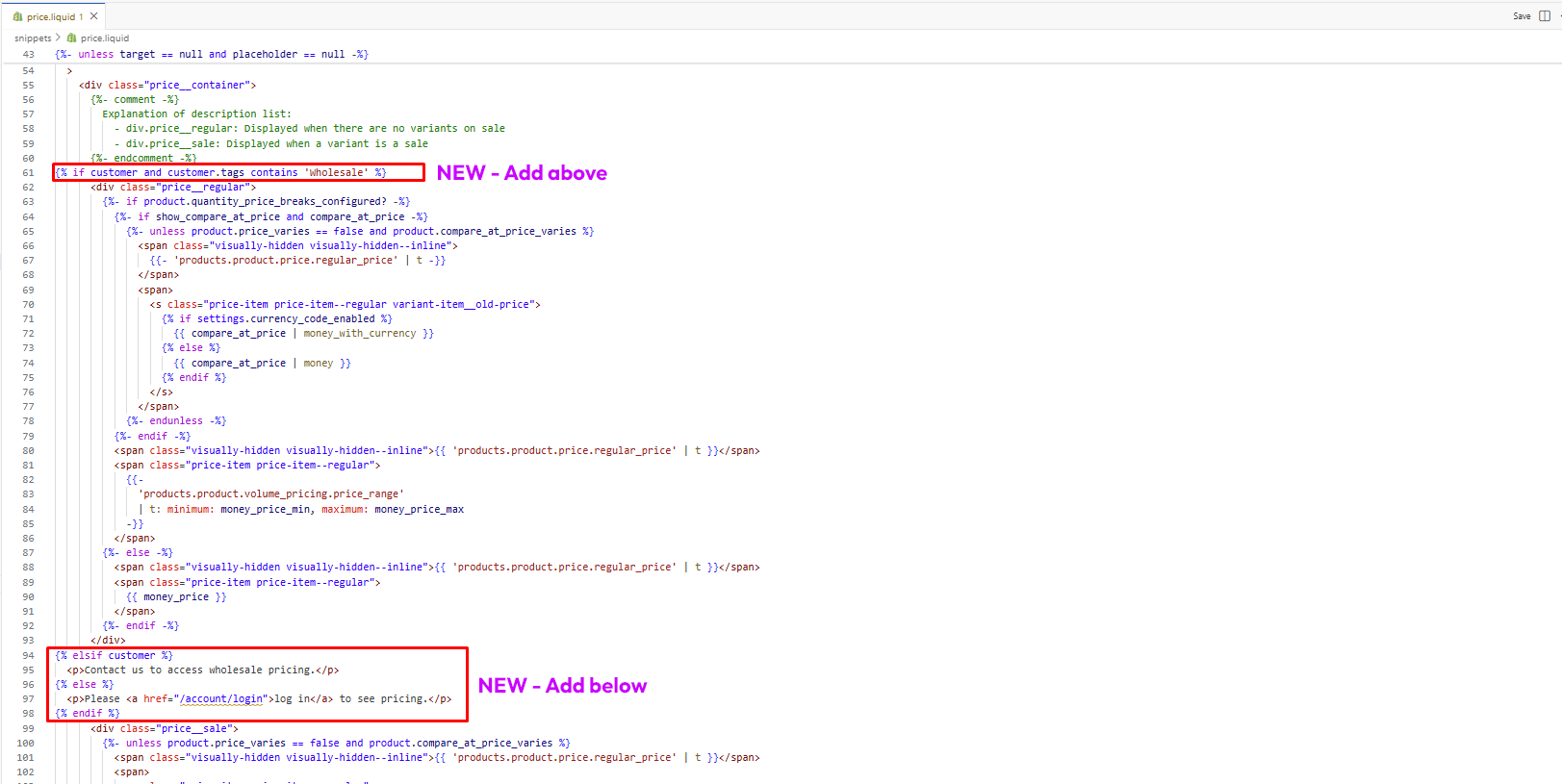
- Step 8: Click Save.
📌 Note
- You can tag multiple customers at once if you have a large number of wholesale customers.
- The tag must be spelled exactly as it appears in your Liquid condition, including capitalization. If your code says wholesale but the customer is tagged Wholesale with a capital W, the condition will not match and that customer will not see the price.
Scenario 3: Hide prices on collection pages only
- In the Dawn theme, look for
snippets/card-product.liquid. In older themes, look forsnippets/product-card.liquid. - Find this line inside the file:
{% render 'price', product: card_product, price_class: '', show_compare_at_price: true %} - Delete every line that contains that code. There may be more than one instance, so make sure you remove all of them.
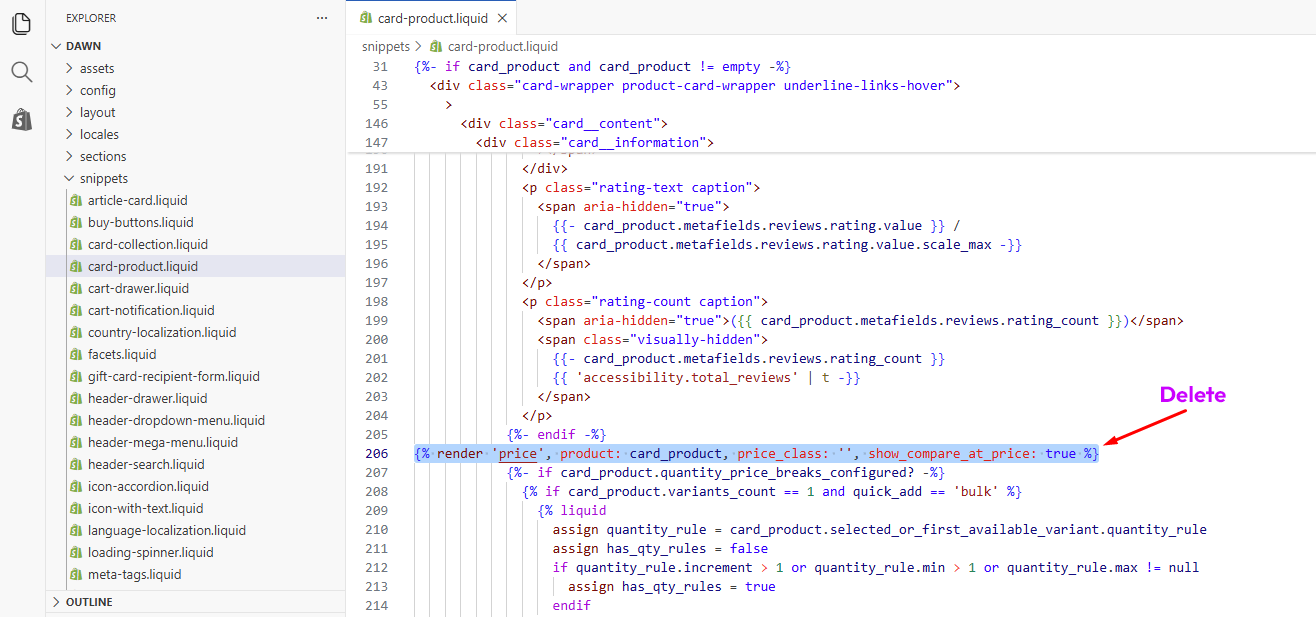
- Click Save and check your collection pages
Need a visual walkthrough? Watch the video below for more details!
📌 Note: This scenario only hides prices on collection pages and does not show a custom message in their place. Prices remain visible when customers navigate directly to the product page.
Scenario 4: Hide the Add to Cart button
Hiding the price but leaving the Add to Cart button visible creates a confusing experience for shoppers. Always hide both at the same time.
Follow these steps to hide Add to Cart button on product page:
- Step 1: Look for
snippets/buy-buttons.liquid(usually) ormain-product.liquid. - Step 2: Find
add_to_cartorcart/add. - Step 3: Add the following line directly above the
<button>tag:
{% if customer %}- Step 4: Add the following lines directly below the closing
</button>tag:
{% else %}
  <a href="/account/login">Log in to purchase</a>
{% endif %}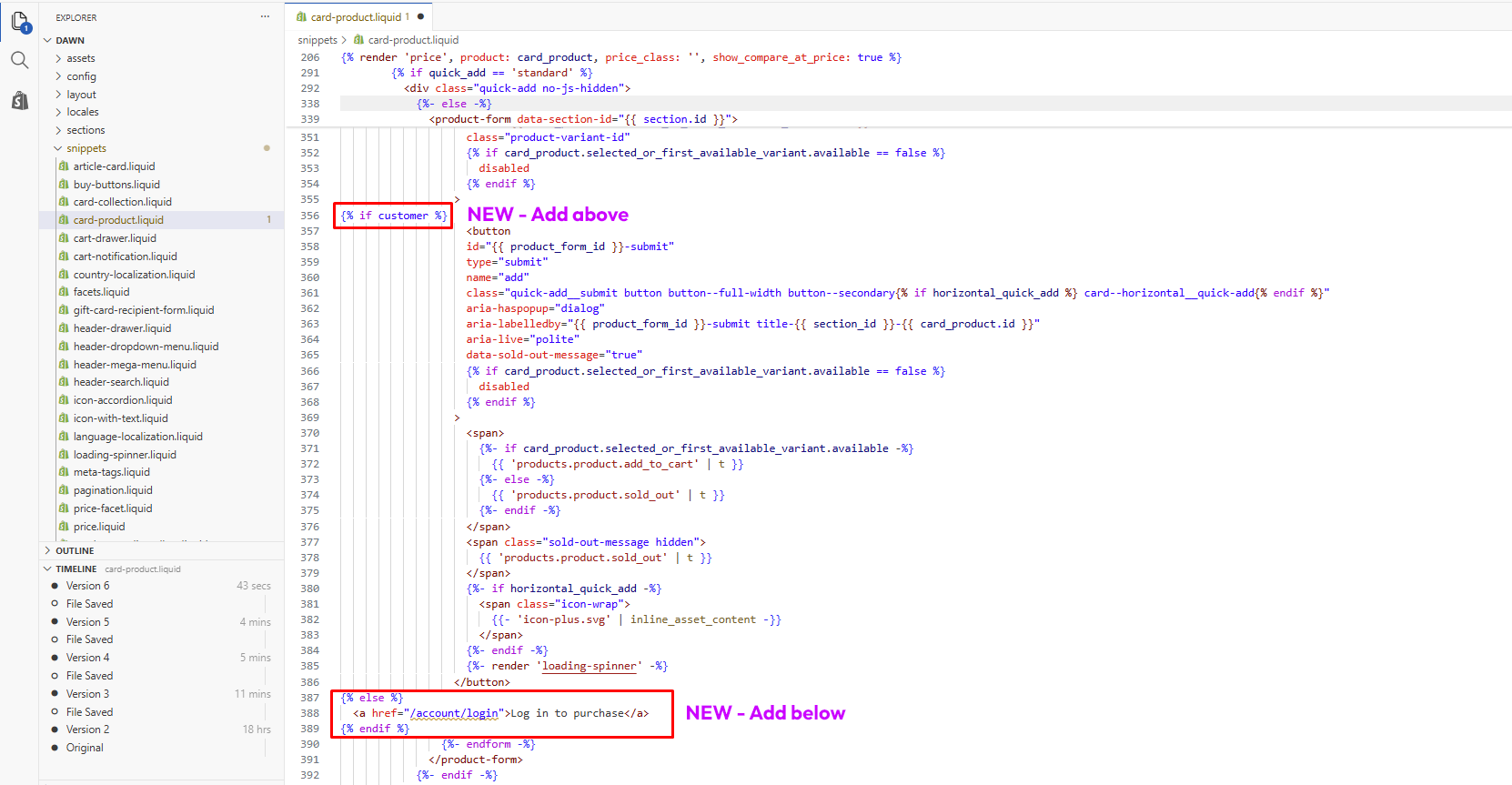
- Step 5: Save
📌 Note: Some themes load prices dynamically via JavaScript after the page loads. Liquid runs server-side and cannot catch these. If this is happening, use Method 4 (an app) instead.
Method 2: Hide Prices With CSS
CSS is the simplest way to hide prices on Shopify. It takes less than 5 minutes and requires no coding knowledge. The trade-off is that prices are only hidden visually — they are still present in your page’s source code, which means a competitor who right-clicks and inspects your page can still find them.
Use this method only for temporary situations, like a pre-launch product page or a design test. For B2B or wholesale stores where pricing privacy matters, use Method 1 or Method 4.
- Step 1: From your Shopify admin, go to Online Store > Themes.
- Step 2: Click the three-dot menu on your active theme and select Edit code.
- Step 3: In the search box, type
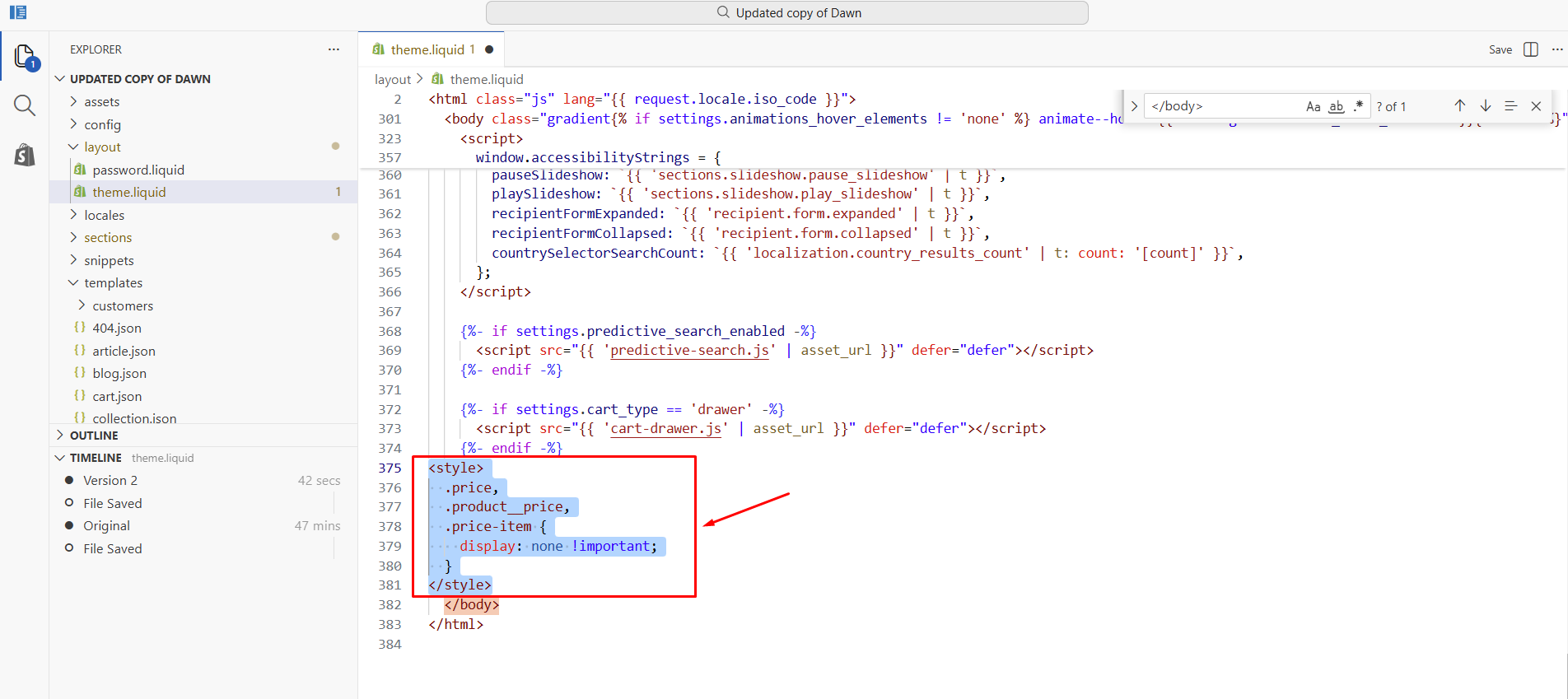
theme.liquidand open that file. - Step 4: Scroll to the very bottom of the file, just before the closing
</body>tag, and paste this code:
<style>
  .price,
  .product__price,
  .price-item {
    display: none !important;
  }
</style>
- Step 5: Click Save and check your storefront.
📌 Common issues with this method:
- Layout looks broken after hiding the price? The price element may be inside a container that has padding or margin affecting surrounding elements. You may need to also hide the parent container.
- Prices visible in Google search results? That is because Google reads the structured data in your page source, not what CSS shows or hides. See the SEO section below for how to handle this.
Method 3: Shopify B2B Native Catalogs (Shopify Plus Only)
If you are on Shopify Plus, you may not need a third-party app or any code at all. Shopify Plus includes a built-in B2B feature that lets you create separate price catalogs for specific companies or customer groups. Prices from those catalogs are only visible to the customers assigned to them, everyone else sees nothing.
This is the most robust and scalable solution for Plus merchants managing multiple B2B accounts.
Step 1: Enable B2B on your store
Go to your Shopify admin and navigate to Settings > Customer accounts. Make sure B2B is enabled for your store. Note that B2B features require Shopify Plus and are not available on lower plans.
Step 2: Create a company
Go to Customers > Companies and click Create company. Fill in the company name, address, and assign at least one contact (a customer from your store). This is the account that will be able to log in and see B2B pricing.
Step 3: Create a catalog
Go to Products > Catalogs and click Create catalog. Give it a name (for example, “Wholesale Pricing”), set your pricing rules (fixed price, percentage discount, or price list), and select which products are included.
You might be interested in: How to Create a Catalog in Shopify for Your Store
Step 4: Assign the catalog to the company
Open the company you created in Step 2 and assign the catalog to it under the Catalogs section. From this point on, when anyone from that company logs in, they will see the prices from that catalog. All other visitors (including guests and regular retail customers) will not see those prices.
Step 5: Test it
Open your store in an incognito window (not logged in) and confirm prices are not visible. Then log in as a B2B contact and confirm the catalog prices appear correctly.
Using Shopify Markets to hide prices by region
Shopify Markets (available on all plans) lets you create different storefronts for different countries or regions. If you want to hide prices entirely for visitors from certain regions, you can set up a Market with no published prices or restrict that market’s catalog. This is more commonly used for currency switching, but it can be adapted for regional price visibility control.
📌 Limitations to know:
- B2B catalogs are only available on Shopify Plus. If you are on a standard plan, skip to Method 4.
- You cannot mix B2B catalog pricing with regular Shopify discount codes.
- Guest visitors and non-assigned customers will not see any price, but they also will not automatically see a "request a quote" prompt — you would need to add that separately via a theme edit or app.
Method 4: Use an App to Hide Prices (No Code Needed)
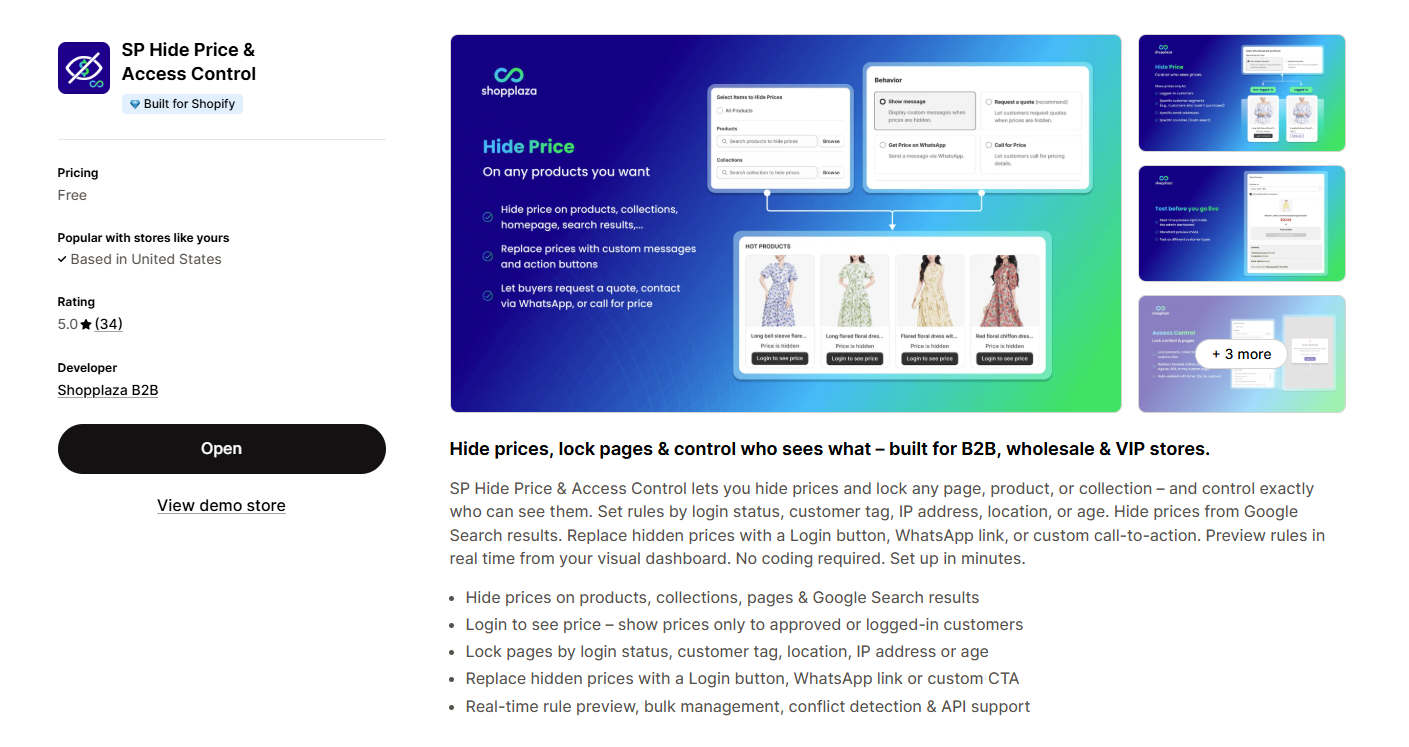
For most non-technical merchants, a dedicated hide-price app is the easiest and most reliable option. Our recommended app for this is SP Hide Price & Access Control by Shopplaza B2B. It is completely free, rated 5.0 on the Shopify App Store, requires no coding, and sets up in a few minutes.
Here is how to set it up:
Step 1: Install the app
- Go to the Shopify App Store and search for “SP Hide Price & Access Control”.
- Click Install and authorize the app in your Shopify admin.
Step 2: Open the app dashboard
From your Shopify admin, go to Apps and click SP Hide Price & Access Control. Once inside, toggle the app on to enable it for your store.
Step 3: Create a new rule
- Go to Hiding Price Rules > Click Add Rule
- Give your rule a clear name and description
Step 4: Choose where to apply the rule
Select whether to apply the rule to your entire store, specific collections, or specific products. If you only want to hide prices on your wholesale collection, select that collection here.
Step 5: Set your access conditions
This is where you define who should NOT see the price. Options include:
- Guest users (not logged in): The most common setup for B2B stores
- Specific customer segments: For example, customers who have not made a purchase yet
- Specific email addresses: Customers with blocked emails cannot access locked prices
- Location: Useful for regional pricing restrictions
Step 6: Set the replacement message & behavior
Select how your store responds when prices are hidden:
- Show a custom message and button
- Request a Quote
- Get Price on WhatsApp
- Call for Price
Step 7: Preview and save
- Preview the rule before clicking Save to activate it.
- Go to your storefront and test it in an incognito window to confirm everything is working as expected.
Watch the video below to learn how to hide prices with our free app:
📌 Common issues with this method:
- Rule not applying? Check that the app embed is enabled in your theme. Go to Online Store > Themes > Customize > App embeds and make sure SP Hide Price & Access Control is toggled on.
- Theme compatibility issues? Some themes may need a small extra setup to work with hide price rules. Contact the Shopplaza support team directly and they will sort it out quickly.
What to Show Instead of The Price
Hiding the price is only half the job. What you put in its place determines whether a visitor stays and takes action or simply leaves.
As covered in Method 4, SP Hide Price & Access Control gives you four ready-made replacement options:
- A custom message
- Request a Quote
- Get Price on WhatsApp
- Call for Price
Choose the one that fits how your customers prefer to get in touch.
Whichever option you pick, keep these tips in mind:
- Always hide the Add to Cart button at the same time: A visible Add to Cart button with no price next to it confuses shoppers. Hide both and replace them with one clear call to action.
- Be specific about why the price is hidden: “Log in to see wholesale pricing” converts better than “Price unavailable.” Shoppers who understand the reason are far more likely to take the next step.
- Make the next action obvious: Every replacement message should end with a link or button. Never plain text with no clickable element.
- Keep it short: One or two lines is enough. A long explanation where a price used to be feels like an obstacle, not an invitation.
FAQ
Can I hide prices for guest users only?
Yes. You can hide prices only for non-logged-in users using theme editing or a third-party app. In Liquid code, wrap the price display with a {% if customer %} condition so only logged-in customers can see it. With SP Hide Price & Access Control, simply select “Block guest visitors (not logged in)” as your access condition when setting up your rule — no coding needed.
Can I hide prices for some products but not others?
Yes. Both the Liquid code method and the app let you apply price-hiding rules to specific products or collections rather than your entire store. The easiest way is using the app. Just select the specific products or collections you want when setting up your rule, and everything else stays visible as normal.
Is there a free way to hide prices on Shopify?
Yes, there are three free options. The Liquid code method and the CSS method both cost nothing and work on all Shopify plans, but both require editing your theme files directly.
The best free no-code option is SP Hide Price & Access Control by Shopplaza B2B because it’s completely free on the Shopify App Store with no theme editing required.
Does hiding prices hurt my Shopify SEO?
Not directly. Hiding prices does not cause your pages to drop in search rankings. However, products with hidden prices will lose their price-enhanced rich snippets in Google search results. If you run Google Shopping ads, hidden prices can also cause product disapproval in Merchant Center.
If I hide the price, can customers still add the product to their cart?
It depends on how you set it up. If you only hide the price but leave the Add to Cart button visible, guests can technically still attempt to add the product to their cart, which creates a confusing experience. The right approach is to hide both the price and the Add to Cart button at the same time and replace them with a login prompt or quote request button. SP Hide Price & Access Control supports hiding the Add to Cart button alongside the price in the same rule, and it is completely free to use.
Conclusion
Hiding prices on Shopify is not just about removing numbers from your storefront. It’s a practical way to manage B2B pricing, protect your pricing strategy, generate qualified leads, and create a more controlled buying experience.
Before making changes, make sure your hidden pricing strategy still gives customers a clear next step, whether that’s logging in, requesting a quote, or contacting your sales team. A smooth buying journey matters just as much as protecting your prices.