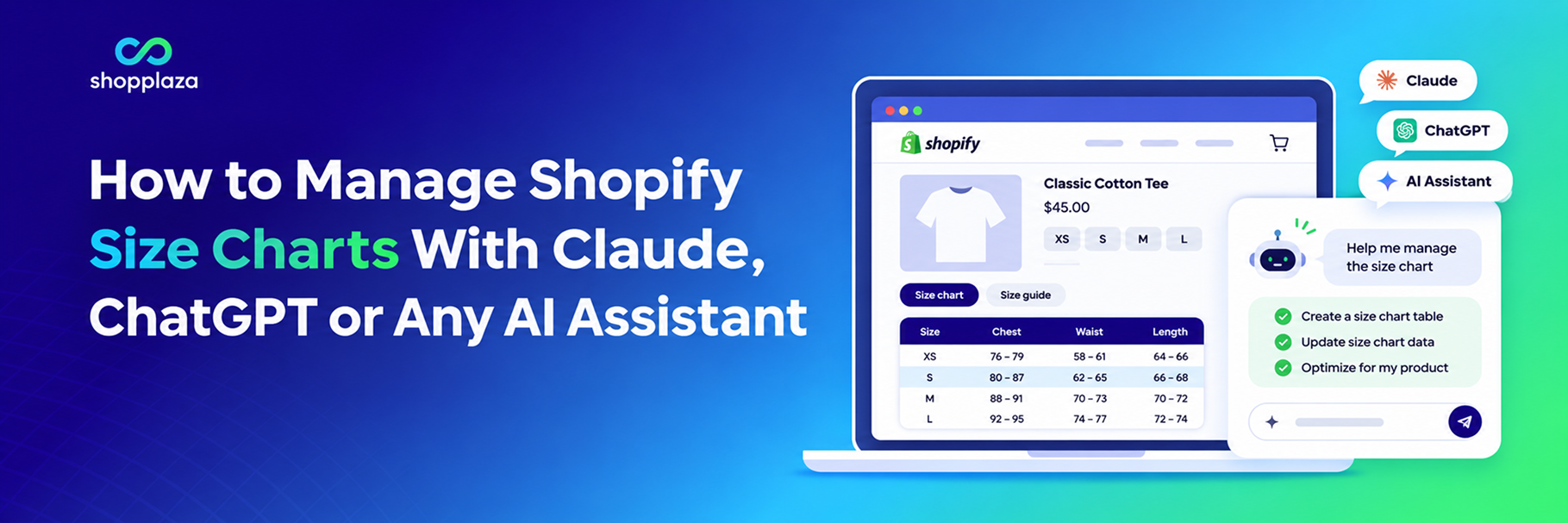
Most Shopify store owners now use an AI assistant for something every week: product descriptions, customer replies, spreadsheet cleanup. Size charts are an obvious next job. They are repetitive, they live in tables, and they change every time a supplier sends a new spec sheet.
The catch is that a chatbot on its own cannot touch your Shopify app. It can write a size table, but you still have to copy it into your size chart app by hand. A newer standard called MCP (Model Context Protocol) closes that gap: it lets an AI assistant read and change data inside an app you approve.
This guide explains what that looks like for size charts on Shopify, what you can ask an assistant to do, how to connect Claude, ChatGPT, or any other MCP-compatible AI app, and how to keep control of what it changes.
📌 Key takeaways before you dive in:
- MCP lets an AI assistant create and edit size charts inside your size chart app, so you chat instead of copying tables by hand.
- It works with Claude, ChatGPT, Codex, and any AI app that supports MCP, plus code editors such as Claude Code, Cursor, VS Code, and Gemini CLI.
- You stay in control: you choose what the assistant can view or edit, new charts are saved as drafts, and every action is logged.
- It is best for day-to-day edits (supplier updates, unit changes, quick audits). Big one-off imports from a file are still faster with CSV.
What does it mean to manage size charts with an AI assistant?
Normally you open your size chart app, click Create chart, pick a template, and fill in each cell. With AI access, you connect an assistant once and then ask for the same work in plain language, for example:
- “Create a size chart from this supplier table” (paste the table into the chat)
- “Create 5 charts for Skirt, Dress, Ring, Women T Shirt, and Men Shirt”
- “Switch all t-shirt charts to inches”
- “Add an XXL row to the Men Shirt chart”
- “Which charts are published?”
- “Move the size chart button below Add to cart”
The assistant does not replace your size chart app. The app still stores the charts, applies your plan limits, and shows them on your product pages. The assistant is just a faster way to operate it.
Which AI assistants work with Shopify size chart apps?
It depends on the app, because the app has to offer an MCP connection. MP Size Chart & Size Guide offers two ways to connect:
| Method | Works with | Setup |
|---|---|---|
| Connector | Claude, ChatGPT, Codex, or any AI app that supports MCP | Add one URL to your AI app, then approve the connection in Shopify admin |
| API key | Claude Code, Cursor, VS Code, Gemini CLI | Generate a key and paste a ready-made config into your editor |
Claude and ChatGPT are the most common choices for store owners. If you use a different assistant, the Connector has an Other option: as long as your AI app supports MCP servers, you paste the URL and choose OAuth as the authentication method.
How to connect an AI assistant to your size chart app
The exact clicks differ by assistant, but the flow is the same everywhere.
Step 1: Turn on AI access in your size chart app
In MP Size Chart, open Settings and find the AI assistant card. AI access is available on the Growth plan and above.
Step 2: Choose what the assistant can access
Pick what the assistant can do before you connect it. In MP Size Chart you can set View or Edit access for size charts and for settings, and turn the sizing page on or off. An assistant can only do what you allow here.
Step 3: Connect your assistant
- Claude: click Connect Claude in the app. Claude opens its custom connector screen with the name already filled in. Add it, connect, then click Allow back in Shopify admin.
- ChatGPT: add a custom MCP server in ChatGPT (on some versions under Settings → Connectors, with Developer mode on). Paste the connector URL, set authentication to OAuth, then click Allow in Shopify admin. ChatGPT shows a standard warning for all custom MCP servers, which is expected.
- Any other MCP app: copy the connector URL, open the connector or MCP server settings in your AI app, paste the URL, choose OAuth, and click Allow in Shopify admin.
For the full walkthrough with screenshots, see the step-by-step guide to managing size charts with an AI assistant.
Step 4: Start chatting
Name the app in your first prompt so the assistant knows which tool you mean, for example “List all my charts in MP Size Chart”. Without the app name, ChatGPT may ask whether you mean charts in a spreadsheet.
What AI assistants are good at (and what they are not)
Good for:
- Supplier updates. Paste the new spec sheet and ask the assistant to update the matching charts, instead of reformatting columns to fit an import template.
- The same change on many charts. One sentence replaces a find-and-replace across a spreadsheet.
- Quick audits. Ask which charts are published or where the size chart button shows, without opening every chart.
- Setting up many charts at once. Ask for a chart per product type, then refine each one.
Not ideal for:
- Very large imports from an existing file. If you already have hundreds of rows in a CSV, importing the file is still quicker. See our guide to managing size charts across many products.
- Unchecked publishing. Always review a chart before it goes live. An assistant can misread a pasted table, so check the numbers against your supplier sheet.
How to keep control when an AI assistant edits your size charts
Giving an AI assistant access to your store should feel safe, not risky. Look for these controls in any size chart app that offers MCP:
- Scopes. You choose what the assistant can view and edit, and you can change it later.
- Drafts by default. In MP Size Chart, new charts are saved as drafts. Publishing counts against your plan limit, so you tell the assistant to publish when you are ready, or publish yourself from Manage charts.
- Plan limits still apply. If your plan allows 50 published charts, the assistant cannot publish the 51st.
- An activity log. MP Size Chart keeps 30 days of activity, showing the time, assistant, action, and result of every request.
- Easy disconnect. You can revoke an assistant or turn off AI access at any time.
Frequently asked questions
Can I manage Shopify size charts with ChatGPT?
Yes, if your size chart app supports MCP. With MP Size Chart & Size Guide, you add the connector URL to ChatGPT as a custom MCP server, choose OAuth, and approve the connection in Shopify admin. Then you can ask ChatGPT to create or edit charts. Name the app in your prompt so ChatGPT uses the right tool.
Can I use Claude to create size charts for my Shopify store?
Yes. Click Connect Claude in the app’s AI assistant card, add the connector in Claude, and approve it in Shopify admin. You can then paste a supplier table into Claude and ask it to create the chart. Claude Code is also supported through an API key.
Does it work with assistants other than Claude and ChatGPT?
Yes. The Connector has an Other option for any AI app that supports MCP, including Codex. Code editors such as Cursor, VS Code, and Gemini CLI connect with an API key.
Is it safe to let an AI assistant edit my size charts?
You control the access. You choose whether the assistant can only view or also edit, new charts are saved as drafts, plan limits still apply, and an activity log records every action for 30 days. You can disconnect at any time.
Which plan do I need?
In MP Size Chart & Size Guide, AI access is available on the Growth plan and above. Every new store gets a 14-day free trial of the plan it chooses, so you can try it before paying.
Do I need to know how to code or use MCP?
No. For Claude and ChatGPT you add a URL and click Allow. You never write code or edit config files. The API key method for code editors is only for people who already work in those tools.
Conclusion
Size charts are exactly the kind of repetitive, table-heavy work an AI assistant handles well. Connect your assistant once, choose what it can touch, and let it do the typing while you check the result before anything goes live. For one-off imports, CSV is still fine. For everything in between, chatting is faster.
If you want to try it, MP Size Chart & Size Guide supports Claude, ChatGPT, Codex, and any MCP-compatible AI app on the Growth plan and above.