How to manage size charts with an AI assistant
AI access lets you manage your size charts by chatting with an AI assistant such as Claude, ChatGPT or Gemini. Instead of typing every cell by hand, you can ask your assistant to create charts from a supplier table, switch all t-shirt charts to inches, or check which charts are published, and the app updates.
You stay in control. Before anything happens, you choose what your assistant can see and change, confirm what is shared, and connect it with a key that you can revoke at any time.
Before you start
- AI access is available on the Growth plan and higher. On the Starter plan, the AI assistant card in Settings shows a Growth plan link. See Pricing & plans to upgrade.
- You need an AI assistant that supports MCP (Model Context Protocol) connections. The app gives you a ready-made config for Claude Code, Cursor, VS Code and Gemini CLI.
- Connector for the Claude and ChatGPT apps is coming soon. This guide covers the API key method, which is available now.
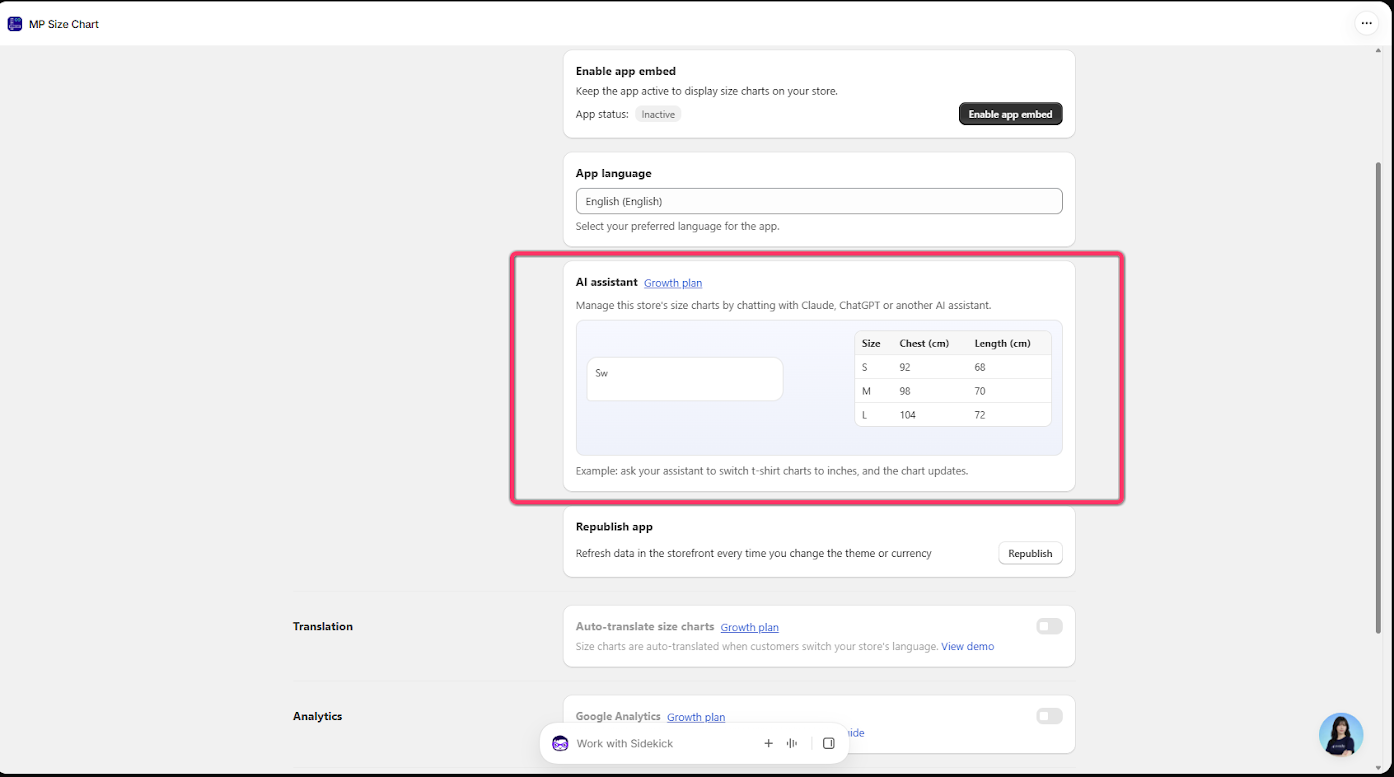
Step 1: Turn on AI access
- In the app, go to Settings.
- Scroll to the AI assistant card. It shows Not turned on until you set it up.
- Click Turn on AI access.
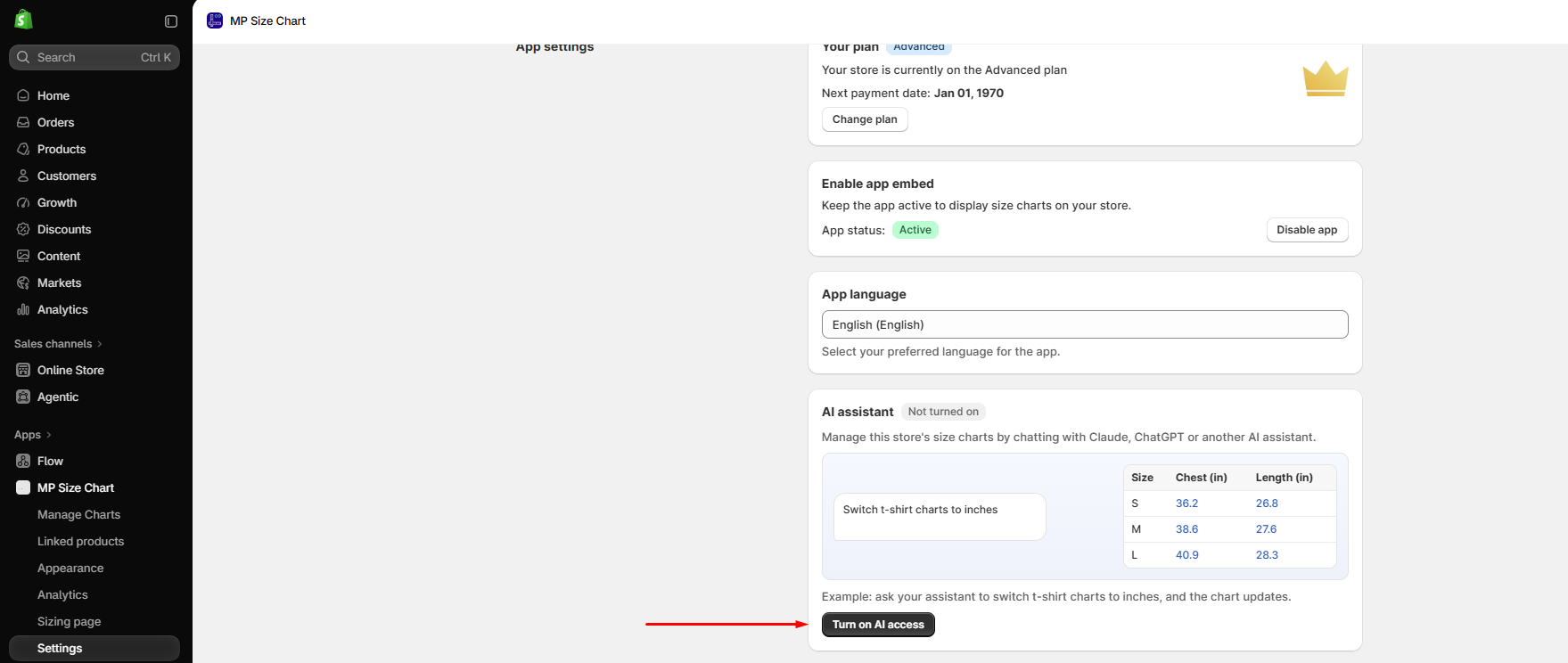
Step 2: Choose what your assistant can access
The AI access window opens. Here you decide which parts of the app your assistant can work with.
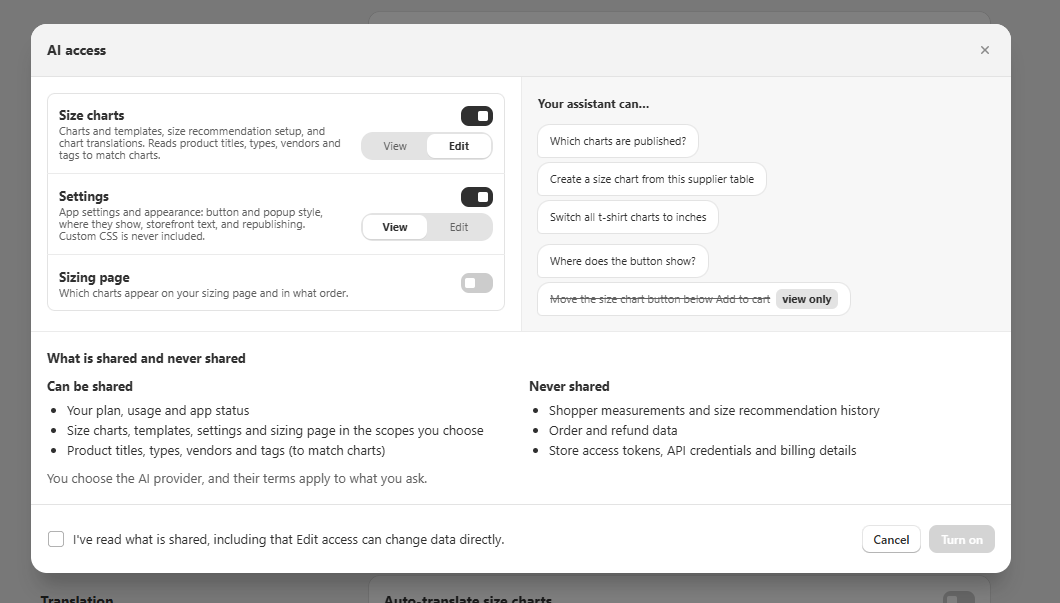
Pick a scope for each area. Turn on the toggle for an area, then choose View or Edit:
| Area | What it covers | Options |
|---|---|---|
| Size charts | Charts and templates, size recommendation setup, and chart translations. Reads product titles, types, vendors and tags to match charts. | View or Edit |
| Settings | App settings and appearance: button and popup style, where they show, storefront text, and republishing. Custom CSS is never included. | View or Edit |
| Sizing page | Which charts appear on your sizing page and in what order. | On or Off |
- View lets your assistant read and answer questions, for example “Which charts are published?”
- Edit lets your assistant change data directly, for example “Switch all t-shirt charts to inches.”
The Your assistant can… panel on the right updates as you change the scopes. Requests that need Edit access are crossed out and marked view only when you only allow View.
Check what is shared and never shared. The window lists exactly what your assistant can see:
- Can be shared: your plan, usage and app status; size charts, templates, settings and sizing page in the scopes you choose; product titles, types, vendors and tags (to match charts).
- Never shared: shopper measurements and size recommendation history; order and refund data; store access tokens, API credentials and billing details.
You choose the AI provider, and their terms apply to what you ask.
Confirm and turn on. Tick I’ve read what is shared, including that Edit access can change data directly, then click Turn on.
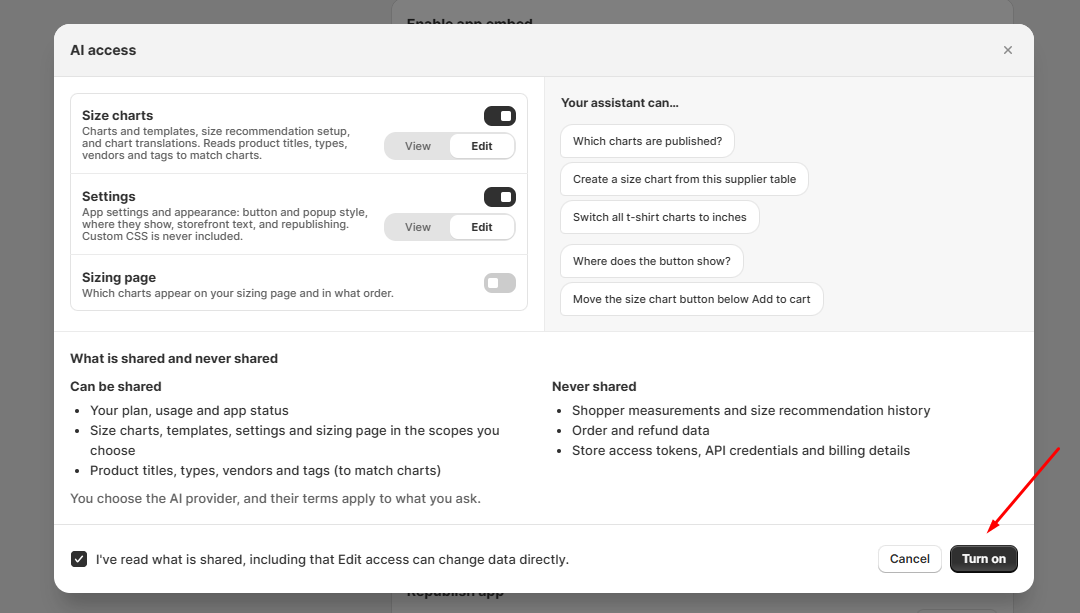
Tip: Start with View if you only want your assistant to answer questions. You can change the scopes at any time by clicking Change access in the AI assistant card.
Step 3: Generate an API key
After you turn on AI access, the AI assistant card shows On and the scopes you chose, for example Size charts · Edit, Settings · Edit, Sizing page · Off.
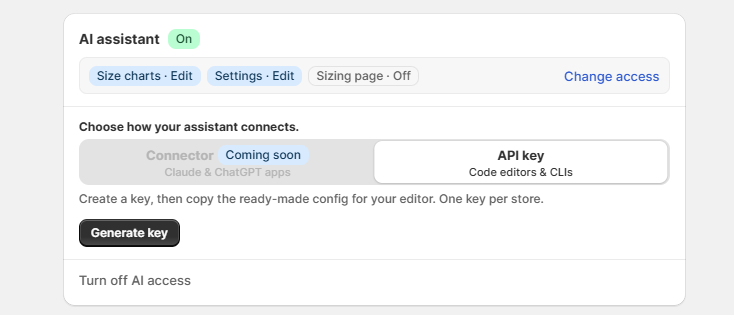
Under Choose how your assistant connects, there are two methods:
- Connector for the Claude and ChatGPT apps. Coming soon.
- API key for code editors and CLIs. Available now.
Click Generate key to create your key. You can create one key per store.
Step 4: Add the key to your editor
The app shows your new key and a ready-made config for your editor.
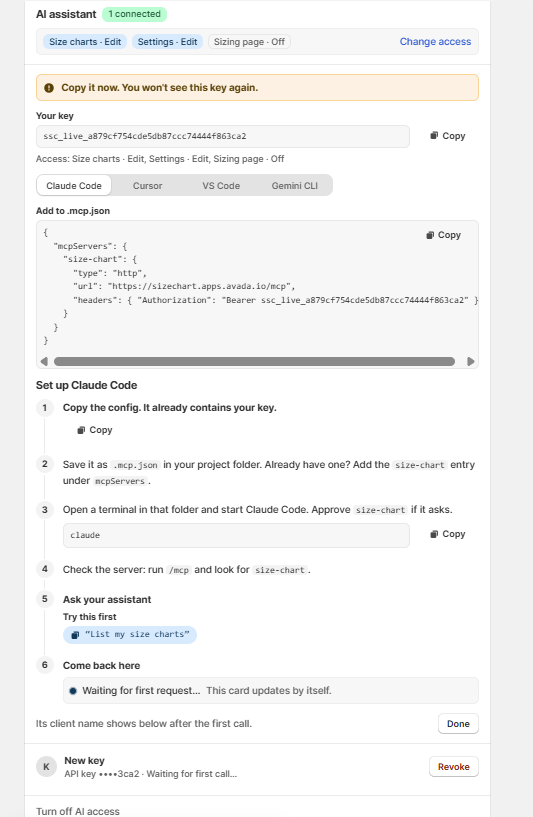
Copy the key now. For security, the app shows the full key only once. If you lose it, revoke the key and generate a new one.
Pick your editor in the tabs: Claude Code, Cursor, VS Code or Gemini CLI. Each tab shows the config and setup steps for that editor. The config already contains your key, so you can paste it as is.
The config looks like this (your key will be different):
{
  "mcpServers": {
    "size-chart": {
      "type": "http",
      "url": "https://sizechart.apps.avada.io/mcp/",
      "headers": { "Authorization": "Bearer ssc_live_your_key_here" }
    }
  }
}
Set up Claude Code (the steps for other editors are similar and shown in the app):
- Click Copy to copy the config.
- Save it as a file named exactly
.mcp.jsonin your project folder. The file name starts with a dot and has no other name in front of it. If your project already has a.mcp.jsonfile, add thesize-chartentry undermcpServersinstead of replacing the file. - Open a terminal in that folder and start Claude Code by running
claude. Approvesize-chartif Claude Code asks. - Check the server: run
/mcpand look forsize-chart. - Ask your assistant something simple, for example “List my size charts”.
- Come back to the app. The card updates by itself. When the first request arrives, it shows Connected with the name of your assistant, for example Connected · claude-code.
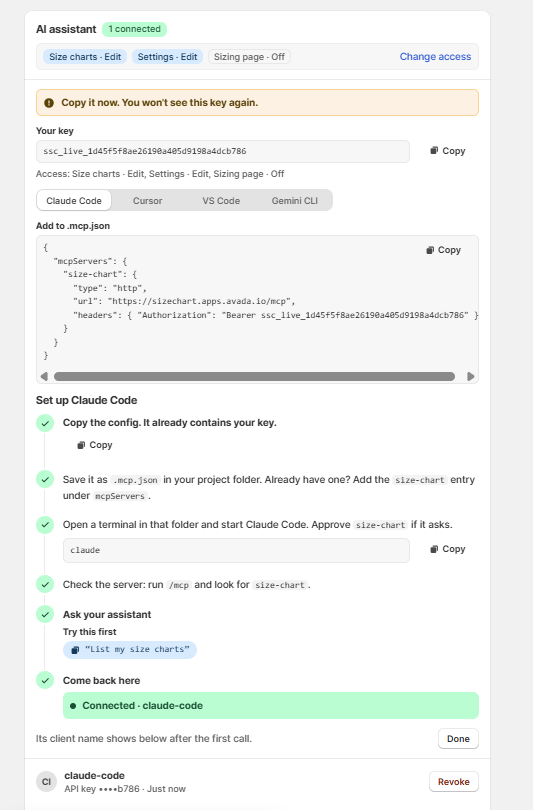
Click Done. The AI assistant card now shows 1 connected, and the key is listed below with its client name, the last 4 characters of the key, and when it was last used.
Step 5: Chat with your assistant
Now you can manage your size charts in plain language. Your assistant can only do what the scopes you chose in Step 2 allow.
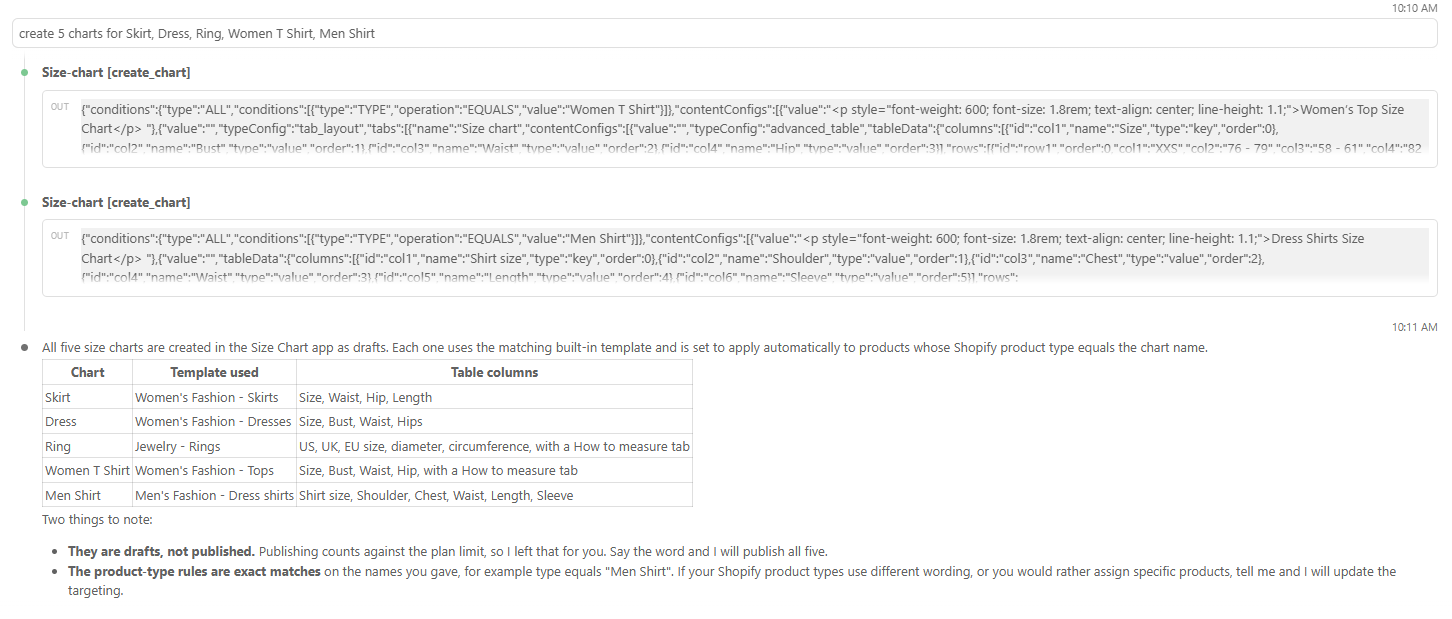
Some things to try:
Create charts
- “Create 5 charts for Skirt, Dress, Ring, Women T Shirt, Men Shirt”
- “Create a size chart from this supplier table” (paste the table)
Edit charts
- “Switch all t-shirt charts to inches”
- “Add an XXL row to the Men Shirt chart”
Check your setup
- “Which charts are published?”
- “Where does the size chart button show?”
Change settings
- “Move the size chart button below Add to cart”
Things to know when your assistant creates charts:
- New charts are saved as drafts. Publishing counts against your plan limit, so your assistant leaves that to you. Tell it to publish when you are ready, or publish from Manage charts.
- Your assistant can use the app’s built-in templates and set product rules, for example apply the chart to products whose product type equals “Men Shirt”. Check the rules match the wording of your product types, and ask your assistant to adjust them if needed.
- Review changes in the app before you publish, especially when you gave Edit access.
Step 6: Check activity and plan limits
Click View activity in the AI assistant card to see what your assistant has done.
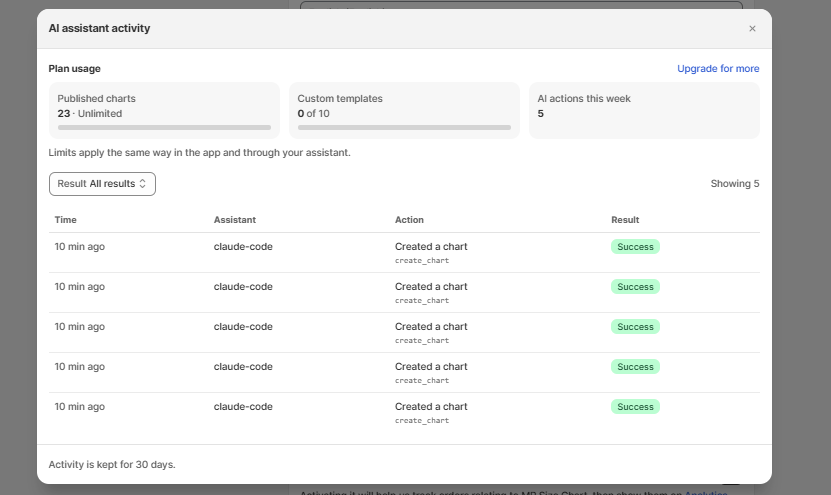
The AI assistant activity window shows:
- Plan usage: published charts, custom templates and AI actions this week. Limits apply the same way in the app and through your assistant. If your plan allows 50 published charts, your assistant can’t publish the 51st.
- Activity log: the time, assistant, action and result of every request. Use the Result filter to show only successful or failed requests.
Activity is kept for 30 days.
Revoke a key or turn off AI access
- Revoke a key: In the AI assistant card, click Revoke next to the key. Your assistant loses access right away. Click Generate key to create a new one.
- Turn off AI access: Click Turn off AI access at the bottom of the card. This revokes your key and stops all access until you turn it on again.
Troubleshooting
I don’t see the AI assistant card or it shows a Growth plan link. AI access is available on the Growth plan and higher. Upgrade your plan to use it.
My editor doesn’t show the size-chart server.
Check that the config file is saved as .mcp.json (with the dot and the exact name) in the folder where you start your editor, and that the JSON is valid. Then restart your editor and run /mcp again.
The card still says “Waiting for first request”. The card updates after your assistant makes its first call. Ask it something simple, such as “List my size charts”. If it still doesn’t connect, check that the key in your config matches the key you generated.
My assistant says it can’t make a change. The change needs a scope you haven’t allowed, for example Edit access to Settings. Click Change access to update the scopes.
My assistant can’t publish a chart or create a template. You have reached a plan limit. Open View activity to check your usage, then upgrade your plan or unpublish charts you no longer need.
I lost my API key. Keys are shown only once. Click Revoke, then Generate key to create a new one and update your config.
Wrap up
With AI access, you can create and edit size charts by chatting with your assistant, while the app only does what you allow. Turn it on, choose your scopes, generate a key, and add it to your editor. If you want to search charts without any setup, see how to search size charts with Shopify Sidekick.