How to add multiple size labels to your size chart
Multiple size labels let you show size labels from different countries (US, UK, EU, and more) in one size chart. Shoppers pick their country right in the size chart popup, and the size labels switch to match. You don’t need a separate chart for each region.
This is useful if you sell to shoppers in several countries. A size M in the US is not always a size M in the UK or EU, so showing the labels shoppers already know helps them pick the right size and reduces returns.
How it works
- You keep one size chart with one set of measurements (Chest, Waist, Length, etc.).
- You add a size label column next to your Size column, then create one label system for each country (e.g., US, UK, EU).
- On your storefront, the size chart popup shows a dropdown in the table header. When a shopper selects a country, the size labels change to that country’s system. The measurements stay the same.
Step 1: Add a size label column
#1. Open the size chart you want to edit in the chart editor. #2. In the chart table, double-click the Size column header. #3. Select Add size label from the menu.
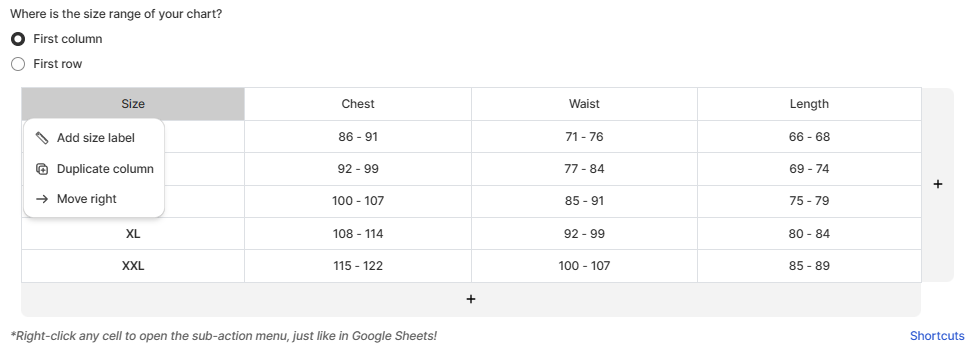
A new empty column appears next to the Size column, with a label dropdown in its header.
Step 2: Create your first label system
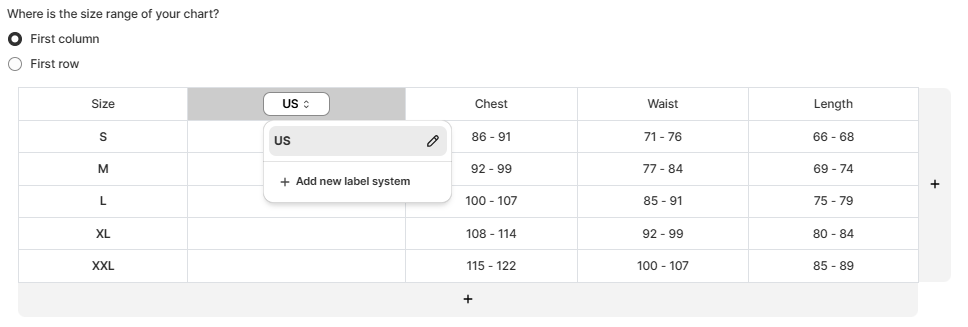
#1. Click the dropdown in the header of the new column. #2. Click the pencil icon and enter the name of your first label system, for example US.
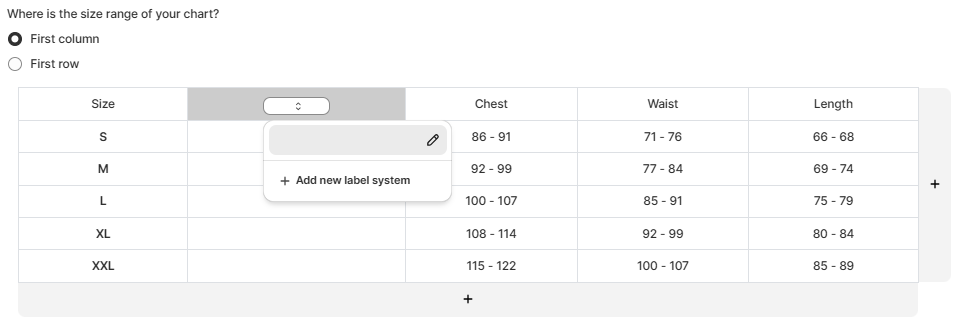
#3. Fill in the US size for each row in the column. For example, enter 36 for S, 38 for M, 40 for L, and so on.
Step 3: Add more label systems
To add another country’s sizes, such as UK:
#1. Click the label dropdown again and select + Add new label system. #2. Click the pencil icon and name the new label system, for example UK. #3. With UK selected in the dropdown, fill in the UK size for each row. #4. Repeat these steps for every country you sell to (e.g., EU, AU), then click Save.
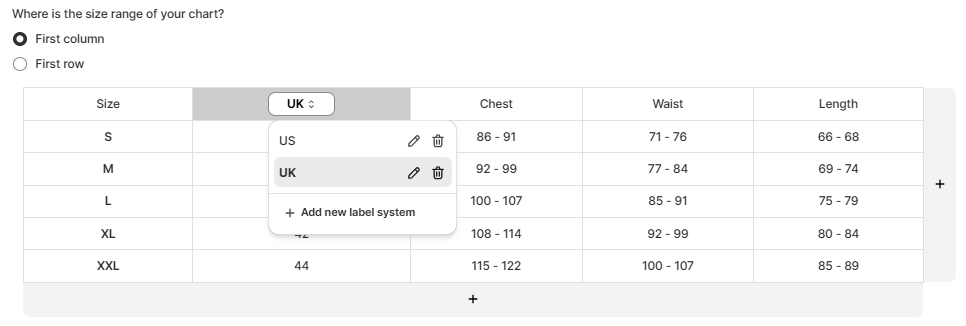
To switch between label systems while editing, select one from the dropdown. Click the pencil icon to rename a label system, or the trash icon to delete it.
Step 4: Preview your size labels
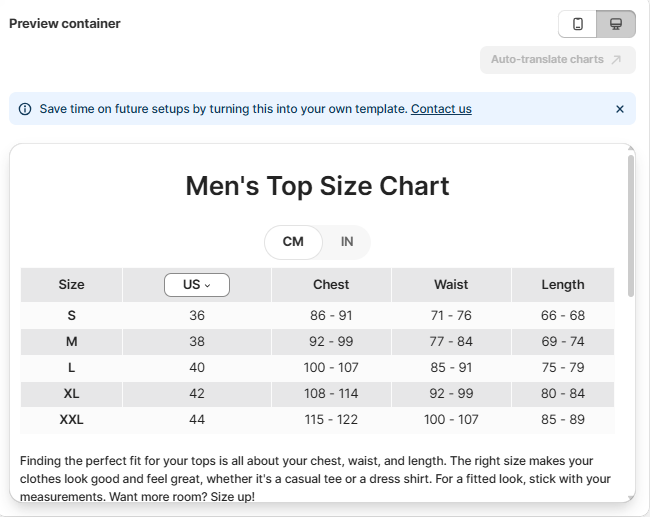
Check the Preview container on the right side of the chart editor to see how your chart looks to shoppers. The size label column shows a dropdown (e.g., US) in the table header. Shoppers choose their country, and the size labels in the chart change right away. The measurements stay the same.
Tip: Multiple size labels work well together with unit conversion. Shoppers can choose both their country’s size labels and their preferred unit (cm or inches) in the same popup.
Wrap up
With multiple size labels, one size chart can serve shoppers from many countries. Add a size label column, create a label system for each country you sell to, and let shoppers switch between them in the size chart popup.