How to enable Google Analytics for size chart
Enabling Google Analytics allows you to track key size chart interactions in your GA4 reports. With this feature, you can monitor events such as Click Button and Impression, giving you deeper insights into how customers engage with your size charts.
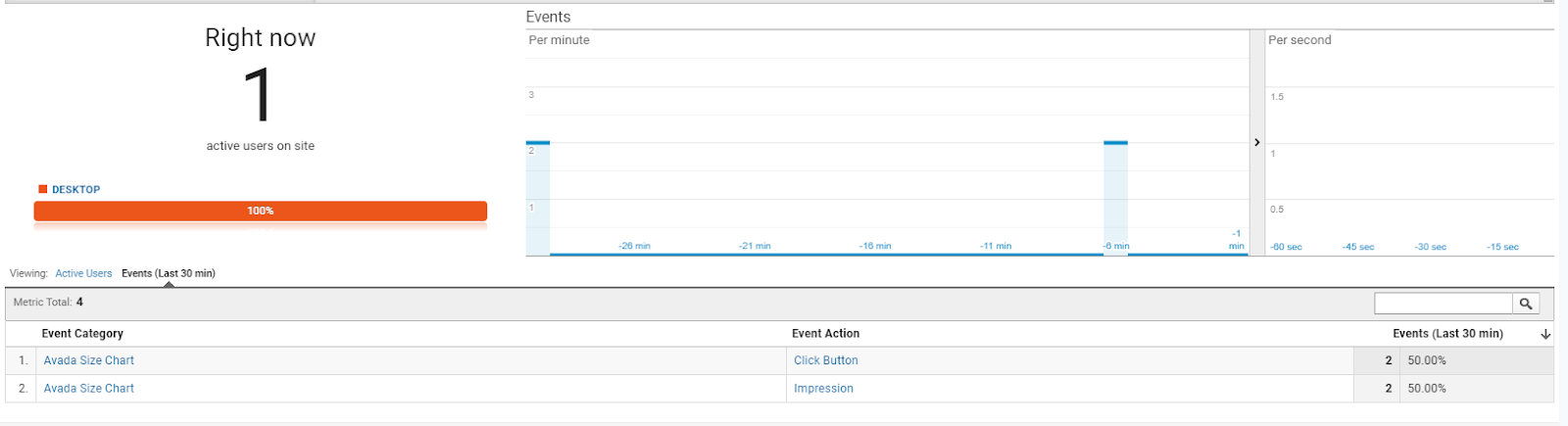
Step-by-step guide
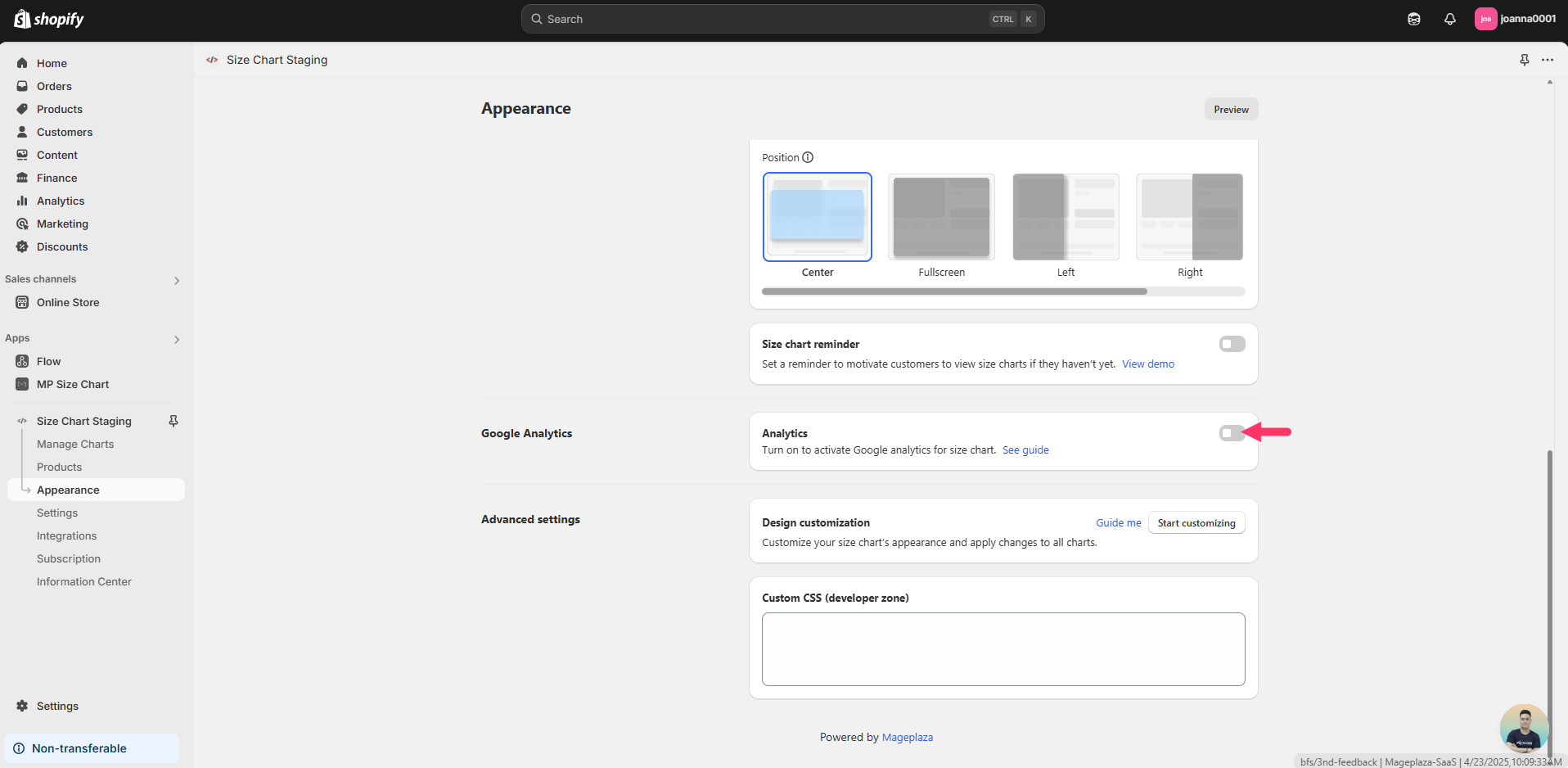
1. Navigate to Appearance
Go to the Appearance tab inside your MP Size Chart & Size Guide app.
2. Enable Google Analytics
Locate the Google Analytics card and check Enable Google Analytics.
3. Verify your Google Analytics setup
Make sure your store is already connected to Google Analytics 4 (GA4).
If GA4 is not yet set up, please follow our guide: Setting up Google Analytics 4
4. Save your changes
Once enabled, the app will automatically start sending size chart events to GA4.
Wrap-up
By enabling Google Analytics, you can measure how effectively your size charts are driving customer engagement and use this data to improve your store’s performance.