How to set up sizing page
Sizing Page is a new feature in MP Size Chart & Size Guide that lets you sync all size charts in your store into one standalone page. This helps shoppers quickly find the right size and gives merchants a centralized place to manage all size charts.
This feature is a strong USP of MP Size Chart & Size guide — no other Shopify size chart app currently provides anything similar.
Key Benefits of Sizing Page
- Improve customer shopping experience: Shoppers can quickly compare sizes across products → faster decision-making → higher conversion rate.
- Easier size chart management: Great for stores with large or complex sizing systems.
- Auto-sync system: Any update you make to the original size chart → auto-updates on the Sizing Page.
- Drag & Drop organization: Reorder size charts visually with simple drag-and-drop.
- Support for diverse layouts: The Sizing Page currently supports adding custom text blocks and images. Additional layout elements such as tabs, advanced tables, dropdowns, and more will be released soon.
How Sizing Page Works
Sizing Page is not an editor. It is a display block that syncs content from your original size charts. You cannot edit chart content directly on the Sizing Page.
👉 To make changes → open the chart in Manage Charts → update → Sizing Page syncs automatically (depending on your sync settings).
How to Set Up Sizing Page
🎥 Prefer a quick walkthrough?
Ready to set it up? Follow the detailed guide below.
1. Go to MP Size Chart → Sizing Page
You will see three main tabs:
- Size Chart (Sync settings + chart blocks)
- Layout (Preset layout & elements)
- Guide (Help & documentation)
2. Configure Sync Settings
In the Size Chart tab, merchants can choose how size charts are synced into the page.
Chart information
1. Only sync chart tables
- Syncs only the table portion
- Does NOT sync text blocks or images.
- Keeps original layout.
2. Sync all chart info
- Syncs everything: tables, text blocks, images, and tabs.
- Makes Sizing Page identical to the original chart.
Chart type
1. Only sync published charts
- Syncs only charts marked as Published.
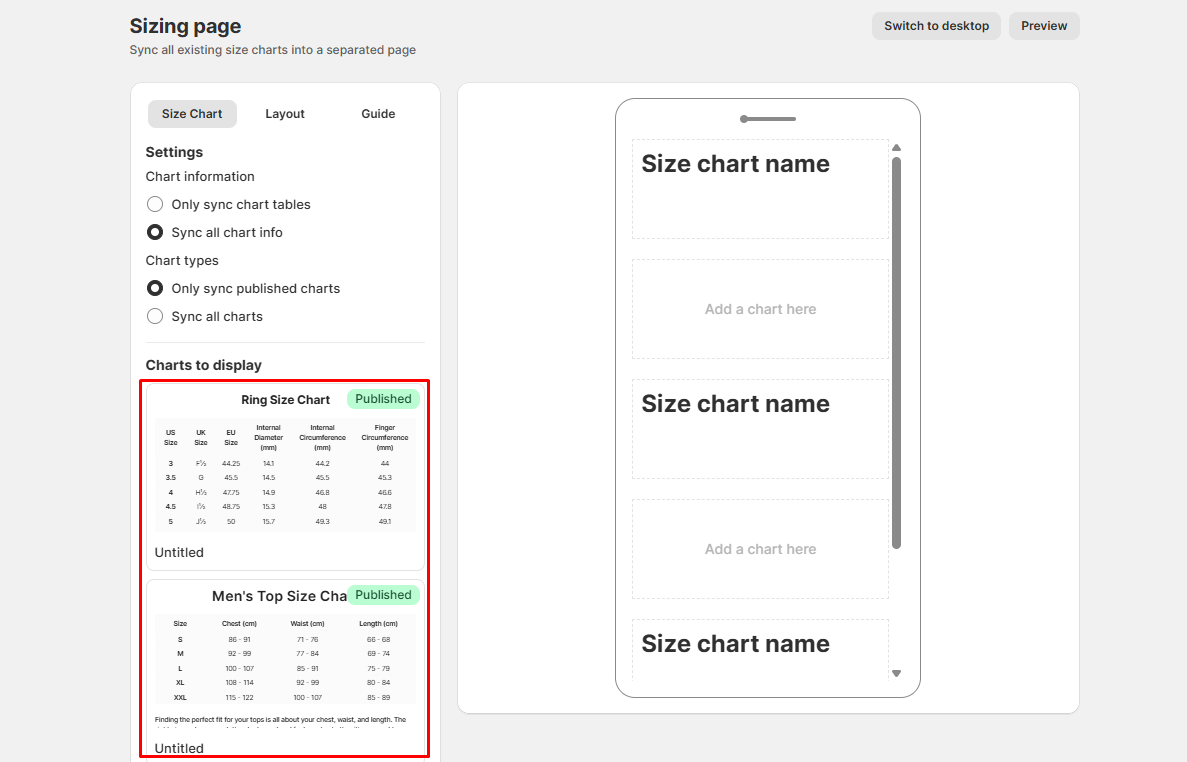
2. Sync all charts
- Syncs both Draft and Published charts.
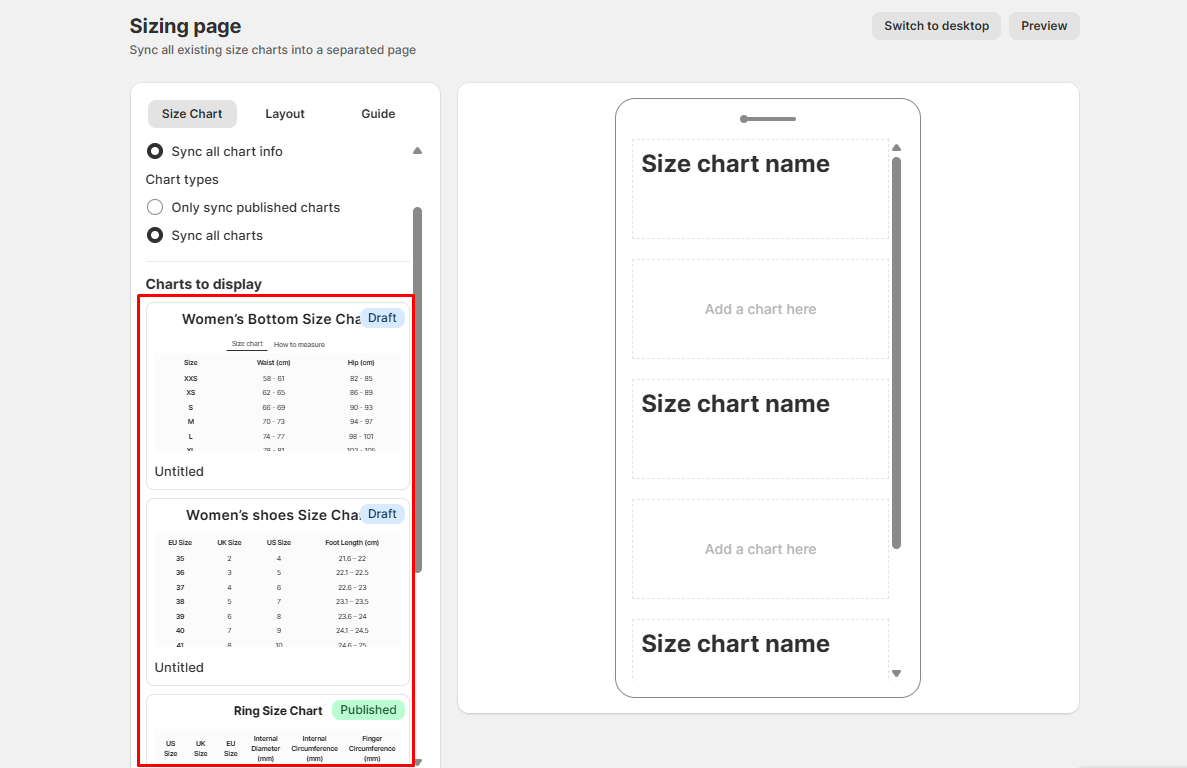
3. Select charts to display
Below your sync settings, you’ll see the full list of size charts available to add to the Sizing Page.
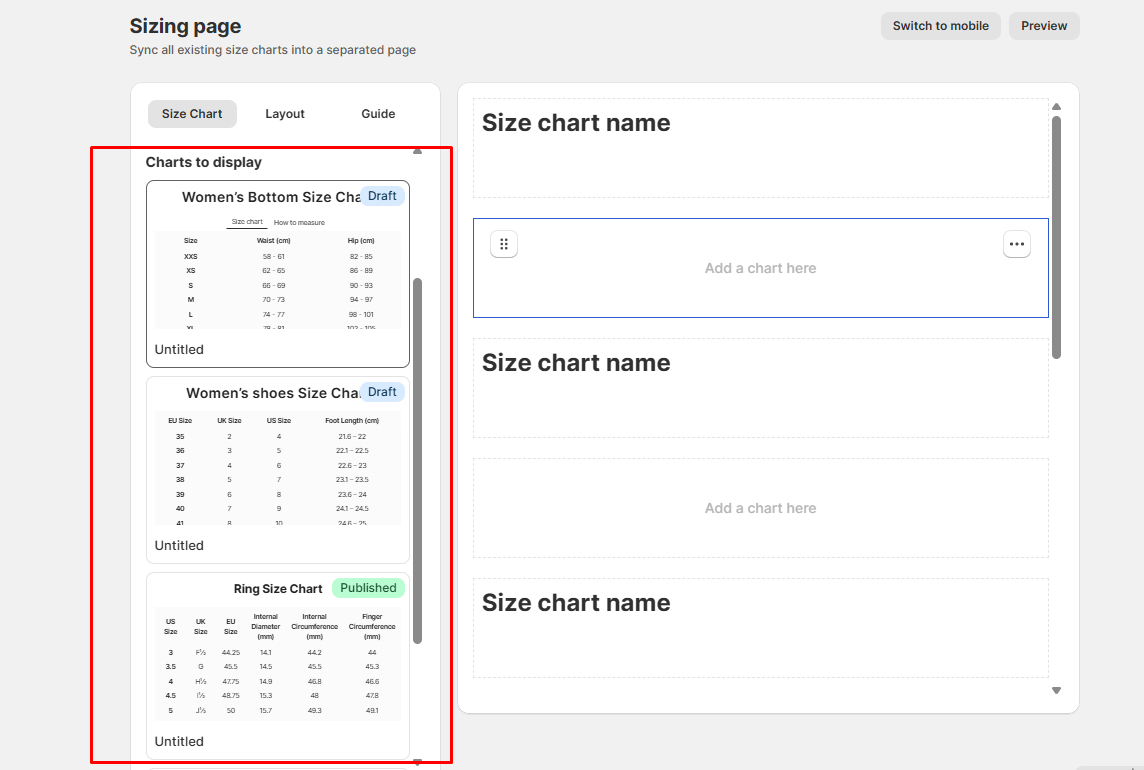
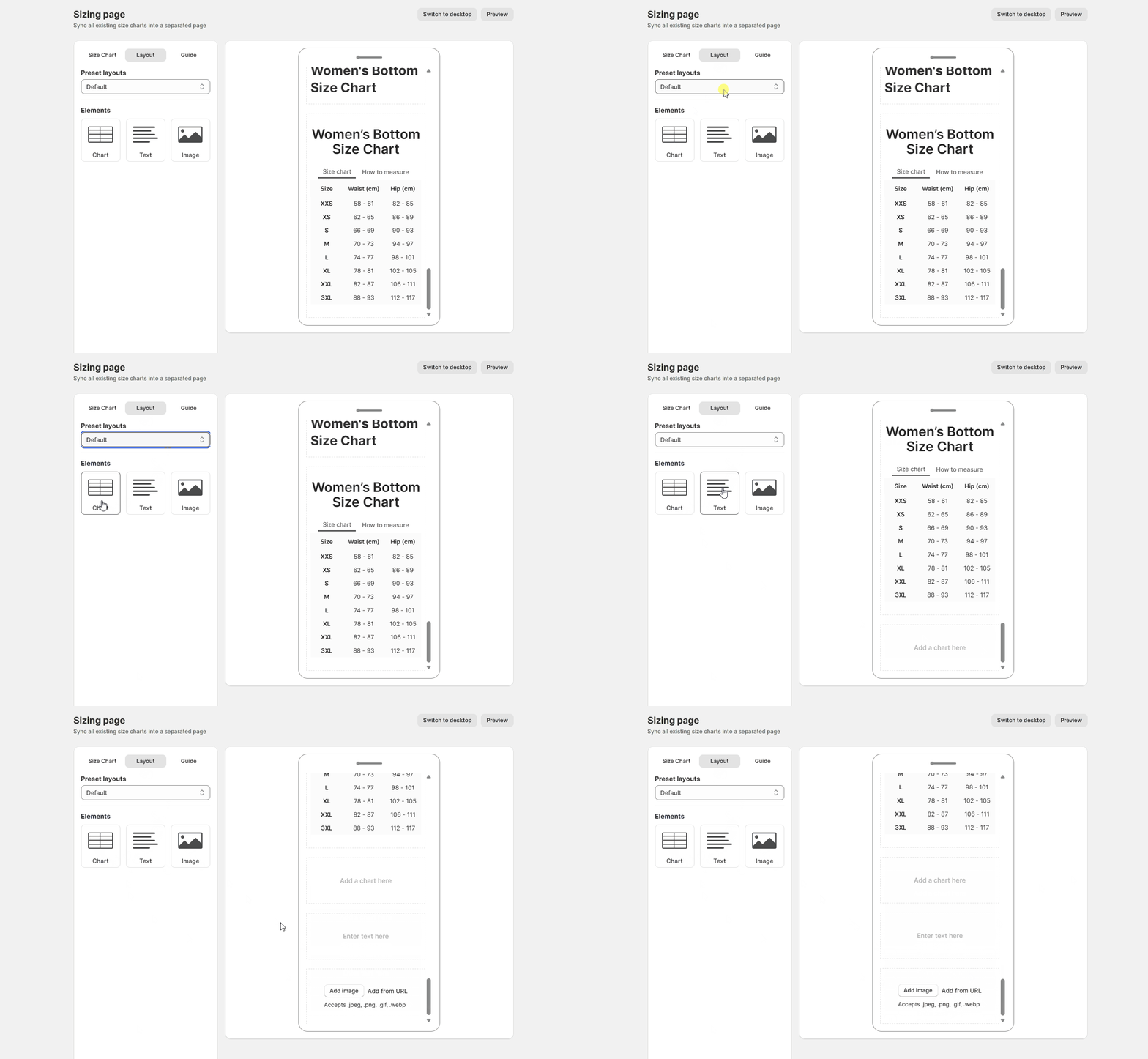
The default layout includes 3 text blocks (with pre-filled text) and 3 chart blocks, arranged alternately as shown in the image.
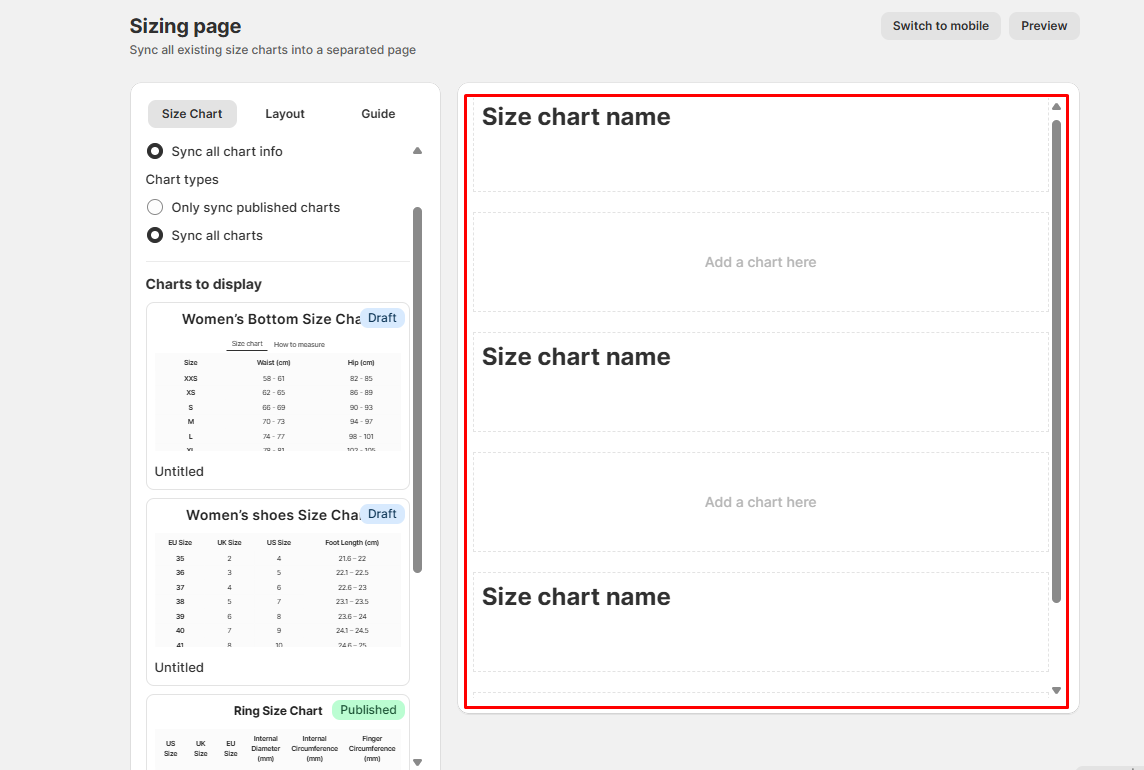
For the Text Block — Size Chart Name: You can click on the block and customize the content, color, size, font weight, decoration, and alignment.
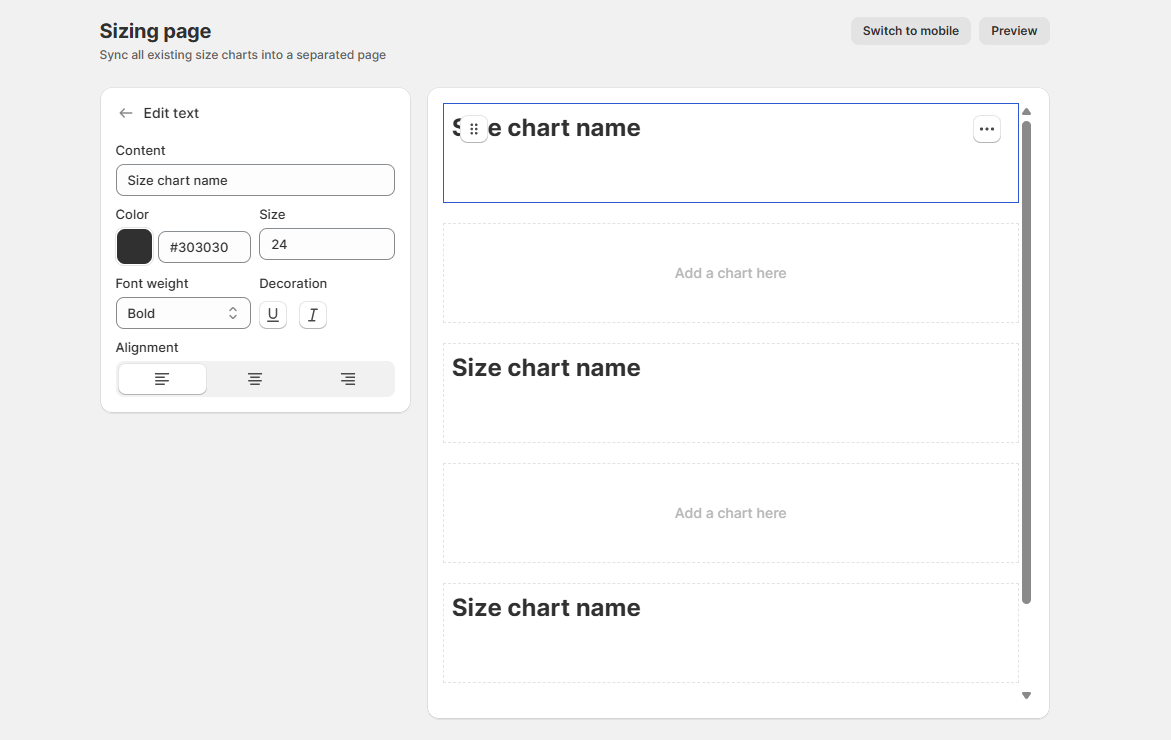
- You can freely drag and drop each block to arrange them according to how you want the sizing page to appear.
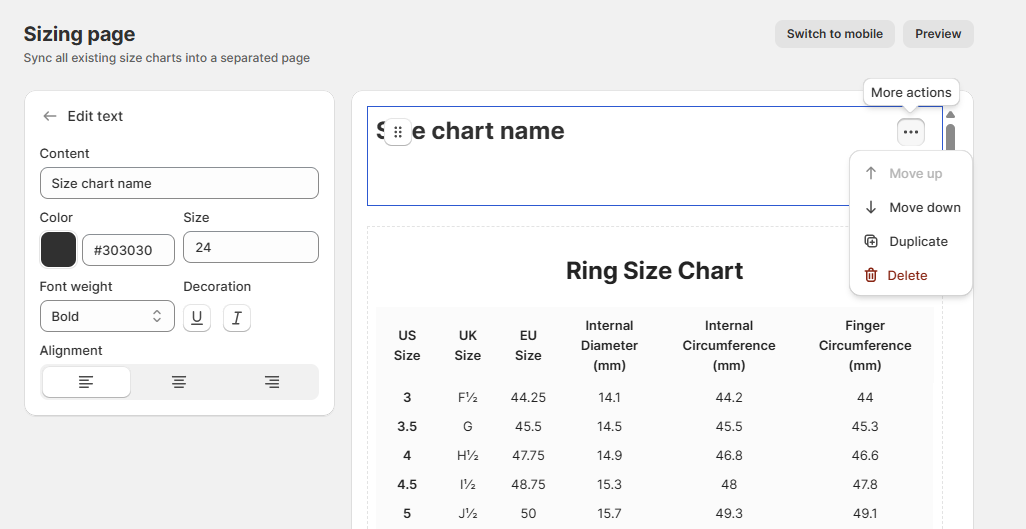
- Hover over the icon to display More actions. Click More actions and you can choose from the available options, including Move up, Move down, Duplicate, and Delete.
- Note: Move up is disabled here because the Size Chart Name block is already in the first position.
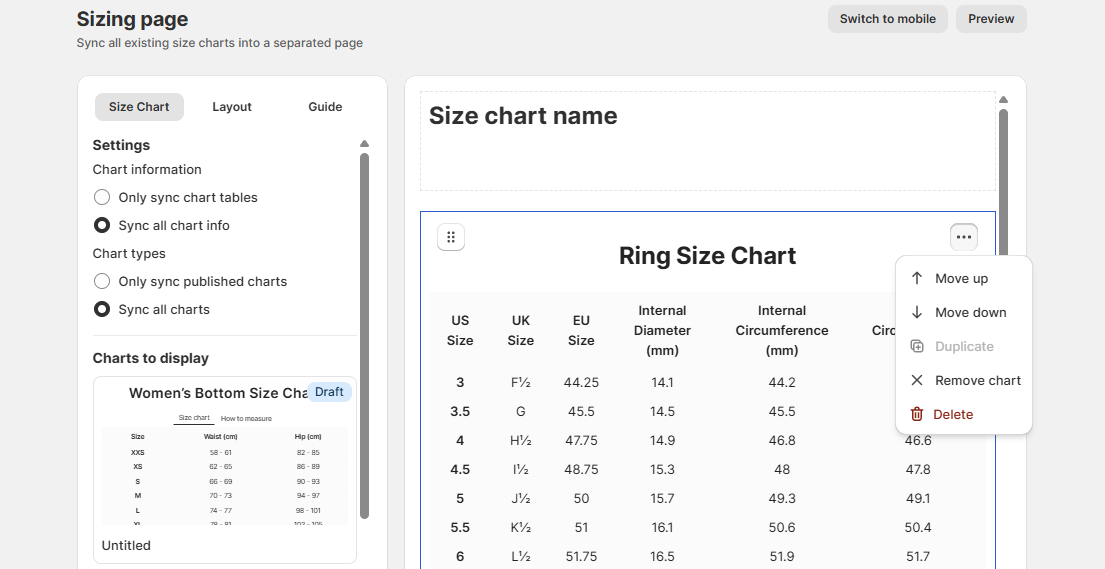
For the Add a Chart block: Hover over and select the chart you want to add from the charts to display list.
- Similar to the ‘Size Chart Name’ text block above, you can freely drag and drop the chart block to your desired position.
- You can also hover over the icon to display More actions, which include Move up, Move down, Duplicate, Remove chart, and Delete.
- Note: Duplicate will be disabled once the chart has been added.
4. Layout tab
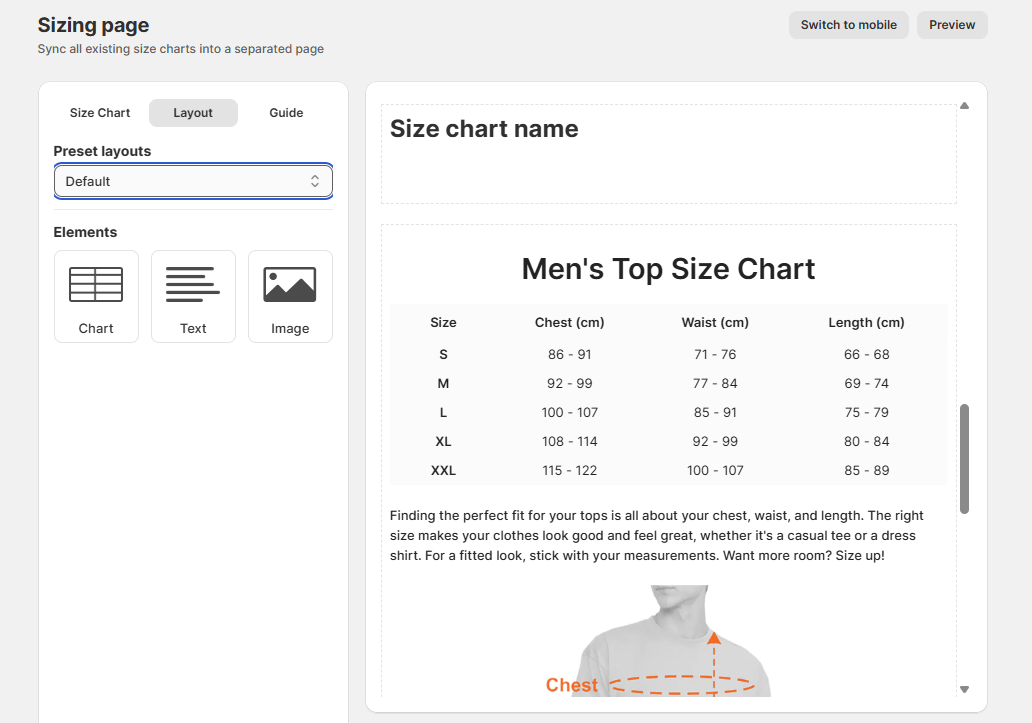
Inside the Layout tab, merchants can configure how the Sizing Page is structured.
Preset Layouts
- Currently supports the default layout
- Basic Tab Layout and Advanced Tab Layout are coming soon
Elements you can add:
- Text Blocks
- Image Blocks
- Chart Blocks
5. Preview your sizing page (Desktop & Mobile)
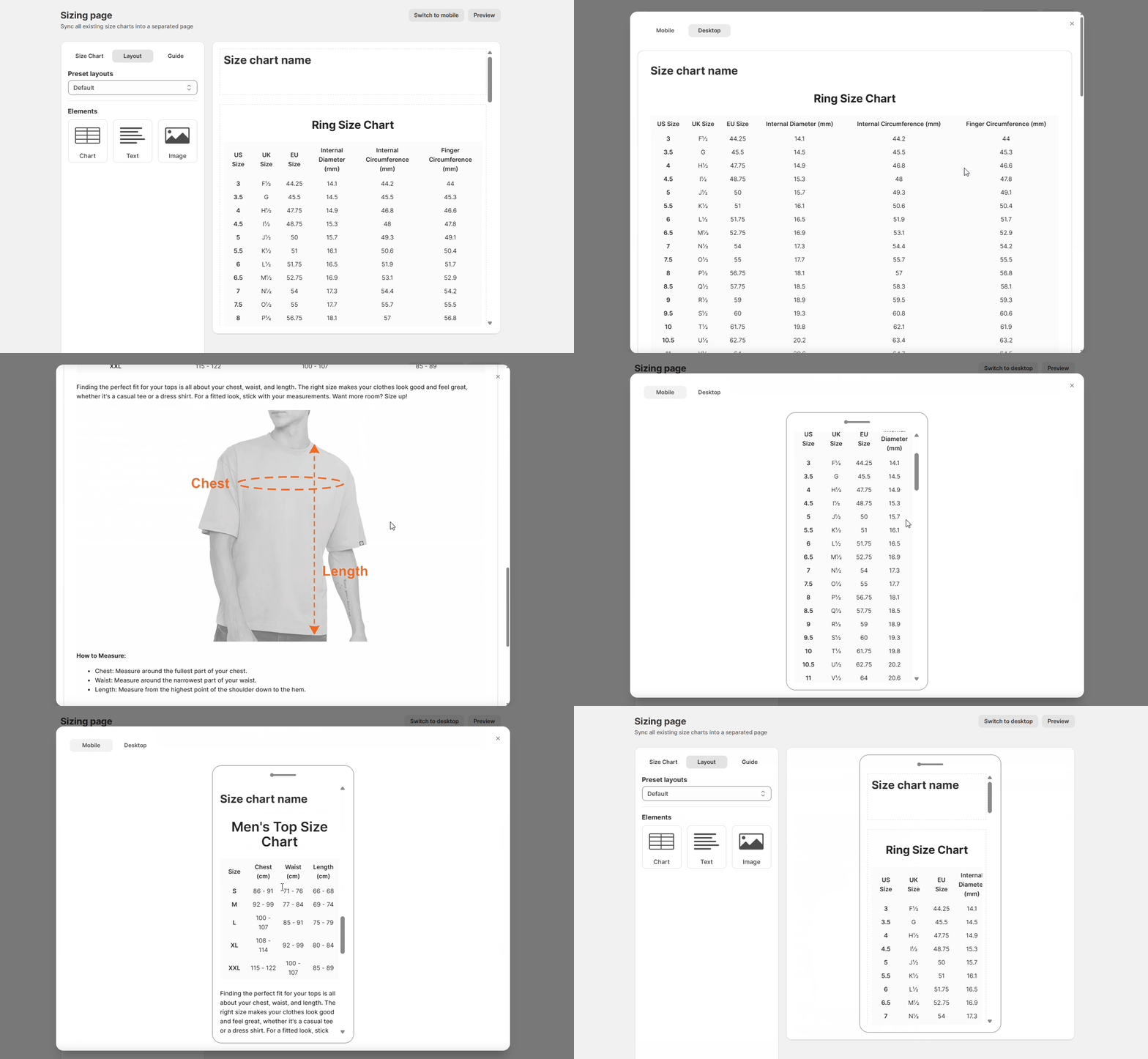
Use the Preview button (top-right) to view the actual Sizing Page on your storefront.
You can switch between:
- Mobile preview
- Desktop preview
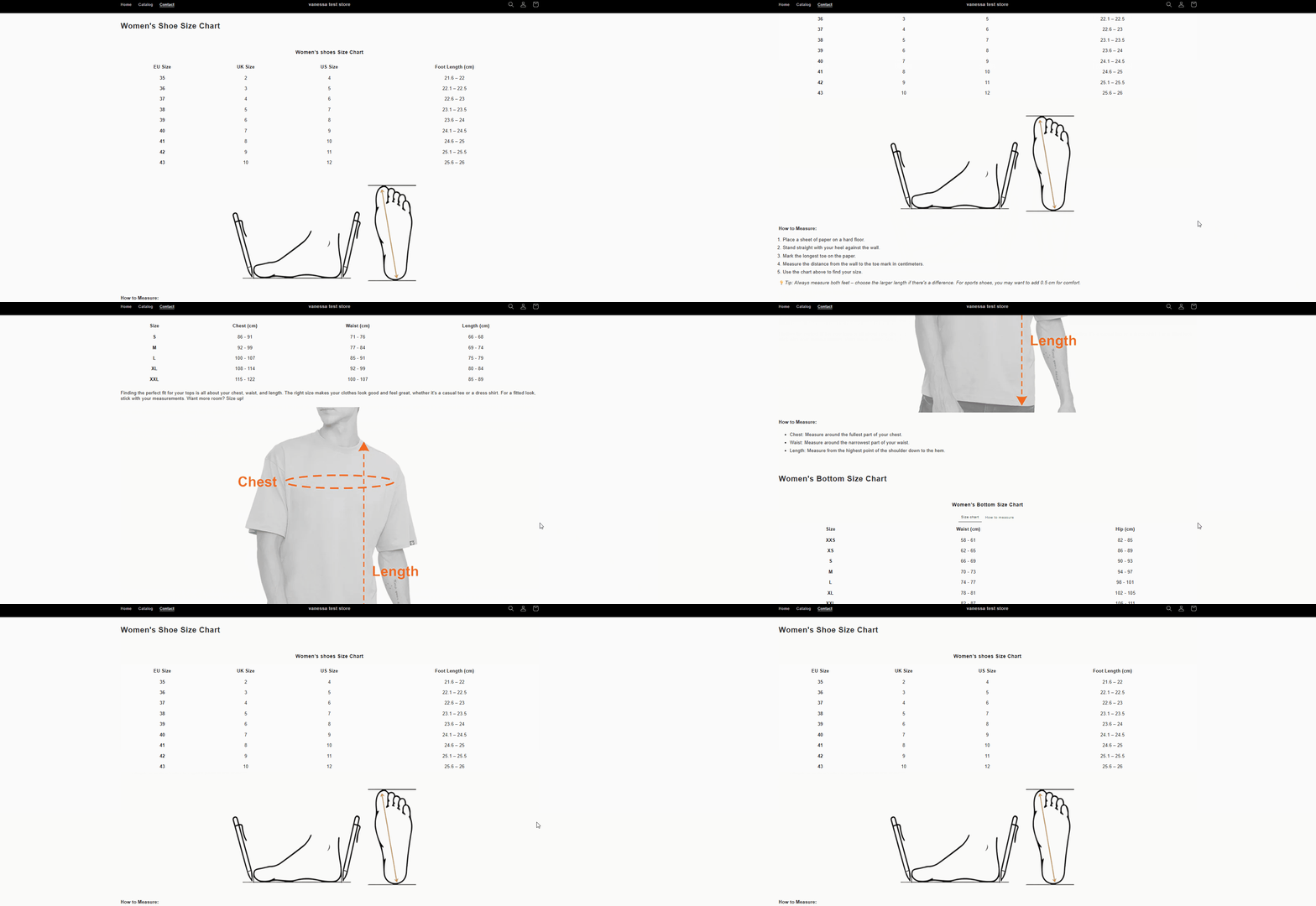
6. View sizing page on storefront
Important Notes
- You cannot edit chart content on the Sizing Page → All edits must be done in Manage Charts.
- Sync behavior depends on your chosen settings → Chart Information + Chart Types.
- Charts added to the Sizing Page will appear regardless of draft/published status, unless you restrict them via sync settings.
How to Create a New Page to Add a Sizing Page Section
Note: It is important to create a new, dedicated page template for the sizing page. Using the default page template may cause unrelated sections or content to appear on the sizing page (for example, content from the Contact Us page), since multiple pages can share the same default template.
1. Create a new template
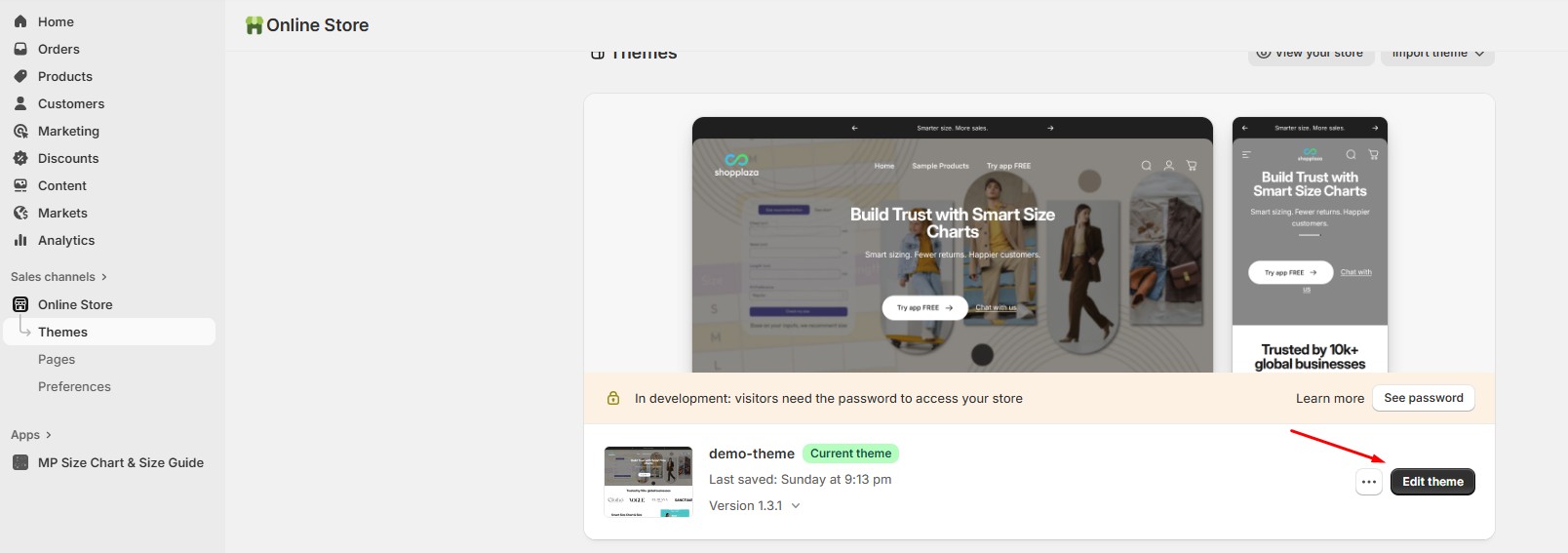
- Go to Online Store > Themes > Click Edit theme
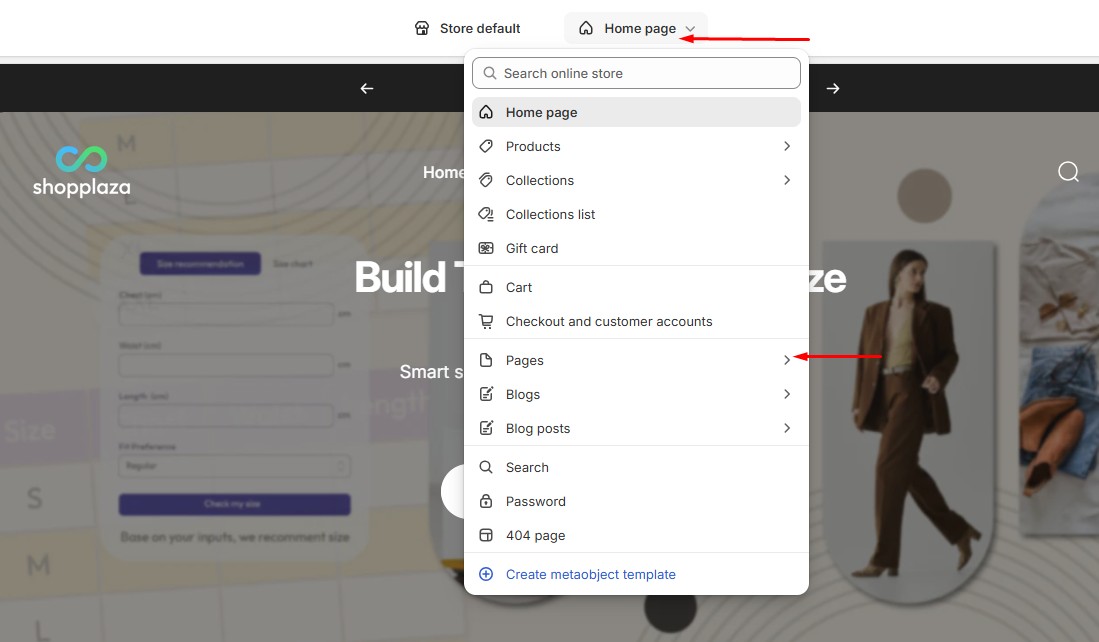
- Open the dropdown menu next to Home page and select Pages
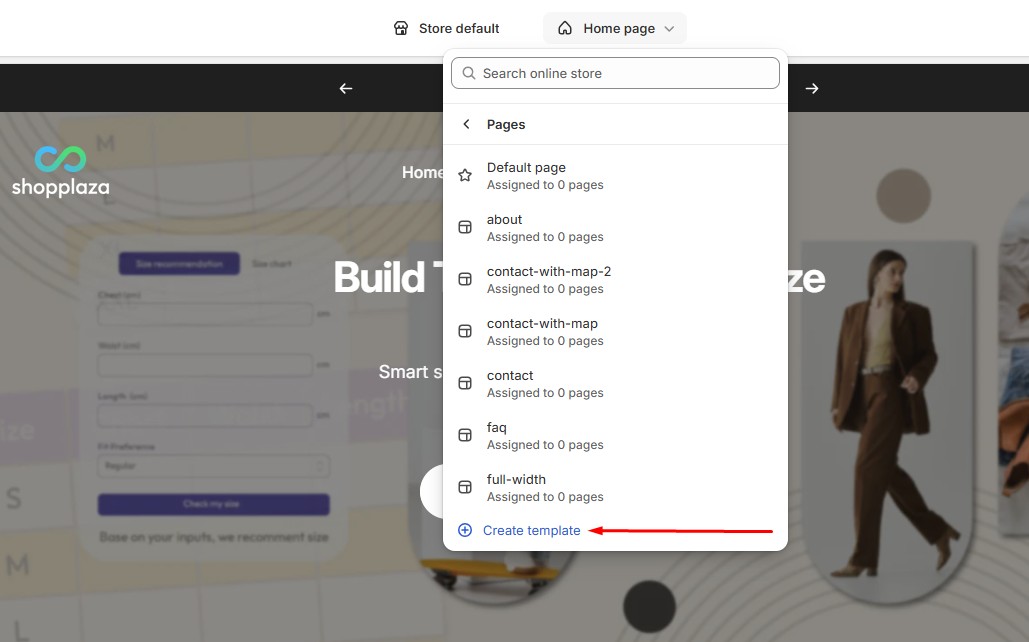
- Click Create template
-
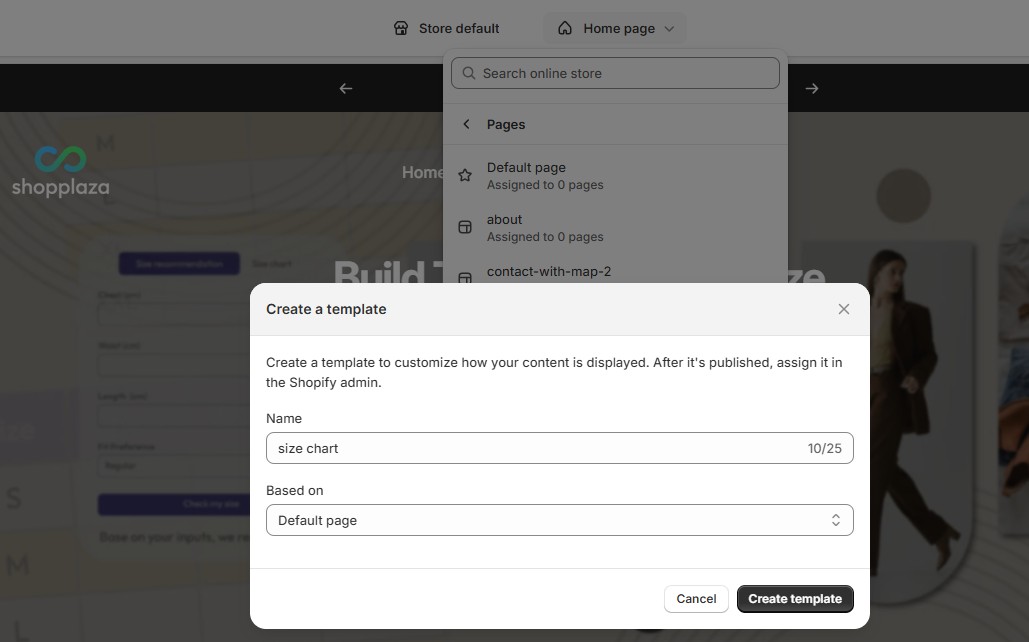
Enter a template name (for example: size chart > After saving, the template will appear as size-chart)
-
Select Based on Default page > Click Create template
Why is this required?
Creating a separate template ensures the sizing page does not inherit sections or content from other pages that use the default template (such as Contact or About pages).
2. Add a new page
Before creating a new page, please refresh the page (F5 or reload the browser). This ensures Shopify recognizes and displays the newly created template in the template selection dropdown.
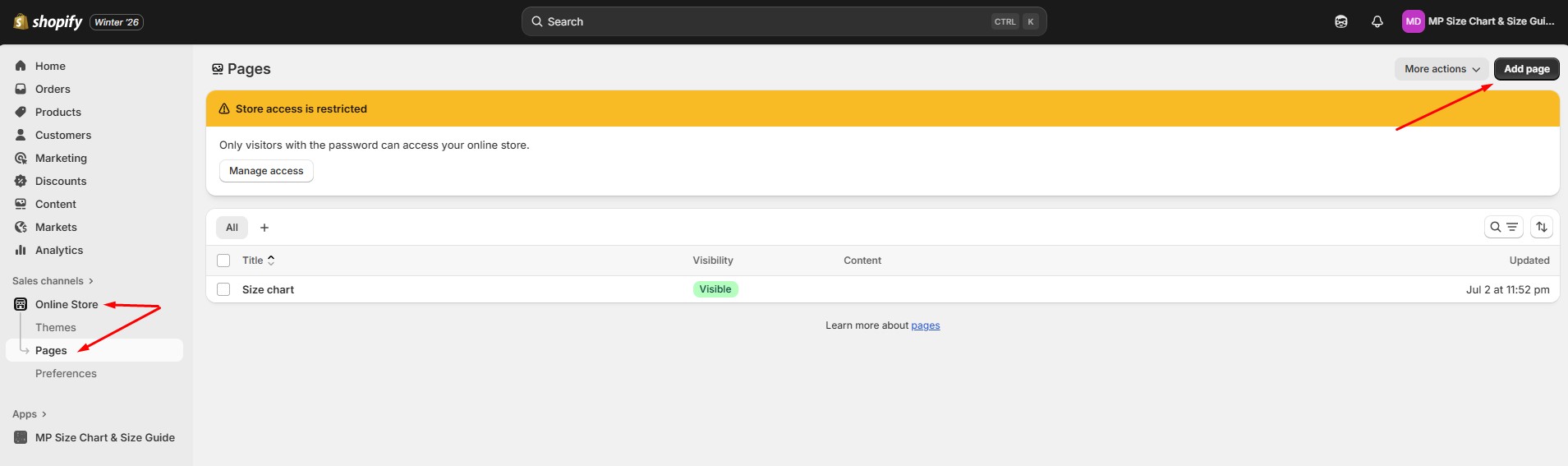
- Go to Online Store > Pages > Click Add page
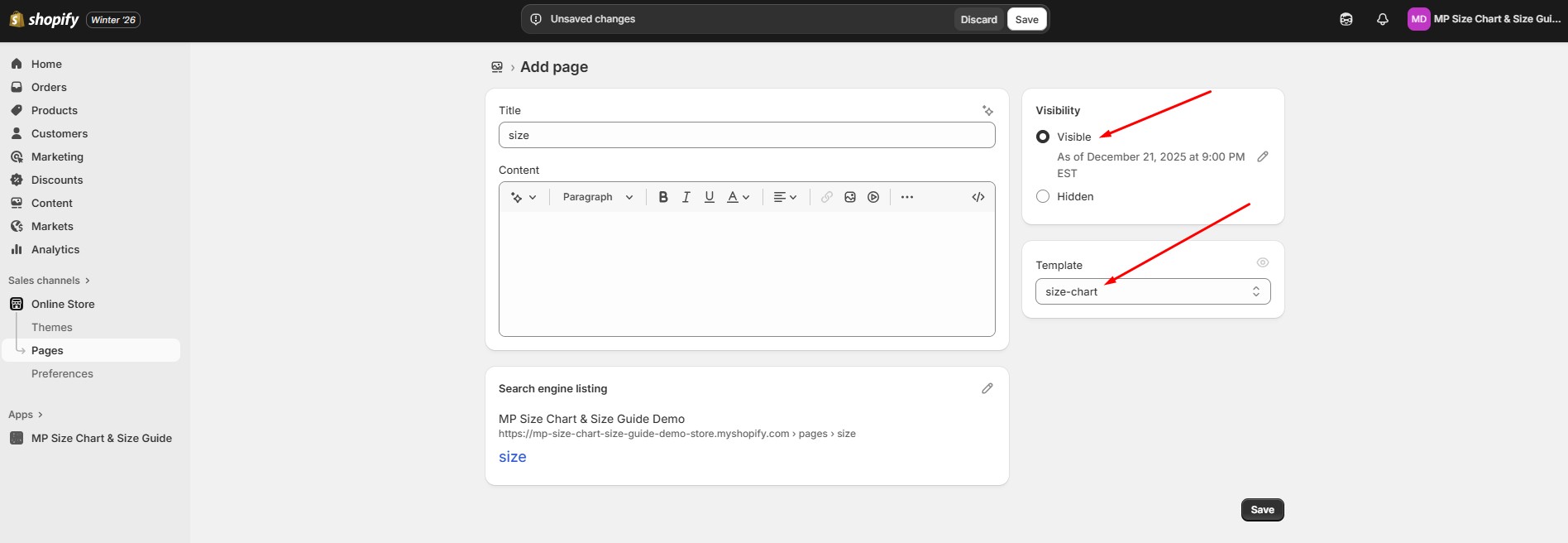
- Enter the page details:
- Title (e.g. Size Chart)
- Content (optional)
- URL handle (e.g. size)
- Set Visibility to Visible
- Under Theme template, select the newly created template size-chart
- Click Save
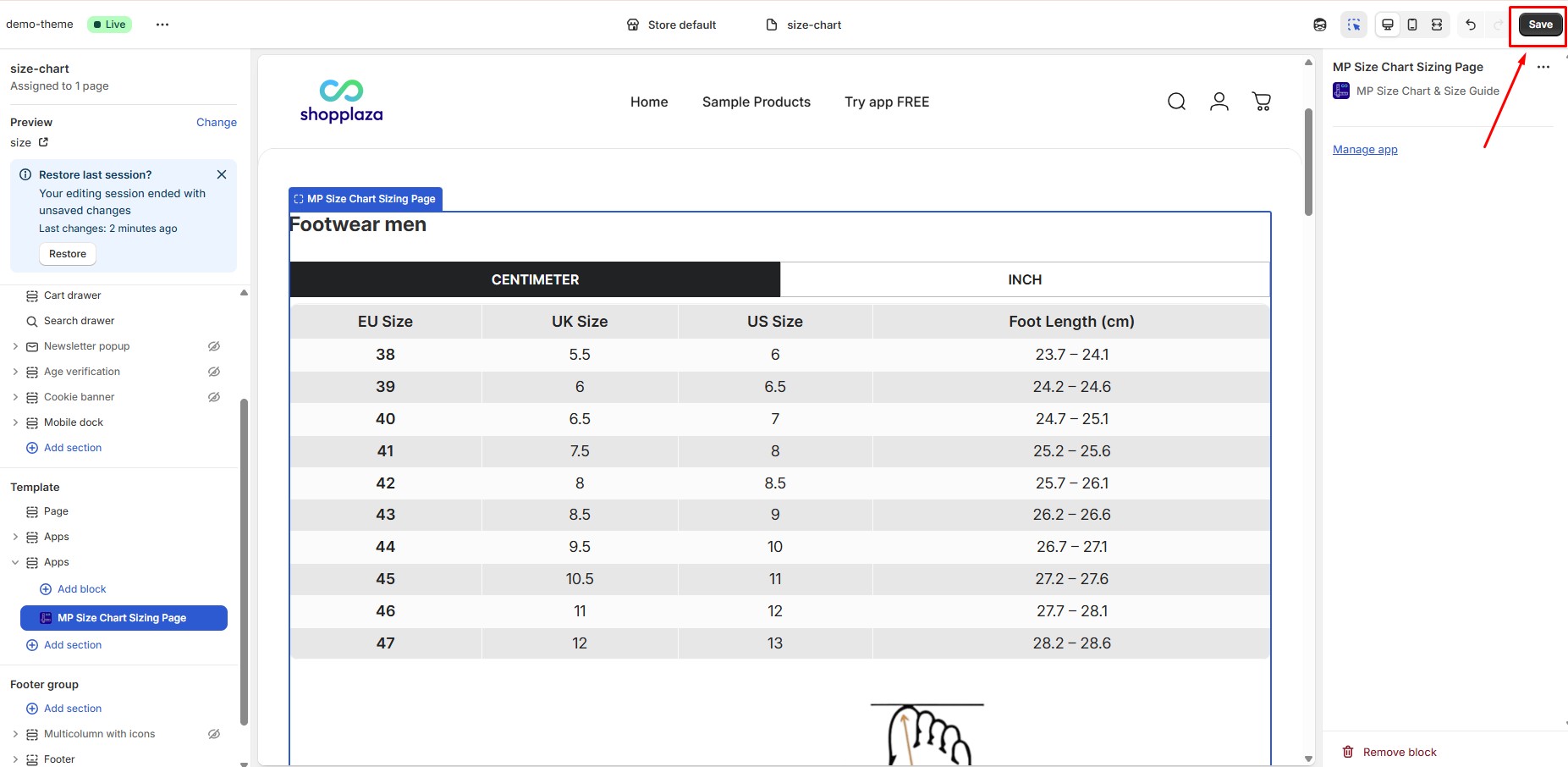
3. Add the MP Size Chart Sizing Page section
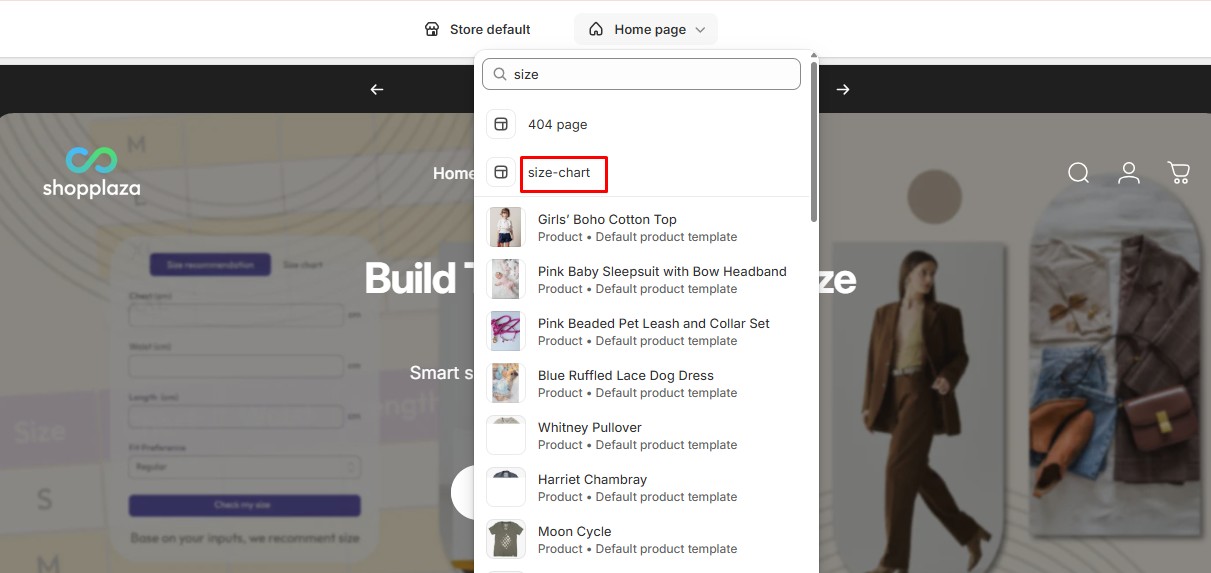
- Go to Online Store > Themes > Edit theme
- Open the dropdown menu and navigate to:
- Pages > size-chart (or select the size-chart template directly)
- In the template editor, click Add section > Select MP Size Chart Sizing Page
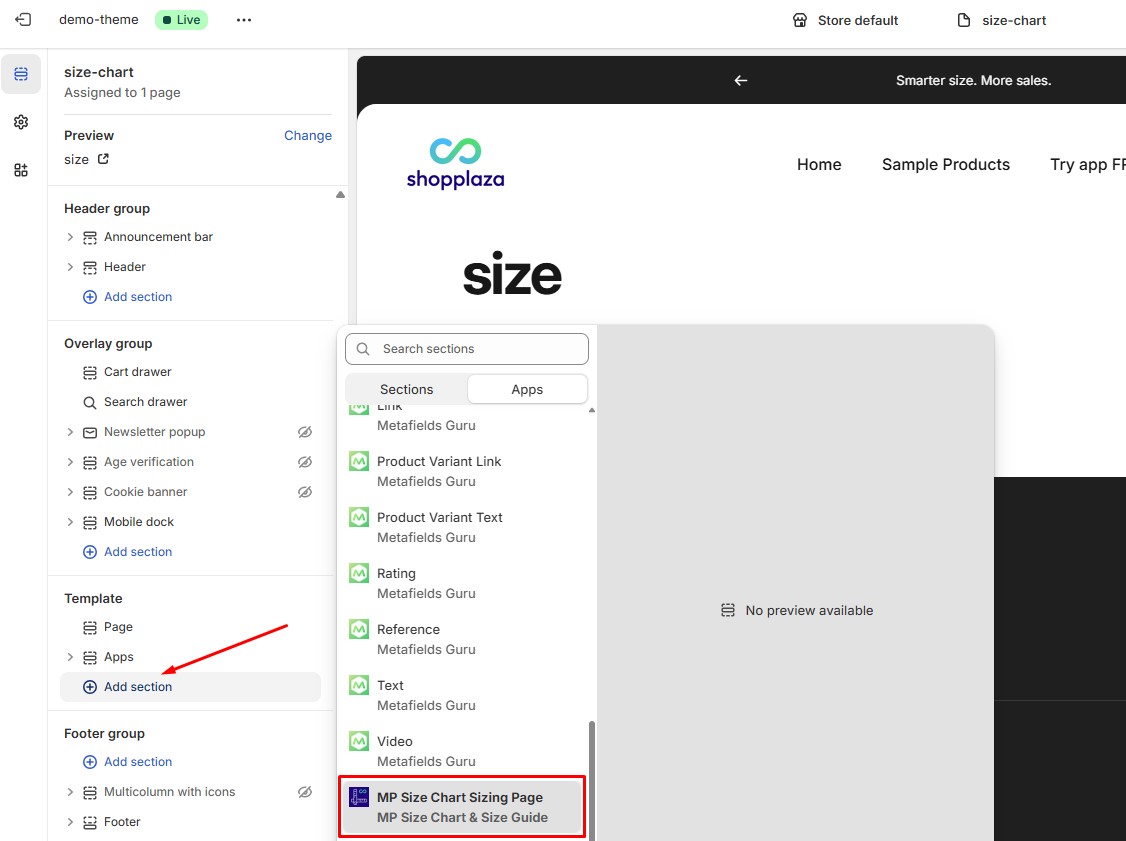
- Click Save to finish.