How to bulk edit size charts
Bulk edit lets you change the same content in many size charts at once. Instead of opening each chart one by one, you edit a block in one chart and apply the change to all similar charts in a single click. For example, you can update a size note, swap an image, or add a new row to the size table in every chart.
Before you start
- You can bulk edit up to 500 charts at a time.
- Changes are only applied to charts with the same layout (see Step 2).
- All changes stay as drafts until you click Save.
Step 1: Select the charts you want to edit
- In the app, go to Manage charts.
- Tick the charts you want to edit. You can select one chart or many.
- Click Bulk edit in the action bar at the top of the list (next to Draft, Duplicate, and Delete).
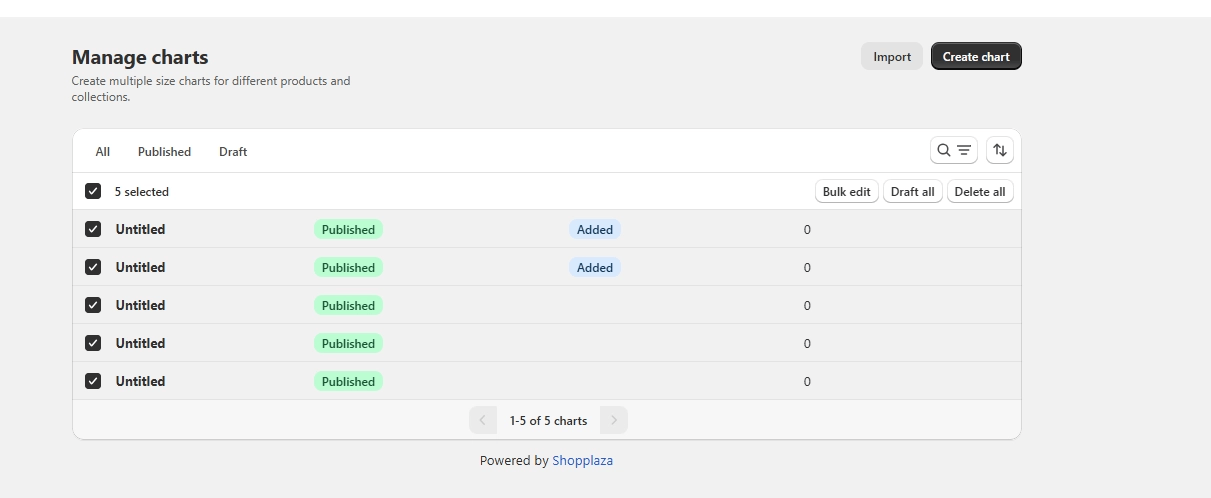
Note: If you select more than 500 charts, the Bulk edit button is disabled. Unselect some charts to continue.
Step 2: Review your chart layouts
The app groups your selected charts by layout. Two charts have the same layout when they have the same blocks (Text, Table, Image, Video, etc.) in the same order. The content inside each block can be different.
- If all selected charts share one layout, you go straight to the Bulk edit screen.
- If your charts have more than one layout, a layout detected window appears. It shows a preview of the first chart in each layout (Layout 1, Layout 2, …).
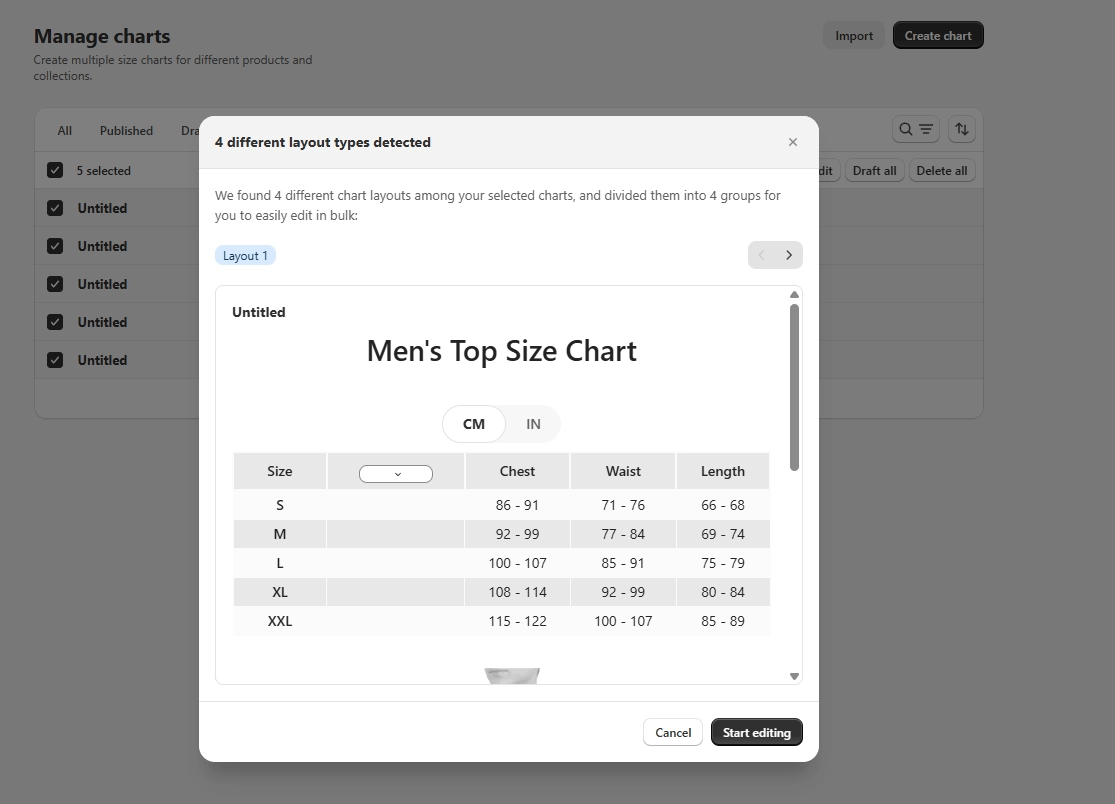
Use the arrows to browse the layouts, then click Start editing. The layout you are viewing opens first. Click Cancel to go back to Manage charts with your charts still selected.
Step 3: Edit blocks on the Bulk edit screen
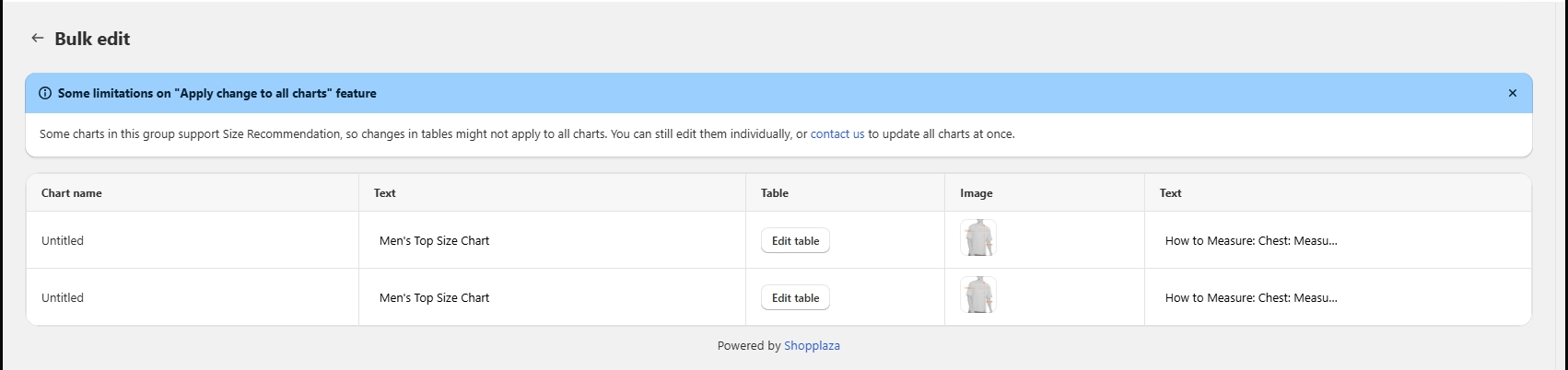
The Bulk edit screen is a table:
- The first column shows the chart names.
- Each of the other columns is one block of your charts, in the same order as in the charts. Scroll sideways to see more blocks.
- Use the pagination in the corner to switch between layouts.
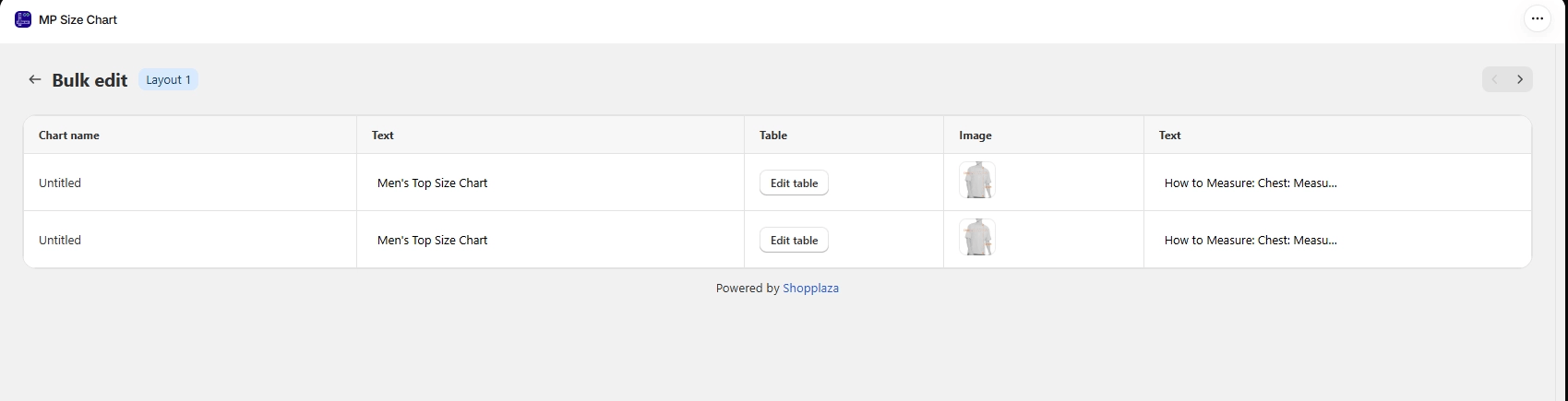
Click any cell to edit that block for that chart. A gray cell means the chart has the block, but the block is still empty. You can click it to add content.
Step 4: Apply your changes to other charts
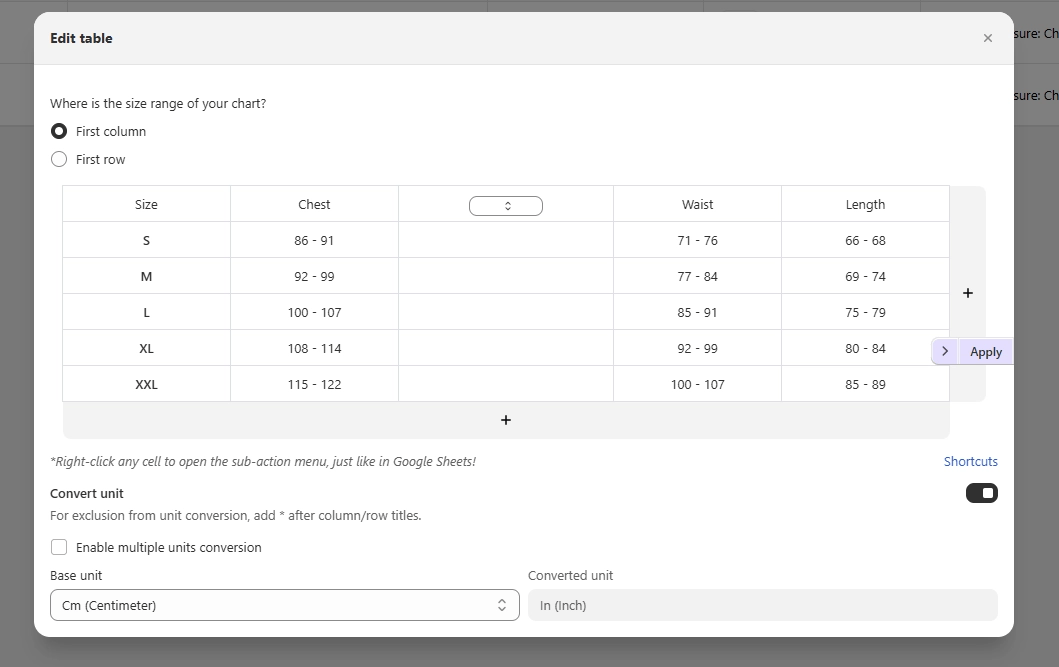
After you edit a block, an Apply button appears at the top of the edit window if the change can be copied to other charts. Click Apply to copy the change to all charts in the same layout.
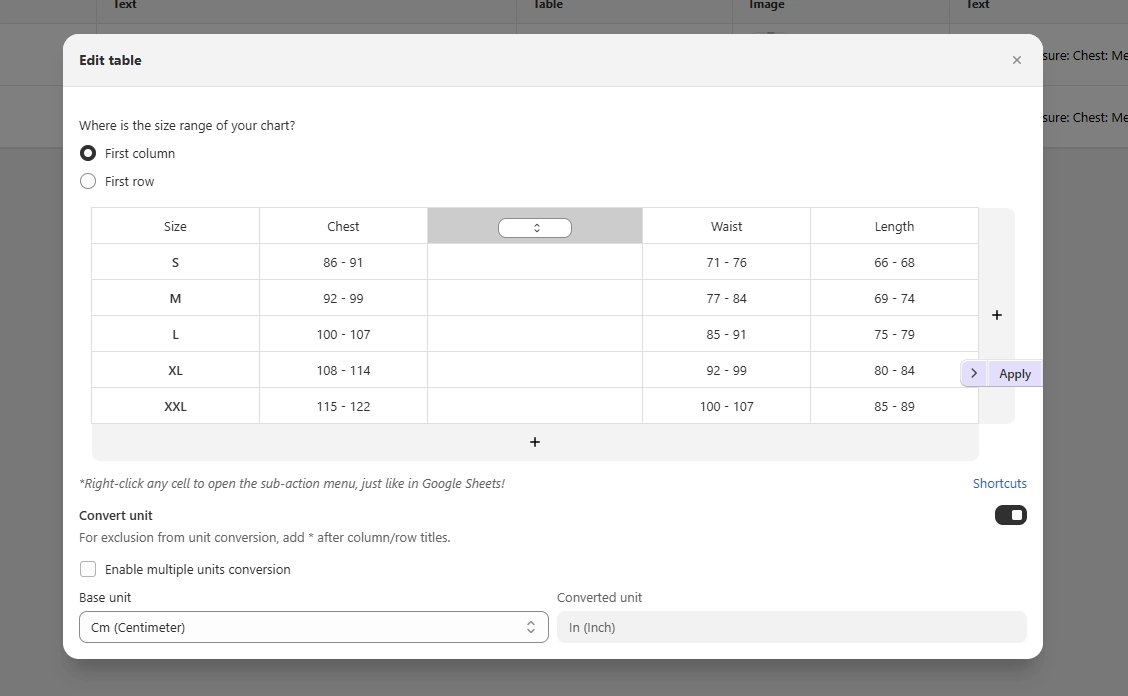
- Only the part you changed is copied. Everything else in the other charts stays the same.
- If you close the edit window without clicking Apply, your change is kept as a draft for that chart only.
- If your edit includes some changes that can be applied and some that can’t, a window appears listing the changes that won’t be applied. Click Apply changes to apply the rest, or Cancel to go back.
When can you apply changes?
To keep your charts accurate, the Apply button only appears when the block is similar enough across your charts:
- Text: the text is exactly the same in all charts in the layout. Empty text counts as the same.
- Image / Video: always. You can add, change, or replace images and videos in all charts at once. Supported image formats: .jpeg, .png, .gif, .webp.
- Table: all tables have the same number of rows and columns, and the same merged cells. The values inside the cells can be different.
- Tab: all charts have the same number of tabs. Tabs are matched by position (the 2nd tab in one chart matches the 2nd tab in the others), so tab names can differ. When you edit content inside a tab, the blocks in that tab must also match.
- 2-column: changing the column ratio (e.g., 50-50) always applies. When you edit content inside a column, the blocks in that column must match.
Tip: If you don’t see the Apply button for a Text block, check whether the text is slightly different between charts (for example, an extra space or a different word). Make the text the same, and the button will appear.
Charts with size recommendations
If some of your charts use size recommendation, the Bulk edit screen shows a warning banner when:
- Some charts have size recommendation turned on and others don’t.
- All charts have it turned on, but the main size table is in a different position.
- All charts have it turned on, but they use different measurements to recommend sizes.
In these cases, you can still edit the table in each chart, but table changes can’t be applied to other charts. This protects your size recommendations from breaking.
Deleting a measurement used by size recommendation: If you delete a column or row that size recommendation uses (e.g., Chest), the app asks you to confirm.
- If the chart uses more than one measurement, the column or row is deleted and that measurement is removed from your size recommendation settings.
- If it is the only measurement, size recommendation is turned off for that chart and reset to default.
If you apply this change, the same happens in the other charts.
Convert unit settings
You can turn Convert unit on or off for many charts at once from the Table block.
- Turning on: The setting is applied to all charts in the layout, except charts that use multiple units.
- Turning off: The setting is applied to all charts in the layout.
- Multiple units settings are never applied to other charts. You need to set them in each chart.
Learn more about unit conversion.
Convert old tables to the new table
If a chart still uses the old table format, the cell shows a Convert table button. Click it to convert the old table to the new Advanced table, then click Edit table to edit it.
- Conversion only applies to that chart. There is no Apply for this action.
- After you click Save, charts with converted tables may move to a new layout group, because their blocks have changed.
Step 5: Save your changes
Click Save in the save bar to save all your changes. You stay on the Bulk edit screen, so you can keep editing.
If you click Back before saving, a window asks you to confirm. Click Cancel to keep editing, or confirm to discard all unsaved changes and return to Manage charts.
Troubleshooting
I can’t see the Bulk edit button. Tick at least one chart in Manage charts. If the button is disabled, you have selected more than 500 charts.
My charts are split into several layouts. The charts have different blocks or the blocks are in a different order. Different content inside the blocks does not split layouts.
I don’t see the Apply button.
- Text: the text is not exactly the same in all charts.
- Table: the tables have a different number of rows, columns, or merged cells, or the size recommendation banner is showing.
- Tab / 2-column: the tab or column doesn’t exist in the other charts, or its blocks are different.
- Convert unit: the chart uses multiple units.
I clicked Apply, but another chart didn’t change. That chart is in a different layout, or its block doesn’t meet the conditions above. Apply only updates charts in the same layout that meet the conditions.
Wrap up
Bulk edit saves you time when you need to make the same change across many size charts. Select your charts, edit a block, click Apply, and Save. Need to create many new charts instead? See how to import size charts in bulk.