How to show product images in the size chart popup
You can show a carousel of product images right inside the size chart popup. Shoppers can see the product while they check its sizes, without closing the popup. This helps them compare the fit and choose the right size with more confidence.
How to turn on the product image carousel
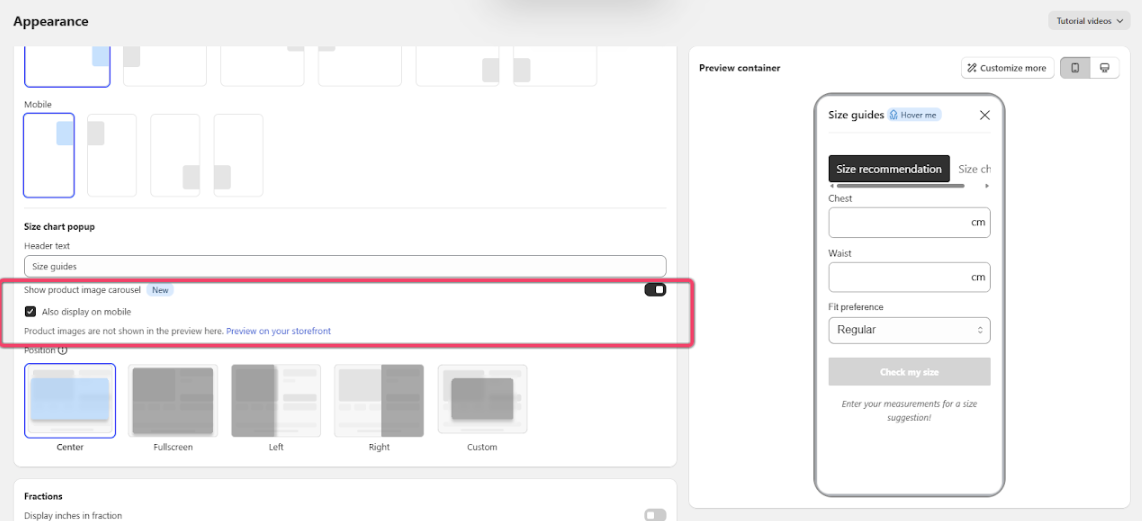
- In the app, go to Appearance.
- Scroll to the Size chart popup section.
- Turn on Show product image carousel.
- To show the images on mobile too, tick Also display on mobile. Leave it unticked to show the images on desktop only.
- Click Save.
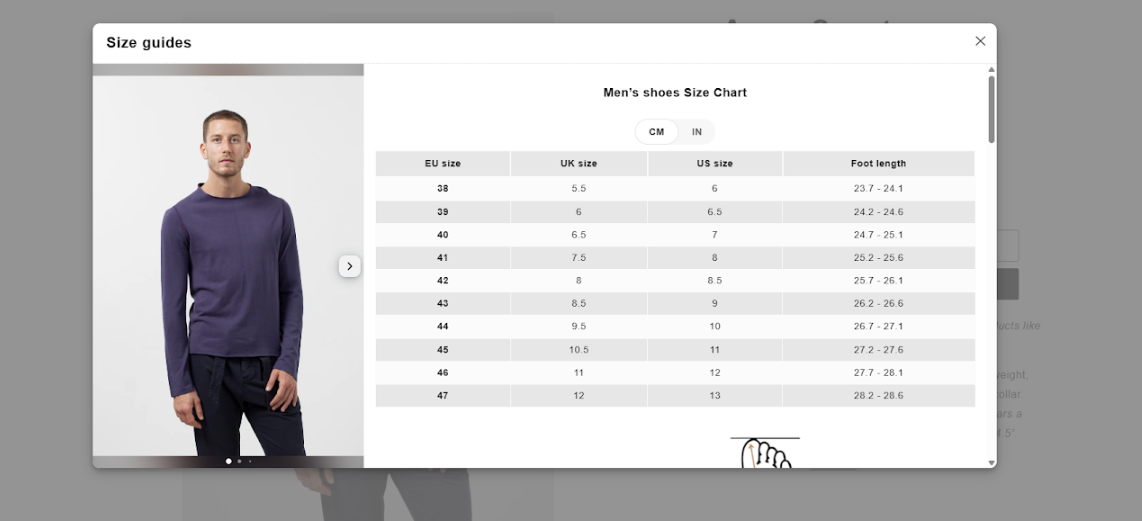
On your storefront, the popup shows the product images on the left and the size chart on the right. Shoppers can use the arrows to browse through the images.
Note: Product images don’t show in the app’s preview. To see how they look, click Preview on your storefront under the setting.
Wrap up
Turn on Show product image carousel to let shoppers see the product and its size chart side by side. Use Also display on mobile to choose whether mobile shoppers see the images too. To change other parts of the popup, see how to customize the appearance of the size chart popup.