How to integrate MP Size Chart with langify
MP Size Chart & Size Guide is an official integration of langify, the Shopify translation app. Once connected, you can translate your size charts and sizing pages into every language your store supports, so shoppers see sizing information in their own language.
Before you start
Make sure you have:
- An active paid langify plan. The integration is not available on free langify plans.
- MP Size Chart & Size Guide installed on your Shopify store.
- At least one size chart already created.
- Your store languages set up in langify.
Enable the integration in langify
- In your Shopify admin, open langify.
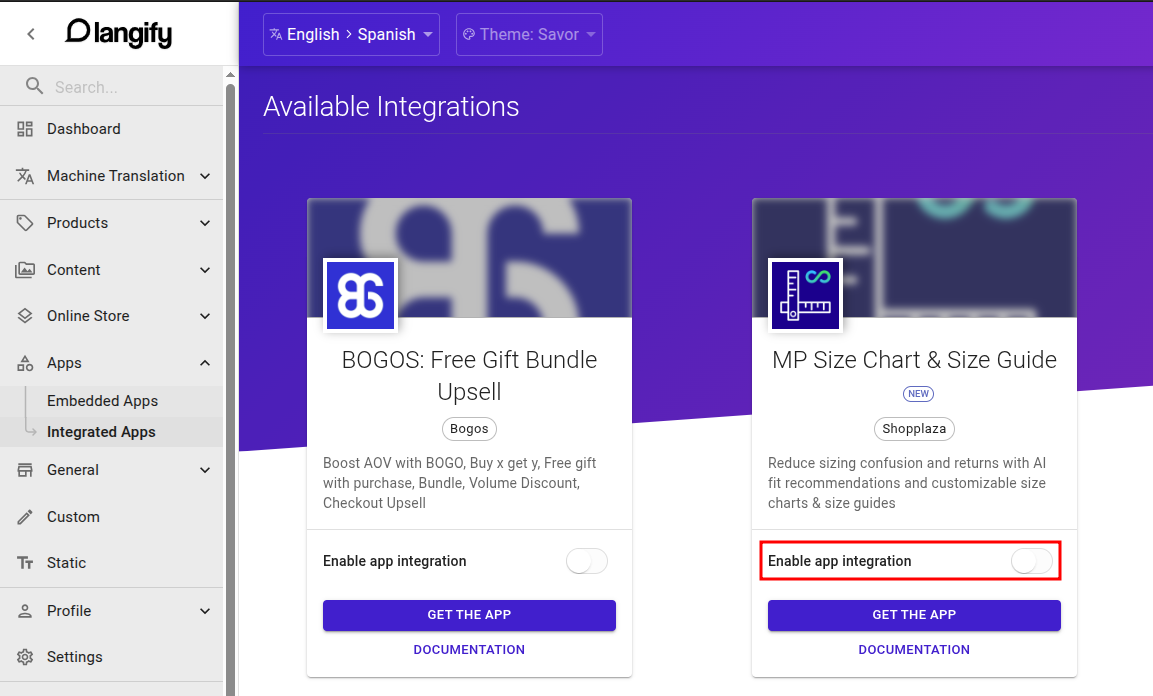
- Go to Apps > Integrated Apps > Available Integrations.
- Find the MP Size Chart card and switch the toggle on.
A new MP Size Chart menu now appears in langify’s sidebar. This is where you manage all size chart translations.
Note: You can switch the integration off at any time. Your translations are kept, so they will be there when you turn it back on.
Translate your size charts
- In langify, click MP Size Chart in the sidebar.
- Open the size chart or sizing page you want to translate.
- Choose the target language.
- Enter the translation manually, or use langify’s machine translation and edit the result.
- Save your changes.
Translate multiple charts at once
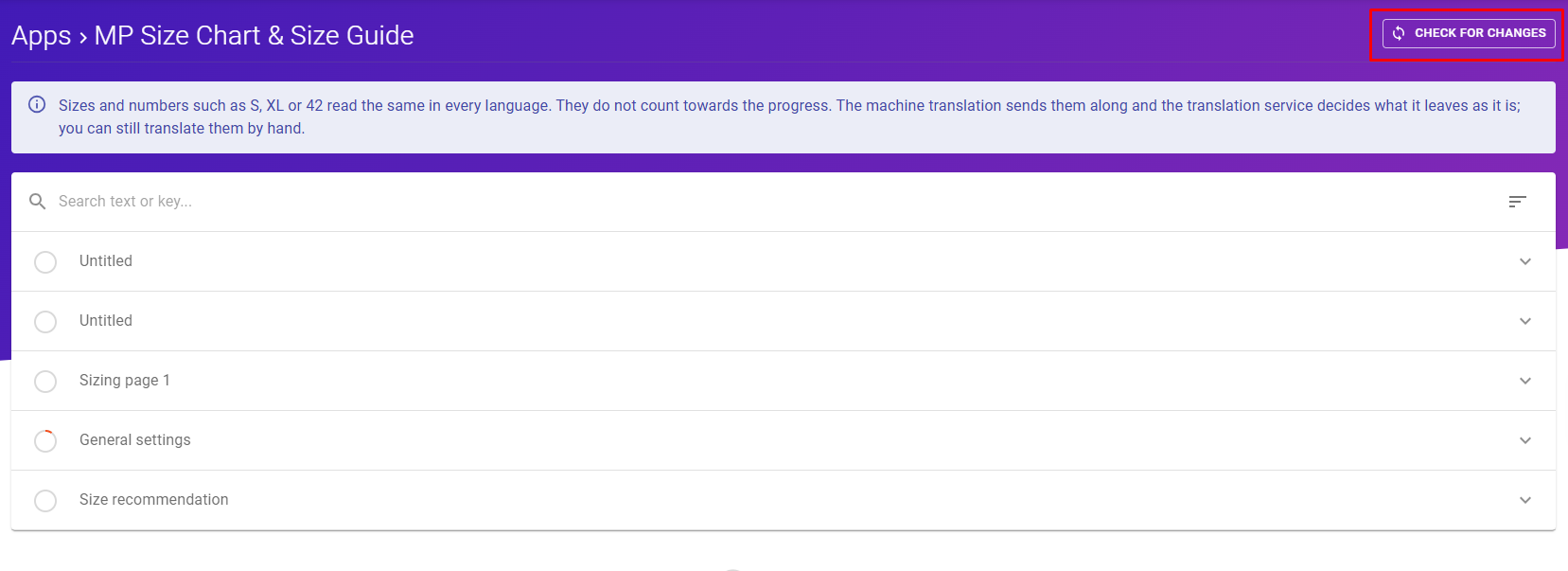
- Click Check for Changes in the upper right corner.
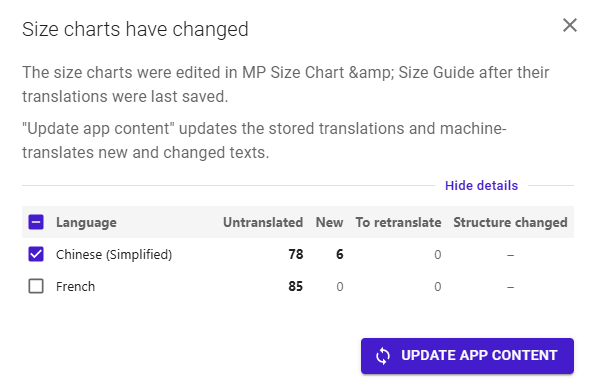
- Select the target languages.
- Click Update App Content.
langify pulls in your size chart content for all the selected languages, so you can translate everything in one pass.
Preview on your storefront
- Open your store and switch to a translated language with your language selector.
- Go to a product that has a size chart and open it.
- Check that the title, labels, and text appear in the selected language.
If some text is still in your original language, go back to langify and confirm that field has a saved translation.
Keep translations up to date
Translations don’t update on their own. When you edit a size chart in MP Size Chart (for example, adding a size row or renaming a column), update langify afterward.
- langify detects changes automatically and shows a popup with an Update App Content button. Click it to bring in the new content.
- If you close the popup, it won’t reappear by itself. Click Check for Changes anytime to detect new edits.
- Translate any new or changed text in the MP Size Chart section.
Troubleshooting
I don’t see the MP Size Chart card in langify. Check that you’re on a paid langify plan, that MP Size Chart is installed, and that you’ve created at least one size chart.
My new chart or edits don’t show up in langify. Click Check for Changes, then Update App Content.
A chart still shows in the wrong language on my store. Make sure the translation is saved for that language in langify’s MP Size Chart section, then refresh your storefront.
Note: If you don’t use langify, MP Size Chart can also translate charts automatically with its built-in Auto-translate feature. See Can I display my size chart in multiple languages?
Wrap up
With langify connected, your size charts and sizing pages follow your store’s languages, so international shoppers can find their size with confidence. For langify’s own instructions, see the langify guide for MP Size Chart & Size Guide. If you need help with setup, contact us at [email protected].