2. Leak Scanner
The Leak Scanner helps you find discount codes that may have been shared outside your intended channels. It shows which codes are leaking, where they were found, and which ones may need your attention.
You can use this page to review leaked codes and decide whether to keep, ignore, or expire them.
2.1. View your Leak Scanner overview
Go to Leak Scanner from the app dashboard.
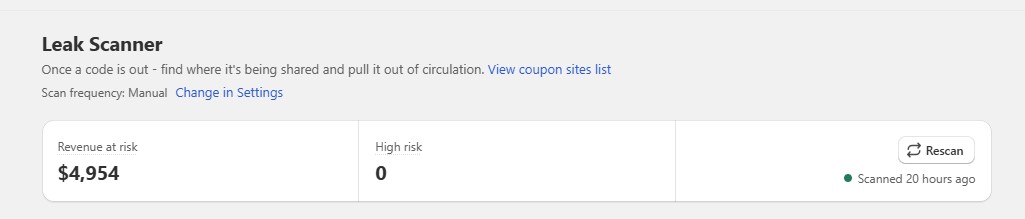
At the top of the page, you’ll see a quick overview of your coupon leak status:
- Revenue at risk: The estimated value associated with leaking coupon codes.
- High risk: The number of leaking codes that meet at least one high-risk condition.
- Last scanned: Shows when Leak Scanner last checked for leaked codes.
- Rescan: Starts a new scan manually.
You can also see your current scan frequency below the page description.
2.2. Review your coupon codes
All scanned coupon codes are shown in one table. Use the tabs to quickly find the codes you want to review:
- All: Shows all detected codes.
- Leaking: Shows codes currently found on monitored coupon sites.
- No action needed: Shows codes that don’t currently require your attention.
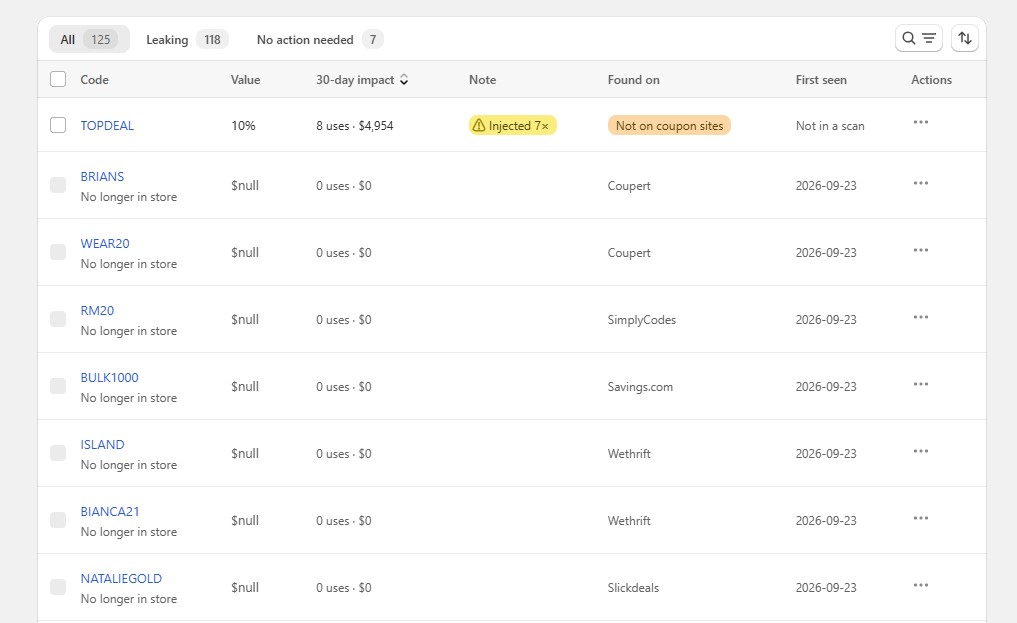
For each code, you can see:
- Code: The discount code.
- Value: The discount value, such as 20% or $10.
- 30-day impact: Recent usage and the estimated value associated with the code.
- Note: Additional signals, such as whether the code has been injected by a coupon extension.
- Found on: Where the code was found.
- First seen: When Leak Scanner first detected the leak.
- Actions: Available actions for that code.
You can also search, filter, and sort the list to find specific codes more quickly.
2.3. Understand high-risk codes
A code can be marked High risk when it is currently leaking and meets at least one of these conditions:
- The discount is 40% or more
- The discount amount is $75 or more
- The code has been used 300 or more times within 30 days
A High risk label helps you identify codes that may deserve attention first.
Codes that you intentionally exclude from leak monitoring are not marked as High risk.
2.4. Understand the “Injected” label
You may see an Injected label next to a coupon code.
This means Coupon Blocker detected a browser extension attempting to use that code.
For example:
WELCOME20is found on a coupon site
→ Leak Scanner marks it as leaking
→ Coupon Blocker later detects 7 attempts involvingWELCOME20
→ Leak Scanner shows Injected 7×
Injected does not mean the coupon was successfully applied 7 times. It only shows that injection attempts were detected. Check Coupon Blocker for the outcome of those attempts.
2.5. Take action on a leaked code
When you find a coupon that should no longer be available, open its Actions menu.
Depending on the code, you can:
Expire the code
Use this when you no longer want customers to use the leaked coupon.
SP Stop Coupon Leaks does not delete the discount. Instead, it sets an end date in Shopify. This makes the action safer and allows you to make changes later from Shopify Admin.
Ignore the code
Use Ignore when the coupon is public on purpose or you don’t want to take action on it.
For example, you may have a WELCOME10 code that is intentionally available to everyone. Ignoring it keeps it from being treated as a code that needs your attention.
You can stop ignoring a code later if needed.
Open in Shopify Admin
Use this option when you want to review or manage the original discount directly in Shopify.
2.6. Set your scan frequency
Go to:
Settings → Leak Scanner
Choose how often you want Leak Scanner to check for leaked codes:
- Manual: Scans only when you start one.
- Every 24 hours: Runs one scan per day.
- Every 6 hours: Checks more frequently for new leaks.
You can still use Rescan from the Leak Scanner page when you want to run a scan manually.
2.7. Exclude intentionally public codes
Not every coupon found online is an unwanted leak.
For example, you may intentionally publish a welcome code or partner promotion.
To exclude these codes:
- Go to Settings → Leak Scanner.
- Find Codes that are public on purpose.
- Click Add codes.
- Select the codes you want to exclude.
Excluded codes are not flagged as High risk.
2.8. What Leak Scanner can and cannot detect
Leak Scanner checks the coupon sources currently monitored by SP Stop Coupon Leaks. However, finding no leak does not guarantee that a code has never been shared elsewhere.
Leak Scanner may not find a code when:
- It is shared privately.
- Someone submits it directly to a browser extension.
- An extension stores the code in its own database.
- It appears on a coupon site that isn’t currently monitored.
- The leak happens between scheduled scans.
This is why Leak Scanner and Coupon Blocker work together. Leak Scanner looks for codes circulating on monitored coupon sites, while Coupon Blocker looks for detected extension activity while customers shop.