Set up Wholesale Prices
Pricing rules are the heart of SP B2B Wholesale Pricing. A rule tells the app who gets a special price, which products it applies to, and what the discount looks like. This page walks you through everything — from understanding your rule list to creating your first rule.
Your pricing rules list
Go to Pricing rules in the app to see every rule you’ve created. Each row shows:
- Rule name
- Rule type (Custom price or Volume price)
- Which products it applies to
- Which customers it covers
- The discount
- The date it was created
- Its current status
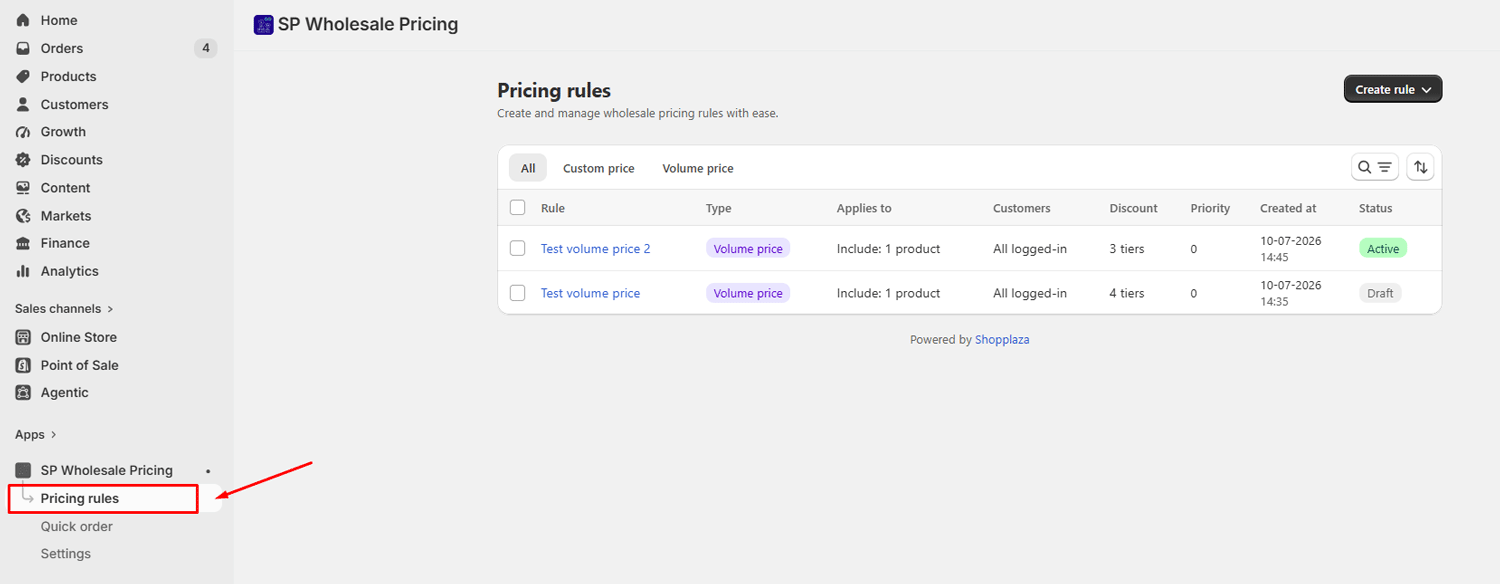
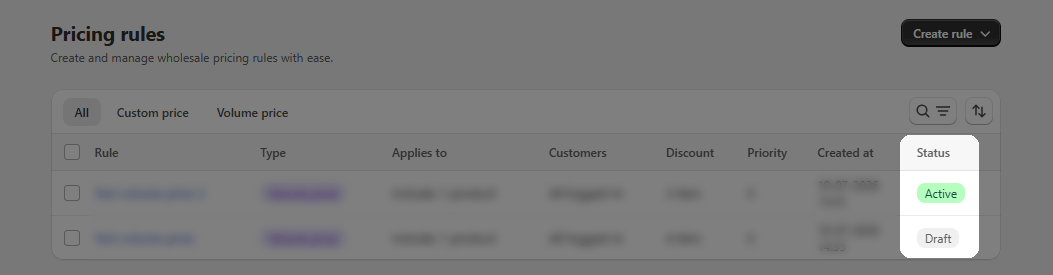
Rule statuses
- Active: The rule is live and applying to eligible customers on your store
- Draft: The rule is saved but not live yet — useful while you’re still setting things up
Search, filter, and sort your rules
- Use the All / Custom price / Volume price tabs to filter by rule type
- Click the search icon to find a rule by name, or filter by status (Active or Draft)
- Click the sort icon to order rules by Created date or Name
Bulk actions
Need to update several rules at once? Tick the checkboxes next to the rules you want, then choose an action from the bar that appears:
- Set as Active
- Set as Draft
- Delete
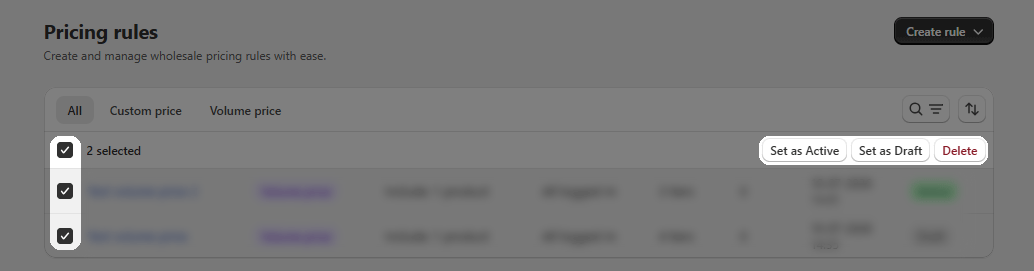
⚠️ Heads up: Deleting a rule is permanent and can’t be undone. The app will ask you to confirm before anything is removed.
Create a new rule
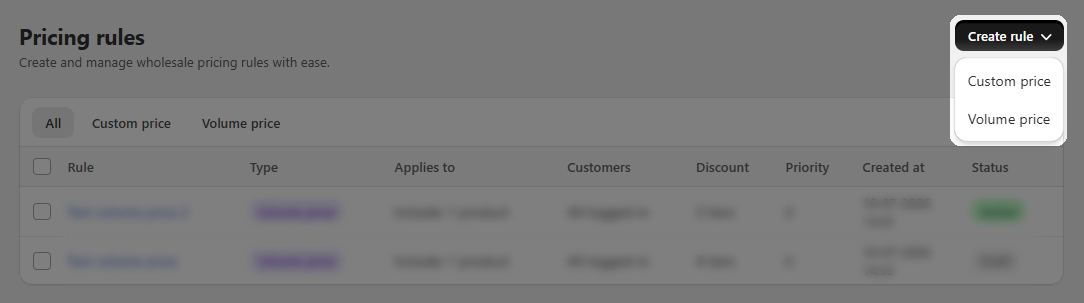
Click Create rule on the Pricing rules screen, or use the shortcut cards on the Dashboard. Then choose your rule type:
- Custom price — set a specific discount for chosen customers and products
- Volume price — reward bigger orders with tiered discounts
The rule editor has two sides: the left is where you set everything up, and the right shows a live preview of how the price will look on a product page. The preview uses sample data, not your real products.
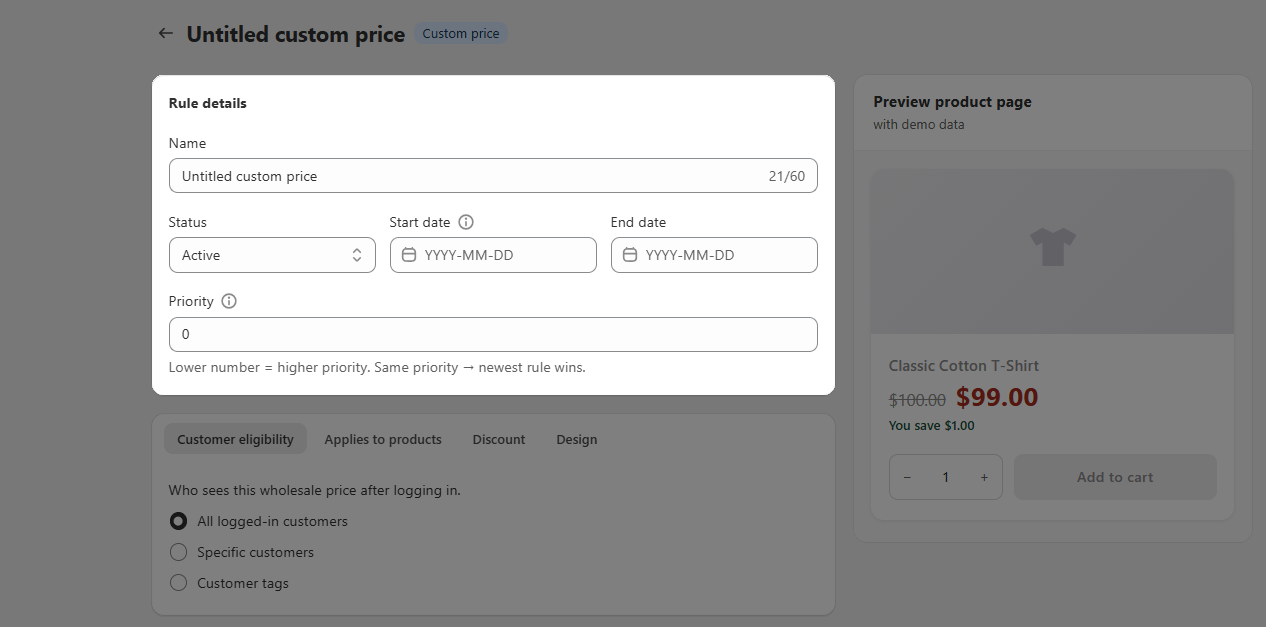
Step 1: Name your rule and set its status
In the Rule details card:
- Give your rule a clear name (up to 60 characters) — something like “Distributor 10% off” or “VIP Fixed Prices” works well
- Set the status to Active to go live right away, or Draft to keep working on it
You’ll also see a Priority field here. This only matters if more than one rule could apply to the same customer and product at the same time. See Rule priority below for more details. For your first rule, you can leave it as-is.
Step 2: Choose who gets the price (Customer eligibility)
Open the Customer eligibility tab and pick one of three options:
| Option | Who it covers |
|---|---|
| All logged-in customers | Every customer who's logged in gets this price |
| Specific customers | Only the customers you pick by email address |
| Customer tags | Any customer with a tag you choose, like wholesale, vip, or gold-partner |
For Specific customers or Customer tags, you’ll see an Include / Exclude toggle:
- Include — only the people on your list get the price
- Exclude — everyone except the people on your list gets the price
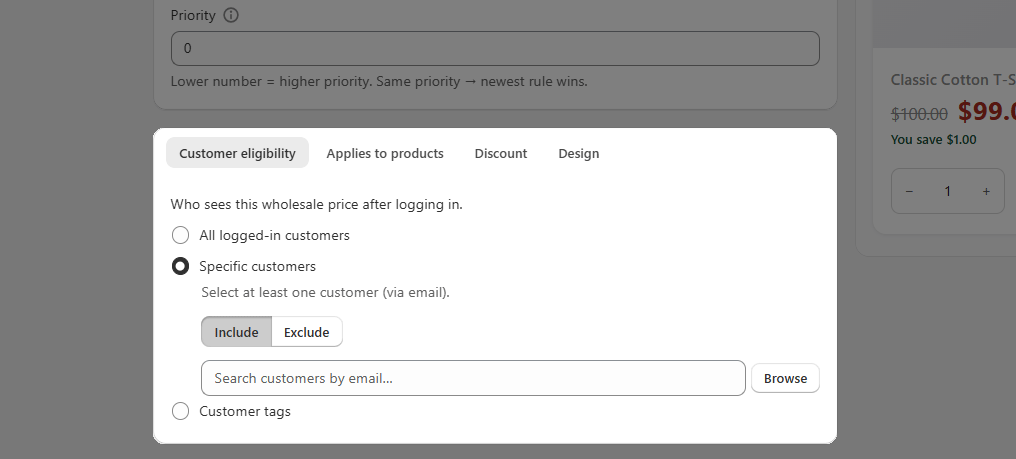
💡 Note: If you choose Specific customers or Customer tags, you need to add at least one entry before you can save the rule.
Step 3: Choose which products it applies to (Product eligibility)
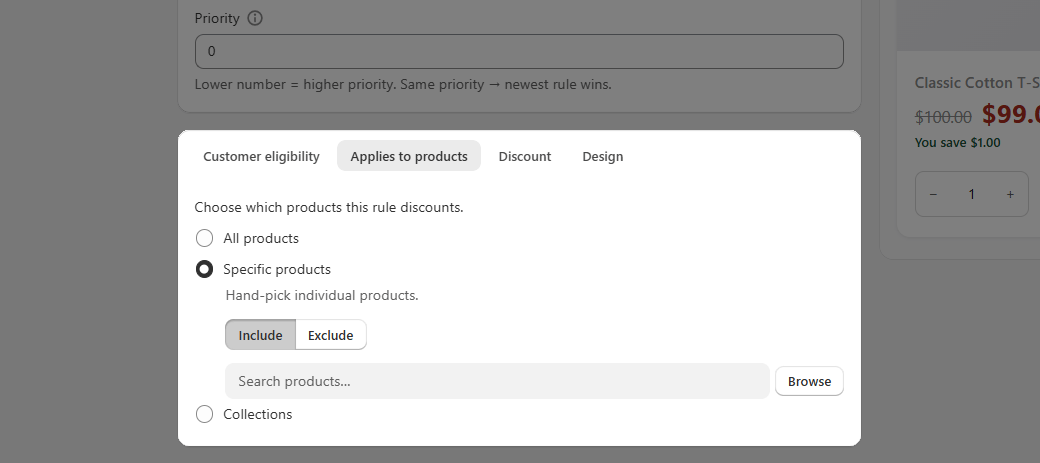
Open the Applies to products tab and choose:
| Option | What it covers |
|---|---|
| All products | Every product in your store |
| Specific products | Only the products or variants you pick |
| Collections | Every product in the collections you choose |
The same Include / Exclude toggle works here too.
Step 4: Set the discount
Open the Discount tab. What you see here depends on the rule type you chose.
Custom price rule
Pick how the discount works:
| Discount Type | What it does |
|---|---|
| % off | Takes a percentage off the product's price (1–99%) |
| Amount off | Subtracts a fixed amount from the product's price |
| Fixed price | Sets the product to an exact price you enter |
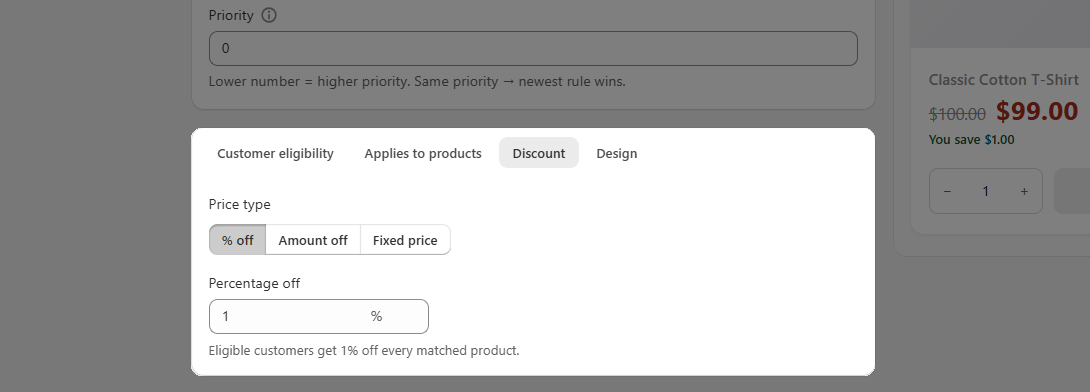
💡 Note: If an Amount off discount would bring a product’s price below zero, the app sells it at $0.01 instead and shows you a warning with a list of the affected products.
Volume price rule
Volume pricing lets you set tiers — the more a customer buys, the bigger the discount:
- Choose whether tiers are based on quantity (number of items) or order value (total spend)
- Choose the discount type — % off or Amount off — which applies across all tiers
- Click + Add tier to set each tier’s range and discount amount (up to 5 tiers)
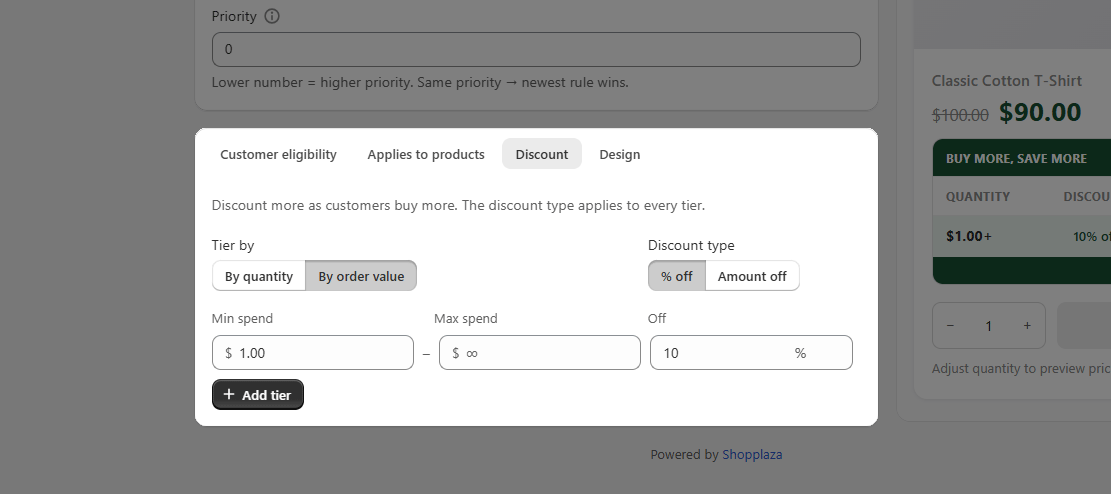
A few things to know about tiers:
- Tiers can’t overlap. If you set a tier to start below where the previous one ends, the app adjusts it automatically.
- You can leave the last tier open-ended to cover “this quantity or more.”
💡 Tip: Use the quantity stepper in the live preview to see which tier a customer would land on at different quantities.
Step 5: Save your rule
Click Save in the top bar when you’re done.
- If the rule is Active, it goes live right away (as long as the app is enabled on your store).
- If it’s a Draft, it’s saved for later and won’t apply to your storefront yet.
💡 Note: If you try to leave the editor with unsaved changes, the app will check whether you want to discard them — so you won’t lose your work by accident.
Rule priority
Sometimes more than one rule could apply to the same customer and product at the same time — for example, an “all products 10% off” rule and a “hoodies at a fixed price” rule both covering the same hoodie for the same customer.
The Priority field decides which rule wins:
- Lower number = higher priority. Priority 1 beats Priority 2, which beats Priority 3, and so on.
- Priority works across both rule types — a Custom price at Priority 1 wins over a Volume price at Priority 2.
- New rules automatically get the next available number (the lowest priority), so your existing rules keep winning unless you change it.
- If two rules share the same priority number, the most recently created one applies.
💡 Tip: To make a rule take over others, give it a smaller priority number than the rules you want it to beat.et