8. How to set freight terms for key accounts
Buyers & terms holds the freight terms and receiving details of each B2B company location. It has two tabs: Companies and Freight groups.
Company locations come from Shopify admin → Companies, which needs B2B on your Shopify plan. Add companies there, then click Sync companies here.
8.1. Companies
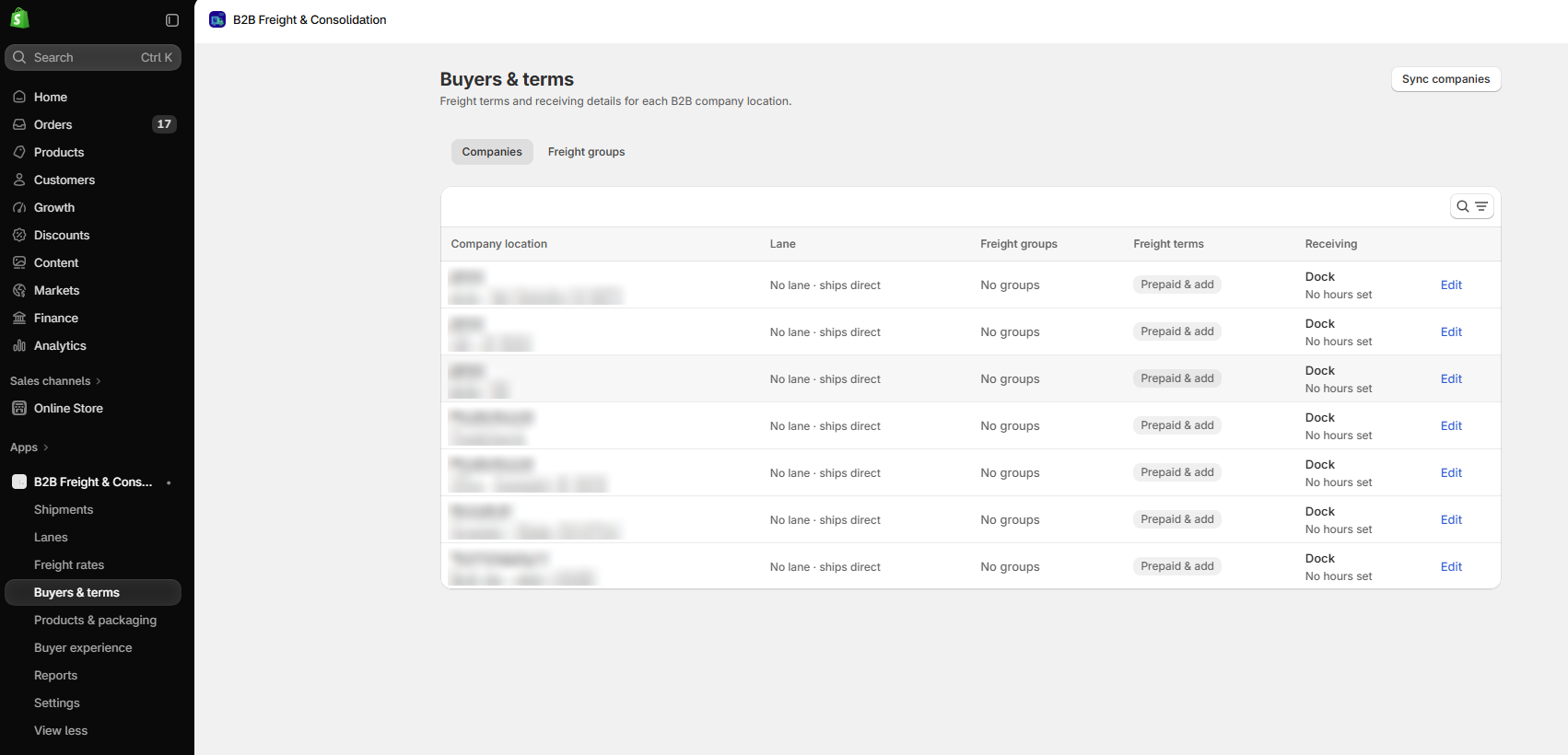
Use Search by company name to find a location, and the Freight group filter to show one group.
| Column | What it shows |
|---|---|
| Company location | The company and its location |
| Lane | The lane that serves it, or No lane · ships direct |
| Freight groups | The groups the location is in |
| Freight terms | The terms that apply, and whether they come from a group or the location |
| Receiving | Dock, Liftgate needed or Front door, and the receiving hours |
Click Edit on a location to change its details.
8.2. Edit a company location
- Freight groups: decide which lanes serve this location, and can set its freight terms
- Freight terms: see the table below
- Free freight over: the order total above which consolidated freight is free, 0 or more
- Carrier account number: printed on the load sheet when the buyer ships collect
- Receiving: Dock, Liftgate needed or Front door. Liftgate needed adds the liftgate fee to direct rates.
- Receiving hours: for example Mon–Fri 7:00–15:00. Printed on the load sheet.
- Notes for the driver: printed on the load sheet
| Freight terms | What the buyer pays |
|---|---|
| Use group terms (default) | Follows the location's freight groups |
| Prepaid & add | The freight shown at checkout, even if a group offers free freight |
| Free consolidated freight | Nothing for consolidated rates on orders over the amount you set. Replaces any group terms. |
| Collect | Nothing for direct and parcel rates at checkout. The buyer ships on their own carrier account. |
Important: Free freight applies only to consolidated rates. Direct and parcel rates keep their price.
8.3. Freight groups
Freight groups put company locations together. Use them to choose who a lane serves (buyers Freight groups, see How to create lanes), or to give key accounts shared freight terms.
To create a group:
- On the Freight groups tab, click Create freight group.
- Enter a Group name, for example Key accounts. Names are unique per store and not case-sensitive.
- Choose the Freight terms: No freight terms, Free consolidated freight over an amount, or Collect.
- Click Create group, then add locations to it from the Companies tab.
A location in several groups gets Collect first, then the lowest free-freight minimum, otherwise Prepaid & add.
Important: When you delete a group, its locations lose it. A lane left with no group serves no buyers until you choose one. Terms set directly on a location don’t change.
8.4. Give a key account free freight
- On Buyers & terms → Freight groups, create a group with Free consolidated freight over an amount.
- Edit the account’s company locations and add them to the group.
You can also set the terms on one location directly.
👉 Use Try it in the rate editor with that buyer chosen to check the price they will see. See How to set up freight rates.
8.5. What Collect means
The buyer ships on their own LTL or parcel carrier account. Direct and parcel rates cost them nothing at checkout, and the load sheet prints their carrier account number.
💡 Need more help? On Overview, under Contact support, click Start a chat to reach our team.