Order limits
Order limits stop a wholesale customer from checking out until their cart meets your rules. They are enforced by Shopify checkout on every Shopify plan. Adding to cart is never blocked, and guests are never limited.
Order limits replace the old Minimum order value page. If you had a minimum order value set up, it was moved here automatically as a limit named after it, for example “Wholesale minimum $500”. Nothing changed for your customers. A one-time banner on the Order limits page confirms the move.
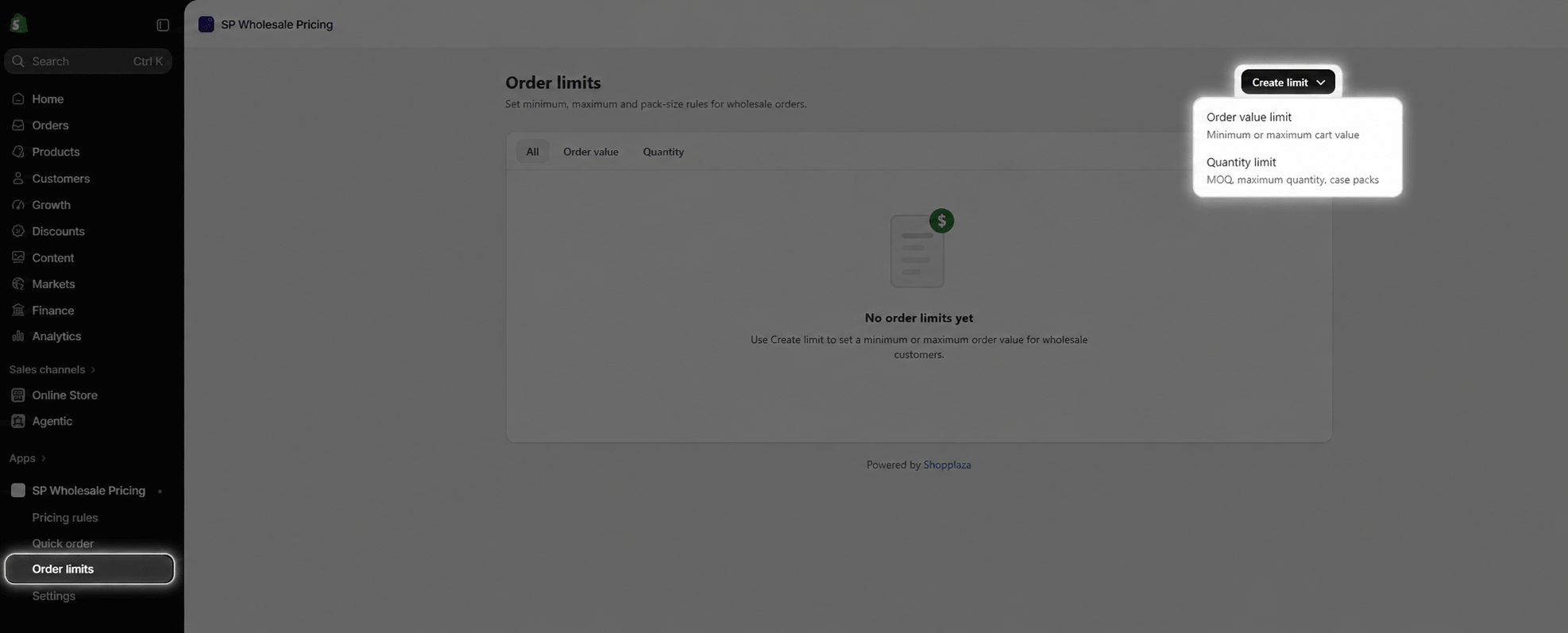
Two types of limit
Click Order limits › Create limit and pick a type:
| Type | What it controls | Example |
|---|---|---|
| Order value limit | Minimum and/or maximum cart value | At least $500 per order |
| Quantity limit | Minimum, maximum and increment, per product or per order | Sold in cases of 6, at least 24 per product |
Both types share the same Rule details (name, status, dates, priority), Customer eligibility (including companies and markets) and Applies to products tabs as pricing rules.
If the cart has none of the products a limit covers, the limit isn’t checked. You can have up to 50 active limits.
Order value limit
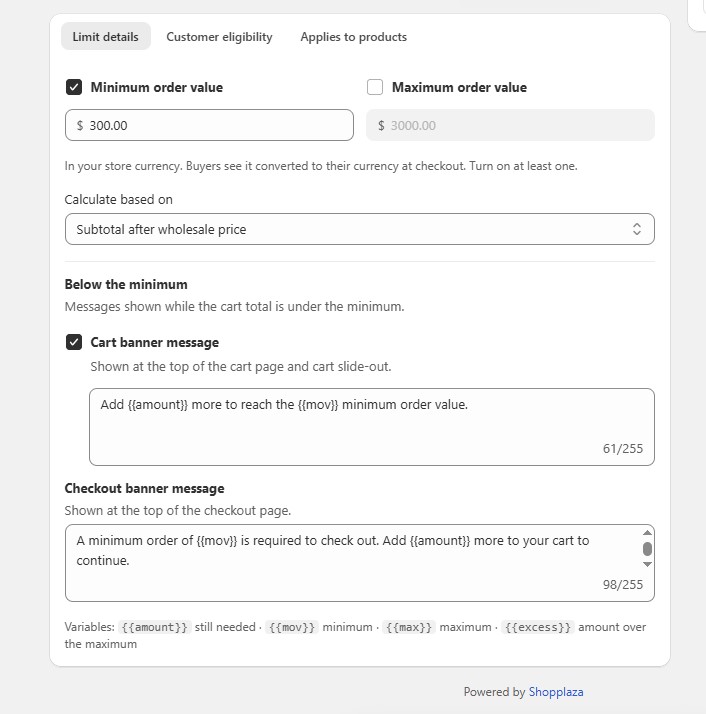
- On the Limit details tab, turn on Minimum order value, Maximum order value, or both, and enter the amounts in your store currency. Buyers see them converted to their currency.
- Choose Calculate based on: Subtotal after wholesale price (what the customer pays) or Subtotal at original price.
- Edit the messages under Below the minimum and Above the maximum. Each side has a cart banner message (turn it off with Show a cart banner) and a checkout banner message.
- Use Below / Meets / Above in Preview cart page to check the banner, then click Save.
Variables you can use in the messages:
| Variable | Shows | Example |
|---|---|---|
{{amount}} |
How much more the customer needs to add | $30.00 |
{{mov}} |
The minimum order value | $100.00 |
{{max}} |
The maximum order value | $5,000.00 |
{{excess}} |
How much the cart is over the maximum | $120.00 |
Default message: “Add {{amount}} more to reach the {{mov}} minimum order value.” A customer sees, for example, “Add $30.00 more to reach the $100.00 minimum order value.”
Quantity limit
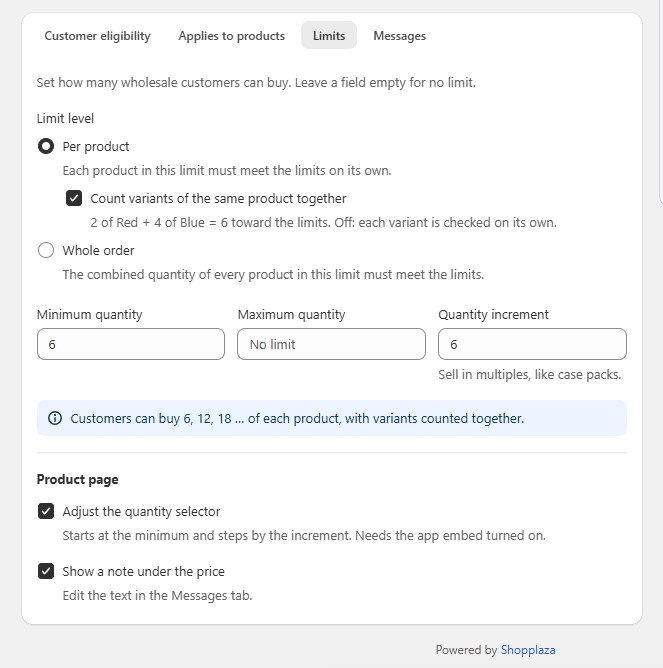
- On the Limits tab, choose the Limit level:
- Per product – each product must meet the limits on its own. Turn on Count variants of the same product together to count 2 Red + 4 Blue as 6.
- Whole order – the combined quantity of every product in the limit must meet the limits.
- Fill in any of Minimum quantity, Maximum quantity and Quantity increment (sell in multiples, like case packs). Leave a field empty for no limit, but set at least one.
- Read the summary line, for example “Customers can buy 6, 12, 18 … of each variant”. If the minimum or maximum isn’t a multiple of the increment, a warning offers a Use N button to fix it.
- Under Product page, choose Adjust the quantity selector (it starts at the minimum and steps by the increment) and Show a note under the price.
- On the Messages tab, edit the product page note and the three cart and checkout messages: Below the minimum, Above the maximum and Not a multiple of the increment. Use Language to add translations. Customers see their storefront language, with English as the fallback.
- Click Save.
Variables you can use in the messages:
| Variable | Shows | Example |
|---|---|---|
{{product}} |
The product name (per-product limits only) | Ethiopian Blend 1kg |
{{min}} |
The minimum quantity | 6 |
{{max}} |
The maximum quantity | 120 |
{{step}} |
The quantity increment | 6 |
{{needed}} |
How many more to add | 4 |
{{excess}} |
How many to remove | 3 |
{{suggested}} |
The nearest allowed quantity | 12 |
When several limits match
- Order value – limits are checked in priority order. The first matching limit with a minimum sets the minimum, and the first with a maximum sets the maximum, so a minimum and a maximum from different limits can both apply.
- Quantity – each product follows the first quantity limit that matches it.
What customers see
- Product page – the quantity selector starts at the minimum and moves by the increment, with a note such as “Min. 6 · Sold in packs of 6” under the price.
- Cart page and cart drawer – a yellow banner lists what to fix, and lines that break a quantity limit get a red quantity box. If your theme hides the banner, add the SP Order Limits Banner block to the cart.
- Checkout – an error at the top of the page blocks payment until the cart is fixed. Up to 3 quantity messages are listed; the rest fold into “+ N more”.
- Quick Order page – quantities are checked before adding to cart.
- Shopify POS – limits show as warnings on the POS tile but don’t block the sale.
The product page selector, note and cart banner need the app embed turned on.