Integrations
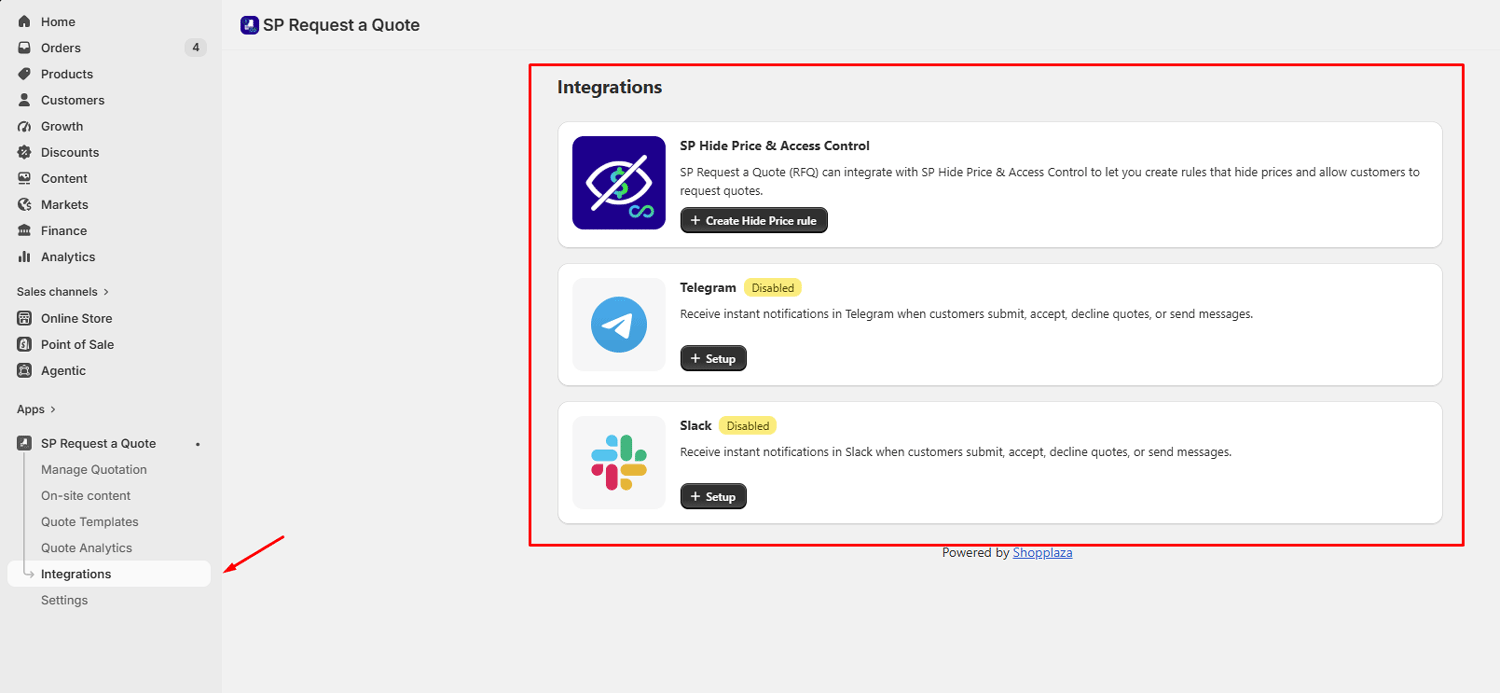
The Integrations screen brings together the apps and channels SP Request a Quote can work with.
Go to Apps > SP Request a Quote (RFQ) > Integrations.
You’ll find three cards:
- SP Hide Price & Access Control — hide prices and replace Add to Cart with Request a Quote
- Telegram — get quote notifications in a Telegram chat
- Slack — get quote notifications in a Slack channel
SP Hide Price & Access Control
SP Request a Quote integrates with SP Hide Price & Access Control to support stores that hide prices and use custom or negotiated pricing.
With this integration, you can:
- Create rules to hide product prices
- Replace Add to Cart with Request a Quote on the storefront
Customers can submit quote requests normally, and all quotes are managed in the Request a Quote app.
To get started, click Create Hide Price rule to set up your price-hiding conditions.
Telegram
Connect Telegram to receive notifications when a customer submits a quote request or sends a message during negotiation.
Before you begin, prepare these two values:
- Bot Token
- Chat ID
Steps to connect Telegram:
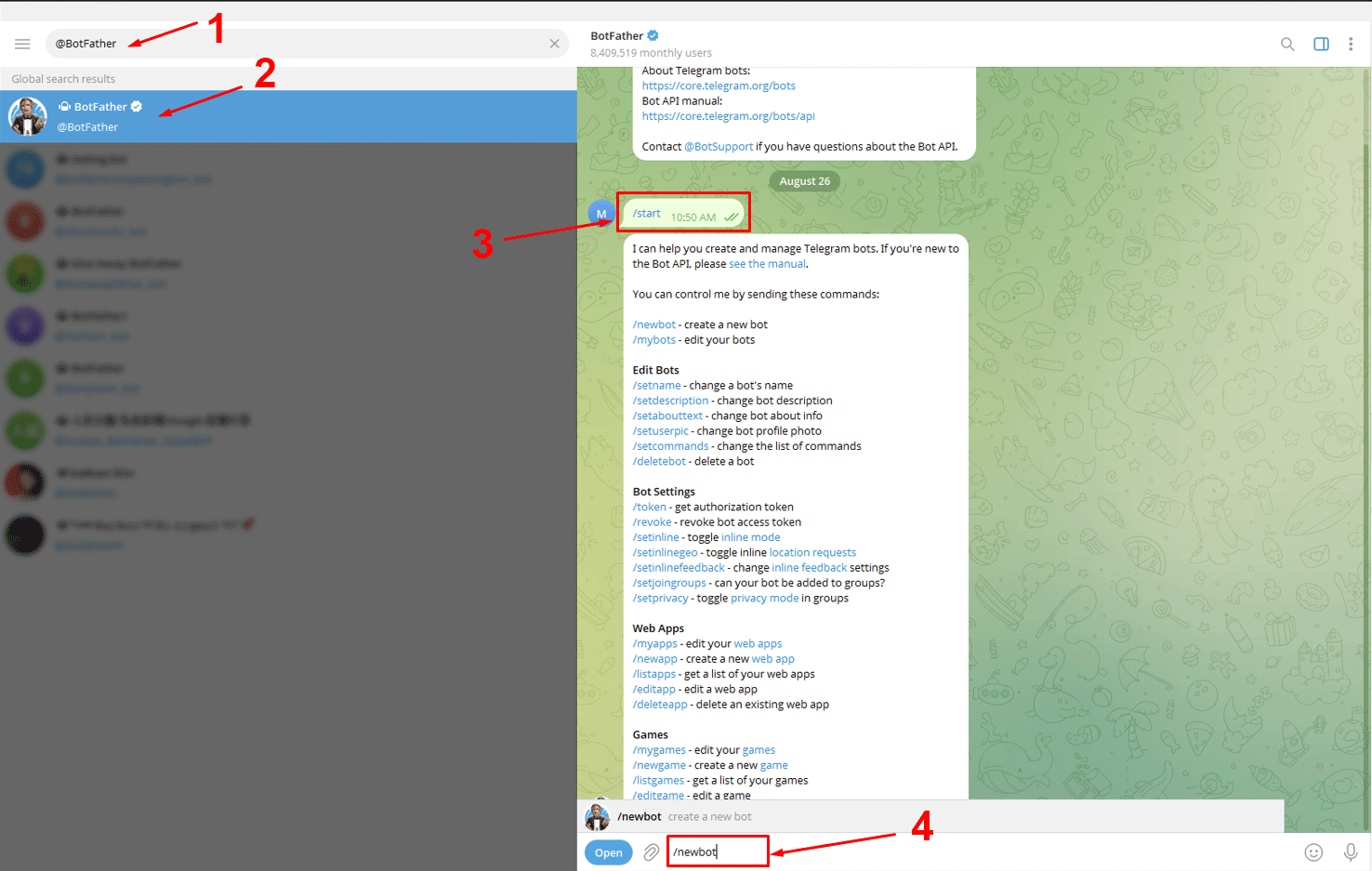
- Open Telegram and look for
@BotFather - Send
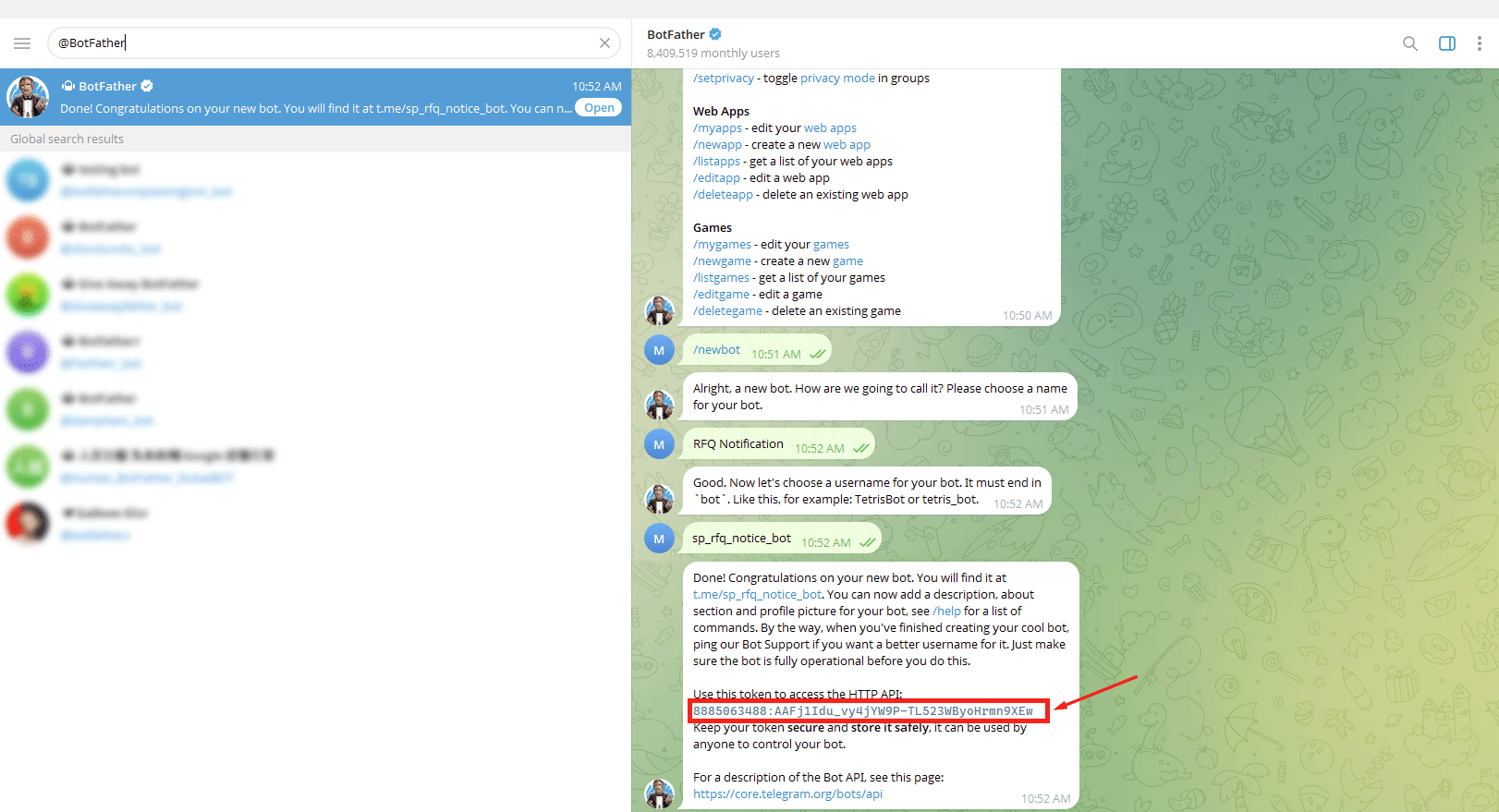
/startthen/newbot - Enter a bot name, such as RFQ Notification.
- Create a username ending in bot, such as sp_rfq_notice_bot.
- Copy the Bot Token provided by BotFather.
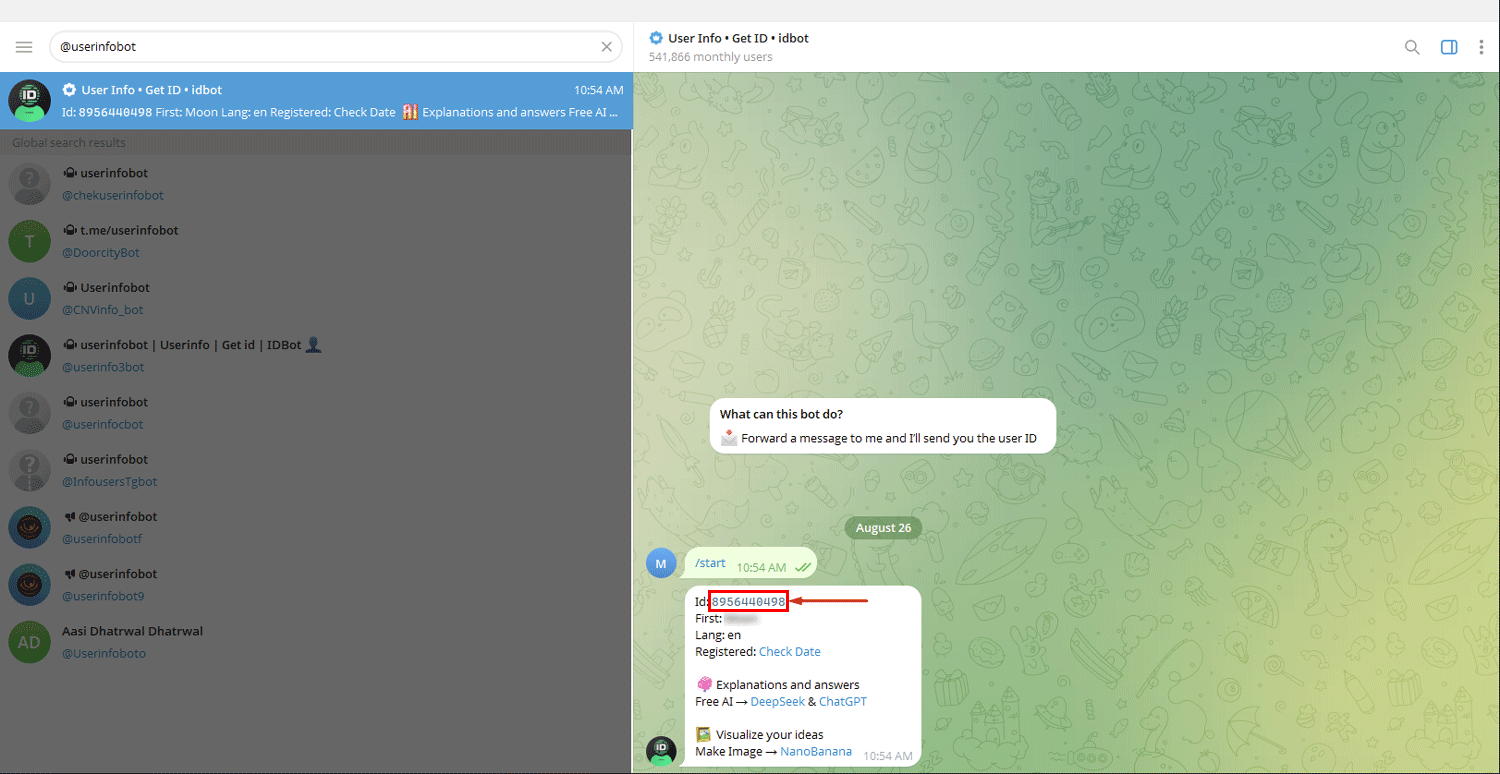
- Search for @userinfobot and send
/start. - Copy the Chat ID it returns.
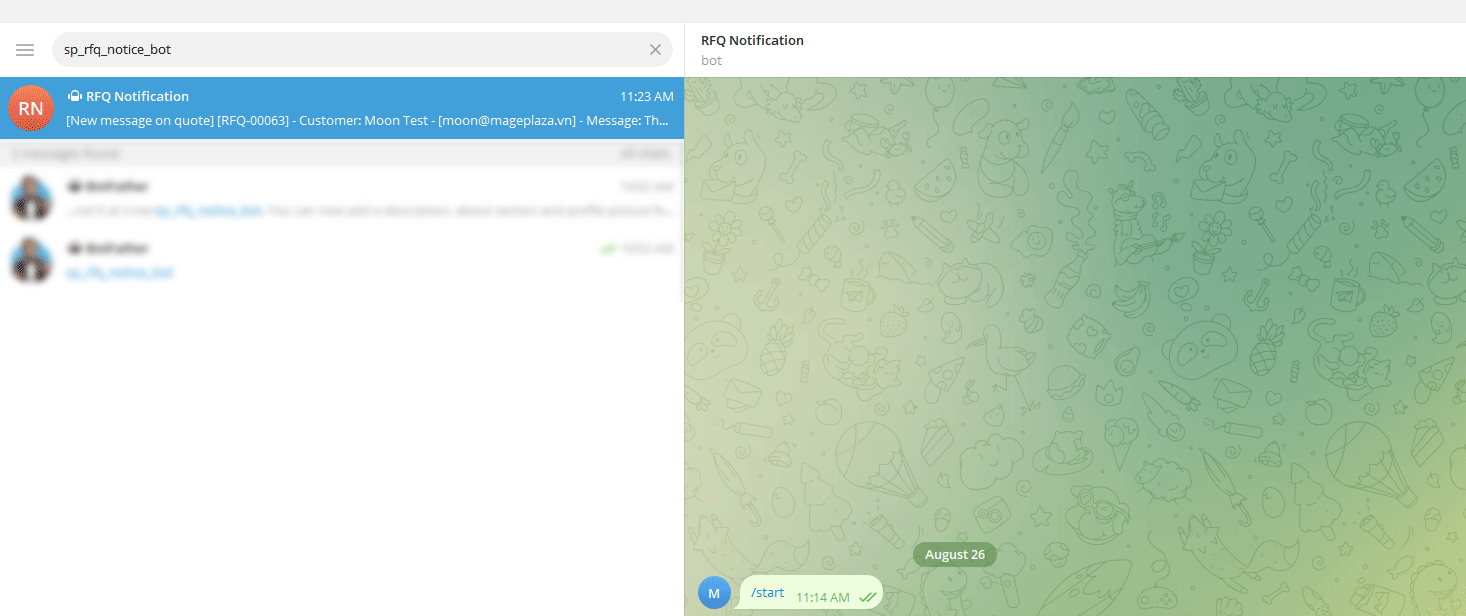
- Search for the bot username you created and send
/start. This allows the bot to send notifications to your chat.
- In SP Request a Quote, go to Integrations > Telegram.
- Paste your Bot Token and Chat ID.
- Click Test connection. If successful, Telegram receives a test message and the integration displays Connected.
- Turn on the notification toggle and click Save.
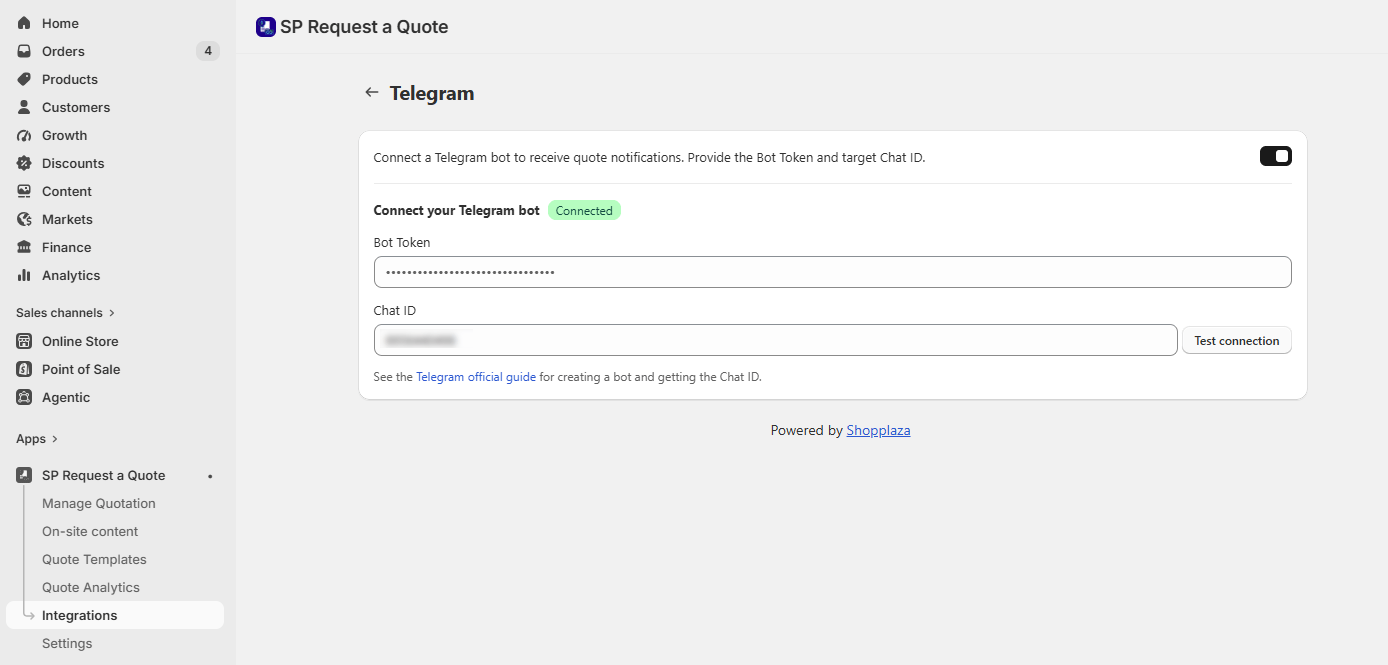
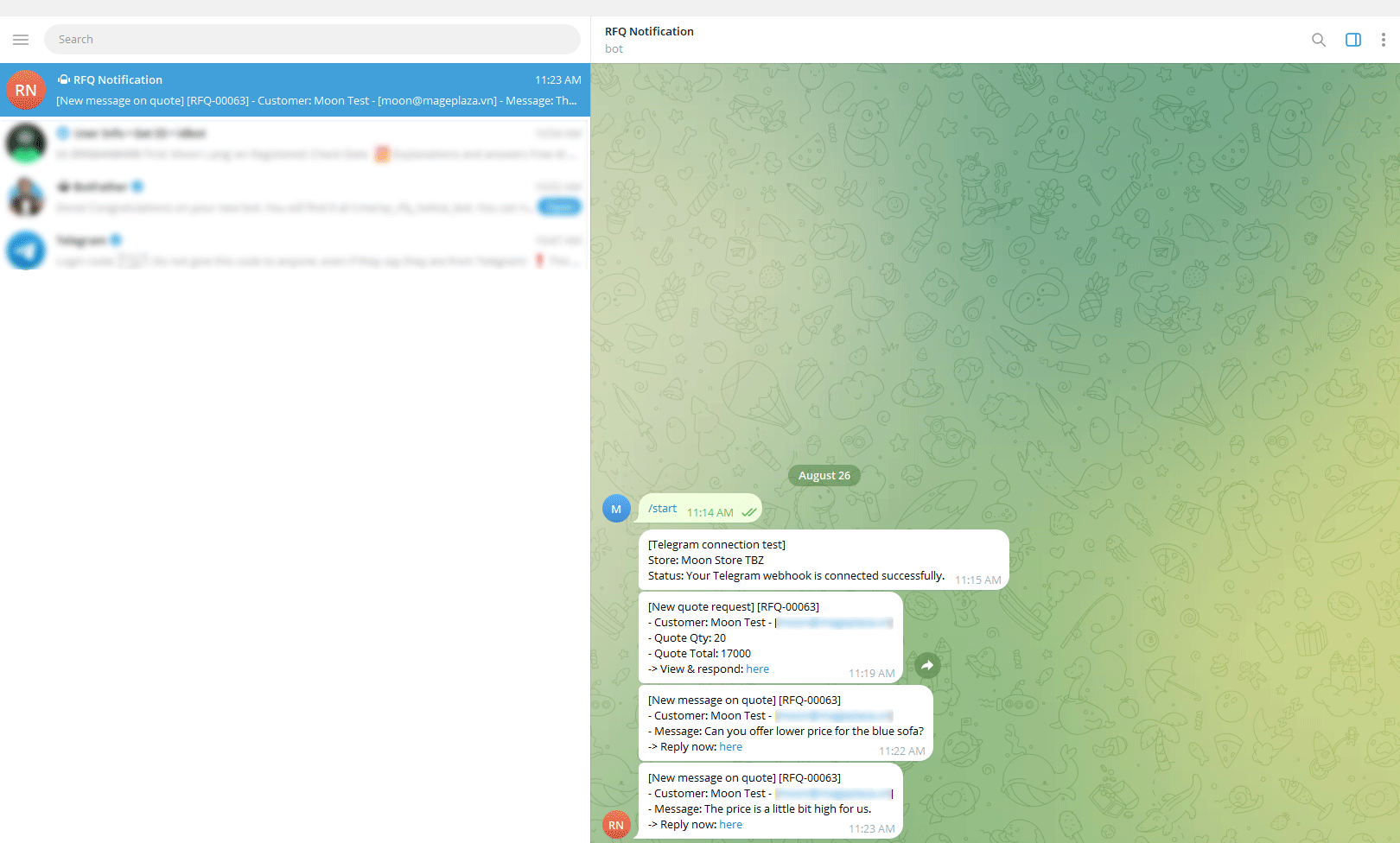
Note: Notifications are sent only when the toggle is on and the integration shows Connected. Turning off the toggle pauses notifications without deleting your credentials.
Slack
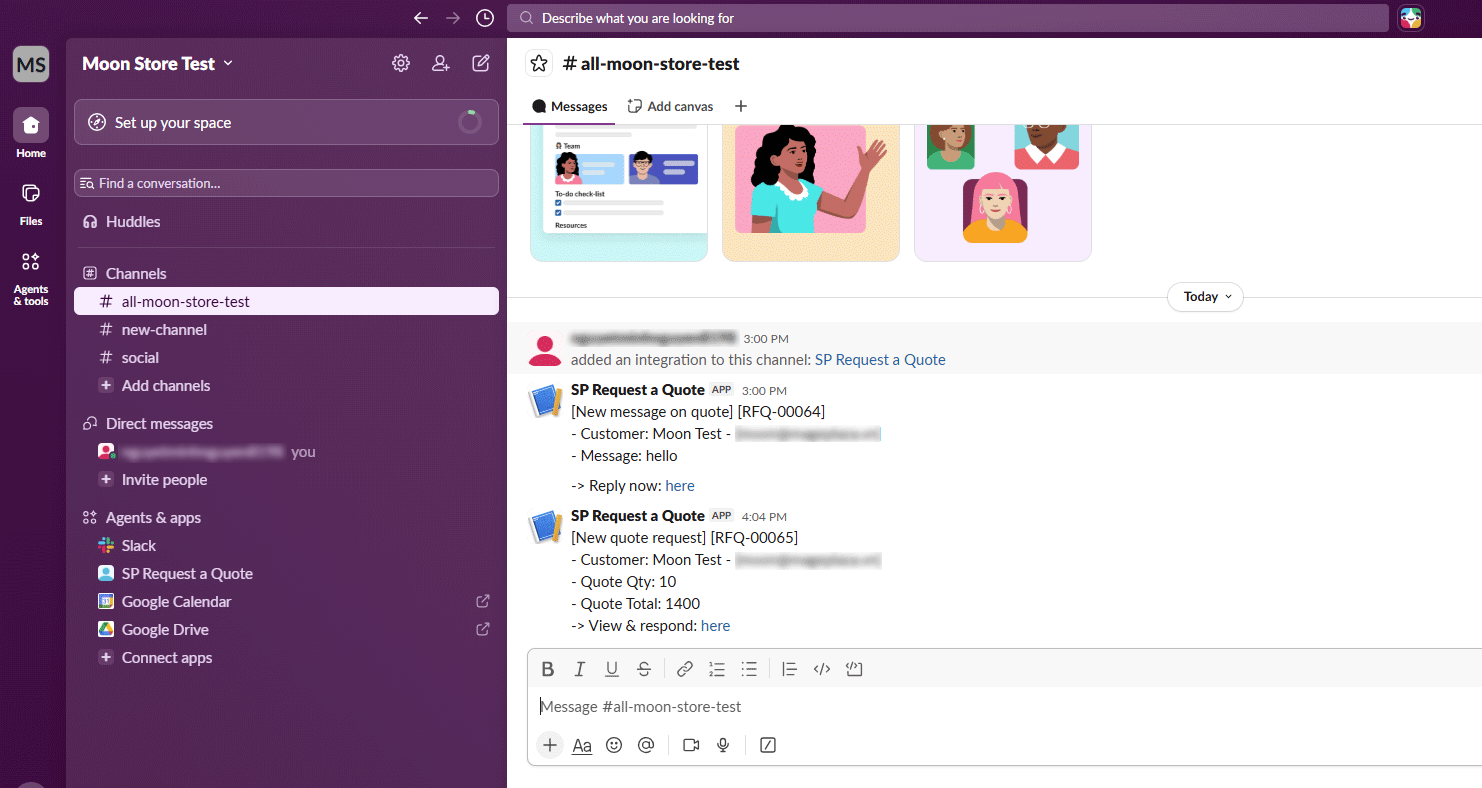
Connect Slack to send quote requests, negotiation messages, and customer attachments to a selected channel.
Keep the SP Request a Quote Slack Setup screen open while creating your Slack app, as you will copy information between both platforms.
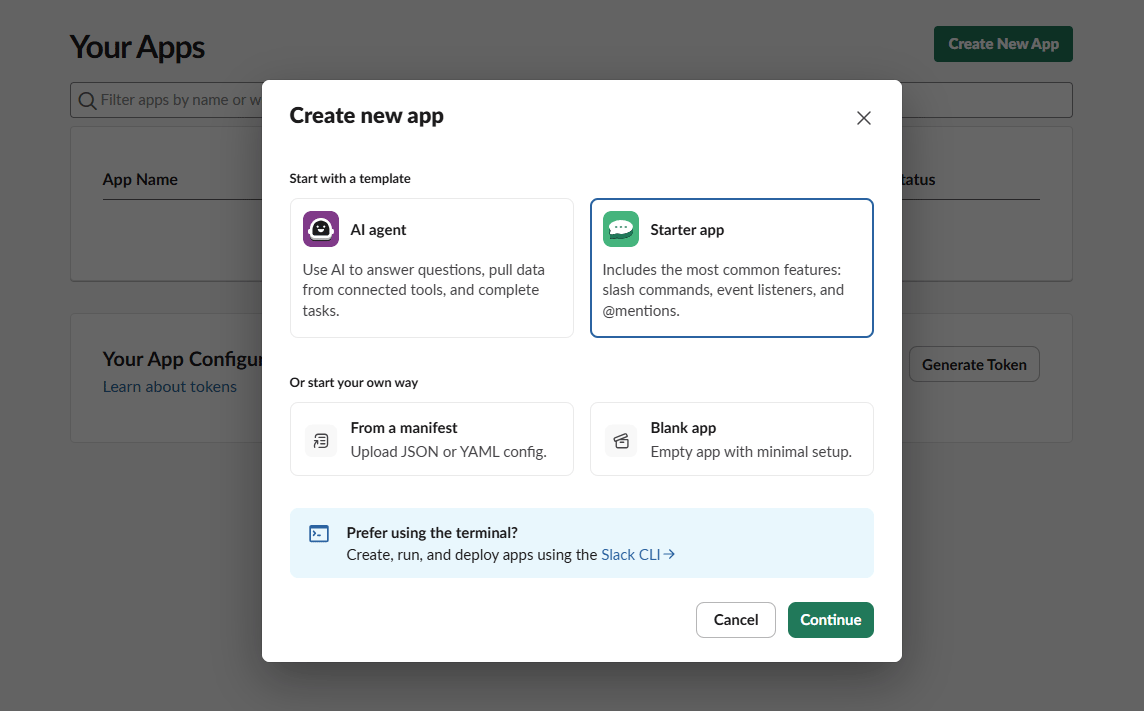
- Go to api.slack.com/apps and click Create New App → Starter app. Give it a name and pick your workspace.
- Back in SP Request a Quote, click Copy next to Redirect URL.
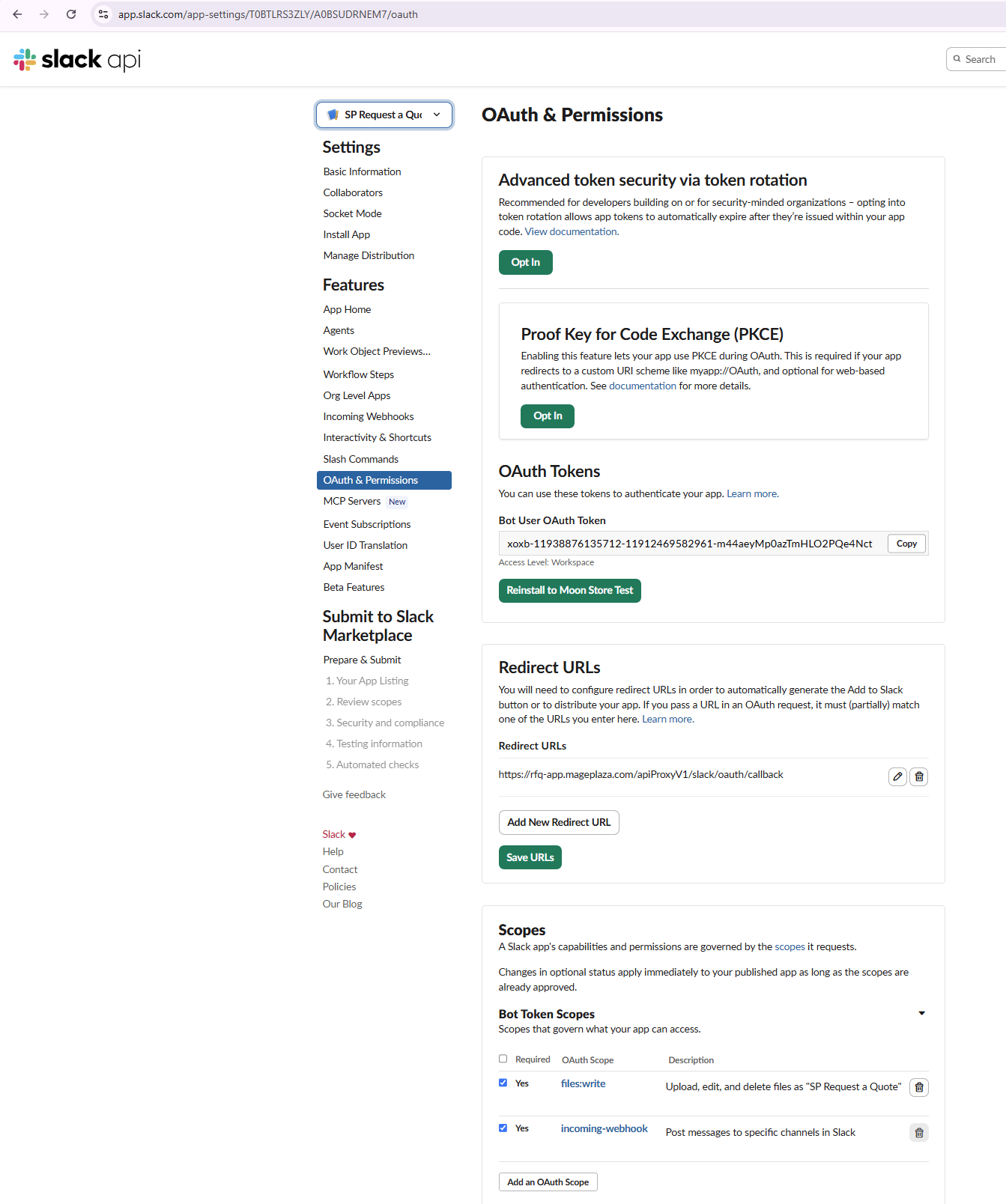
- In Slack, open OAuth & Permissions → Redirect URLs, click Add New Redirect URL, paste the URL and click Save URLs.
- On the same page, under Scopes → Bot Token Scopes, add:
incoming-webhook— sends notifications to Slack.files:write— allows the app to send customer attachments.
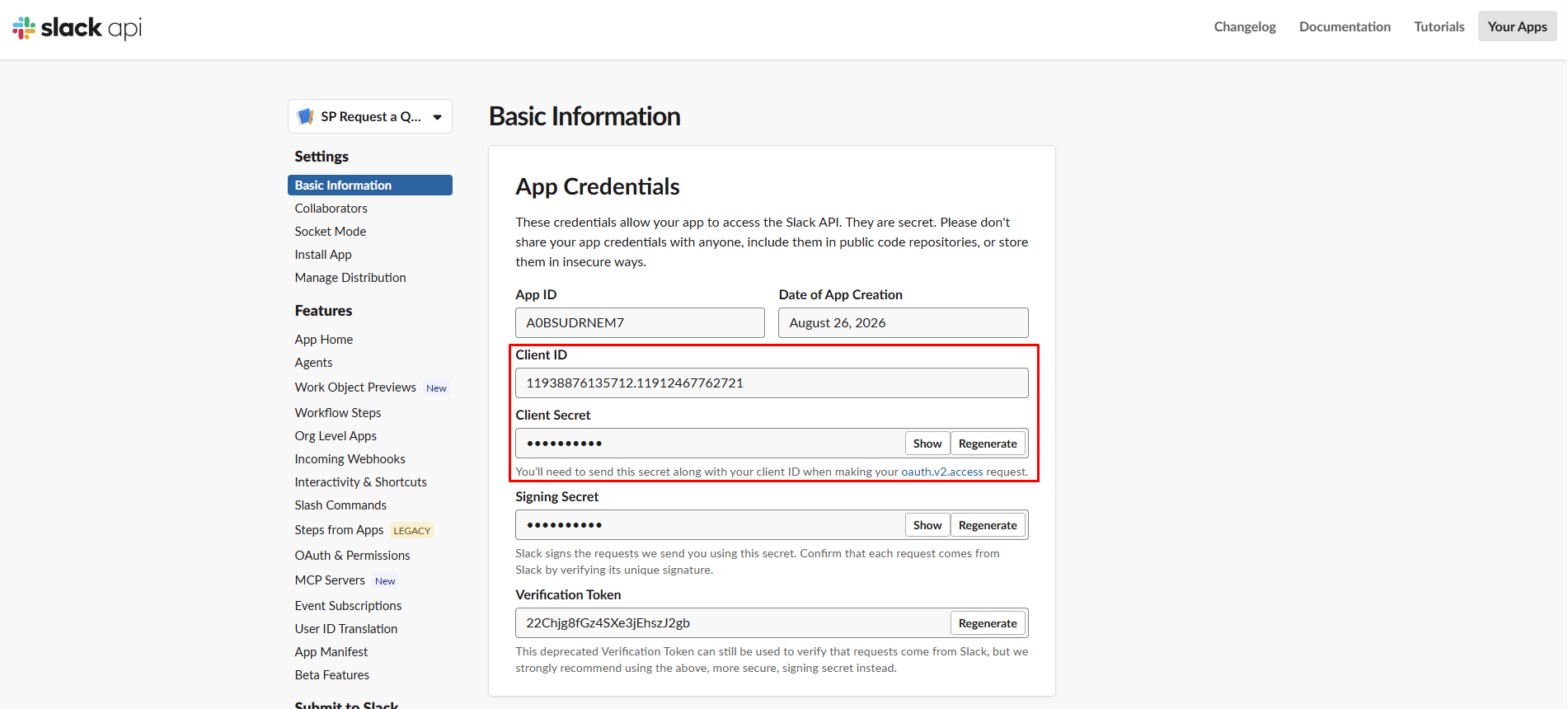
- Open Basic Information → App Credentials
- Copy the Client ID and Client Secret.
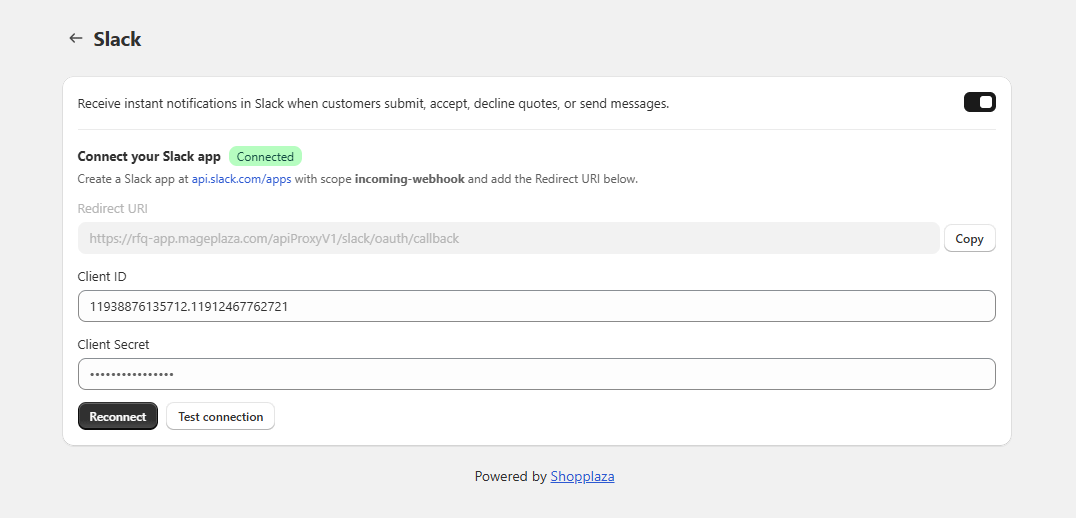
- Return to SP Request a Quote → Integrations → Slack and click Setup.
- Paste the Client ID and Client Secret.
- Click Test connection.
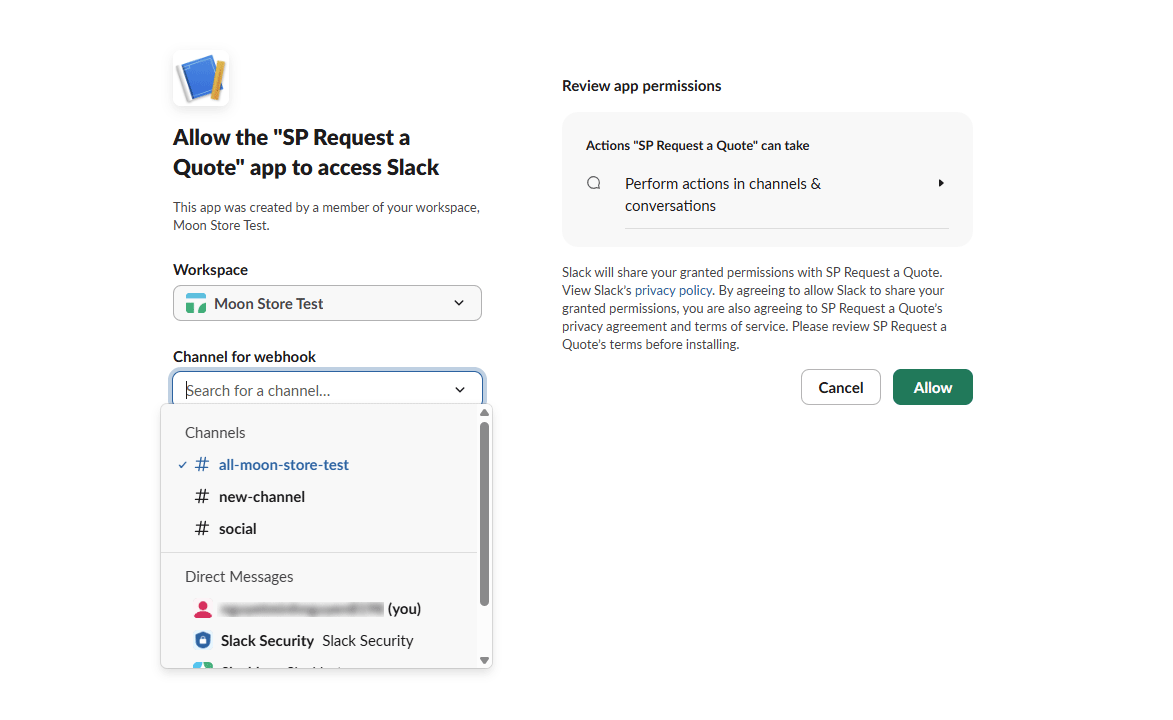
- When Slack opens, select the channel that should receive notifications and click Allow.
- After the integration displays Connected, turn on the notification toggle and click Save.
💡 The channel is chosen during the Slack authorization step, not in the app. To post to a different channel, connect again and pick the new channel.