Customize Quote Cart Template
This guide explains how to customize the Quote Cart template shown on your storefront.
Use Quote templates when you want to adjust the buyer-facing Quote Cart design, edit component settings, or switch to a different template style.
Open Quote templates
Go to Apps → SP Request a Quote (RFQ) → Quote templates
From this page, you can choose, apply, and customize the Quote Cart template used on your storefront.
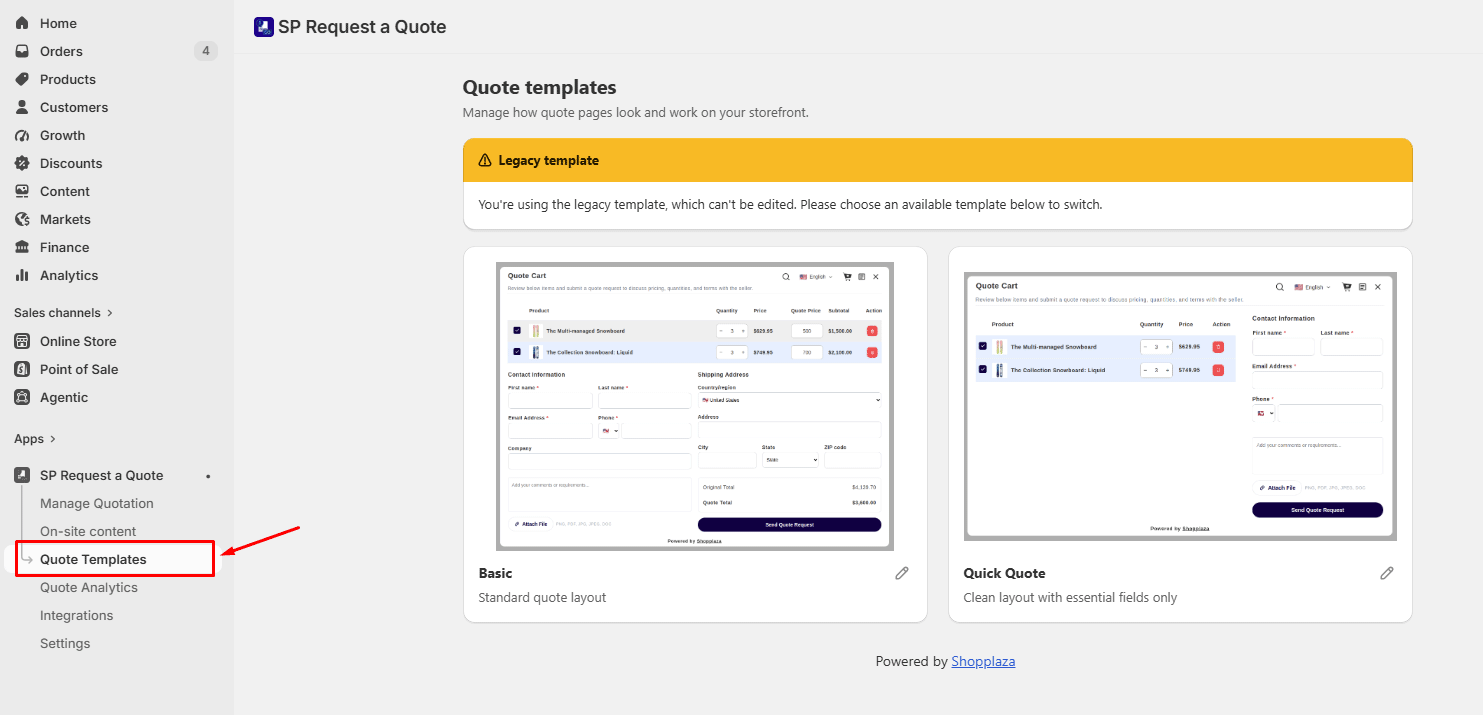
Choose a Quote Cart template
SP Request a Quote (RFQ) includes two built-in templates:
- Basic
- Quick Quote
Only one template can be applied at a time.
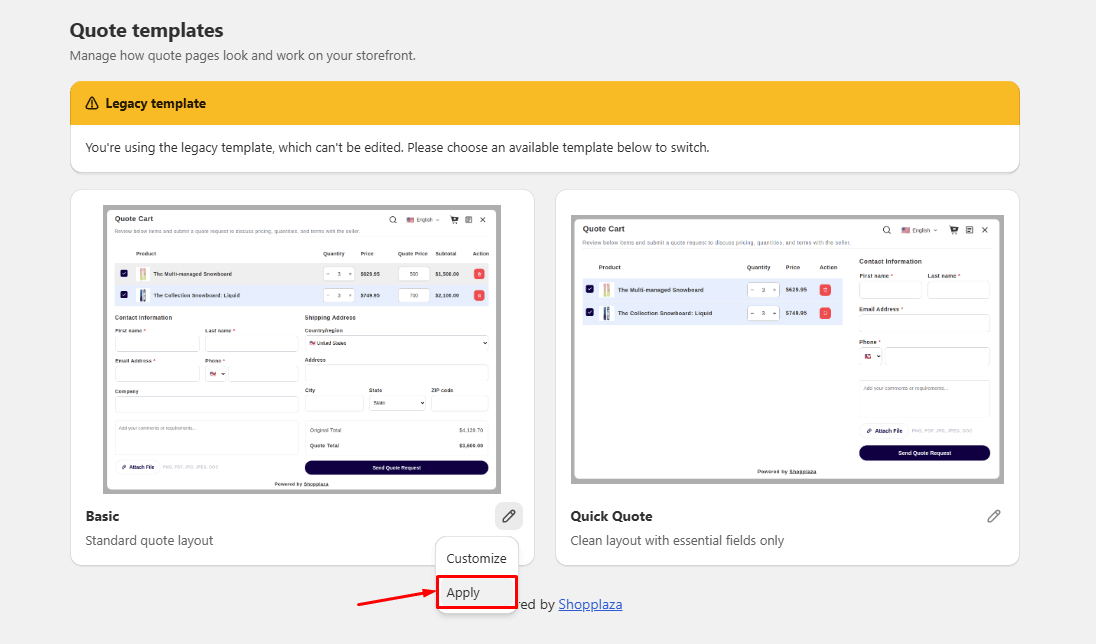
To use a template:
- Open Quote templates.
- Choose the template you want to use.
- Click Apply.
The applied template will be used for the Quote Cart modal on your storefront.
Legacy template for existing stores
If your store used a previously customized Quote Cart, you may see a Legacy template banner.
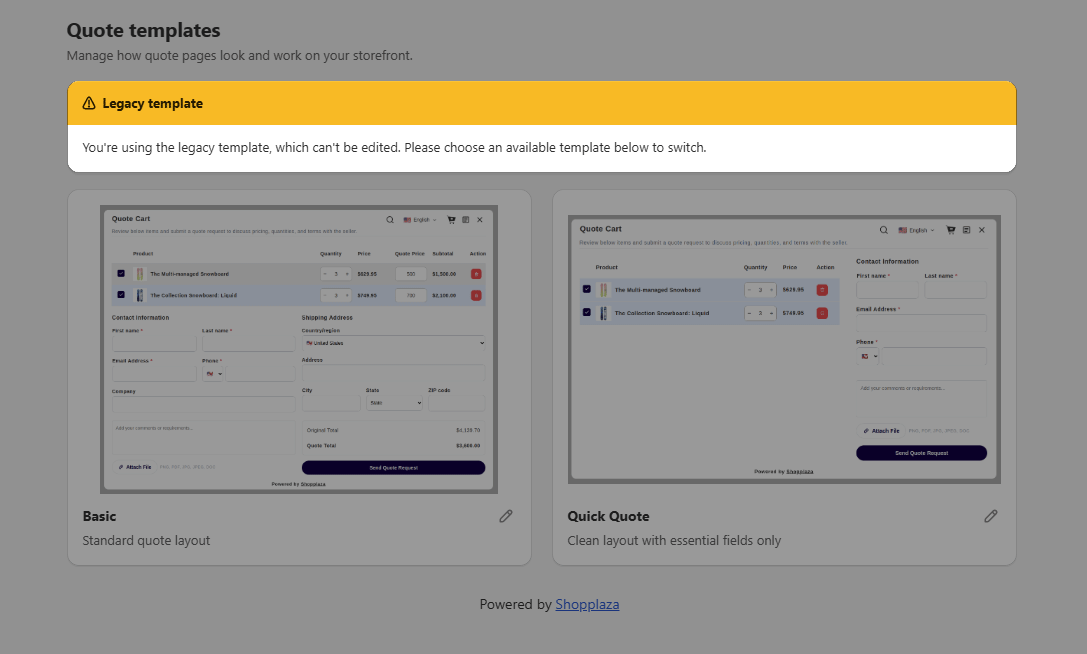
This means your store is still using the old customized Quote Cart layout.
To switch to the new template system:
- Choose one of the available templates.
- Click Apply.
- Review the Quote Cart on your storefront.
After switching, the selected template controls the Quote Cart design.
Customize a template
Click Customize on the template you want to edit.
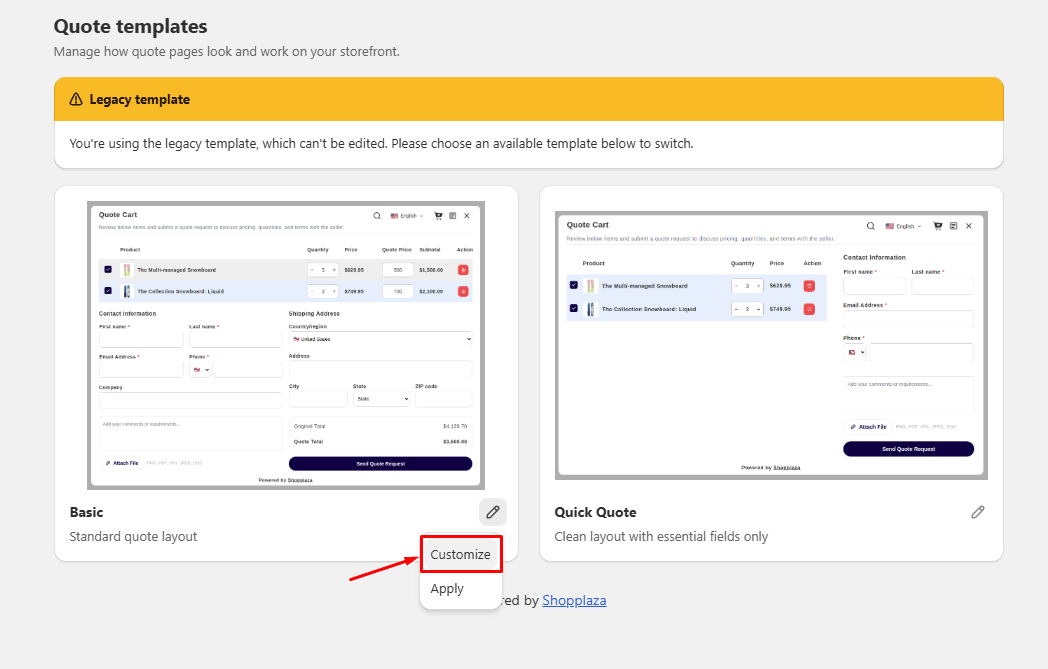
The template editor has three main areas:
- Component list: Select components or blocks to edit.
- Preview: View the Quote Cart design in real time.
- Settings panel: Configure the selected component in detail.
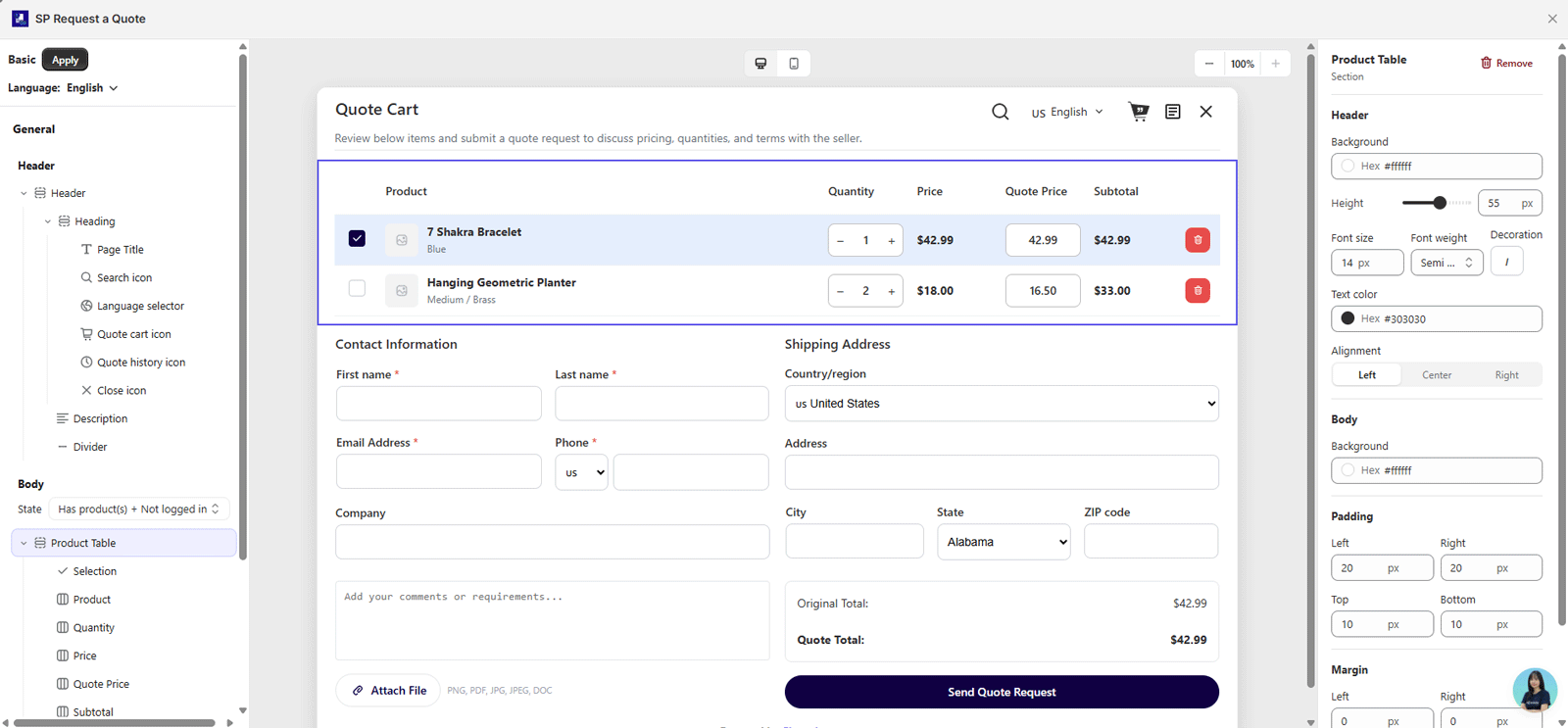
To customize a part of the Quote Cart template, select the related block in the editor and update its settings.
For example, you can select the Quantity block and adjust options such as column width, quantity input size, and corner radius, etc.
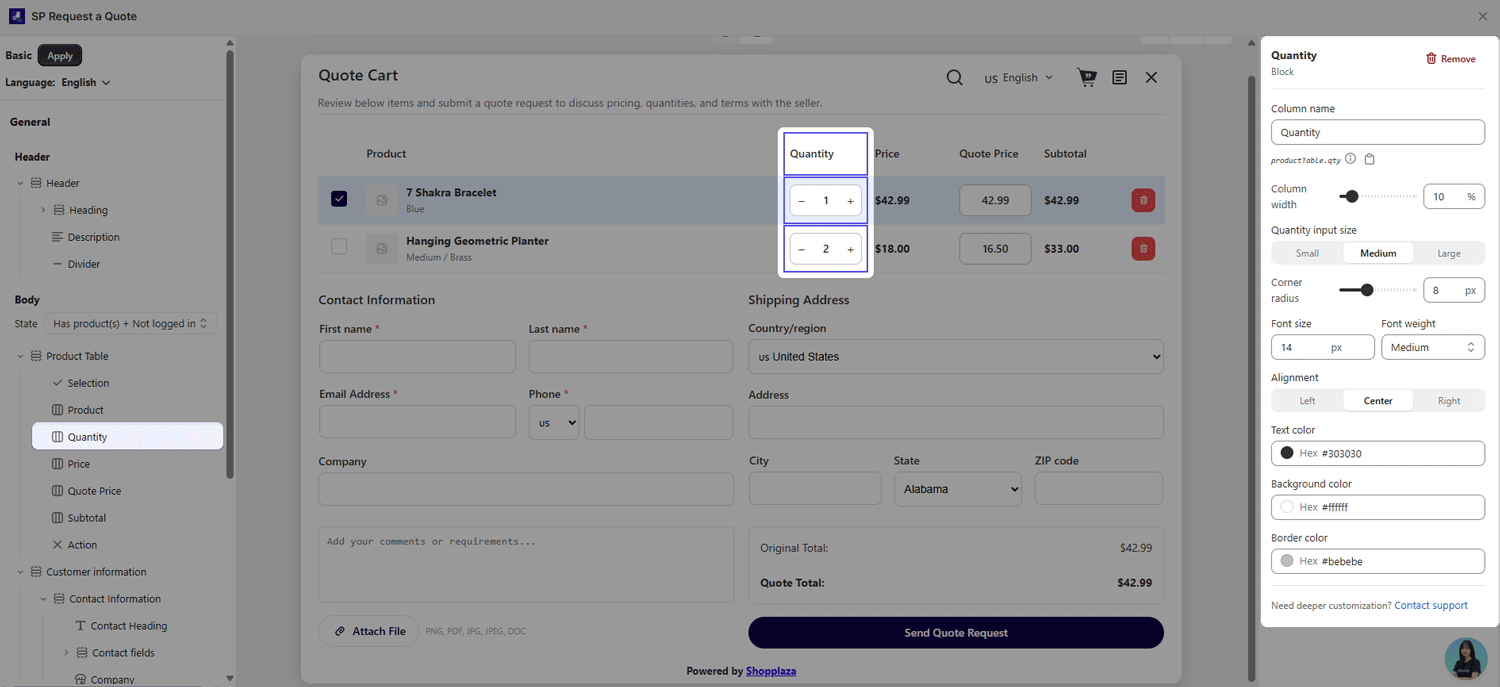
Your changes are reflected in the preview, so you can review the storefront experience before applying the template.
Layout and advanced customization
Merchants can customize available components and fields in the template editor.
However, some advanced layout actions are not available in the merchant app, including:
- Drag-and-drop layout editing
- Adding new blocks
- Adding new sections
- Hiding blocks
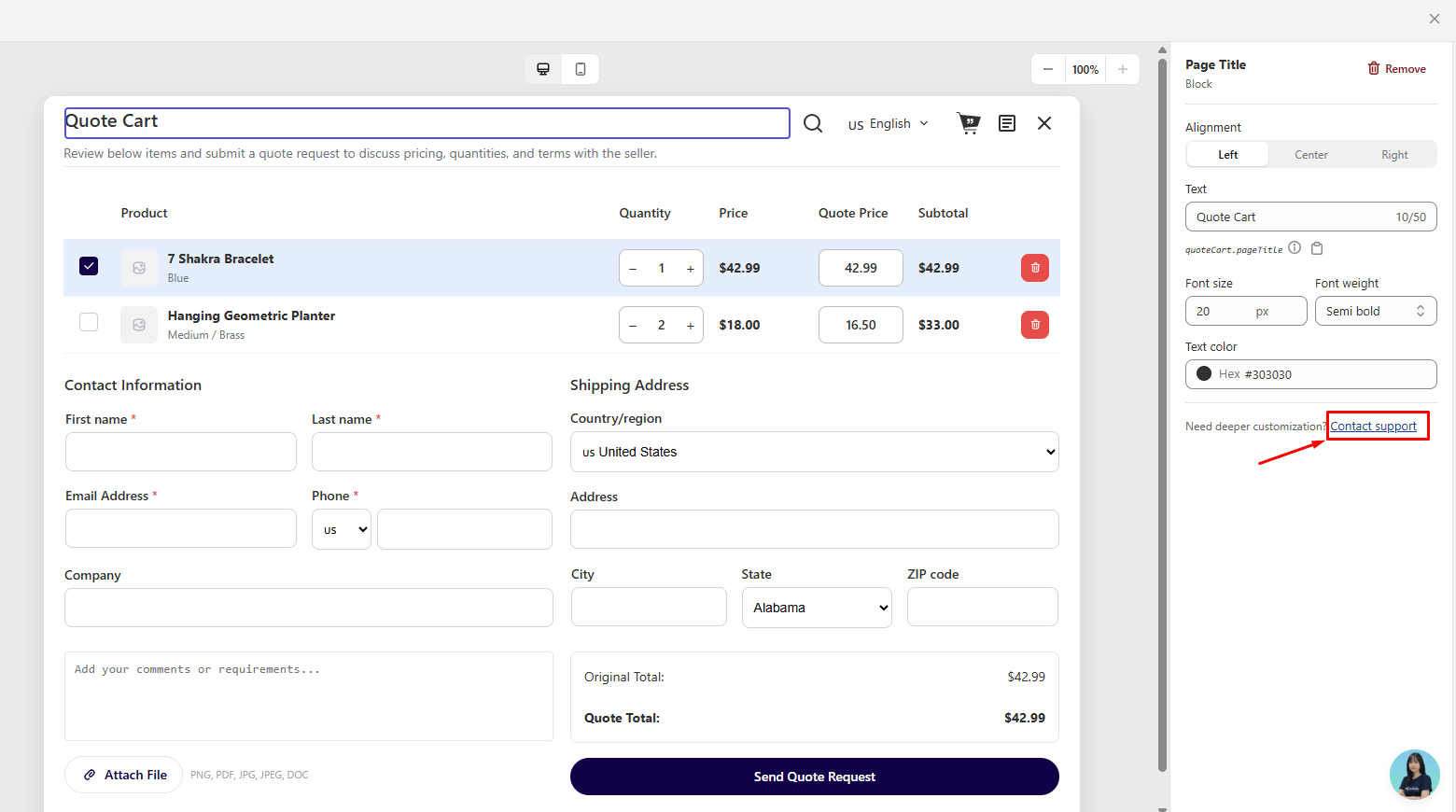
If you need deeper customization, click Contact support in the editor.
The chat widget will open with a pre-filled message so you can send your request to the support team.
Multilingual content
Text edited in the Quote template editor is used as the English source content.
For other languages, go to Settings → Translations
Use Translations to update the Quote Cart text for each enabled language.
If you need to add another language, contact support. The support team can enable additional languages for your store.
Test the Quote Cart template
After applying or editing a template, open your storefront and test the Quote Cart as a buyer.
Check that:
- The correct template is applied.
- Visible components appear as expected.
- Hidden components are not shown.
- Custom fields display correctly.
- Required fields work as expected.
- The Quote Cart can still be submitted successfully.
- Translated text appears correctly, if you use multiple languages.
Note: If the Quote Cart layout does not appear as expected, review the active template, check your saved changes, and contact support if deeper layout customization is needed.