Spam Protection
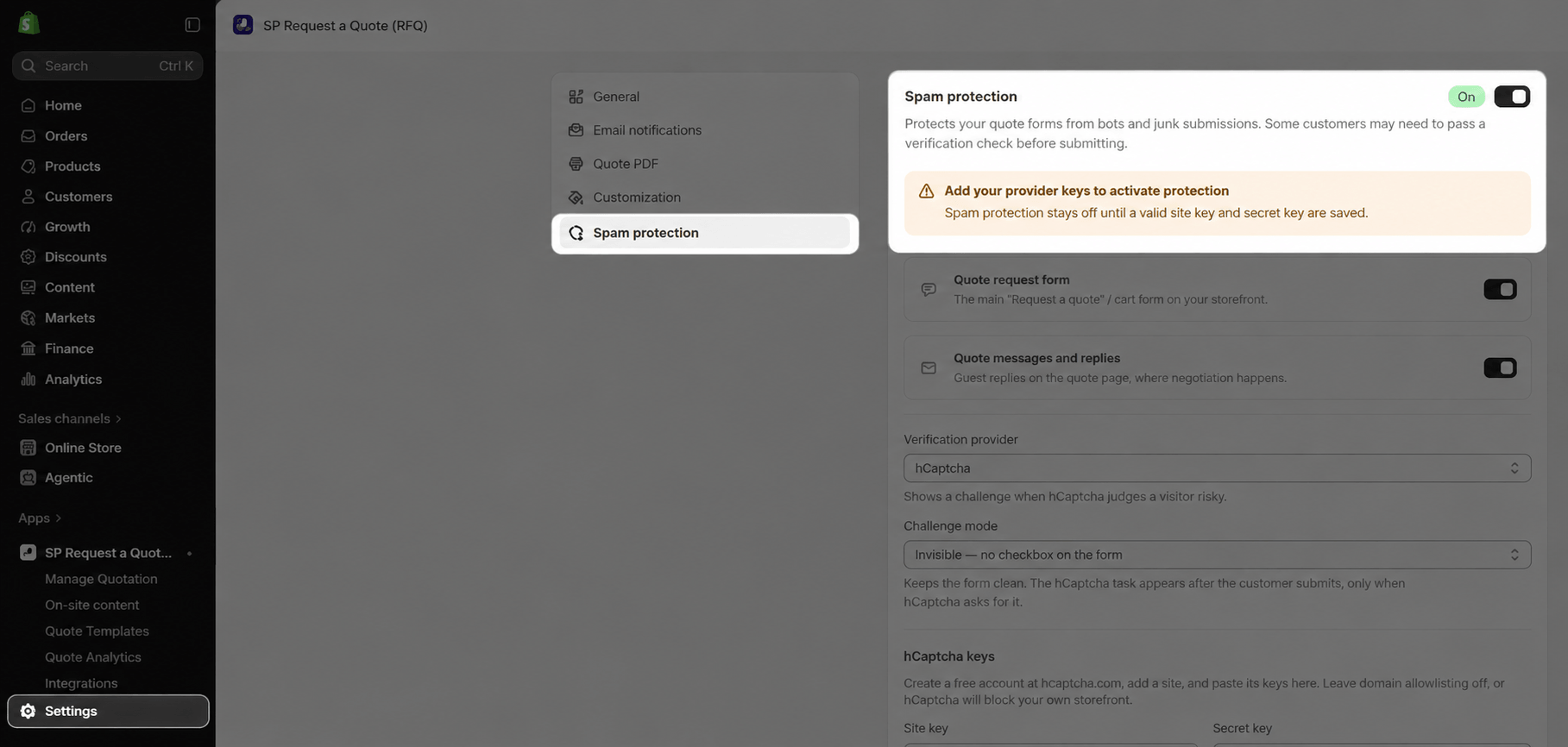
Spam protection blocks bots and junk submissions on your public quote forms with a captcha. You choose the provider, create your own account and keys, and paste them into the app. The app does not create keys for you.
To open it, go to Apps → SP Request a Quote (RFQ) → Settings → Spam protection.
Before you begin
- An account with one captcha provider: hCaptcha or Google reCAPTCHA. Both offer a free plan.
- A list of every domain your storefront uses, including your
.myshopify.comaddress.
How to turn on spam protection
-
Switch on Enable spam protection. It is off by default. When it is on, all settings below become editable.
- Under Where to verify, choose one or both. Each can be turned on or off on its own:
- Quote request form: the form buyers submit from the Quote Cart.
- Quote messages and replies: the buyer chat on each quote detail page.
-
Choose a provider and its options (see Choose a provider).
-
Enter your Site key and Secret key (see How to get your keys).
- Click Test keys. When the test passes, click Save.
Note: If spam protection is on but no valid key pair is saved, a warning banner appears and spam protection is not active yet. Enter both keys, pass Test keys, then save.
Choose a provider
| Provider | What buyers see | Setting |
|---|---|---|
| hCaptcha (default) | A checkbox, or nothing (invisible check) | Challenge mode |
| Google reCAPTCHA v2 | A checkbox, or nothing (invisible check) | Challenge mode |
| Google reCAPTCHA v3 | Nothing. It always runs in the background | Score threshold |
-
Challenge mode (hCaptcha and reCAPTCHA v2): show a visible checkbox to buyers, or run the check invisibly.
-
Score threshold (reCAPTCHA v3): Google scores each request from 0.0 (likely a bot) to 1.0 (likely a human). Requests below your threshold are blocked. The default is 0.5. A higher value blocks more bots but may also block real buyers.
Note:
-
Keys are saved per provider. If you switch to another provider, the keys of the previous provider are removed.
-
After you save, the Secret key is masked and can’t be viewed again. Keep a copy somewhere safe.
How to get your keys
Google reCAPTCHA v2 or v3
-
Go to https://google.com/recaptcha/admin/create and register a new site. Enter any label, for example your store name.
-
Under reCAPTCHA type, pick the version you selected in the app:
-
Challenge (v2) for reCAPTCHA v2. Then choose the option that matches your Challenge mode in the app: “I’m not a robot” Checkbox or Invisible reCAPTCHA badge.
-
Score based (v3) for reCAPTCHA v3.
-
-
Under Domains, add every host your storefront uses, including your
.myshopify.comaddress. Enter the host only: nohttps://and no trailing/.-
Correct:
yourstore.com,www.yourstore.com,yourstore.myshopify.com -
Wrong:
https://yourstore.com/
-
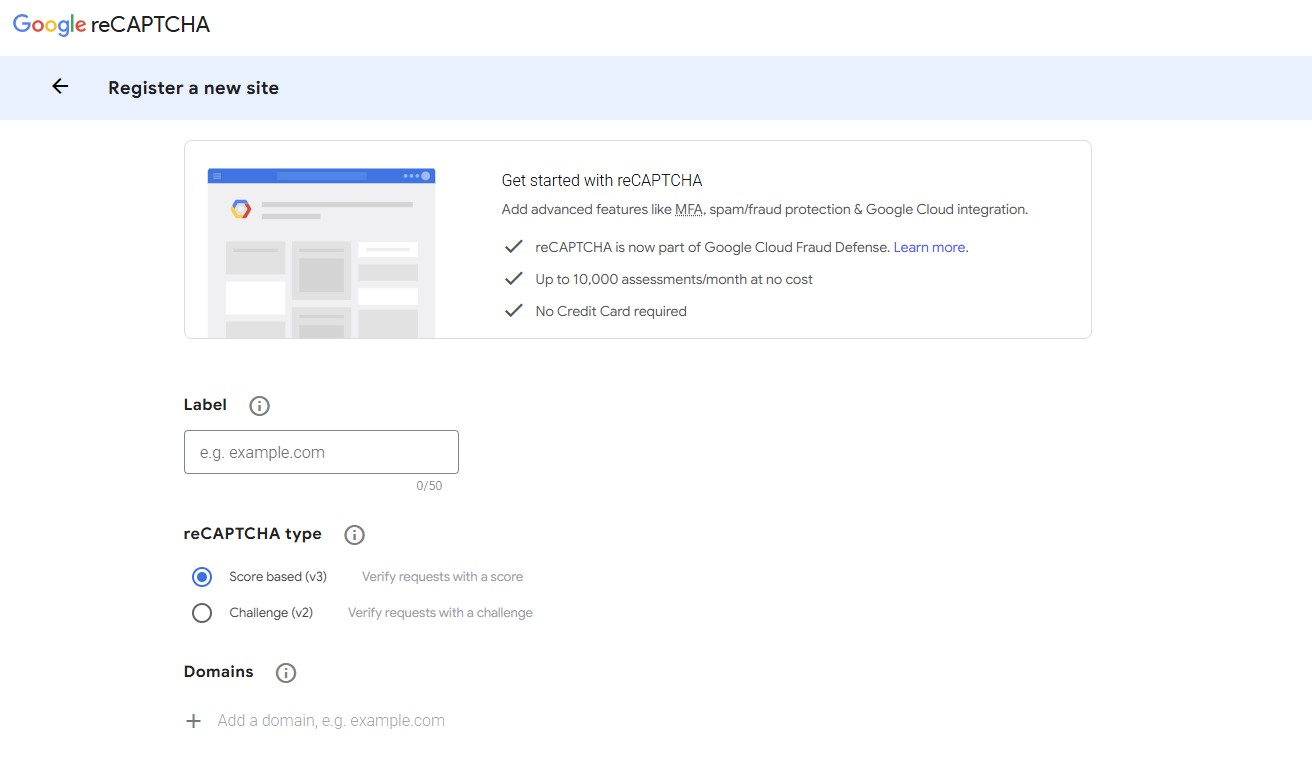
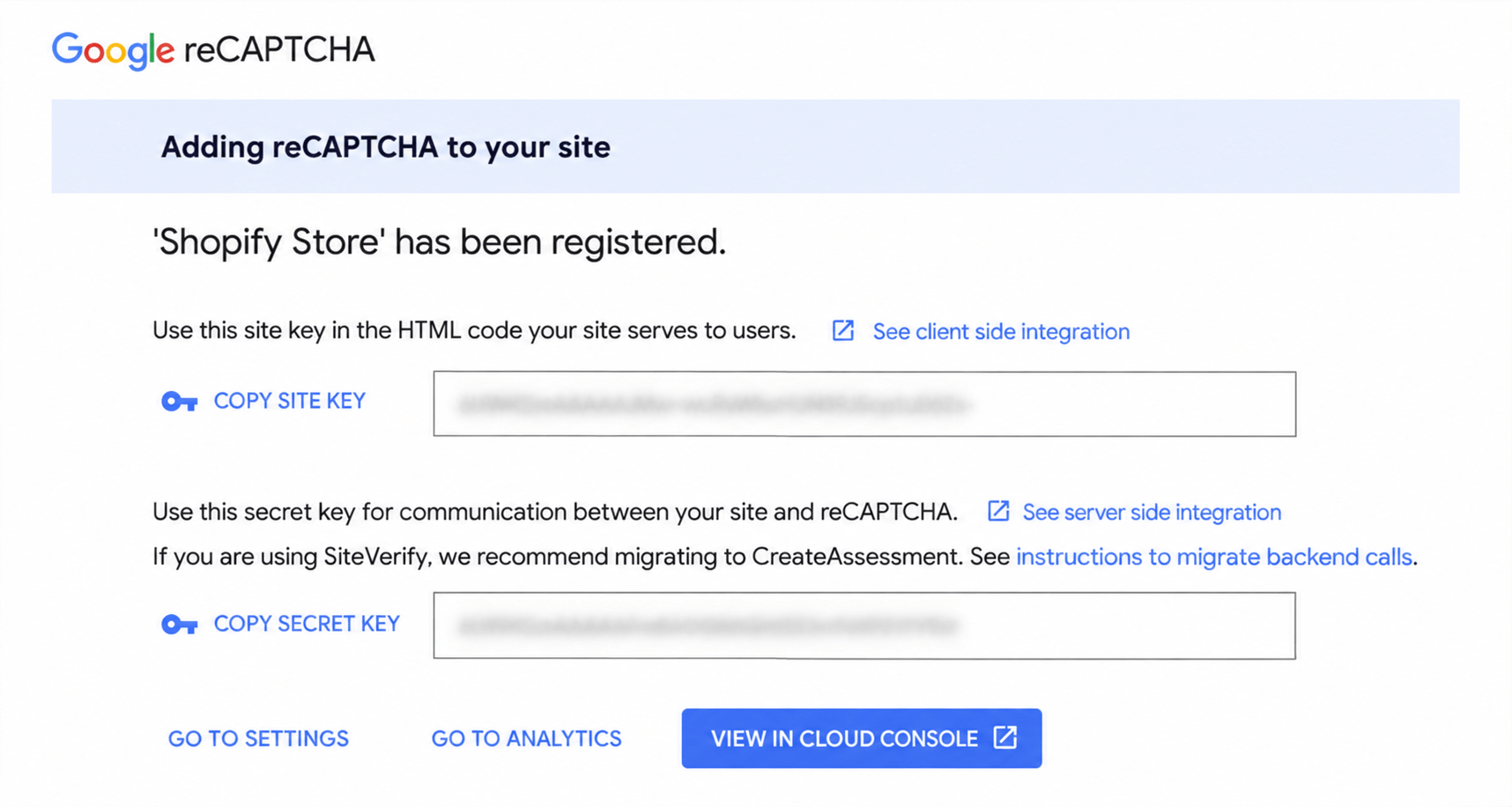
- Submit the form. Google shows your Site key and Secret key.
-
Paste both keys into the Site key and Secret key fields in the app.
-
Click Test keys, then Save once the test passes.
hCaptcha
-
Go to hcaptcha.com and sign up for a free account.
-
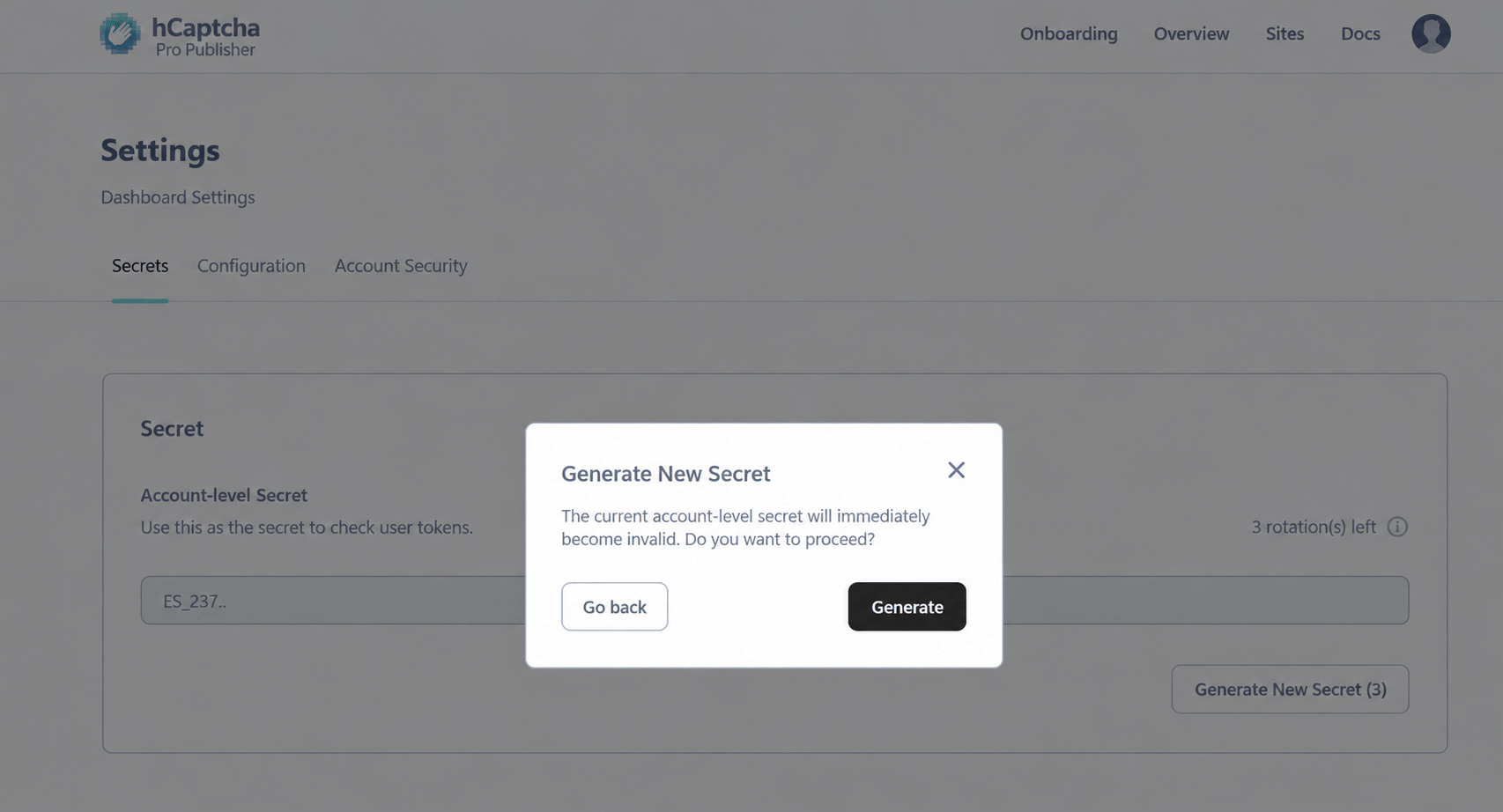
Get your Secret key: click your avatar → Settings → Secret tab → Generate New Secret. Copy the key from the window that opens right away.
-
Get your Site key: go to the main screen → Sites tab → copy the Site key from the table.
-
In your hCaptcha site settings, keep domain allowlisting off. Otherwise hCaptcha will block your own storefront.
-
Paste both keys into the Site key and Secret key fields in the app.
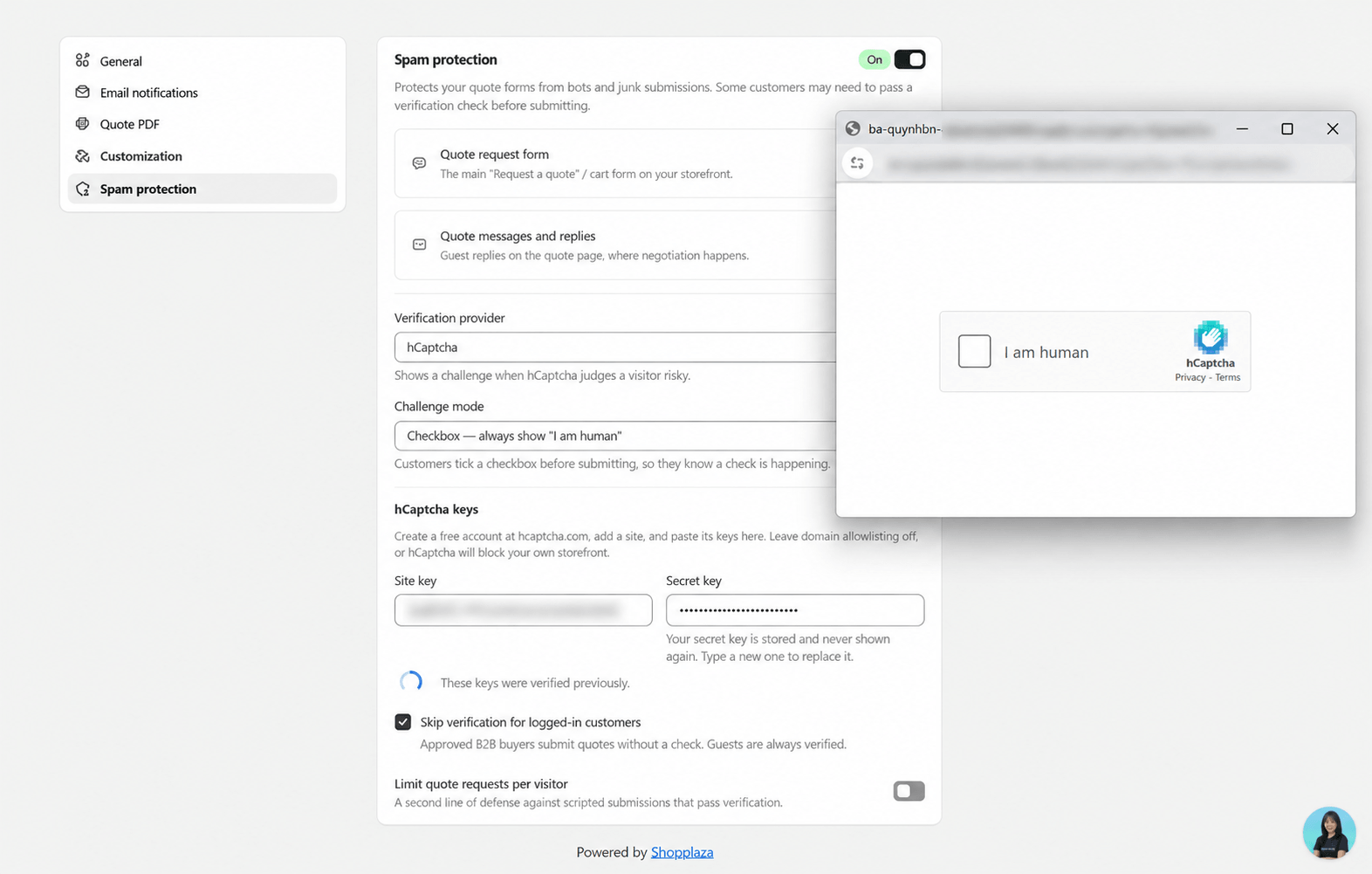
- Click Test keys, then Save once the test passes.
Other options
-
Skip verification for logged-in customers: on by default. Logged-in buyers, such as your B2B accounts, don’t need to verify. Guests are always verified.
-
Limit quote requests per visitor: off by default. When on, it limits the number of quote requests from the same IP address per hour. The default is 5.
Troubleshooting
Test keys fails
Allow pop-ups for the page, then click Test keys again. Also check that the keys belong to the provider (and reCAPTCHA version) selected in the app.
The captcha doesn’t show, or spam still gets through
Check three things:
-
Enable spam protection is on.
-
The matching scope is on (Quote request form or Quote messages and replies).
-
A valid key pair is saved and Test keys passed.
Real buyers can’t submit a quote
This is usually caused by domain settings:
-
hCaptcha: turn off domain allowlisting.
-
Google reCAPTCHA: add every storefront host under Domains, including your
.myshopify.comaddress. -
reCAPTCHA v3: if the score threshold is above 0.5, lower it to 0.5 and monitor.
To unblock buyers right away, switch off Enable spam protection while you fix the settings.