9. Blocklist
Blocklist helps you prevent known problematic buyers from placing orders.
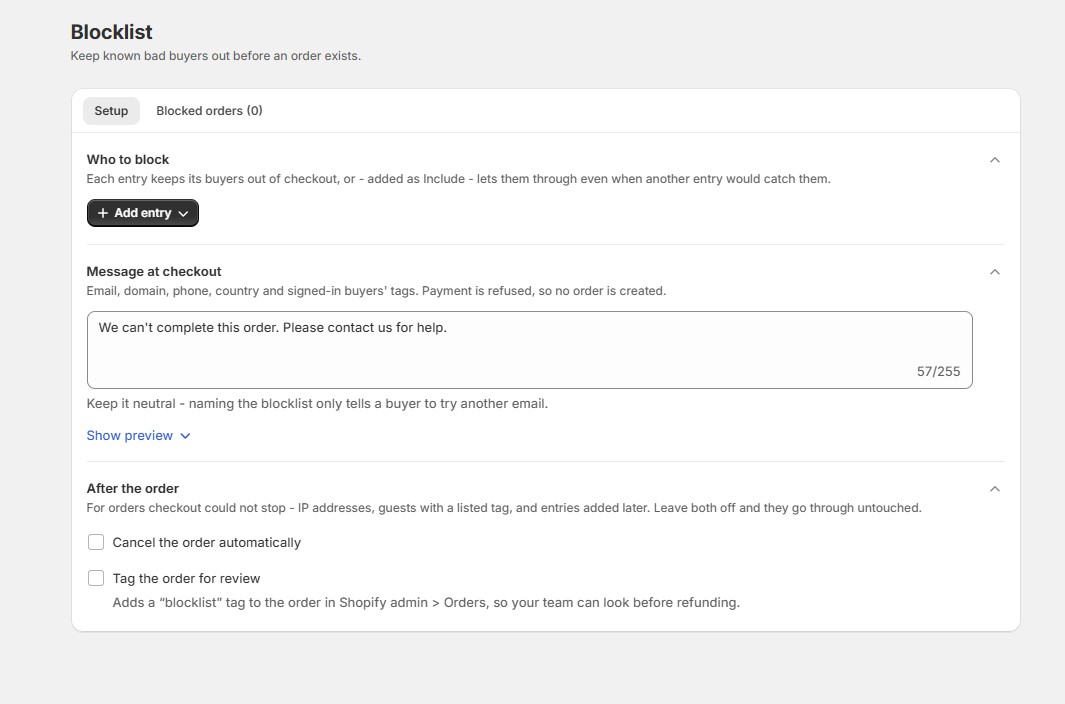
Go to Blocklist → Setup to create your list.
You can block by:
- Email address
- Email domain
- IP address
- Phone number
- Country
- Customer tag
You can use Exclude to block matching buyers and Include to create exceptions.
Include always takes priority over Exclude.
9.1. Set the checkout message
Enter the message customers should see when they’re blocked.
Keep the message neutral and tell them what they can do next.
For example:
We can’t complete this order. Please contact us if you need assistance.
9.2. Handle orders detected after checkout
Some information can’t be used to stop the buyer directly during checkout.
For these cases, you can configure the app to:
Cancel the order automatically
or
Tag the order for review
IP addresses, for example, can only be checked after the order has been created according to the current specification. Customer tags can only be checked during checkout for signed-in customers.
9.3. View blocked orders
Open the Blocked orders tab to review detected activity.
Possible outcomes include:
Blocked at checkout
The buyer was stopped before an order was created.
Order cancelled
An order was created and then automatically cancelled.
Flagged for review
The order was tagged so your team can review it.