10. Terms box
Terms Box lets you ask customers to accept your terms and conditions before checking out.
You can show the box on the cart page and, where supported, the checkout page.
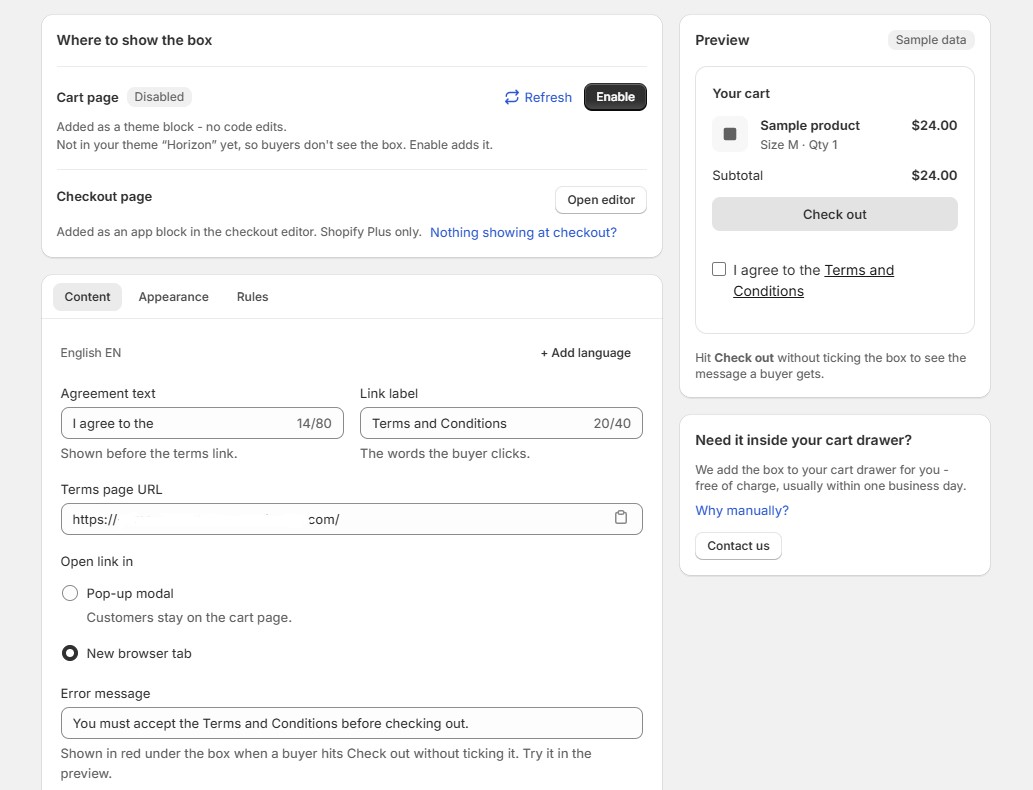
10.1. Enable the Terms Box
Go to Terms Box.
Under Where to show the box, choose where you want it displayed.
For the cart page, the box is added as a theme block without requiring code edits.
The current specification describes the checkout-page app block as Shopify Plus only.
10.2. Customize the content
Under Content, configure:
Agreement text
For example:
I agree to the
Link label
For example:
Terms and Conditions
Terms page URL
Add the URL to your terms page.
You can choose whether the link opens in a popup or a new browser tab.
You can also customize the error message and add additional languages.
10.3. Customize appearance
Under Appearance, you can control:
- Placement above or below the checkout button
- Text size
- Text color
- Link color
10.4. Set the requirement
Under Rules, choose:
Required
Customers must accept the terms.
Optional
Customers can continue without accepting them.
You can also choose whether the app remembers the customer’s choice.
Important: The Terms Box itself does not disable Shopify’s checkout button. Accelerated checkout methods such as Buy Now or Shop Pay may also bypass a cart-page checkbox.