11. Checkout (Shopify Plus)
Important: The Checkout menu and its features appear only on Shopify Plus stores, because Shopify only allows these extensions on Plus checkouts.
Go to menu > Advanced experience
The Checkout hub has a card for each part:
| Part | What it is for |
|---|---|
| Fields | Ask buyers for extra details and save them on the order |
| Blocks | Text, images, lists, trust badges and FAQs |
| Messages | Messages that change with the cart, such as a free shipping goal |
| Banners | Notices and warnings that follow your rule conditions |
| Terms & conditions | A required checkbox above the pay button, also shown on the cart page |
11.1. Add an item to the checkout page
Every field group, content block, cart message and banner has a code.
- Save the item. The code is assigned when you save.
- Click the button to open the checkout editor.
- Click Add block → Apps → SP Checkout Suite where you want the item to appear.
- Paste the code into the block’s Codes setting. One block can show several codes, separated by commas, in the order you type them.
- Save in the editor, then return to the app and click Check again. The badge should read Placed.
Note: Where an item appears is decided by the block in the checkout editor, not by the item.
11.2. Show an item only to some buyers
Every item can show Always, or When set conditions are met (the same conditions as rules, matching ALL or ANY). For checkout banners, the conditions are set on the rule’s Conditions tab.
You can also limit an item to all customers, guest visitors, specific email addresses or customers in specific segments. To change how an item looks, make it boxed (a framed section) or add a divider above or below it.
11.3. Checkout fields
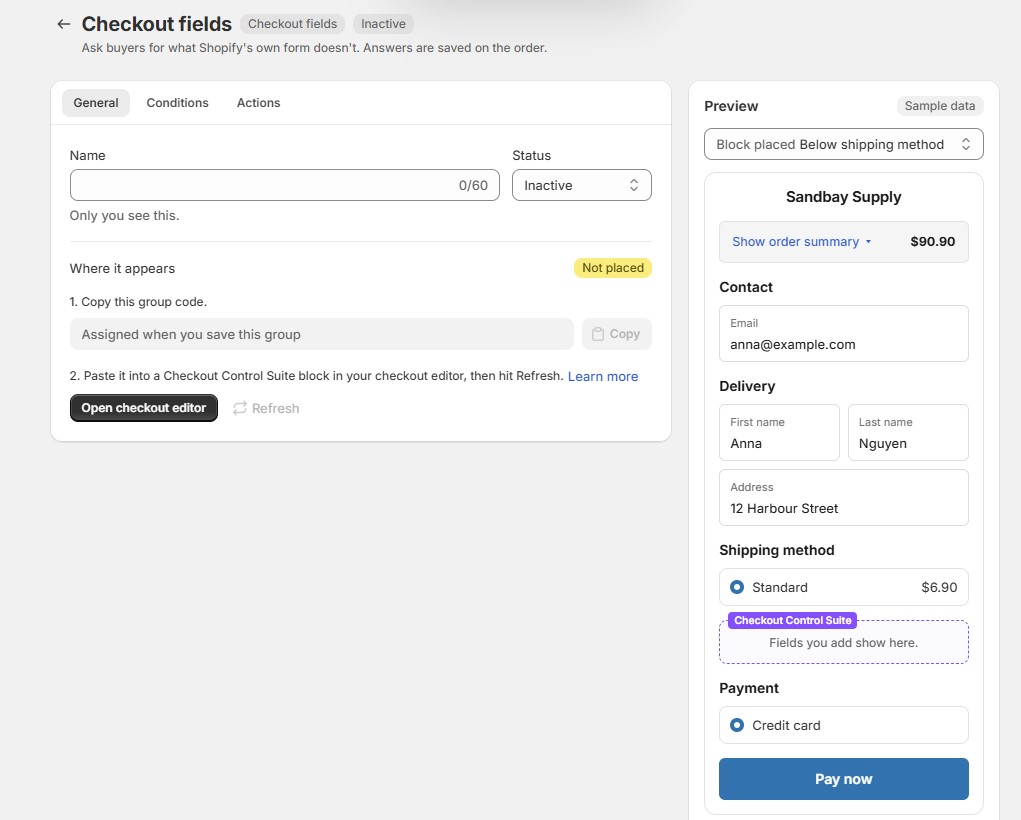
Ask for what Shopify’s own form doesn’t, such as a delivery date, gift message, tax ID or purchase order number. Answers are saved on the order.
- A group holds up to 10 fields, and you can have up to 10 groups. Each group has a title, optional intro text, its own conditions and audience, and a code.
- Save answers to: Order metafields (recommended: they show on the order and can print on packing slips) or Additional details (these never reach a packing slip).
- You can use at most 10 required fields across all groups. A field that only shows after another answer counts too. Groups that are off don’t count.
| Field type | Use |
|---|---|
| Single line text | A name, a PO number |
| Multi-line text | Notes, a gift message |
| Number | With minimum and maximum, optional decimals |
| Dropdown | One choice from a list |
| Choice list | One or several choices, all in view |
| Checkbox | A yes/no the buyer ticks |
| Date | With the days a buyer may pick, days they can't pick, a list of closed dates (YYYY-MM-DD) and a minimum number of days from today |
| Phone | Free text; checkout adds no country picker |
| Where to send an invoice or an update | |
| File upload | A photo, PDF or document, up to 20 MB each and 5 files, kept in your Shopify Files |
For each field, set a label, placeholder, help text, whether it’s required (buyers must fill it in to pay, express checkouts included) and the message shown when it’s empty. A field can also show only when another field has a certain answer.
The key is the name an answer is saved under on the order and in exports. It’s made from the label until you save, and can’t be changed once orders carry answers under it.
Important: A required field can’t be bypassed, even with Apple Pay, Google Pay or Shop Pay.
11.4. Content blocks
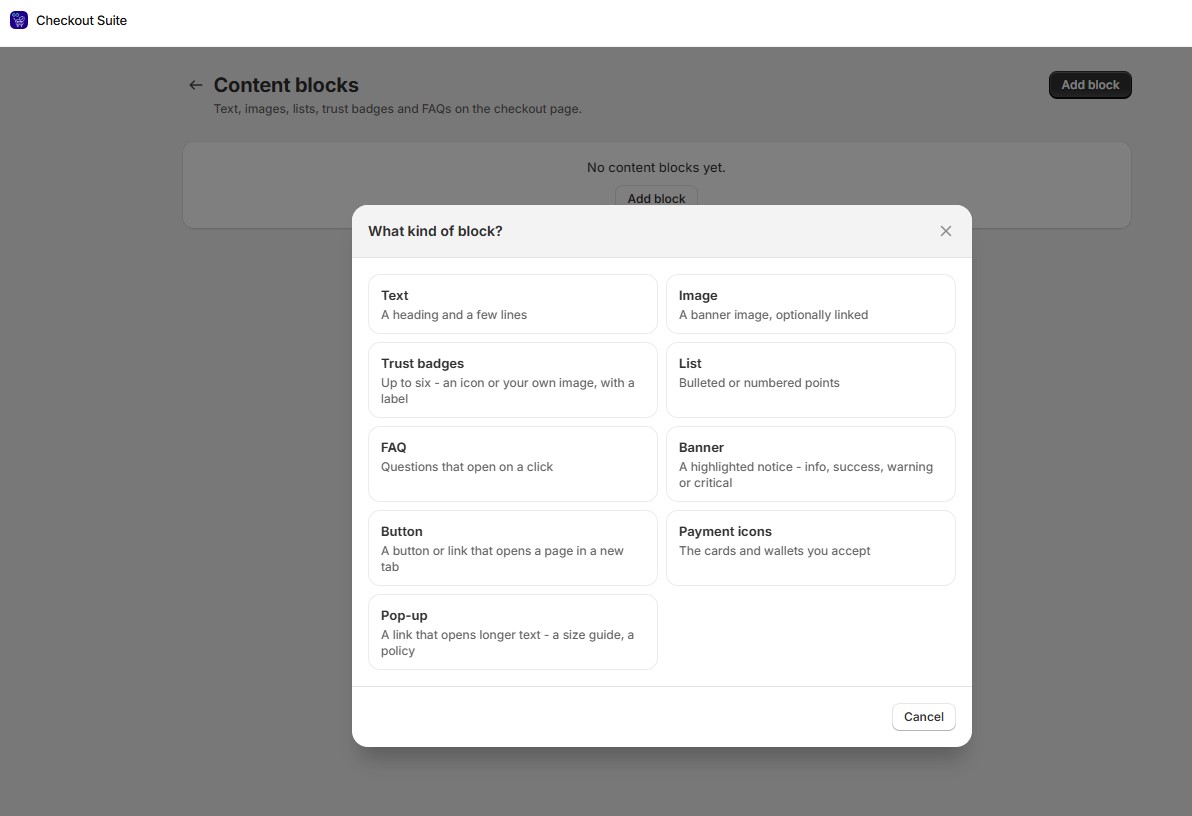
Reassure buyers where they hesitate: delivery promises, trust badges, answers to common questions. You can have up to 20 blocks, each built from these pieces: Text, Image, Trust badges (up to 6), List (up to 8 items), FAQ (up to 6), Banner, Button, Payment icons and Pop-up.
- Use one of checkout’s icons, or your own image: upload it under Content → Files in Shopify and paste the link. Describe the image for buyers who use a screen reader.
- You can’t set colors or fonts. Checkout content uses your checkout’s own branding, which is Shopify’s rule for every app.
👉 To show different content to different buyers, make one block per message with its own conditions, and put all the codes in the same app block.
11.5. Cart messages
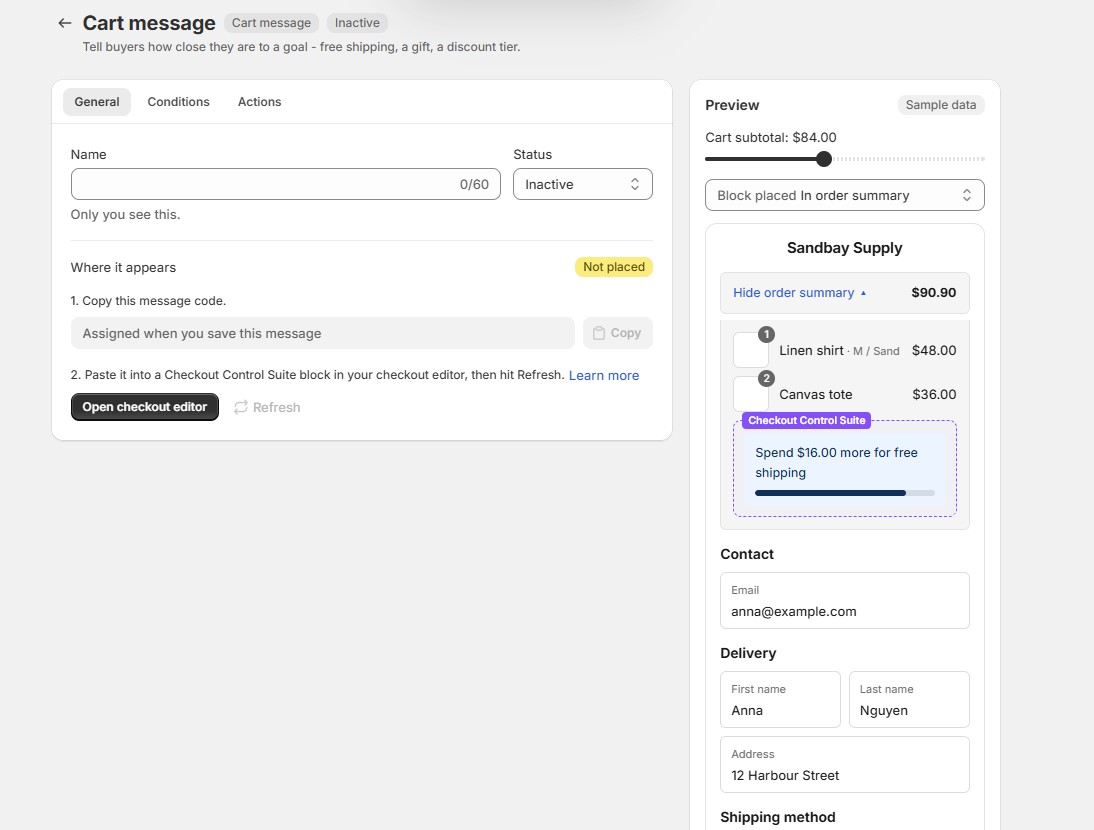
Tell buyers how close they are to a goal: free shipping, a gift or a discount tier. You can have up to 10 messages.
- Kind: Goal (shows what’s left to reach it) or Plain message, based on cart subtotal or number of items.
- Before the goal and Once the goal is met wording. Insert live amounts with {remaining}, {goal} and {subtotal}. Leave the second empty to hide the message once the goal is met.
- Show a progress bar, which turns green when the goal is met.
The message updates as the buyer changes the cart.
Important: A cart message only says how close the buyer is. It doesn’t give the free shipping itself. Set up a free shipping rate or a shipping discount rule at the same amount.
11.6. Checkout banners
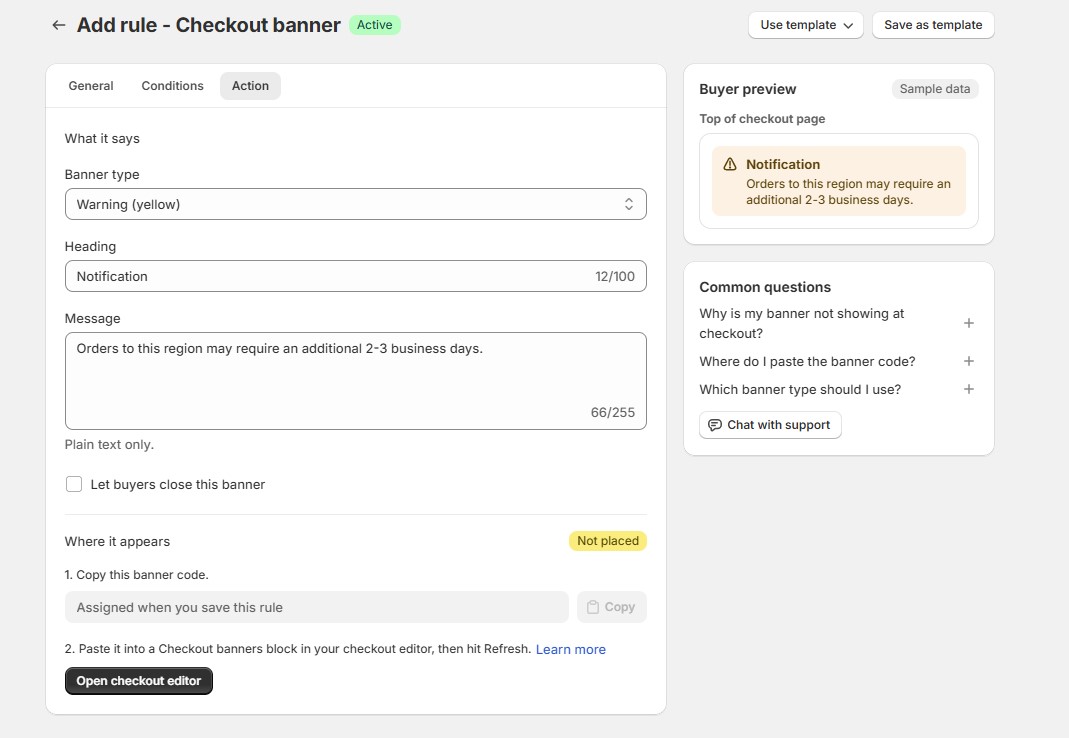
A checkout banner shows buyers a message on the checkout page when your conditions are met. For example: Holiday orders placed after December 20 may arrive after Christmas.
A banner is a rule of type Checkout banner. To create one:
- Go to Rules → Add rule → Checkout banner.
- Set the General and Conditions tabs as for other rules.
- On the Action tab, set:
- Banner type: Info (blue), Success (green), Warning (yellow) or Critical (red)
- Heading and Message, in plain text
- Let buyers close this banner
- Click Save, then place the banner’s code in the checkout editor as in 11.1.
👉 Use Warning unless buyers really cannot continue. To start fast, use the Holiday delivery notice template.
Note:
- One app block can show several banners. Moving the block moves every banner in it.
- Banner rules can’t use some customer conditions. The editor tells you which.
11.7. Terms & conditions
On Shopify Plus, you can show a required I agree to the terms checkbox above the pay button. It’s also shown on the cart page. Go to Checkout → Terms & conditions.
For the cart page box and its settings, see 9. Terms box.