7. Checkout validation rules
Checkout validation rules let you stop customers from completing checkout when required information or order conditions aren’t met.
Instead of simply hiding an option, the customer sees an error explaining what needs to be corrected.
Go to: Manage Rules → Add rule → Checkout validation
Set the conditions that should trigger the validation.
Then choose where the error should appear.
Supported placements include checkout-level errors and supported fields such as:
- Phone
- Shipping address
- City
- State or province
- ZIP or postal code
- Country
- Shipping phone
Enter the error message customers should see.
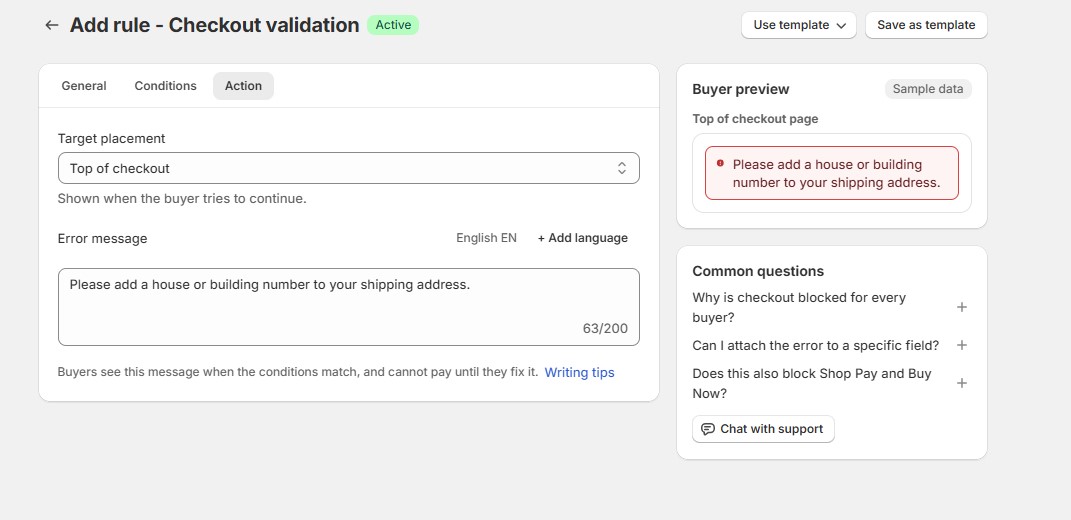
Example: Require a house number
You could create a condition that detects when Address line 1 contains no digits.
Then show an error such as:
Please add a house or building number to your shipping address.
This prevents the customer from continuing until the issue is corrected.
Be careful with rules without conditions
An active Validation rule without conditions could block every checkout.
For this reason, the app asks you to confirm before saving this type of rule.