Shipping method rules
4. Shipping method rules
Shipping method rules work like payment rules, but control delivery options and pickup instead.
Go to Rules → Add rule → Shipping methods.
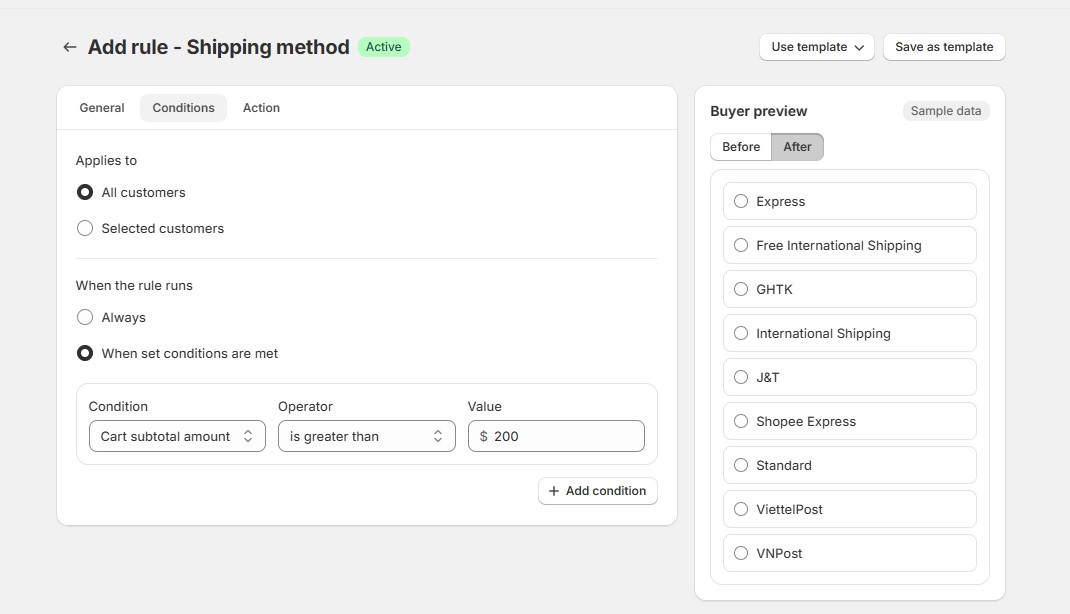
4.1. Hide, reorder or rename rates
On the Action tab, you see the list of delivery rates at checkout. In that one list you can:
- Hide a rate with the eye icon (Hide at checkout / Show at checkout).
- Reorder rates by dragging a row up or down.
- Rename a rate by typing a new name in its row.
One rule can do all three at once.
4.2. If a rate is missing from the list
- Under Add a shipping rate not listed, type the name exactly as checkout shows it. It’s saved to your store’s method list so every rule can use it.
- If your store has no shipping rates yet, the page links to your Shopify shipping settings.
- For carrier-calculated rates, checkout shows the carrier’s own rate names, so add the ones you want to use.
Note: A rule that uses product conditions can only hide or show methods. Remove the product conditions to reorder or rename.
4.3. Examples
Put Express first for large orders
- Add the condition Cart subtotal amount is greater than 200.
- On the Action tab, drag your Express rate to the top.
Rename Standard to something clearer
- Set the rule to run Always.
- On the Action tab, rename Standard to Free delivery (3-5 days).
No local pickup at the weekend
- On the General tab, select Saturday and Sunday under Days of the week.
- On the Action tab, hide Local pickup.
👉 These examples, and No express to PO boxes, are also available as Templates.