How to show product recommendations on the wishlist page
Recommendations adds a row of products under the shopper’s saved items on the wishlist page, such as You may also like. It helps shoppers discover more products they’re likely to want while they’re already in a buying mood.
The products come from Shopify product recommendations, based on what the shopper has saved. Recommendations is on by default.
Set up recommendations
#1. In MP Wishlist & Favorites, go to Settings and open the My wishlist tab.
#2. Scroll down to Recommendations and make sure the toggle is on.
#3. Adjust the settings below.
#4. Click Save in the Unsaved changes bar at the top.
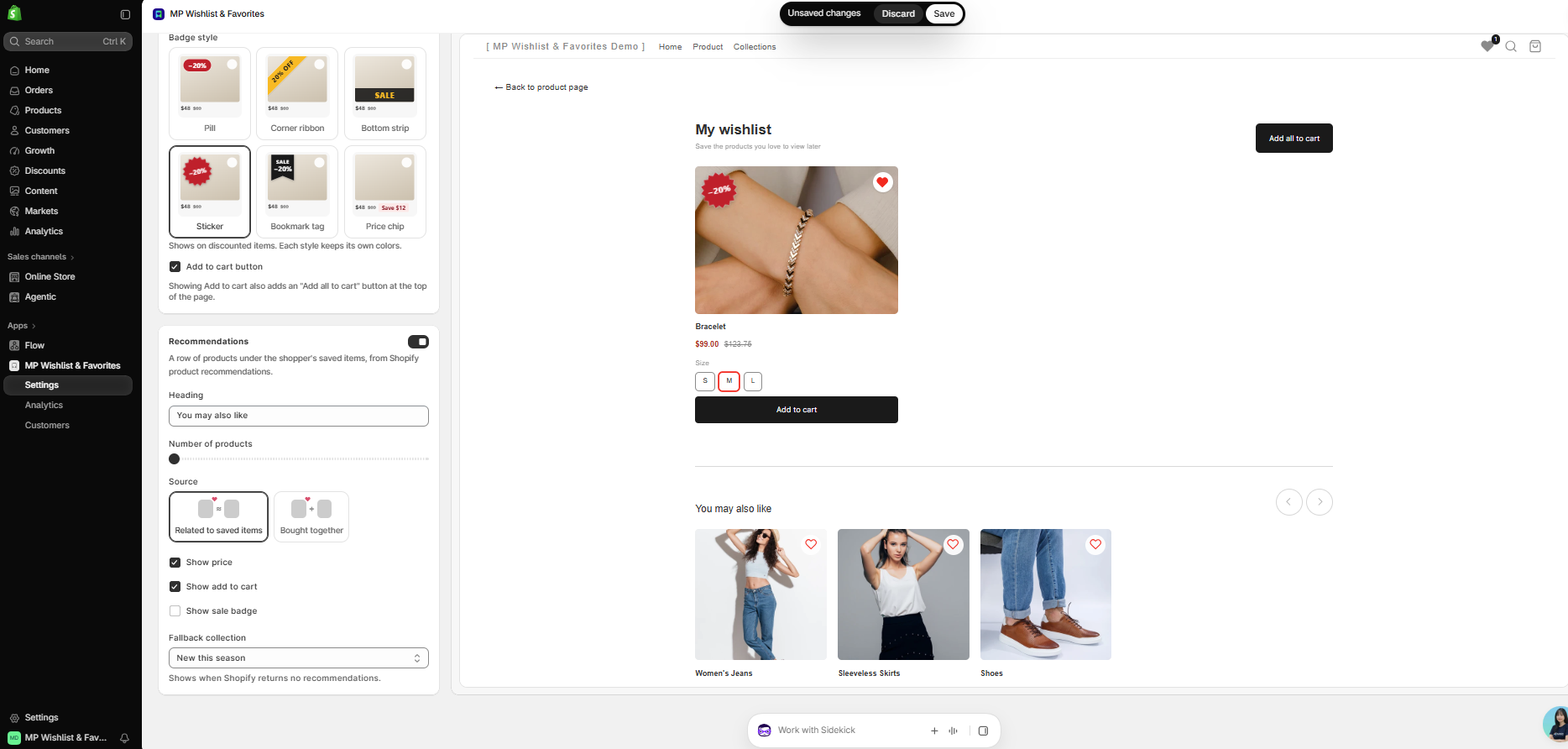
Recommendations settings
Heading
The title above the row of products (default You may also like).
Number of products
Drag the slider to set how many products show in the row.
Source
- Related to saved items: products similar to the ones the shopper saved.
- Bought together: products that are often bought together with the saved items.
What each product shows
- Show price: shows the product price.
- Show add to cart: shows an Add to cart button on each product.
- Show sale badge: shows a sale badge on discounted products.
Fallback collection
Choose a collection to show when Shopify returns no recommendations, for example for a new store or a product with little sales history. This way, the row is never empty.
What shoppers see
The recommended products show in a row under the saved items, with arrows to scroll through them. Each product has a wishlist icon, so shoppers can save it straight from the wishlist page.
Turn off recommendations
To hide the row, turn off the Recommendations toggle and click Save.
👉 Still need assistance? Contact our support team anytime, and we’ll be happy to help.