How to show the wishlist as a page, modal, drawer, or popover
Wishlist display controls what happens when a shopper taps the wishlist shortcut. By default they go to a full wishlist page. You can instead open the wishlist as a pop-up, a side panel, or a small panel under the wishlist icon, so shoppers can check their saved items without leaving the page they’re on.
Every other setting in the My wishlist tab (page title, Add to cart buttons, layout, item details, recommendations, and empty state) applies to all four displays.
Choose a wishlist display
#1. In MP Wishlist & Favorites, go to Settings and open the My wishlist tab.
#2. At the top, under Wishlist display, choose Page, Modal, Drawer, or Popover. The preview on the right shows how the wishlist opens.
#3. Click Save in the Unsaved changes bar at the top.
Page
Shoppers go to the full wishlist page. This is the default.
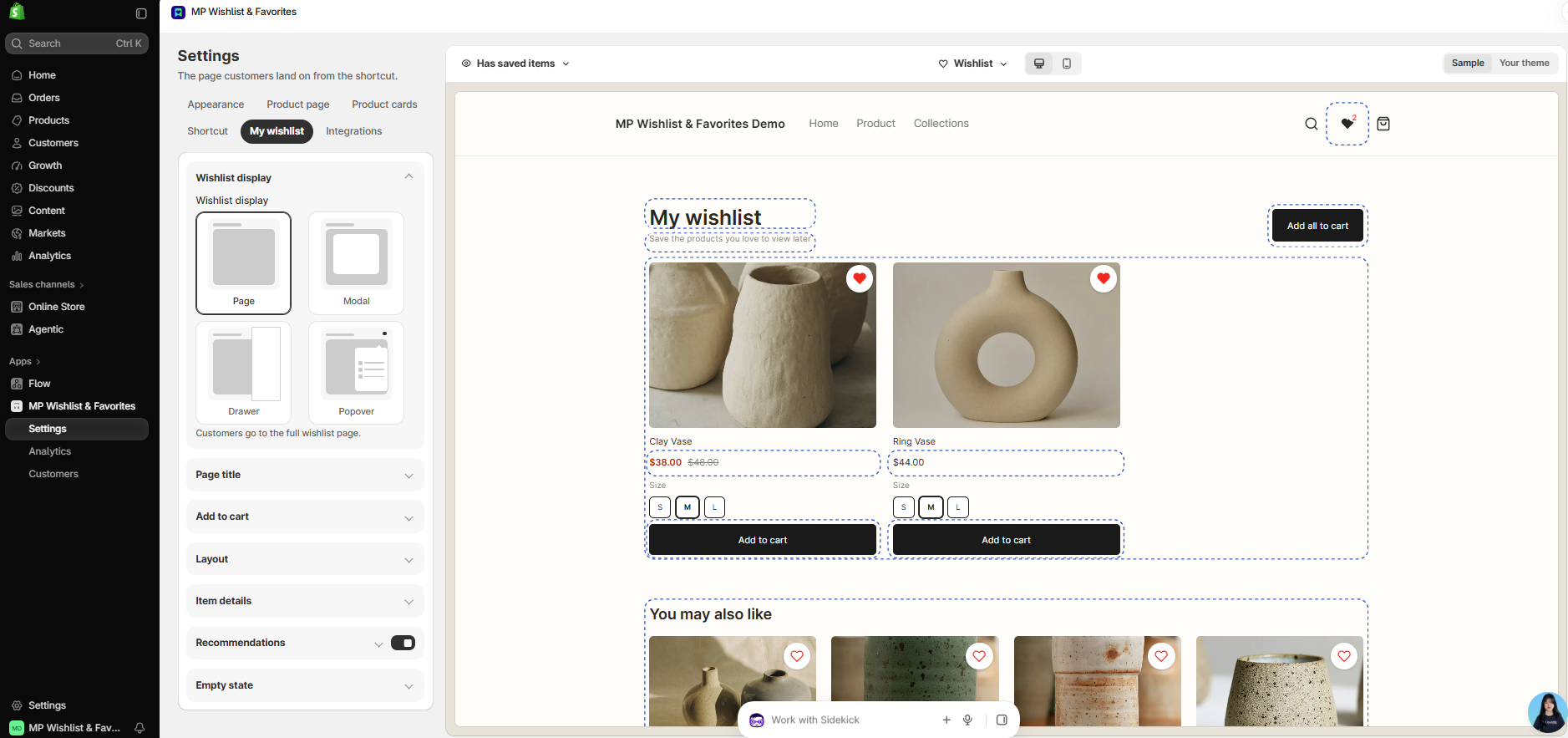
Use Page when shoppers save many items and you want them to see everything at once, with recommendations below.
Modal
The wishlist opens as a pop-up over the current page, with the saved items in the same layout as the page. Shoppers close it with × to carry on shopping.
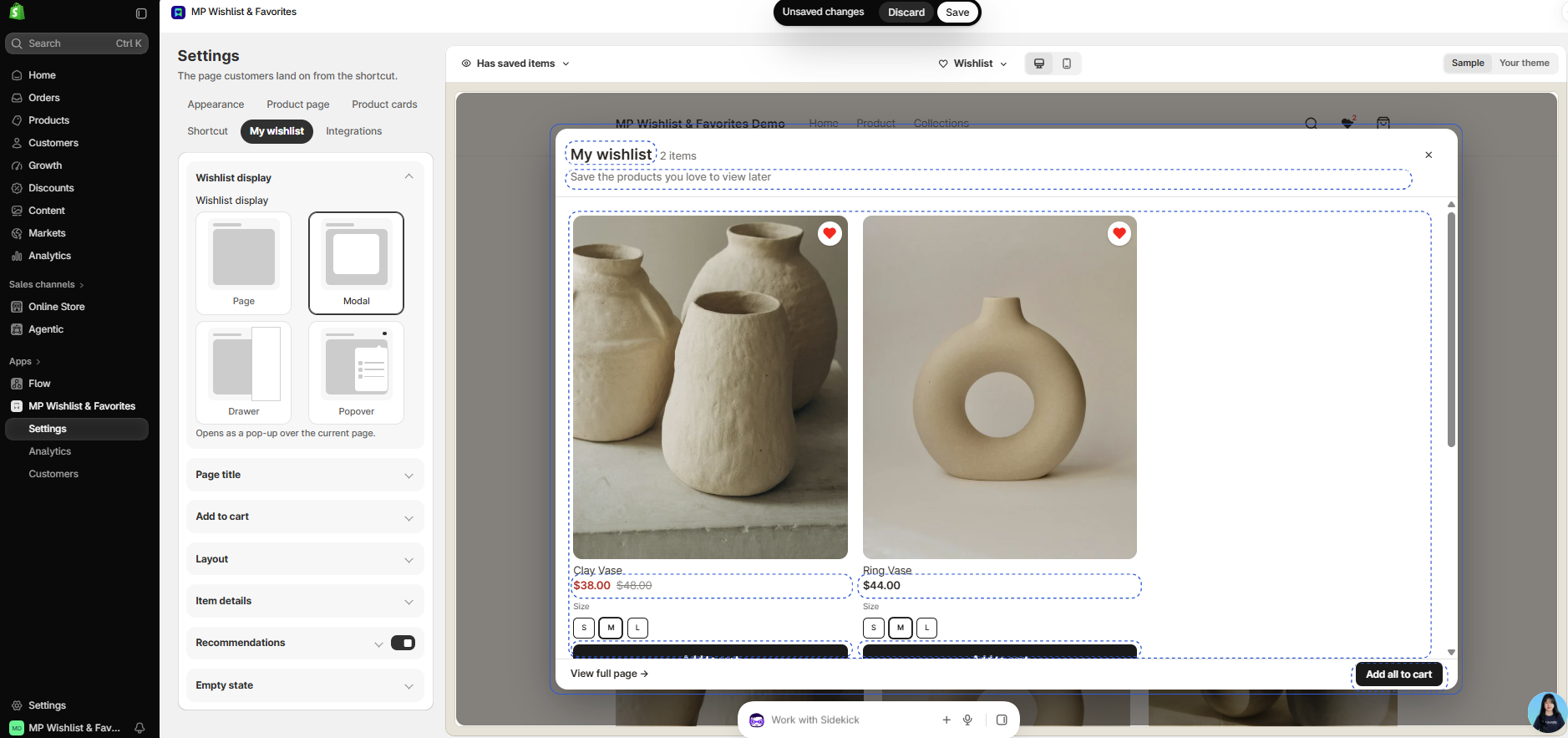
The modal shows the number of saved items next to the title (for example, 2 items), an Add all to cart button, and a View full page link that opens the wishlist page.
Drawer
The wishlist slides in from the side of the screen, like a cart drawer. Under the option, choose Right or Left to set which side it slides in from.
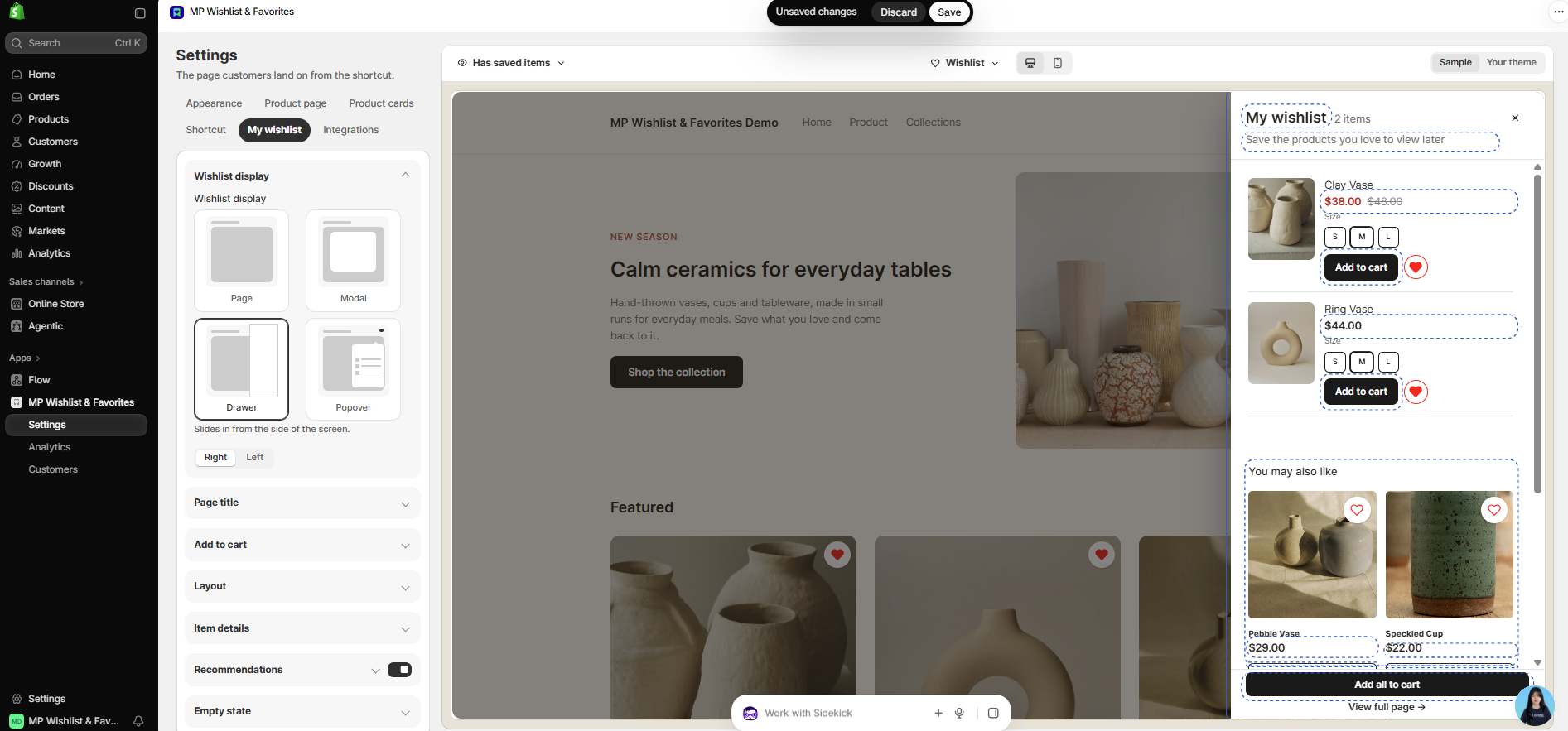
The drawer lists each saved item in a compact row, with the image, name, price, options, an Add to cart button, and the wishlist icon to remove the item. Recommendations show under the saved items if they’re on, and Add all to cart and View full page sit at the bottom.
Popover
The wishlist opens as a small panel right under the wishlist shortcut, like a mini cart. Shoppers keep browsing without leaving the page. The popover follows the shortcut’s placement: under the header icon, under the wishlist link in the menu, or next to the floating button.
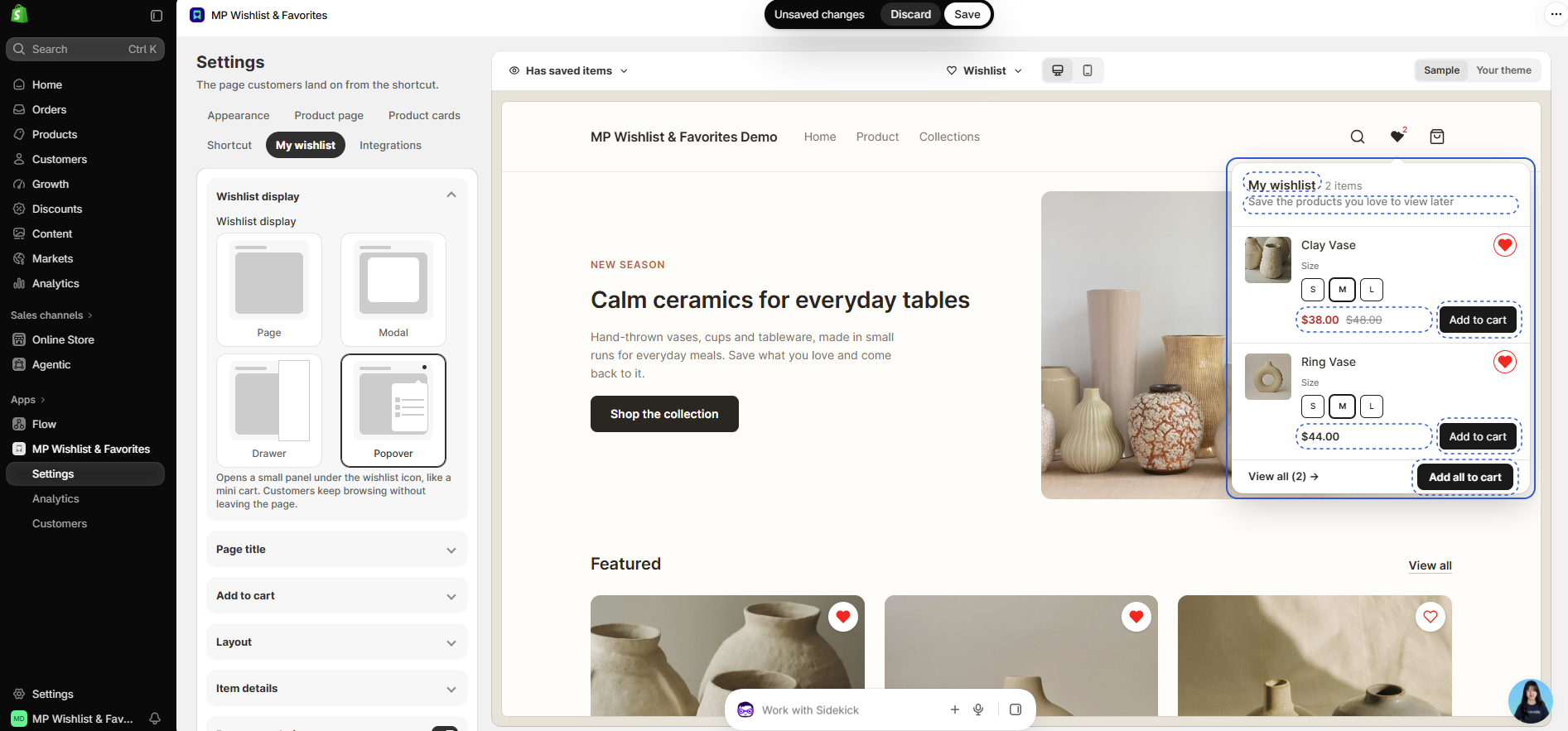
The popover shows each saved item with its options, price, and an Add to cart button, plus Add all to cart at the bottom. View all shows the number of saved items and opens the wishlist page.
The popover opens from the shortcut, so make sure the shortcut is on. See How to show the wishlist shortcut and counter.
Which display to pick
- Page: the most room. Best for stores where shoppers save a lot and come back to review their list.
- Modal: the full wishlist without leaving the page. A good middle ground.
- Drawer: feels like your cart drawer. Best if shoppers already use a slide-in cart on your store.
- Popover: the quickest look. Best for stores where shoppers save a few items and add them to cart right away.
Whatever you pick, the full wishlist page is still there. Shoppers can open it from View full page or View all, and from the wishlist page they can use every feature, such as recommendations and reviews.
The wishlist page is also where you customize the look of all four displays. See How to customize the wishlist page.
👉 Still need assistance? Contact our support team anytime, and we’ll be happy to help.