How to connect your Instagram/TikTok account
Connecting your Instagram or TikTok account is the first step to unlocking the full potential of MP Instagram Feed. Once connected, the app will automatically sync your media and let you showcase posts and videos directly on your storefront. You’ll also be able to tag products, turning your content into an interactive shopping experience.
This guide walks you through the 3-step onboarding process to get your Instagram or TikTok feed live on your Shopify store — no coding required.
🎥 Prefer a quick walkthrough?
Ready to set it up? Follow the detailed guide below.
Step 1: Connect Your Account
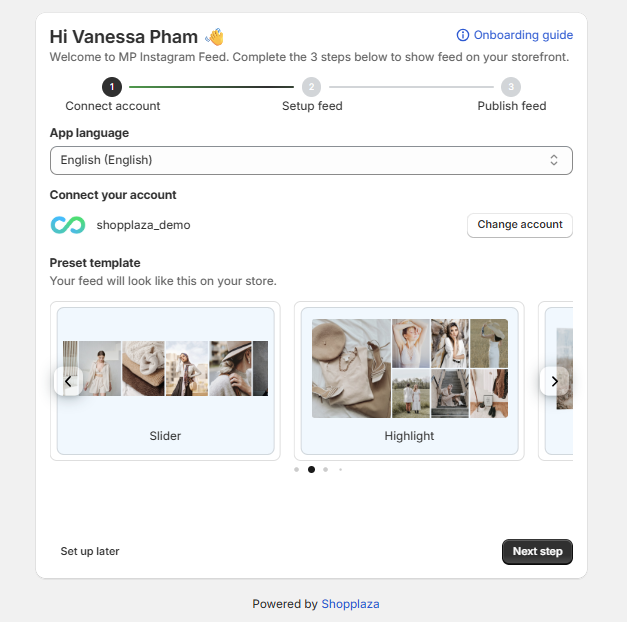
When you first open MP Instagram Feed, you’ll land on the Connect Account screen.
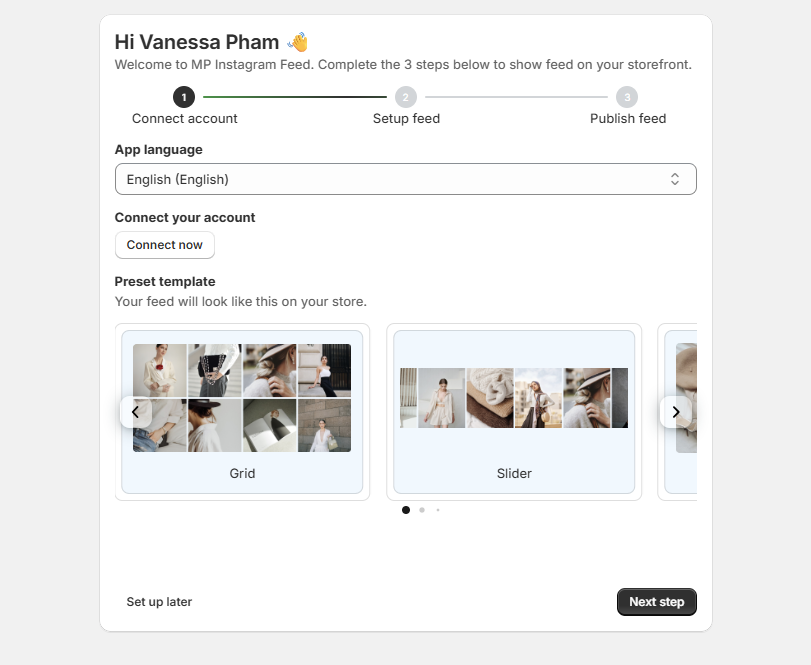
App Language
Select your preferred language from the dropdown. MP Instagram Feed supports 20+ languages, including English, Spanish, French, Italian, Japanese, German, Swedish, Dutch, Czech, Danish, Norwegian (Bokmål), Polish, Portuguese (Brazil), Portuguese (Portugal), Finnish, Turkish, Thai, Chinese (Simplified), Chinese (Traditional), and Korean.
💡 Not ready to connect yet? Click Set up later to skip this step and return from your app dashboard at any time.
Connect Your Account
Click Connect now to link your social account. You’ll have three options:
- Instagram with Facebook Page
- TikTok
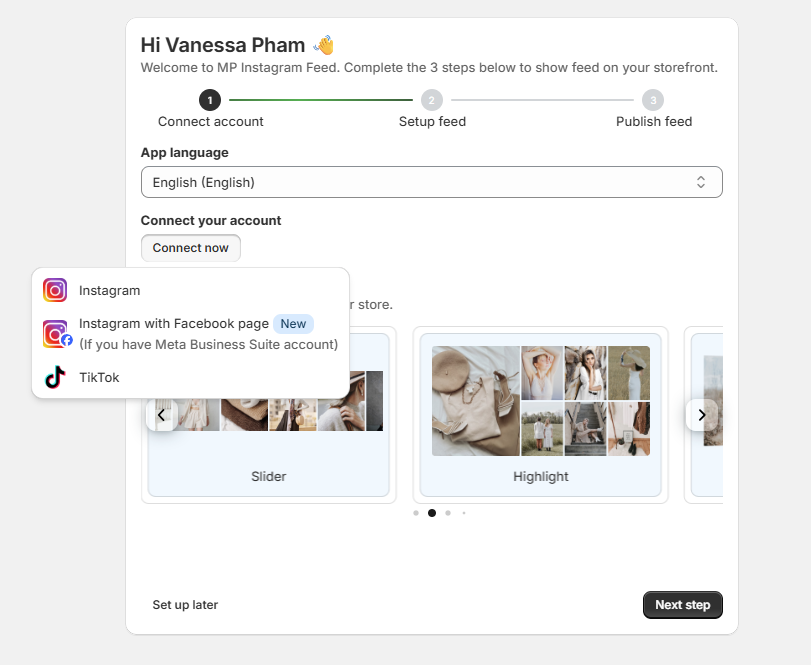
Select the option that matches how your account is set up and follow the prompts to authorize the connection.
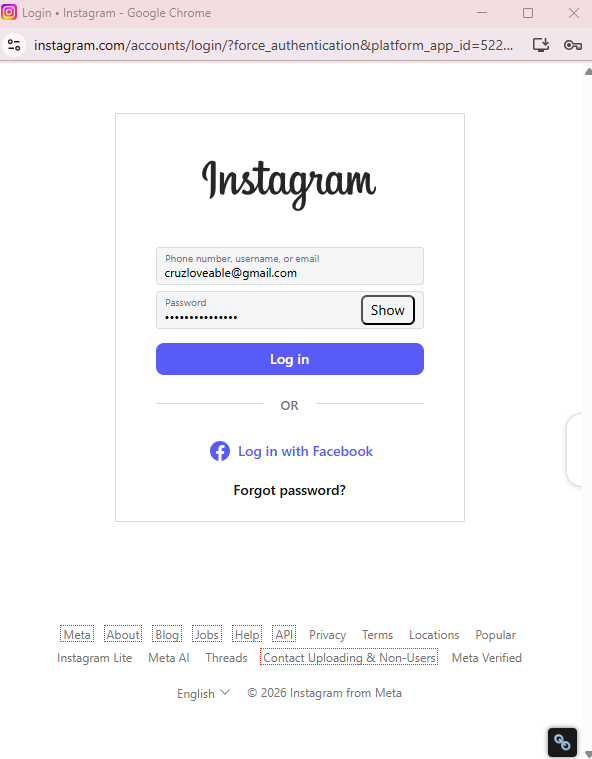
For example, if you select Instagram, you’ll be prompted to log in to your Instagram account.
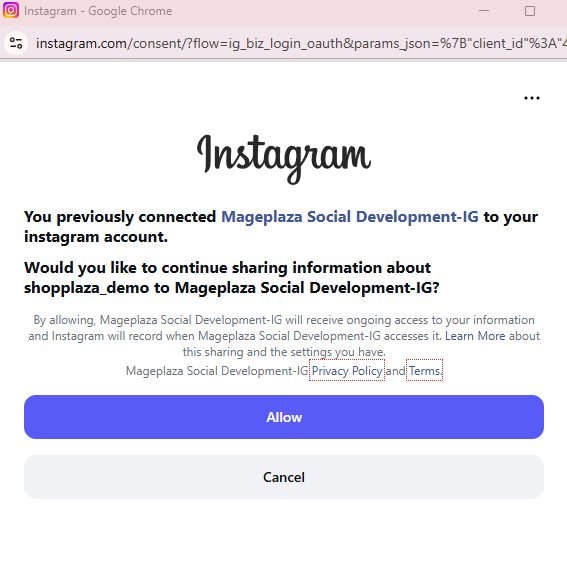
A confirmation window will appear — click Allow to grant the app access to your account information.
Once connected, your account name will appear on screen. If you need to switch to a different account, click Change account at any time.
Preset Template
Below your connected account, you’ll see a preview of how your feed will look on your storefront. Swipe through the available templates — including Grid, Slider, Highlight, Coverflow, and Masonry — to get a feel for each layout style.
When you’re done, click Next step to continue.
Step 2: Set Up Your Feed
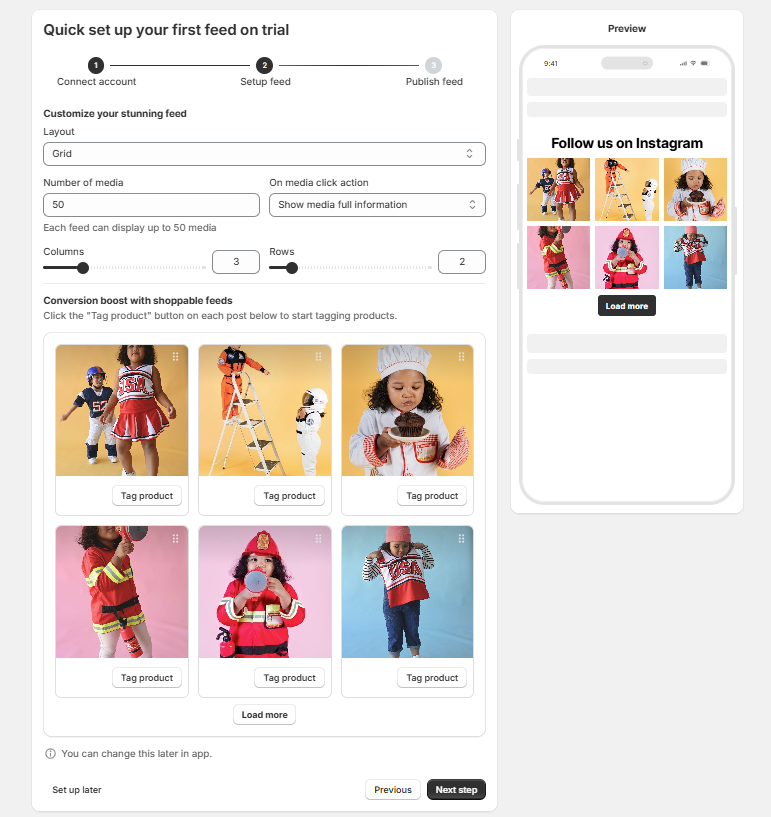
On the Setup Feed screen, you’ll customize how your feed looks and behaves on your store. A live Preview panel on the right updates in real time as you make changes.
Layout
Choose how your posts are displayed. Available options:
- Grid — clean, uniform layout ideal for minimal and product-focused stores
- Slider — horizontal scroll layout, great for showcasing multiple posts in a compact space
- More layouts — Highlight, Coverflow, Masonry, Collage, Stories bar, Split profile, Scattered collage, Product bar, Shop cards — additional layout options available after the initial setup, accessible from your app dashboard
Number of Media
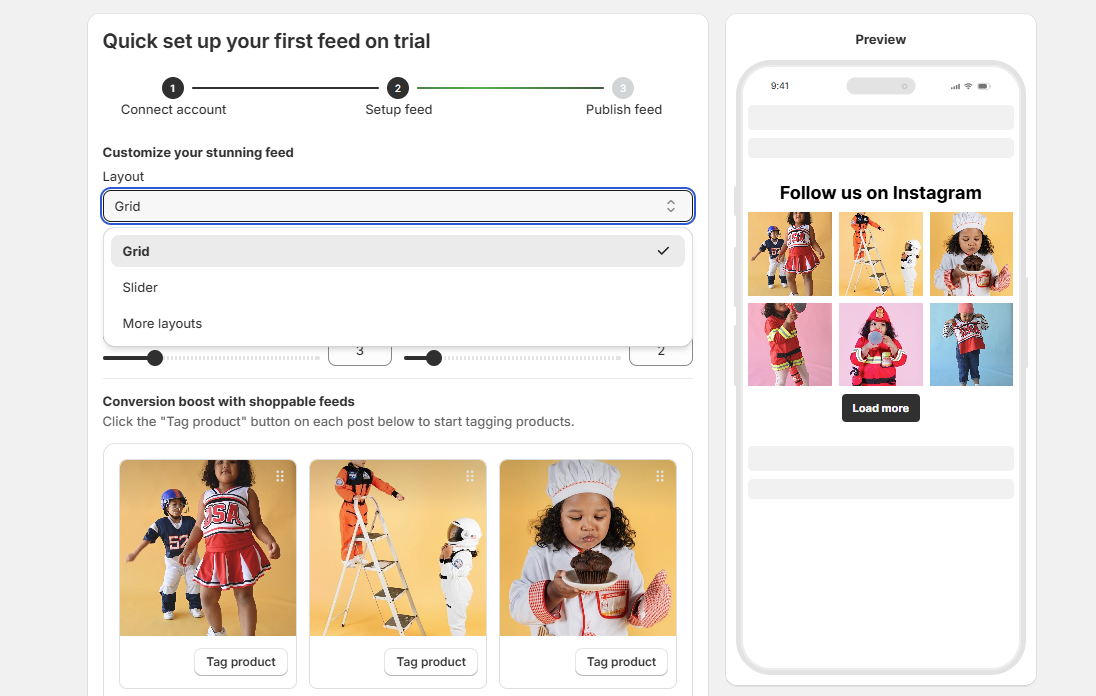
Set how many posts you want to sync and display, up to a maximum of 50 media.
On Media Click Action
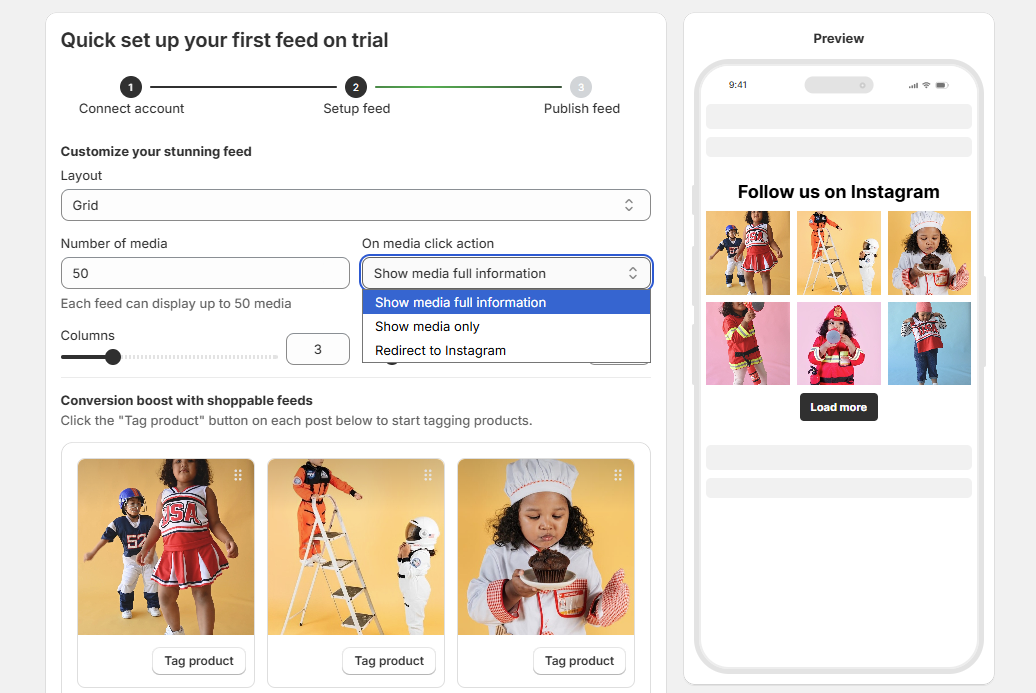
Choose what happens when a shopper clicks on a post:
- Show media full information — opens a popup with the post details and any tagged products
- Show media only — displays the image or video without additional info
- Redirect to Instagram — takes the shopper directly to the original post on Instagram
Columns & Rows
Use the sliders to adjust the number of columns and rows to fit your store’s layout and the amount of content you want visible at once.
Boost Conversion with Shoppable Feeds
Click Tag product on any post to link it directly to a product in your store. This lets shoppers move from browsing your content to a product page in one click — turning your feed into a direct sales channel.
💡 All of these settings can be updated anytime from inside the app — nothing is permanent at this stage.
Once you’re happy with your setup, click Next step.
Step 3: Publish Your Feed
This final step puts your feed live on your store — no coding required for most themes.
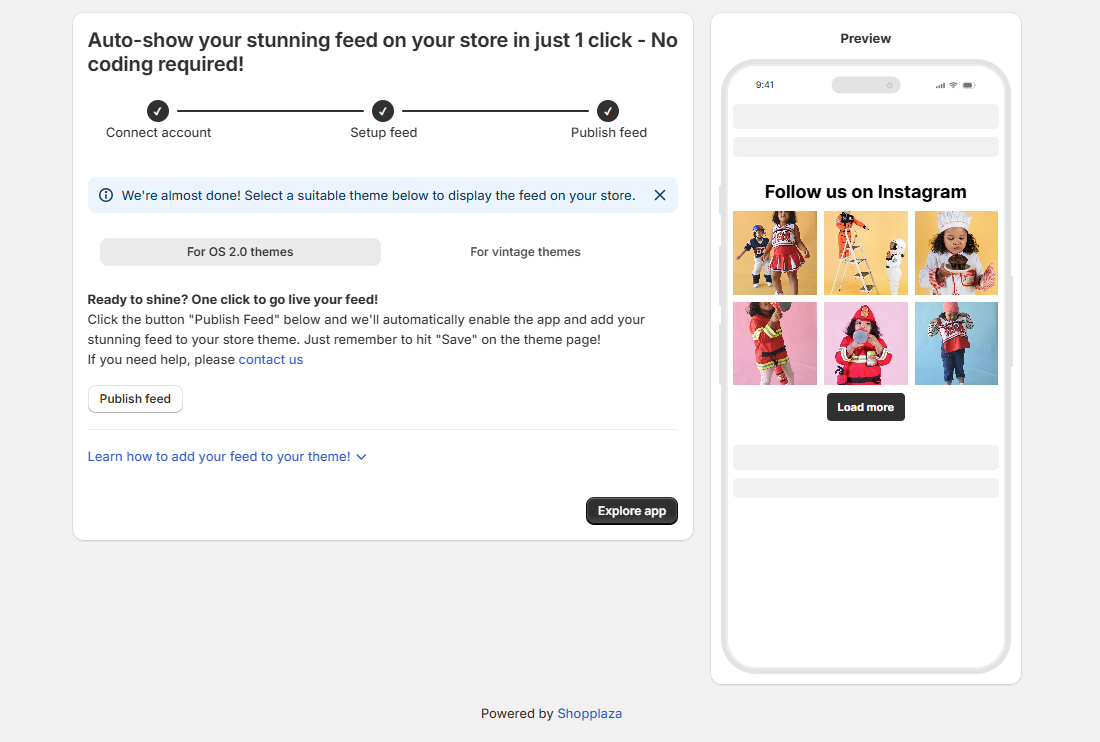
In the Publish feed step, choose the page where you want to display your feed.
You can select one of the following options:
- Home page
- Products page
- Collections page
After choosing the page, click Publish feed to my store.
After clicking Publish feed to my store, you will be redirected to the Shopify theme editor.
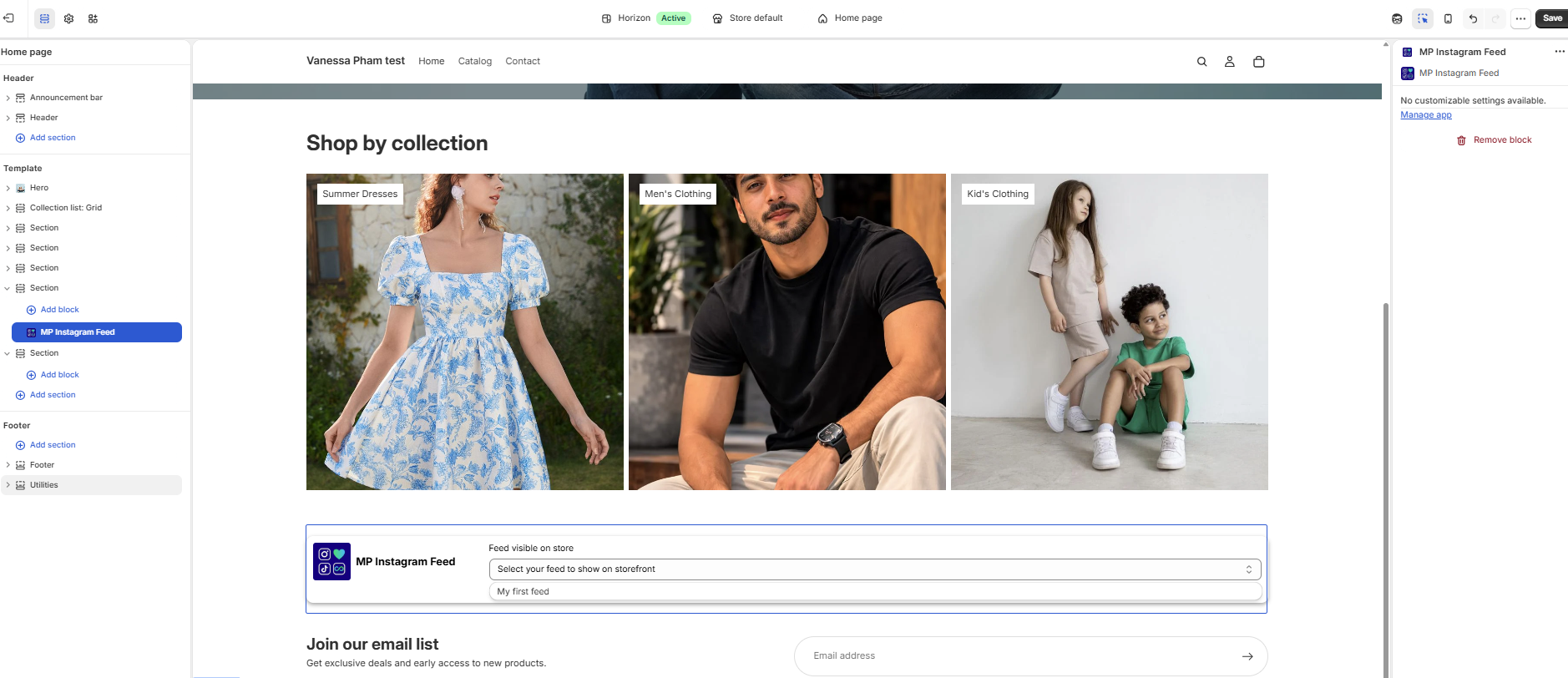
The app block and your feed will be automatically added to the page you selected as your theme.
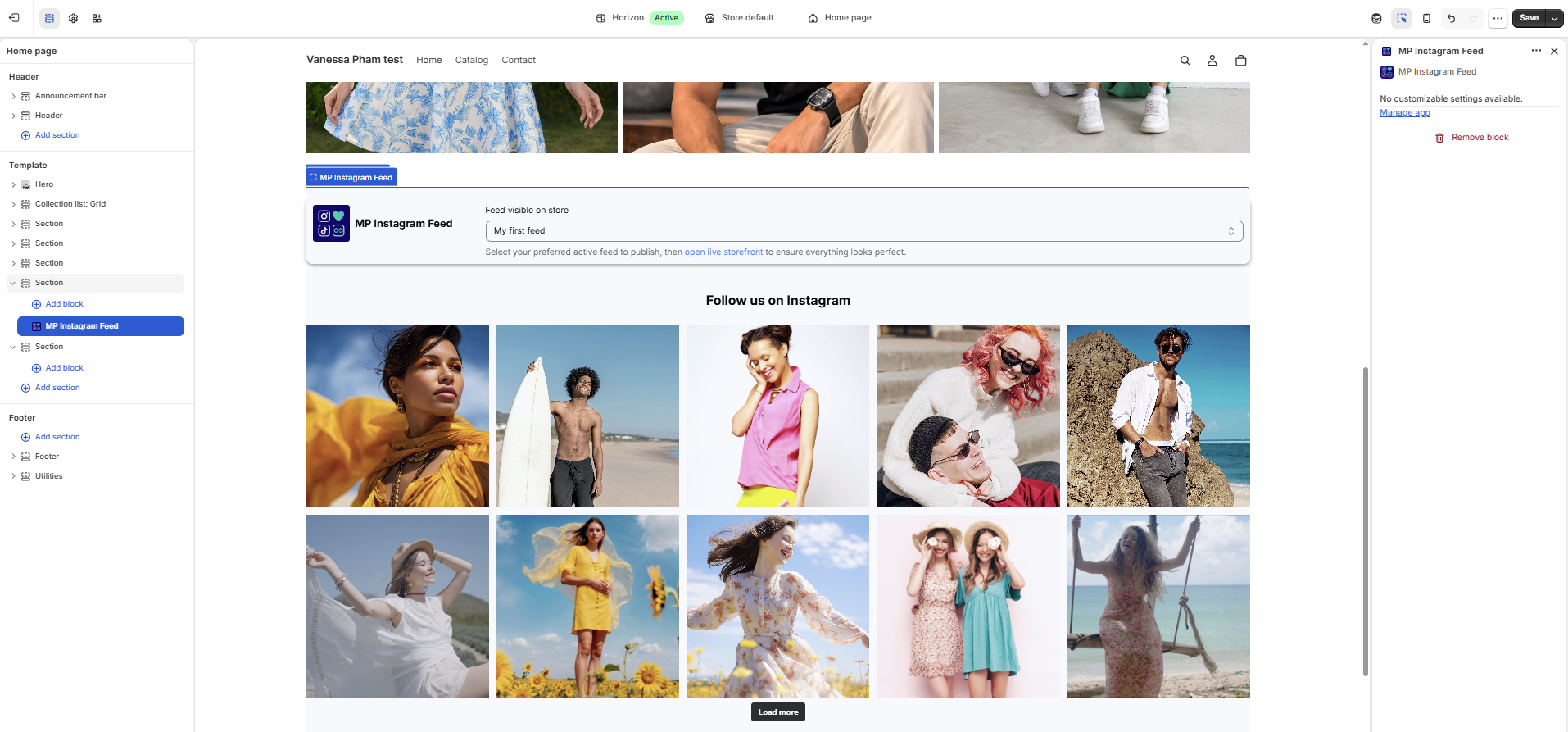
In the theme editor, click the MP Instagram Feed app block. Then, select the feed you want to display on your storefront, for example: My first feed Once you select the feed, the feed images will appear in the theme preview.
Click Save in the Shopify theme editor to publish the feed on your storefront.
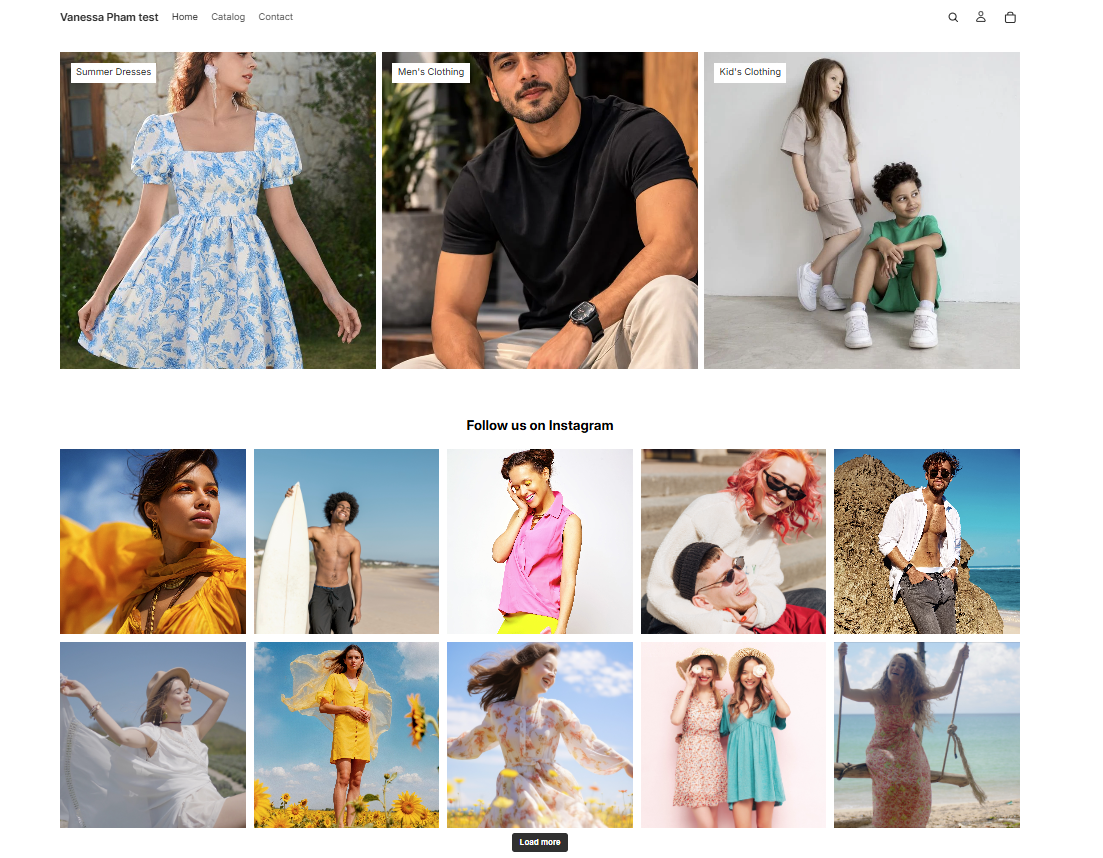
After saving, click Open live storefront to review how the feed looks on your store. Make sure the feed displays correctly on the selected page and looks good on both desktop and mobile
You’re All Set
Click Explore app to go to your dashboard, where you can manage your feed, review analytics, tag more products, and adjust your settings at any time.
Important note:
To reconnect or add a new account, make sure you’re logged into that specific Instagram account in your browser first.
When the Instagram connection window appears:
- If you want to connect with the currently logged-in account, simply click “Allow” to grant permission to MP Instagram Feed.
- If you wish to connect with a different account, click the “Switch account” icon at the top right of the modal, log into your desired account, and then click “Allow.”
- If you try to connect an account that’s not the current account logged into your Instagram browser session, the app will show a confirmation message. In this case, click “Switch account” to log into the correct account you intend to connect.
When attempting to connect your Instagram account, you might encounter a “400 Session Invalid” error. Please read this guide to resolve those issues.
Need help?
If you run into any issues during setup, click the contact us link on the Publish screen or reach out to the Shopplaza support team directly from inside the app. We’re happy to help you get your feed live.