How to show the wishlist on Avada Shoppable Videos Reel (ShopVid)
When you connect MP Wishlist & Favorites with Avada Shoppable Videos Reel (ShopVid), every product tagged in a video widget shows a wishlist icon. If a shopper likes a product in a video but isn’t ready to buy, they can save it in one tap without leaving the video. The product then waits on their wishlist page until they come back.
You turn the icon on in ShopVid. Its look comes from MP Wishlist & Favorites, so it matches the wishlist buttons on the rest of your store.
Before you start
Make sure these are ready on your store:
- Avada Shoppable Videos Reel is installed. In your Shopify admin it shows as AG Shoppable video.
- You have a video widget with tagged products, or you’re about to create one.
- MP Wishlist & Favorites is installed and the MP Wishlist app embed is on in your theme. See How to set up MP Wishlist & Favorites.
Note: You can turn on the wishlist icon in ShopVid before MP Wishlist & Favorites is installed. ShopVid shows you a shortcut to install it (see Step 2).
Step 1: Turn on the wishlist icon in your video widget
#1. In your Shopify admin, go to AG Shoppable video > Manage widget.
#2. Click Add new widget to create a widget, or click the name of an existing widget to edit it.
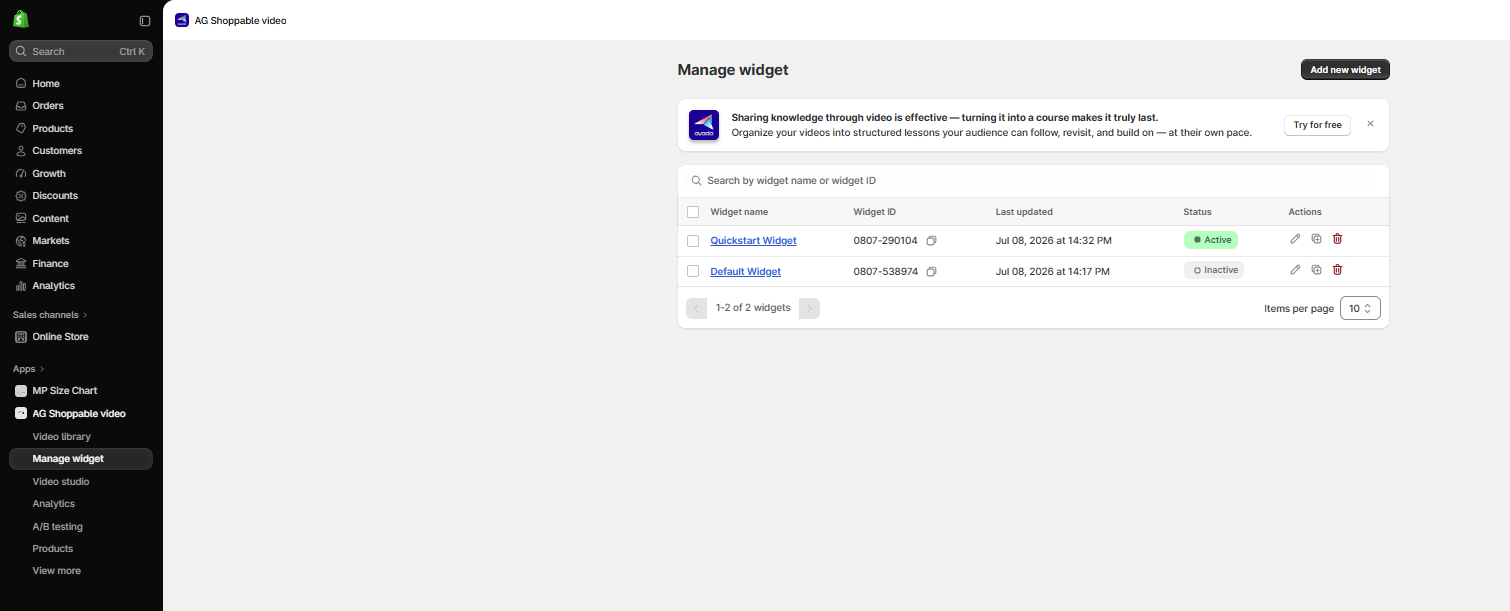
#3. In the widget editor, click Integration in the left menu.
#4. Turn on the Add a wishlist icon toggle. The preview on the right shows a wishlist icon on each product in the Product seen in the video list.
#5. Click Save at the top right.
Step 2: Install MP Wishlist & Favorites
If MP Wishlist & Favorites isn’t installed yet, a warning shows under the toggle: MP Wishlist app isn’t installed on your store, so the wishlist icon won’t show on your storefront. The icon still shows in the preview so you can set it up.
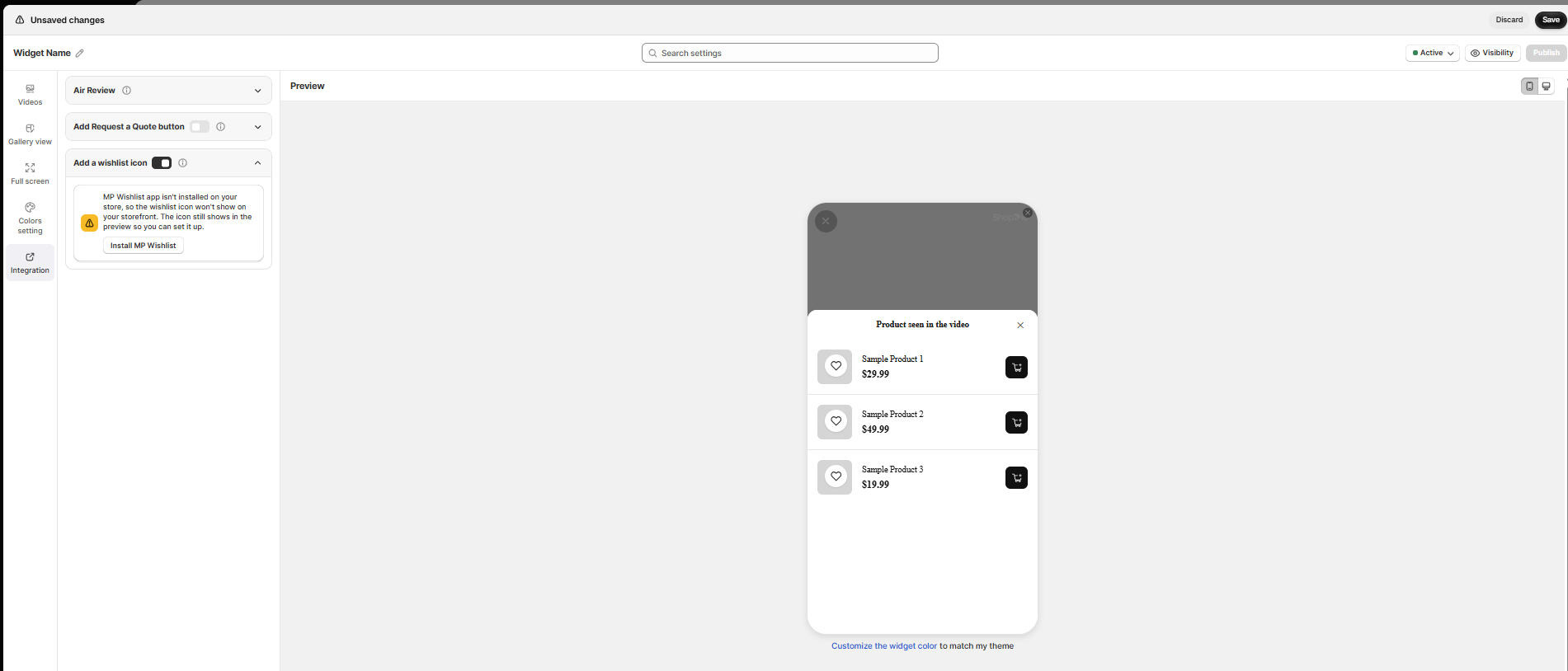
#1. Click Install MP Wishlist to open MP Wishlist & Favorites on the Shopify App Store.
#2. Install the app. It’s free, with every feature included.
#3. Turn on the MP Wishlist app embed in your theme, following the setup guide linked in Before you start.
Step 3: Customize the wishlist icon in MP Wishlist
Once MP Wishlist & Favorites is installed, the warning is replaced by a note: To change how the icon looks (style, color, corners, position), go to MP Wishlist settings.
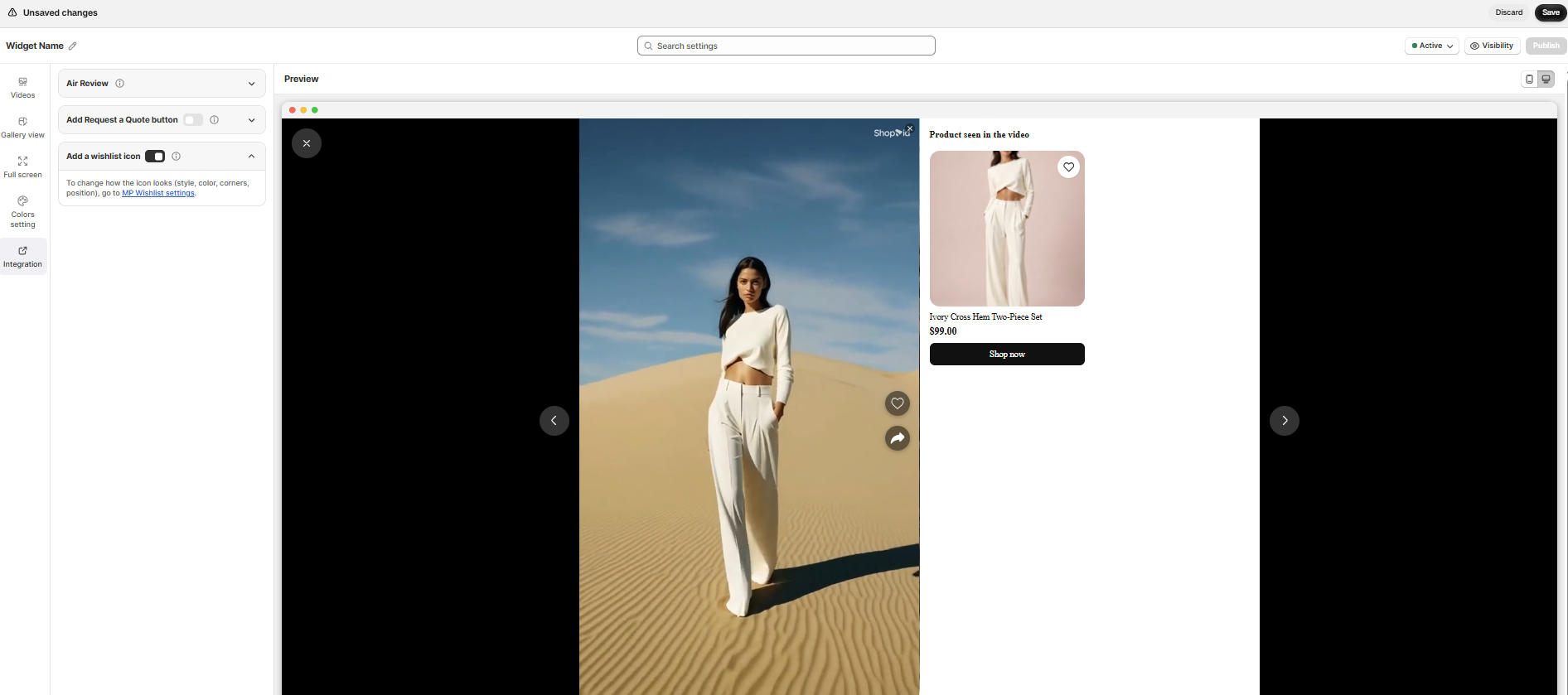
ShopVid only turns the wishlist icon on or off. To change how it looks, click MP Wishlist settings to open MP Wishlist & Favorites, then edit the wishlist button there. Your changes apply to the icon in your video widgets too. See How to customize the wishlist button appearance.
What shoppers see
When a shopper opens a video, each product in the Product seen in the video list shows a wishlist icon on its image. Tapping the icon saves the product to their wishlist, and they can keep watching. The saved product shows on their wishlist page, ready to add to cart later.
Note: If you don’t see the icon on your storefront, check that MP Wishlist & Favorites is installed, that the MP Wishlist app embed is on in your theme, and that the widget is Active in ShopVid. If you limit the wishlist button to selected products or collections in Display conditions, the icon only shows on those products. See Why isn’t the wishlist button showing on my store?
Turn off the wishlist icon
To hide the icon in a video widget, open the widget in ShopVid, go to Integration, turn off Add a wishlist icon, and click Save. Products shoppers have already saved stay on their wishlists. The wishlist buttons on your product pages and product cards keep working as before.
👉 Still need assistance? Contact our support team anytime, and we’ll be happy to help.