How to let shoppers share their wishlist
Sharing adds a Share button to the wishlist page. Shoppers create a link to their list and send it by copying the link or by email. Anyone with the link sees the whole list, including the note the shopper left on each item, and can add the items to cart.
It’s built for gift lists: before a holiday or a birthday, a shopper saves what they want, adds a note such as the size or color, and sends the list to family and friends. Every shared link brings a new visitor to your store who already knows what to buy.
Note: The Share button and item notes show on the full wishlist page. If you set Wishlist display to Modal, Drawer, or Popover, shoppers open the full page with View full page or View all to share their list. See How to show the wishlist as a page, modal, drawer, or popover.
Turn on sharing
#1. In MP Wishlist & Favorites, go to Settings and open the My wishlist tab.
#2. Find the Sharing section and turn on the toggle next to its name. Click the section to expand it.
#3. Adjust the settings below. The preview on the right shows the Share button and the note link on each item.
#4. Click Save in the Unsaved changes bar at the top.
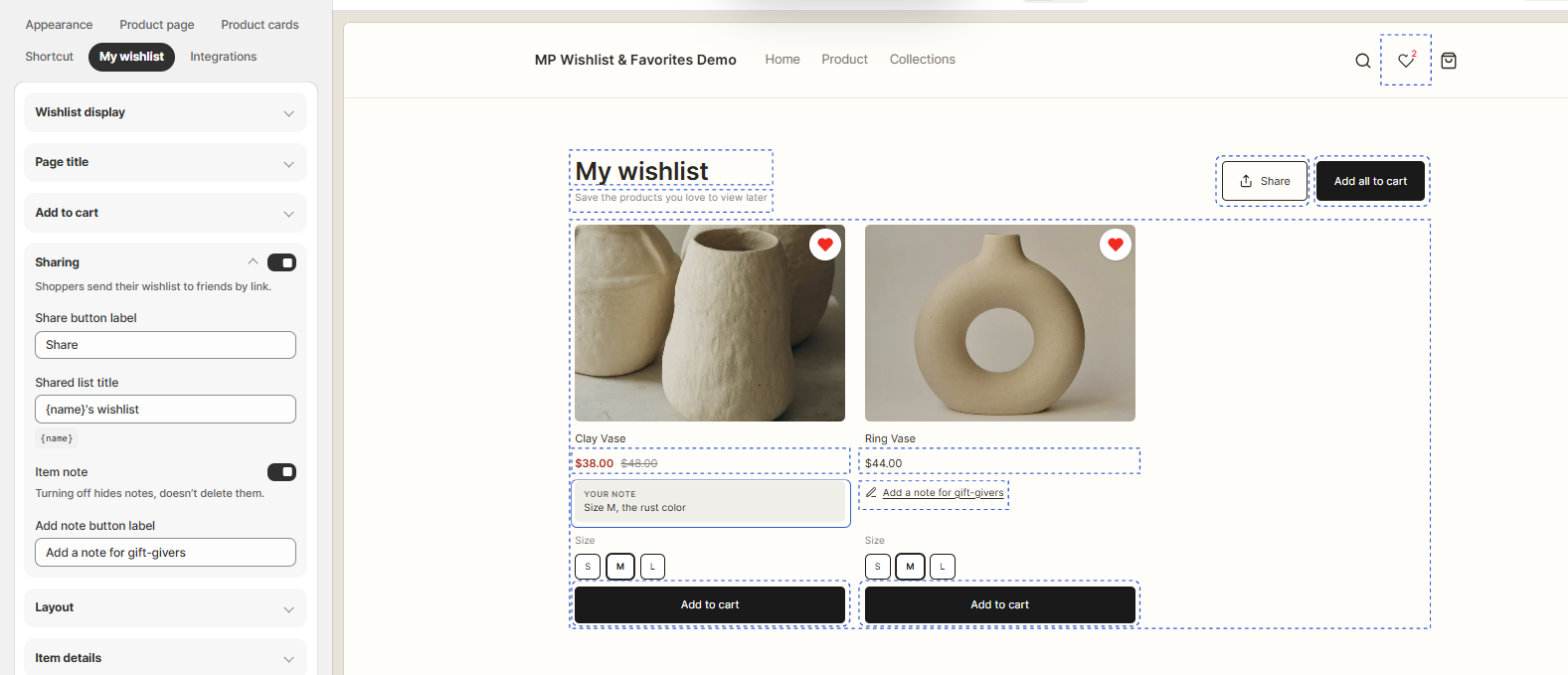
Sharing settings
Share button label
The text on the Share button at the top of the wishlist page, next to Add all to cart (default Share).
Shared list title
The title the recipient sees at the top of the shared list (default {name}’s wishlist). Keep {name} in the title to show the name of the shopper who shared it. Click the {name} chip under the field to insert it.
Item note
Turn on Item note to let shoppers add a short note to each saved item, such as Size M, the rust color. The recipient sees the note under the item, so they know exactly what to buy.
Turning Item note off hides the notes on the wishlist page and the shared list. It doesn’t delete them, so if you turn it on again, the notes come back.
Add note button label
The text of the link under each item that opens the note (default Add a note for gift-givers).
What shoppers see
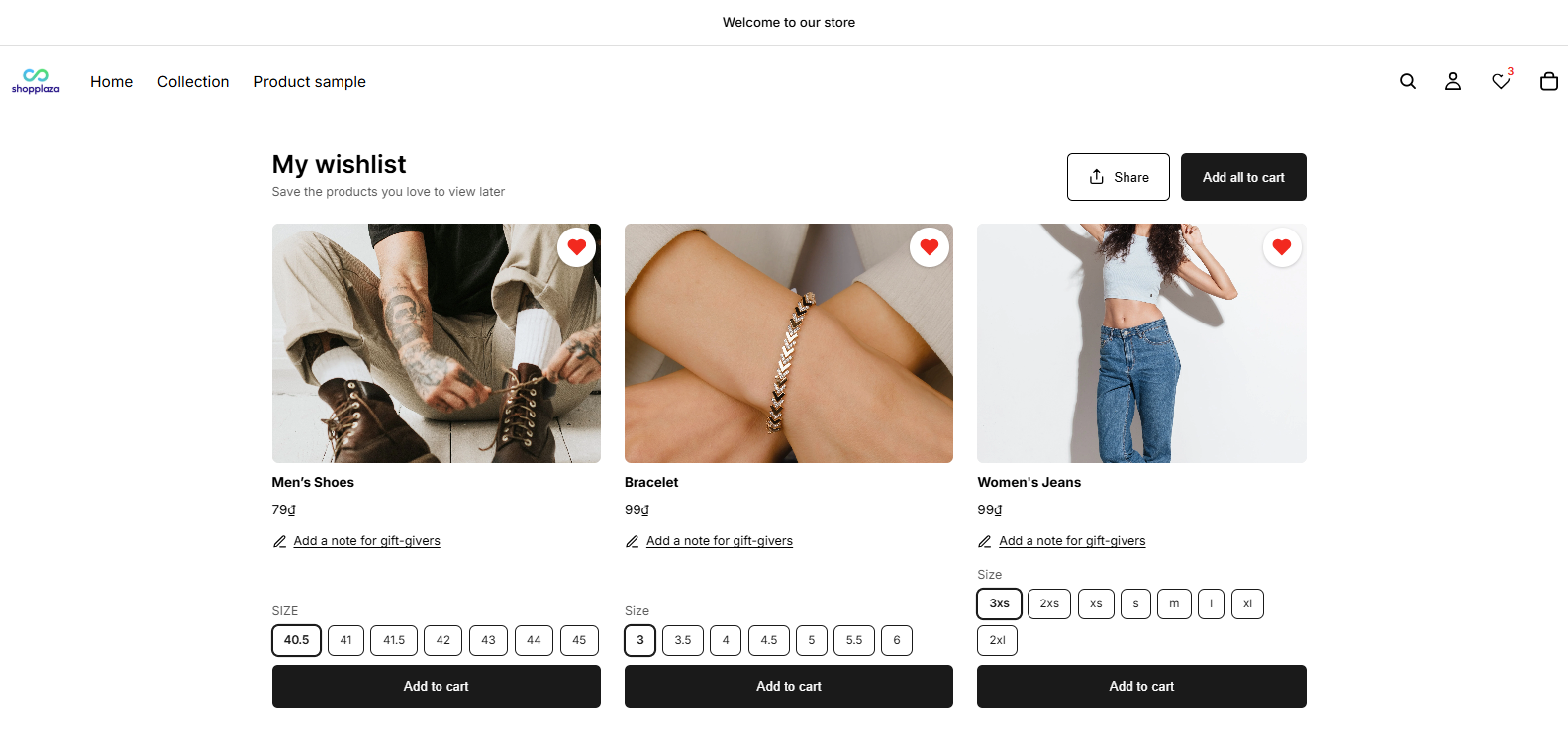
- A Share button at the top of the wishlist page, next to Add all to cart.
- Under each saved item, an Add a note for gift-givers link. Shoppers tap it, type a note, and the note shows under the item as Your note.
How a shopper shares their list
#1. The shopper taps Share. The Share your wishlist dialog explains that anyone with the link can see the list and buy from it.
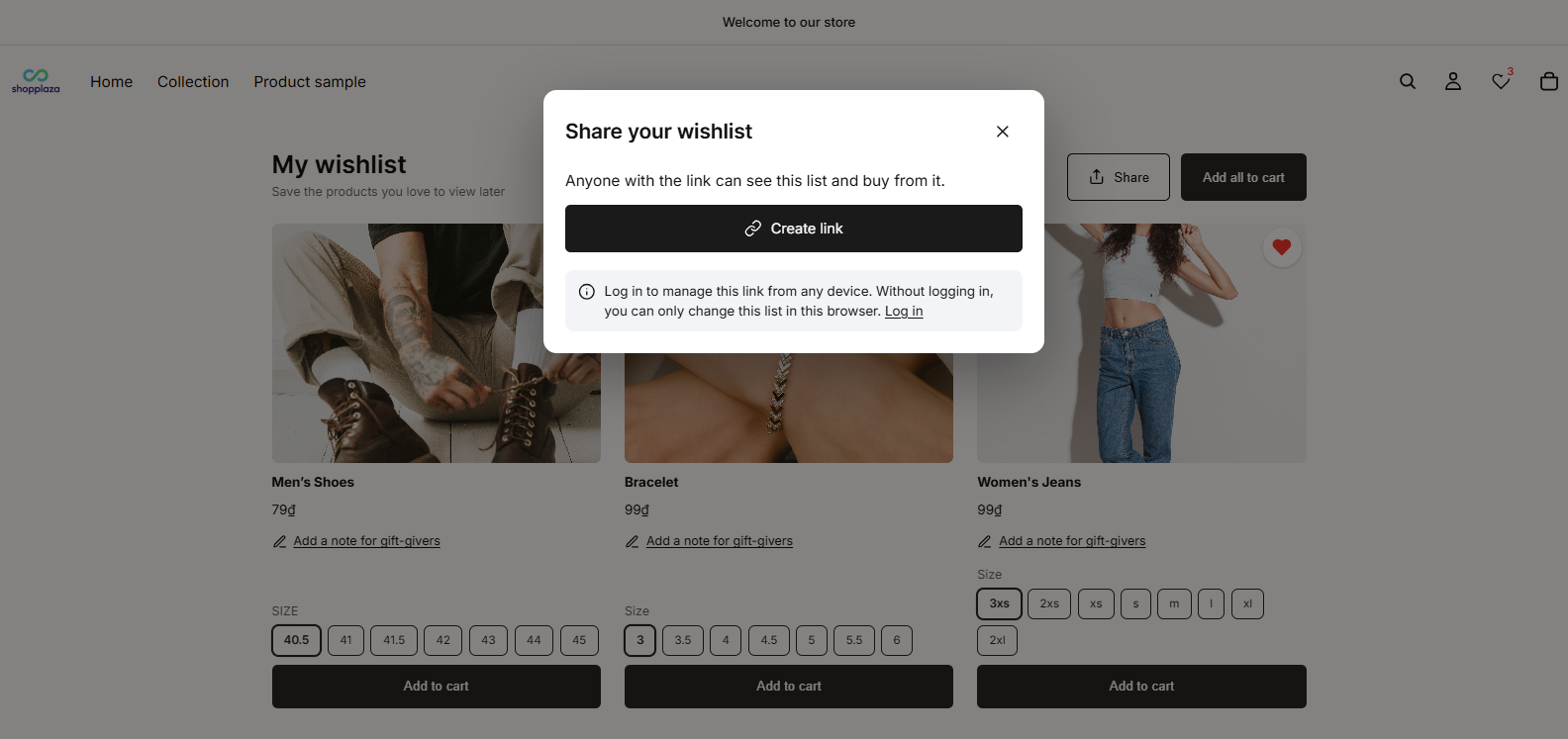
#2. They tap Create link. The dialog shows the link under Your link.
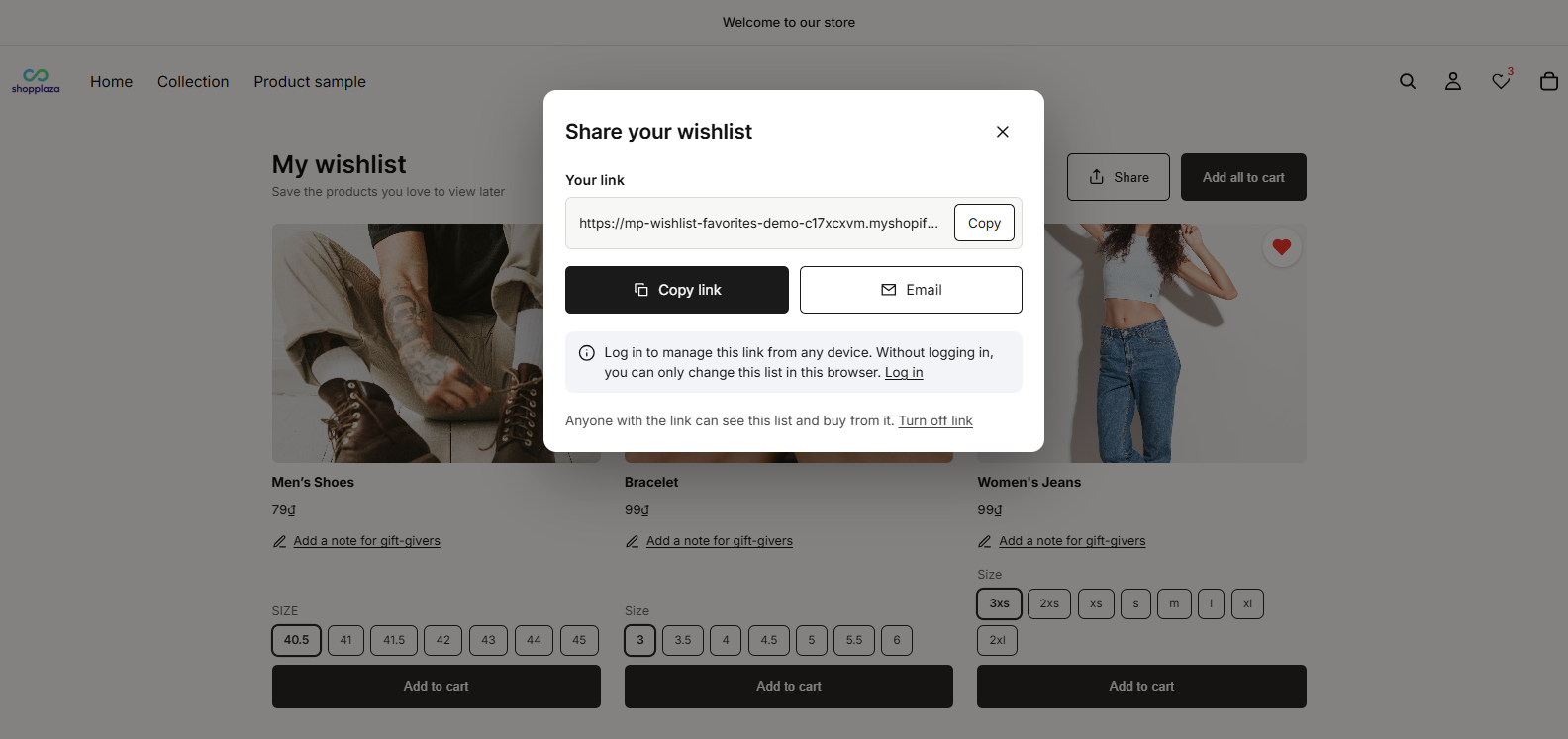
#3. They tap Copy link to copy it, or Email to send it from their email app. They can paste the link anywhere: a chat, a social post, or a message.
To stop the link from working, the shopper opens the dialog again and taps Turn off link.
Note: A shopper who isn’t logged in can only manage the link from the browser where they created it. The dialog reminds them to Log in to manage the link from any device.
What the recipient sees
When someone opens the link, they see the shared list on your store, with the Shared list title at the top (for example, Hannah’s wishlist). Each item shows its image, name, price, the saved size or color, and the shopper’s note if there is one. The recipient can add any item to cart and check out as usual. They can’t change the list.
The share dialog and the shared list are translated automatically to match your storefront language.
Turn off sharing
To remove the Share button, turn off the Sharing toggle and click Save. To hide notes but keep sharing on, turn off Item note instead.
Tip: Before a holiday season, tell shoppers they can share their wishlist. A line in your newsletter or a banner on the wishlist page, such as Share your list with family and friends, is enough to get gift lists moving.
👉 Still need assistance? Contact our support team anytime, and we’ll be happy to help.