How to add a floating Instagram widget to your Shopify store
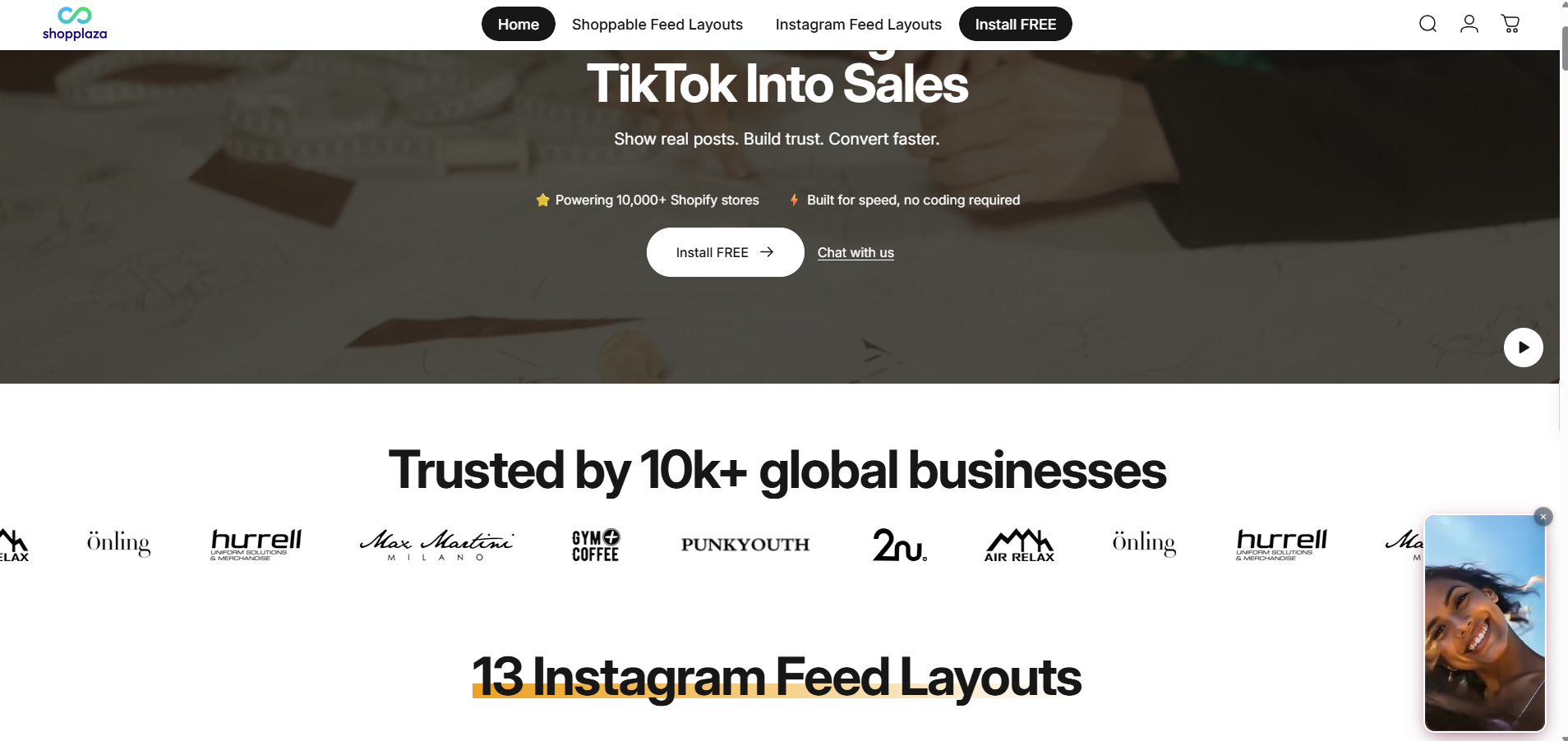
The Floating widget is a story-style tile that floats in a corner of your store. It plays your Instagram and TikTok posts, Reels and UGC while shoppers browse, and opens them in a popup when tapped. Tagged products show a count badge, so shoppers can shop the post straight from the popup.
Unlike the other layouts, you don’t place the Floating widget in the theme editor. It shows on your store automatically once it’s active, on the pages you choose.
Before you start
Make sure that:
- Your Instagram or TikTok account is connected. See How to connect your Instagram/TikTok account.
- The MP Instagram Feed app embed is turned on in your live theme. The widget only shows when the app embed is on and the feed status is Active.
Step 1: Choose the Floating widget layout
- In your Shopify admin, open MP Instagram Feed and start creating a new feed.
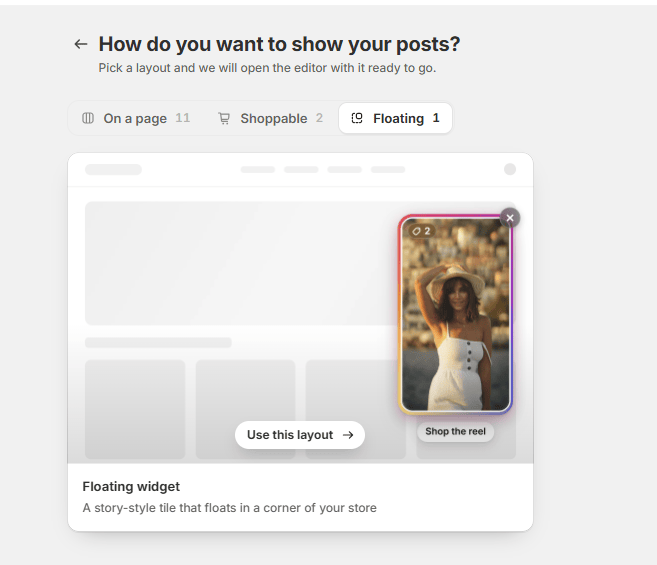
- In How do you want to show your posts?, open the Floating tab.
- On the Floating widget card, click Use this layout. The editor opens with the widget ready to set up.
Step 2: Choose your posts
In 1. Manage media, pick the posts, Reels and videos you want the widget to play, the same way as for any other feed. You can tag products on them so shoppers can buy from the popup.
Step 3: Design the widget
Open 2. Design. The preview on the right updates as you change each setting.
Use the Mobile and Desktop tabs to set up each device separately, or tick Apply mobile settings for desktop to use the same settings on both.
Look
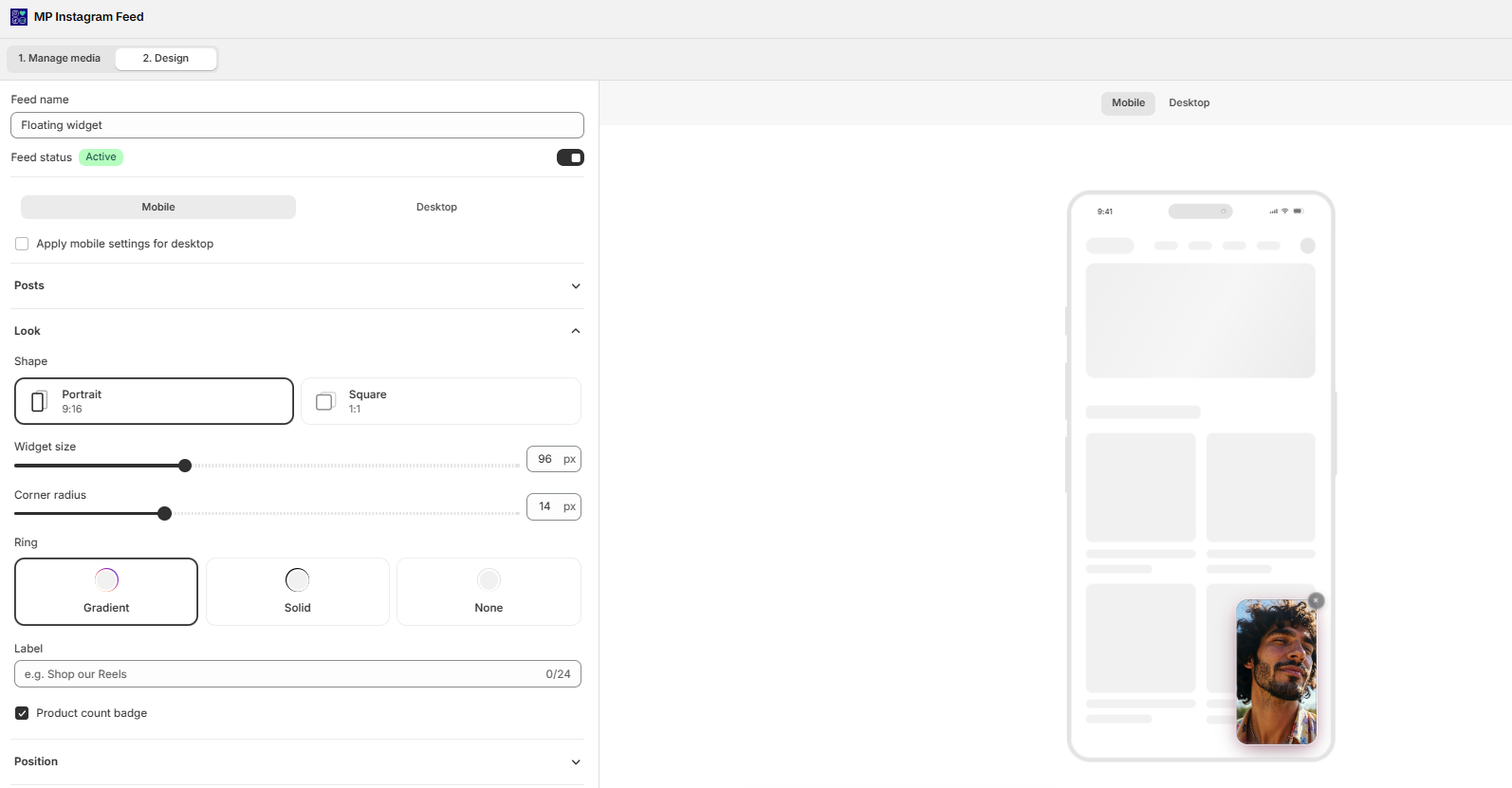
- Shape: Portrait (9:16) for Reels and TikTok-style videos, or Square (1:1).
- Widget size: the width of the tile, in pixels.
- Corner radius: how rounded the corners are.
- Ring: the border around the tile. Choose Gradient (Instagram-style), Solid, or None.
- Label: optional short text under the tile, such as “Shop our Reels” (up to 24 characters).
- Product count badge: shows how many products are tagged in the post.
Position
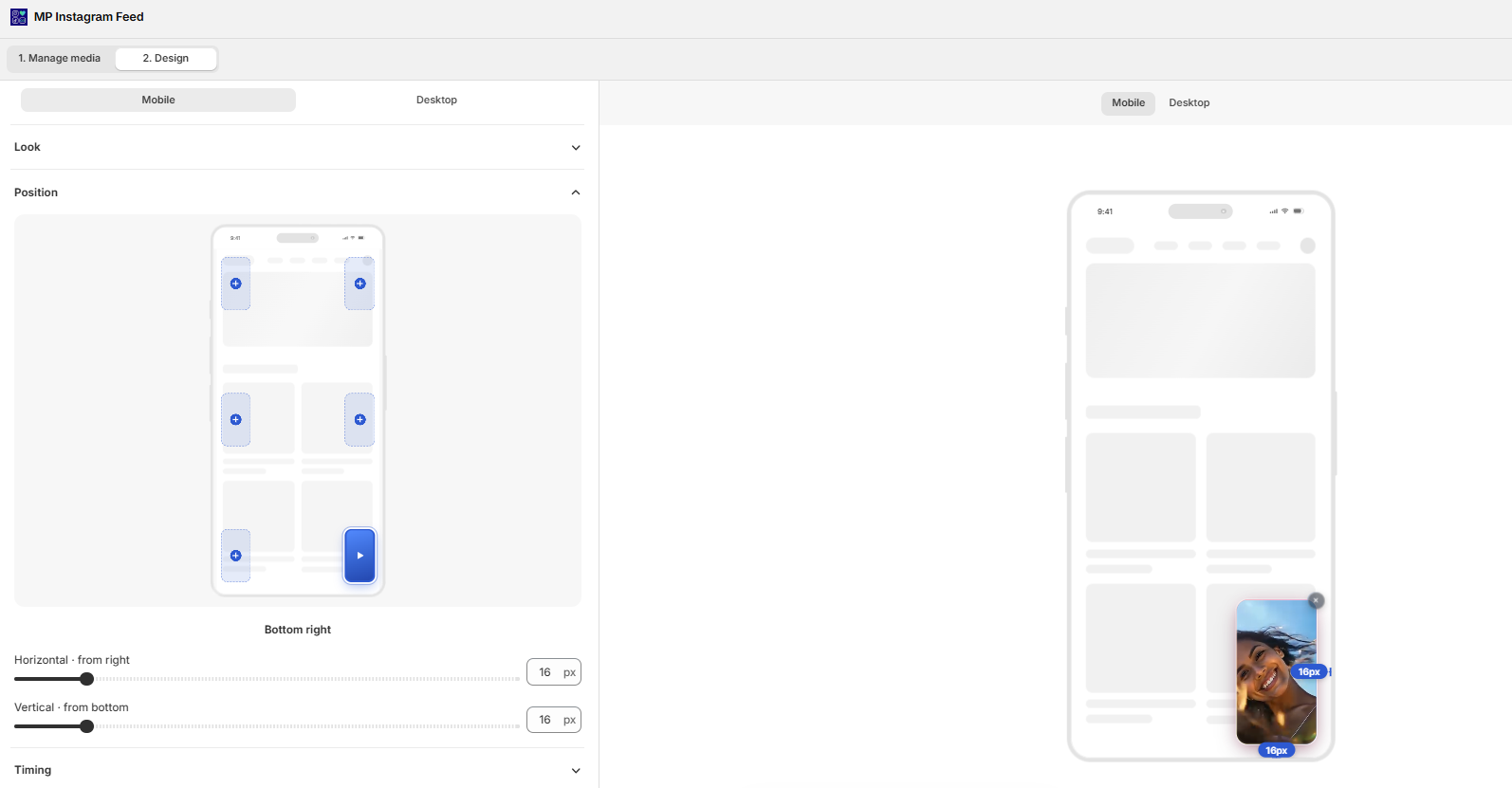
- Click a spot on the phone preview to choose where the widget sits, for example Bottom right.
- Use Horizontal and Vertical to set the distance from the edge of the screen, in pixels. Move it away from your chat button or cart bar if they overlap.
Timing
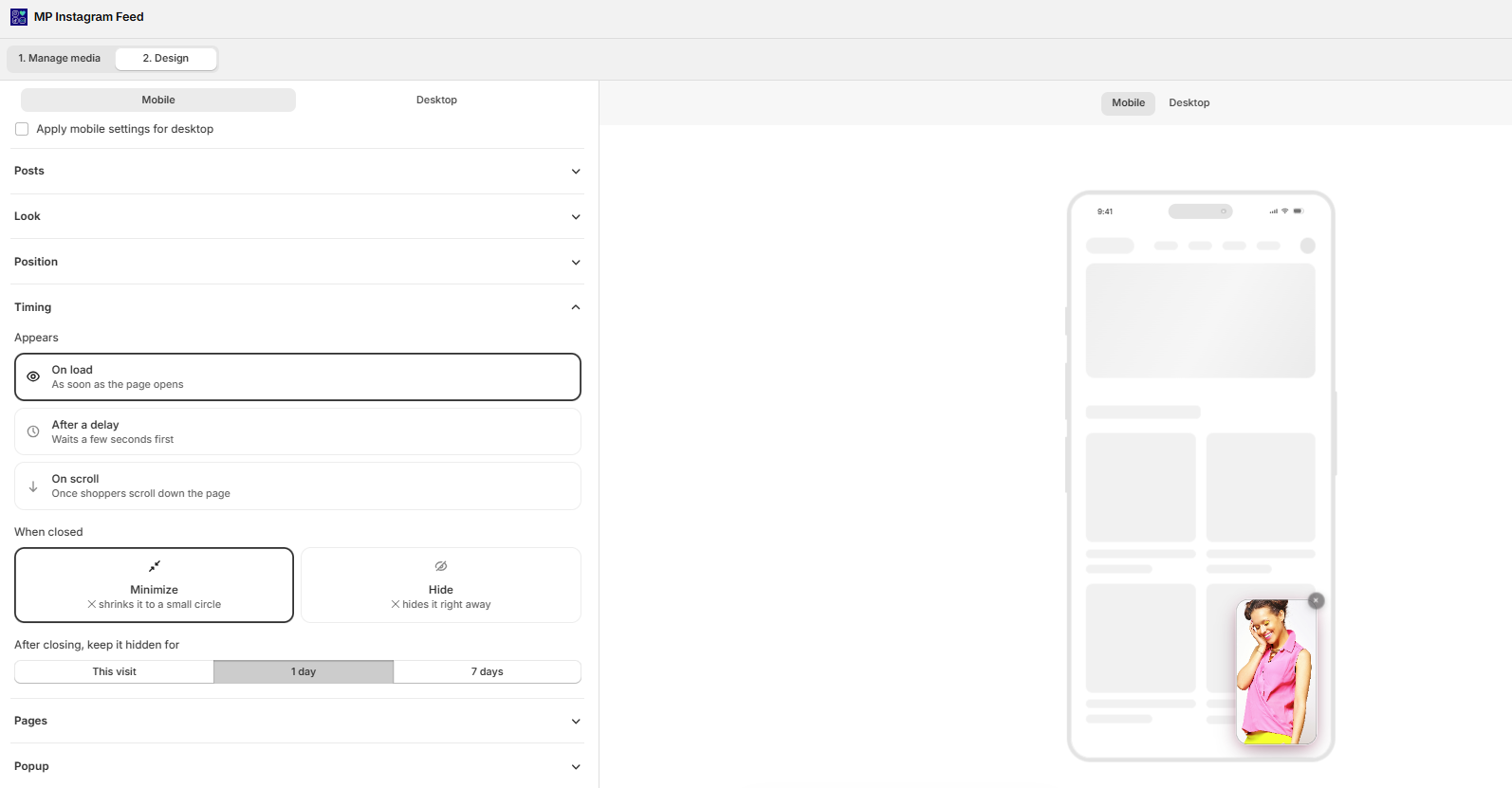
- Appears: On load (as soon as the page opens), After a delay (waits a few seconds first), or On scroll (once shoppers scroll down the page).
- When closed: Minimize shrinks the widget to a small circle when shoppers tap ×. Hide removes it right away.
- After closing, keep it hidden for: This visit, 1 day, or 7 days.
Pages
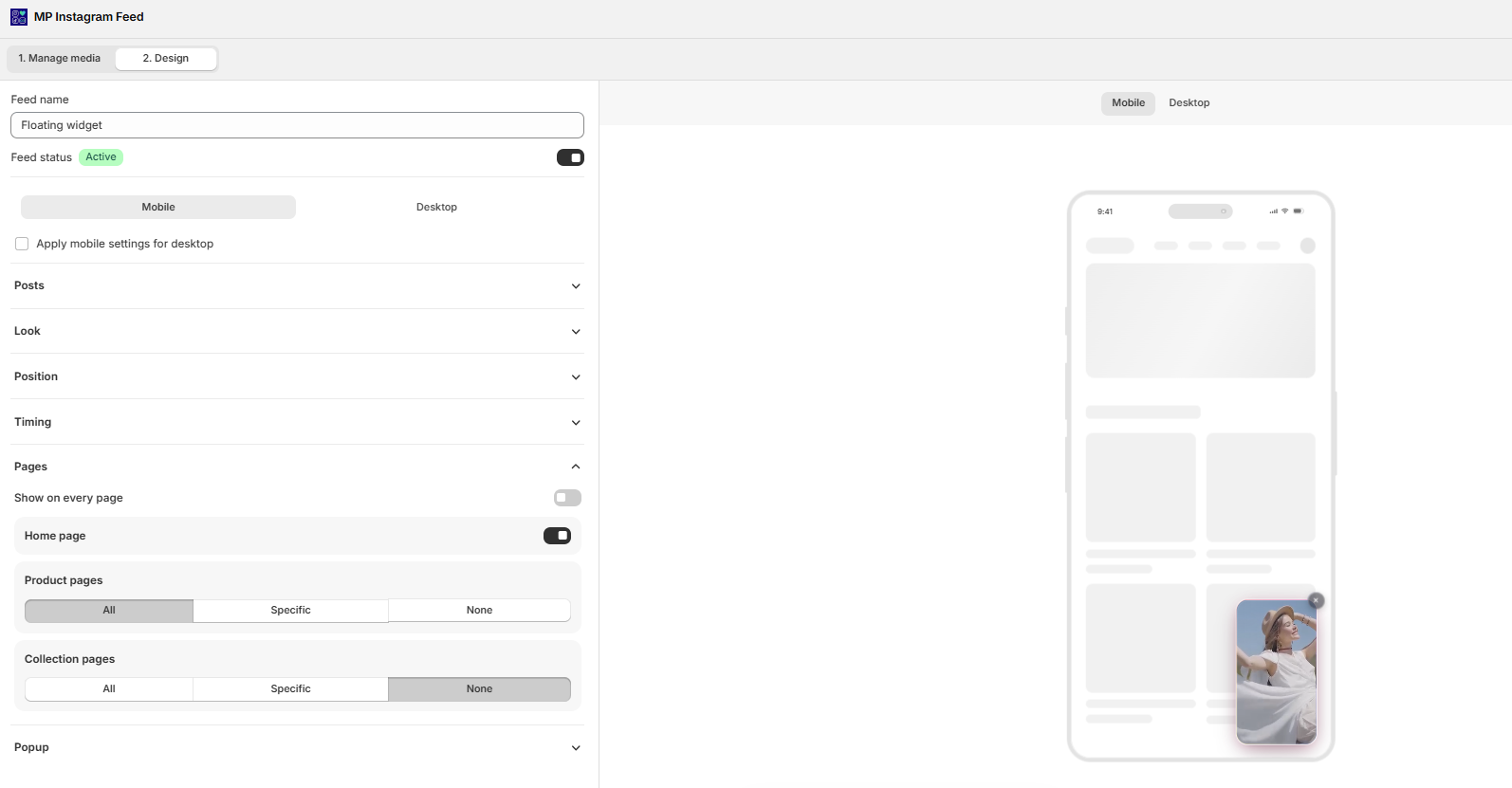
- Turn on Show on every page to show the widget across your whole store.
- Or pick pages one by one: turn Home page on or off, and set Product pages and Collection pages to All, Specific, or None.
Note: Each page can show only one active floating widget. If you pick a page that another active floating widget already uses, a message appears when you click Save. Choose a different page, or remove that page from the other widget first.
Popup
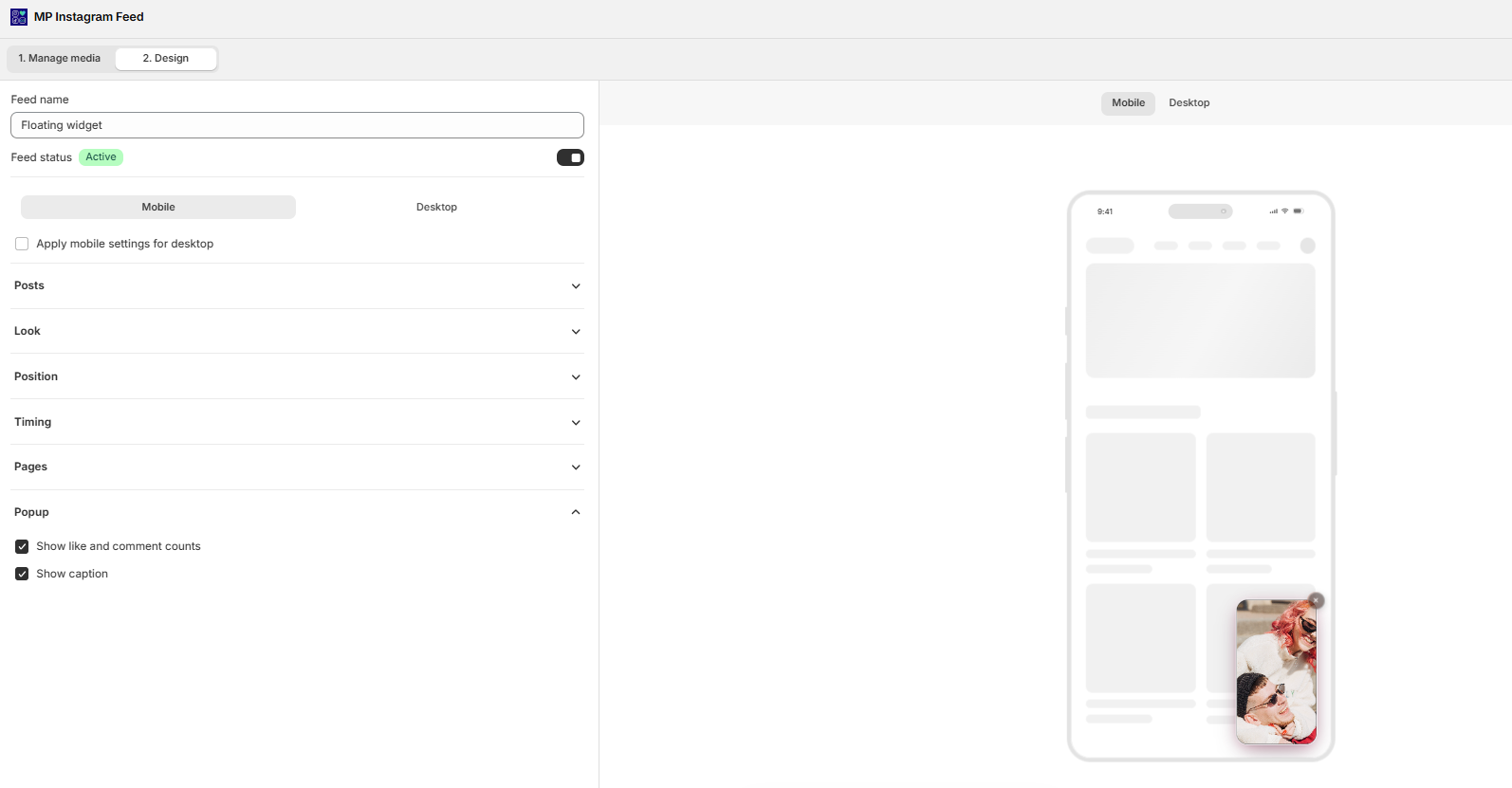
- Show like and comment counts and Show caption control what shoppers see when they tap the widget and the post opens.
Step 4: Save and check your store
- Make sure Feed status at the top of the editor is Active, then click Save.
- Open your storefront. The widget appears on the pages you picked, with the timing you set.
There is no theme editor step for this layout. If the widget doesn’t show, check that the MP Instagram Feed app embed is on in your live theme and that the feed is Active.
Wrap up
The Floating widget keeps your social content in view on every page without taking up space in your layout. Pair it with an on-page layout on your homepage, or use it on its own on product pages, so shoppers can watch a Reel and shop it while they browse. To compare it with the other layouts, see What layout options are available in MP Instagram Feed.