How to integrate MP Instagram Feed with MP Size Chart & Size Guide app
Integrating MP Instagram Feed with MP Size Chart & Size Guide adds a Size chart link to the add-to-cart window of the products tagged in your shoppable feed. Shoppers can check their size right where they discover a product, without leaving the feed. This helps them pick the right size the first time, buy with more confidence, and send back fewer orders because of fit.
Before you start
Make sure both apps are ready on your store:
- MP Instagram Feed is installed, and you already have posts with tagged products.
- MP Size Chart & Size Guide is installed and its app embed is turned on in your live theme. The app has a free plan.
- Your tagged products have a size chart in MP Size Chart. The link only shows on products that have a chart.
Note: You don’t need to install MP Size Chart first. If it isn’t installed yet, MP Instagram Feed shows you a shortcut to install it during setup (see step 2 below).
Step 1: Turn on the size chart link
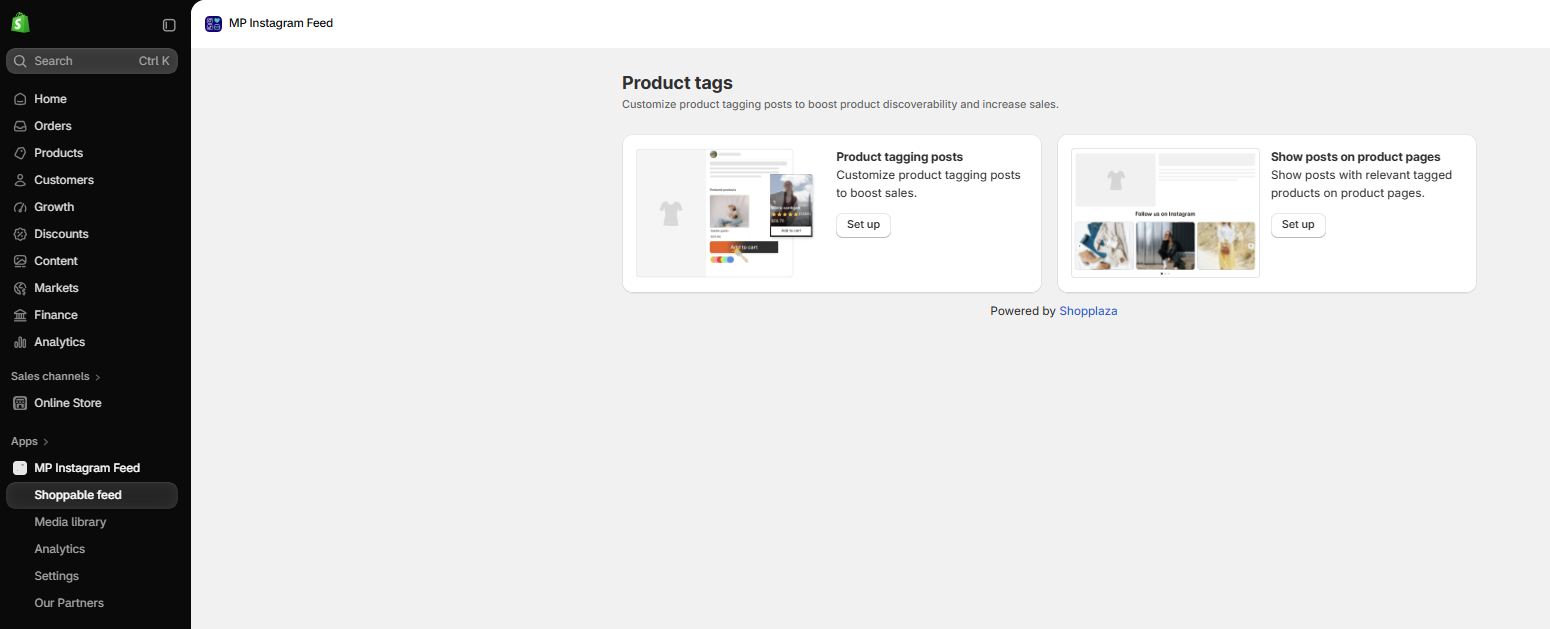
- In your Shopify admin, go to MP Instagram Feed > Shoppable feed.
- In the Product tags section, click Set up on the Product tagging posts card.
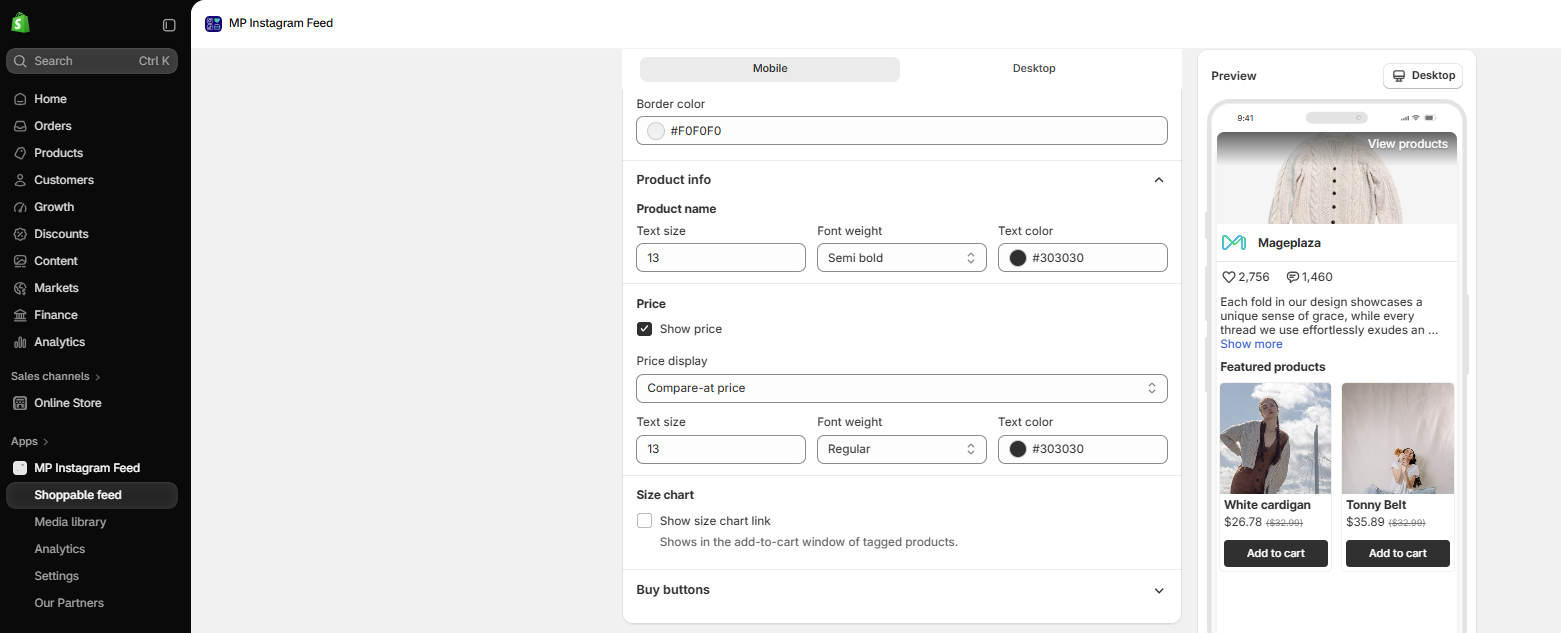
- Open the Product info section and scroll to Size chart.
- Tick Show size chart link.
- Click Save.
Step 2: Install MP Size Chart & Size Guide
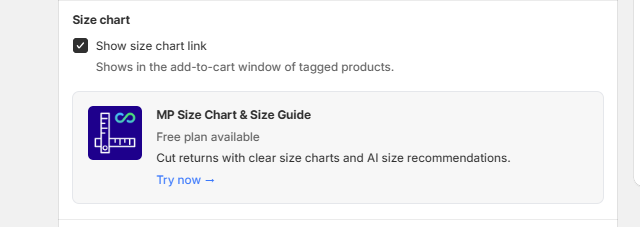
If MP Size Chart isn’t installed on your store yet, an MP Size Chart & Size Guide card appears right below the checkbox.
- Click Try now to open the app on the Shopify App Store.
- Install the app. The free plan is enough to show the size chart link.
Step 3: Enable MP Size Chart and create your charts
After installing, set up MP Size Chart so it has a chart to show:
- Turn on the MP Size Chart app embed in your live theme. If the app embed is off, MP Instagram Feed shows a warning banner under Show size chart link. Click Enable app embed to turn it on in the theme editor, then save the theme.
- Create a size chart and assign it to the products you tag in your Instagram posts. You can also click Manage charts under the checkbox to jump straight to your charts.
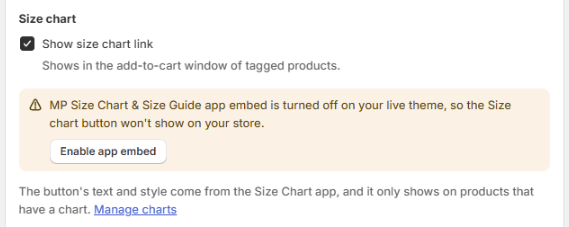
- Once the app embed is on, the warning banner disappears and the Size chart section only shows the Show size chart link option and the Manage charts link. This means the integration is ready.
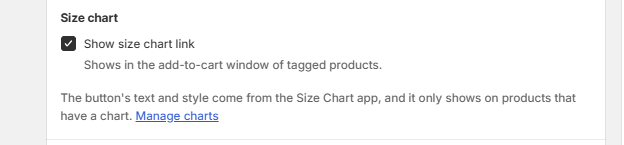
Note: The Size chart button’s text and style come from the MP Size Chart app. To change how it looks, edit it in MP Size Chart, not in MP Instagram Feed.
Step 4: Check the size chart link on your storefront
- Go to your storefront and open the shoppable feed.
- Click a post, then open the add-to-cart window of a tagged product that has a chart. You’ll see the Size chart link under the product price.
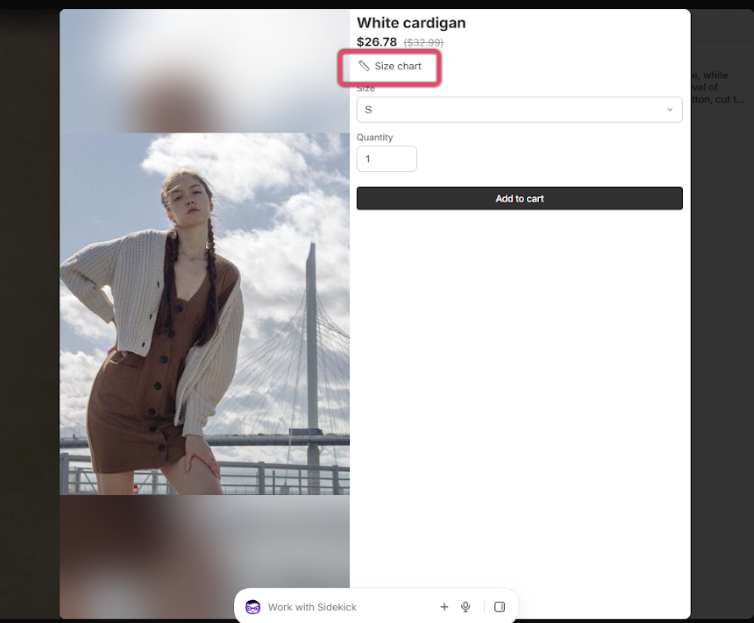
- Click Size chart to open the chart in a popup. Shoppers can check their size and add the product to the cart in the same window.
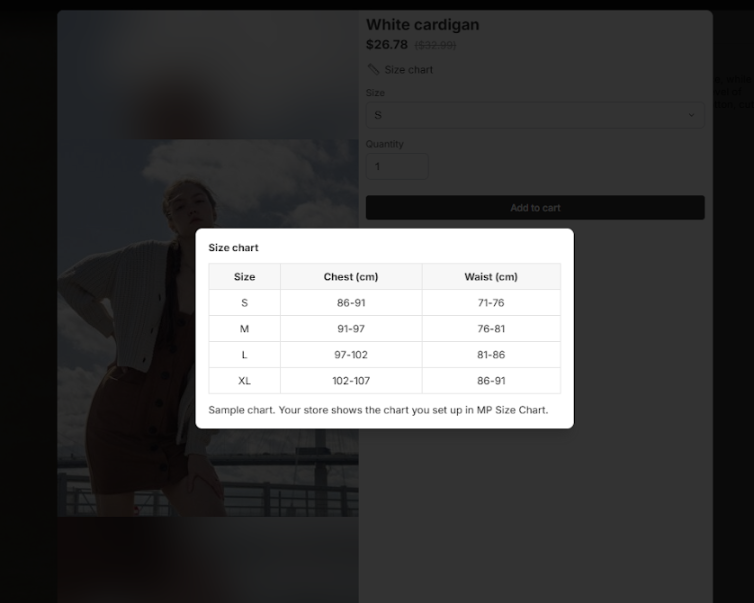
Note: If you don’t see the link, check that the product has a chart in MP Size Chart and that the MP Size Chart app embed is on in your live theme.
Wrap up
With MP Size Chart integrated, your Instagram feed answers the “which size should I get?” question at the moment shoppers are ready to buy. Clear sizing inside the feed means fewer hesitant shoppers, fewer wrong-size orders, and fewer returns.