Get started with SP B2B Company Accounts
IMPORTANT: This app is available only on Shopify Plus stores with Customer Accounts enabled (Legacy not supported). Please make sure to review this before installing.
Introduction
Welcome to SP B2B Company Accounts – your centralized solution for managing B2B customers on Shopify Plus. This app helps you deliver a smooth B2B buying experience by giving your business customers their own company portal while keeping all management inside your Shopify Admin.
What does this app do?
- Allow customers to register a company directly from your storefront.
- Review and approve or decline B2B companies from your Shopify Admin.
- Give approved companies access to a self-service portal where they can manage orders, users, roles, and locations.
- Enable features like user invitations, role & permission control, and multi-location management.
- View simple, easy-to-understand visual reports for key B2B activities.
- Customize email notifications for invitations, approvals, rejections, and update requests.
Who should use this app?
This app is designed for:
- Shopify Plus stores that sell B2B, wholesale, or multi-branch customers.
- Merchants who want a professional B2B portal without custom development.
- Stores that rely on Shopify’s B2B (Companies) feature but want to provide their company customers with a more transparent management portal (covering accounts, locations, roles, and user access) and a streamlined login process.
Before you begin
Before using this app, make sure you meet these requirements:
- A store on Shopify Plus
- Access to install apps and manage permissions in your Shopify Admin
- A published Online Store where the B2B portal can be displayed
Optional but recommended:
- A dedicated email sender (to deliver approval, rejection, and invitation emails reliably)
Installation and first-time setup
Follow these steps to install and activate the app:
Step 1 – Install the app
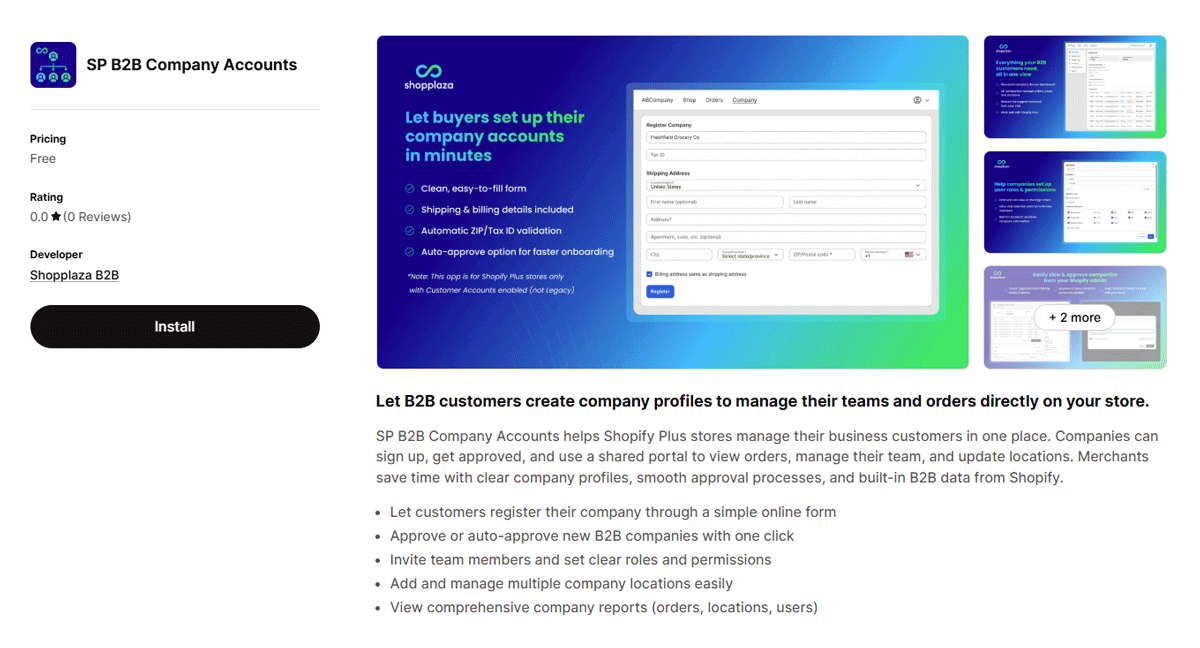
- Go to Shopify App Store and search for “SP B2B Company Accounts”.
- Click Install.
- Review the permissions and approve the installation request.
- Shopify redirects you to the app dashboard once everything is approved.
If permissions are blocked or incomplete, Shopify will show an error. Simply retry after reviewing your admin access.
Step 2 – Open the app
After installation:
- Go to Shopify Admin → Apps.
- Click SP B2B Company Accounts.
- The embedded dashboard will load inside your Shopify Admin.
Step 3 – Enable the app
The first time you open the app, it starts in disabled mode, meaning the portal isn’t visible on your storefront yet.
To activate it:
- On the Dashboard, switch Enable App to ON.
- The warning banner disappears.
- You’ll see a confirmation toast: “Updated successfully.”
- (IMPORTANT) Add the B2B Portal through your Theme Editor so customers can access it. Watch this video to know how.
Your B2B portal is now live and ready to use.
Step 4 – Choose your approval process
You can decide how new companies are handled:
- Manual approval (recommended): Review each company request before giving access.
- Automatic approval: New companies are approved instantly and can access the portal right away.
This setting is found in: App → Settings → General
Step 5 – (Optional) Customize your email templates
Go to Settings → Email Templates to adjust:
- Approval emails
- Rejection emails
- User invitations
- Company info update requests
You can edit both the subject and body using Liquid variables.
That’s it – your B2B portal is ready.
Your customers can now register their companies. You can easily manage and authorize client company registration and portal access. You retain the ability to supervise and track all client activity directly from your centralized Shopify admin.