Case 2 – Stores Using New Customer Accounts (Passwordless Login)
Shopify does not allow direct login to customer accounts, so the app uses a secure, temporary method to help you complete the login process.
The app guides you through a simple 5-step process:
Step 1 – Generate Temporary Login Credentials
Go to Customers in Shopify Admin > More actions > SP Login As Customer
Click Generate Login Credentials.
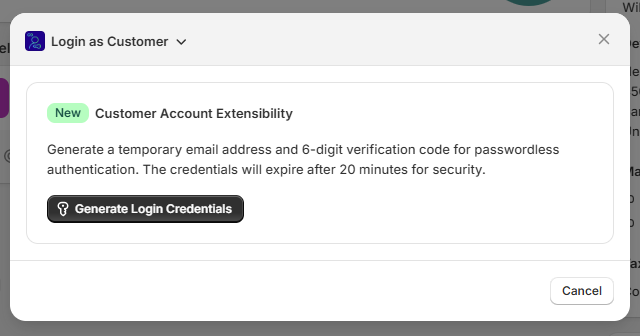
The app will:
- Create a temporary email address for this customer
- Replace the customer’s email in Shopify with this temporary address
- Set a specific expiration time (e.g, 20 minutes). You can change this in the settings.
Why?
Shopify sends login codes only to the email on the customer account. The temporary email allows the app to receive the code on your behalf so you can log in.
You will see a screen showing the temporary email and a button “I’ve copied the email”.
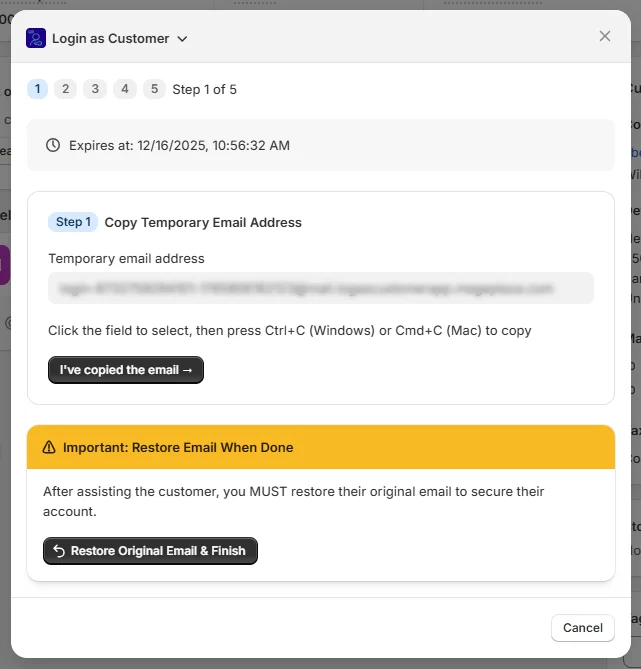
Step 2 – Open the Customer Login Page
Click Open Customer Login Page.
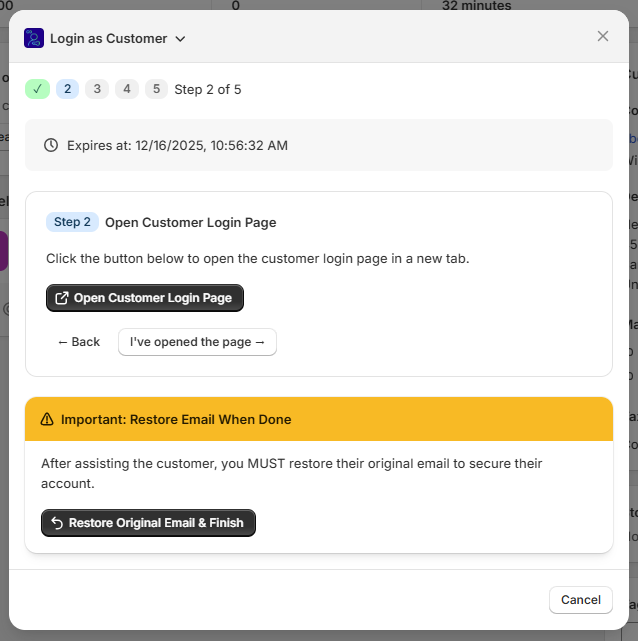
This opens your store’s login page in a new tab.
Return to the app window and click “I’ve opened the page”.
Step 3 – Submit the Temporary Email
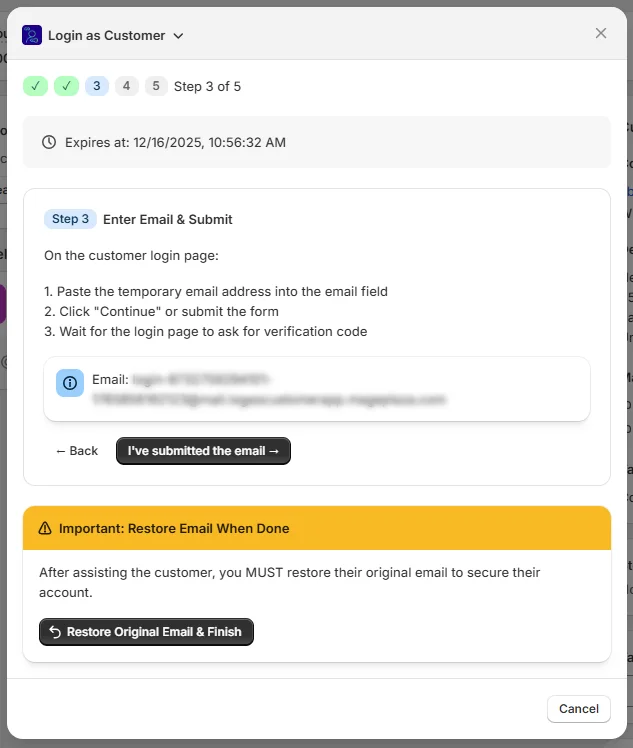
On the login page:
- Paste the temporary email into the login form
- Click Continue
- Shopify will send a 6-digit code to that temporary email
Back in the app window, click “I’ve submitted the email”.
Step 4 – Wait for the Code
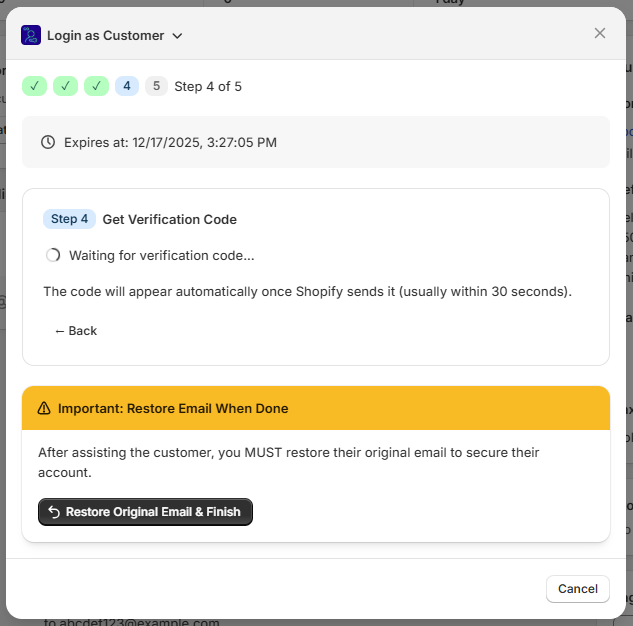
The app will automatically collect the verification code as soon as Shopify sends it.
You will see a loading indicator until the code arrives.
Once available, the app moves to Step 5.
Step 5 – Enter the Verification Code
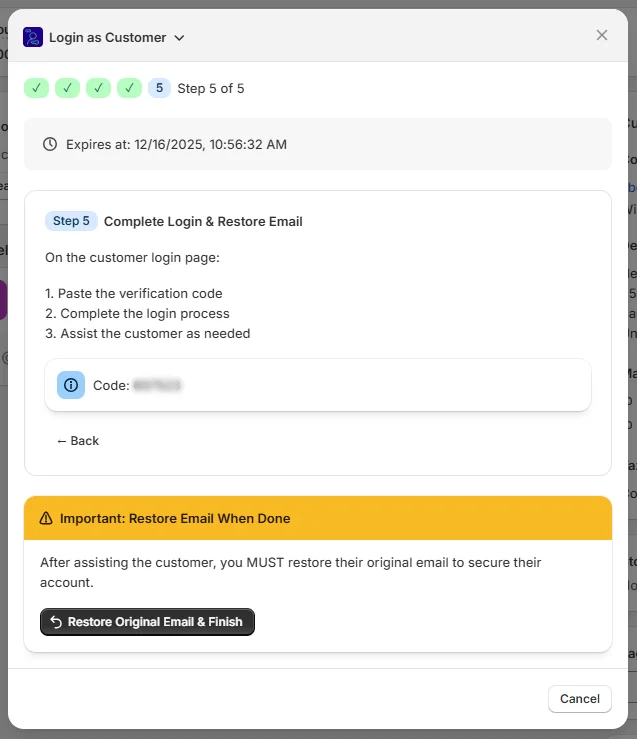
You will now see the 6-digit Shopify login code.
On the login page:
- Enter the code
- Complete the login
- You are now fully logged in as the customer
Use this session to help with checkout, review discounts, fix issues, or test the customer experience.